Pay checks on delivery (COD)
When a COD vendor is waiting for a check, enter the invoice in Nexsyis and print the check on the spot with Pay it Now.
Before you begin
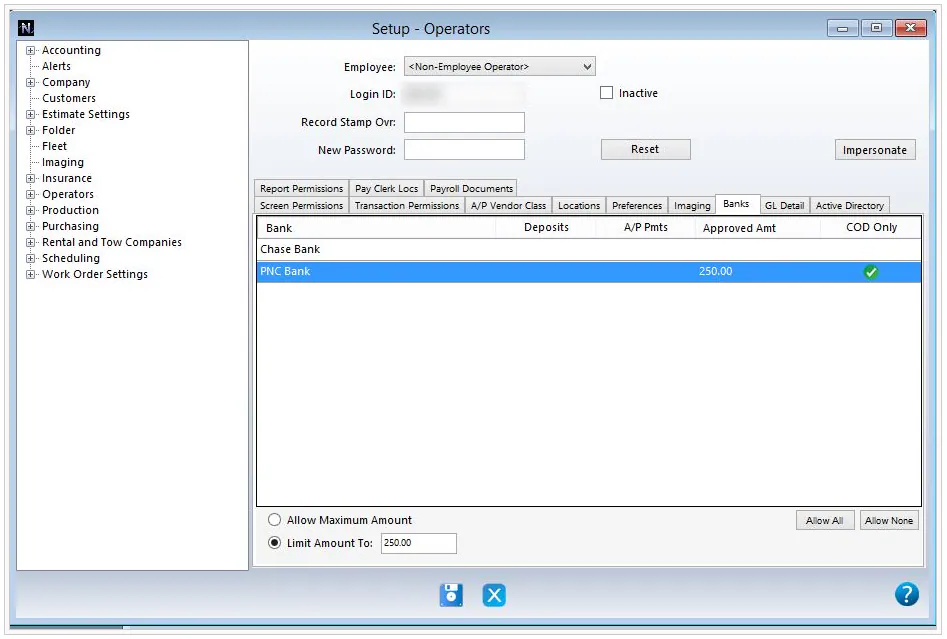
Section titled “Before you begin”- You need permission to the bank you print from, for at least the amount of the check. See Set up COD vendors and operators.
Print a COD check
Section titled “Print a COD check”-
Create a new AP invoice.
-
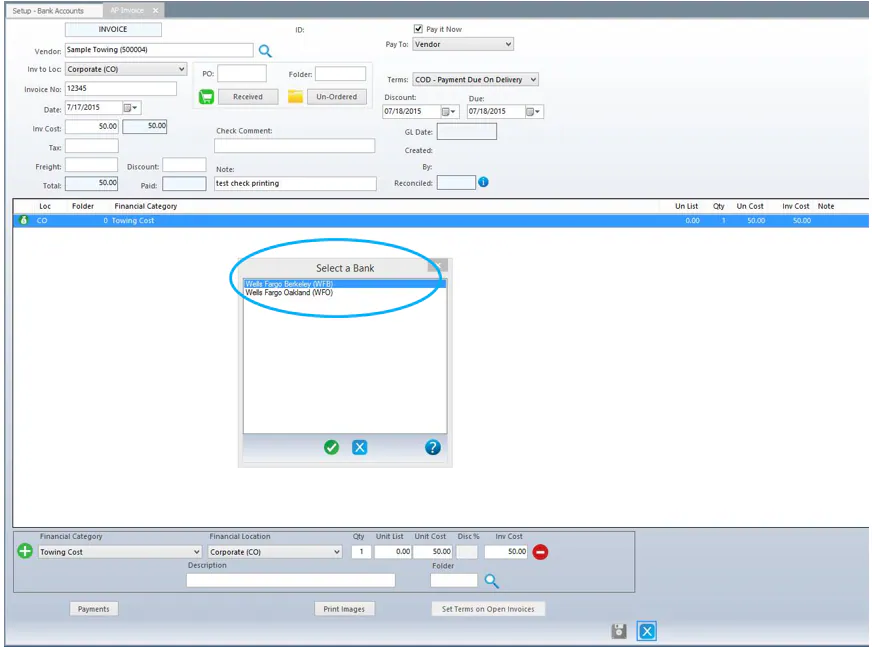
At the top right, check Pay it Now.
-
Save the invoice. When asked, select the bank you print checks from.
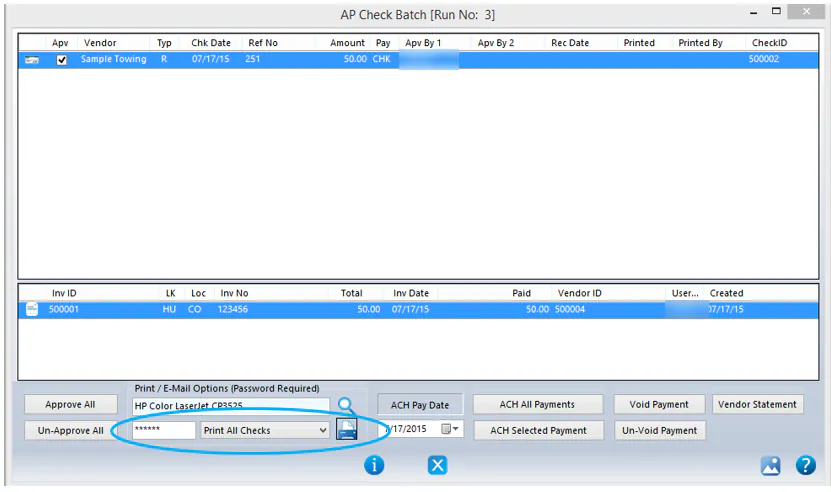
The AP Check Batch screen opens so you can print the check.
-
Check the box under Apv to approve the check.

-
At the bottom of the screen, enter your password and select the Print icon.
-
A preview of the check opens. If it’s correct, select Print again, then OK.
-
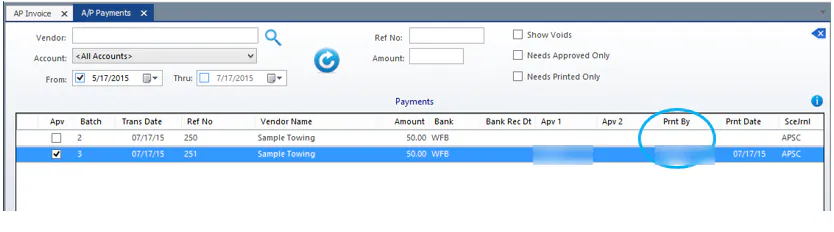
When asked whether to mark the checks as printed, check the printed check. If it printed correctly on the check stock, select Yes.
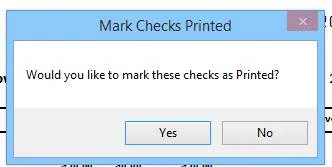
Your user ID shows under Prnt By.
Set up COD vendors and operators
Section titled “Set up COD vendors and operators”Vendors you always pay COD
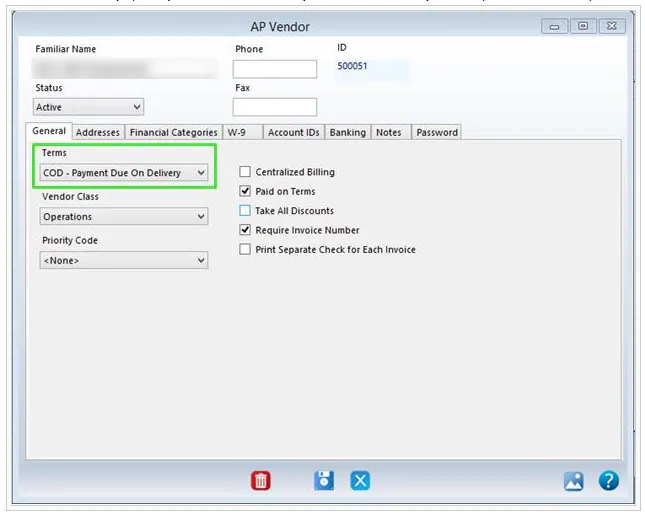
Section titled “Vendors you always pay COD”On the vendor’s General tab, set Terms to COD - Payment Due On Delivery.
Operators who print COD checks
Section titled “Operators who print COD checks”- Open the operator’s setup and select the Banks tab.
- Select the bank you print COD checks from.
- Do one of the following:
- To let the operator print any AP check, turn on A/P Pmts.
- To let the operator print only COD checks, turn on COD Only.
- Below the list, select Allow Maximum Amount for no limit, or select Limit Amount To and enter the most the operator can print a check for.