
Set up financial categories
Financial categories are your general ledger accounts. This page explains what each financial category includes and how to create a new one from an existing account.
How it works
Section titled “How it works”Each financial category has:
- An account number that follows your chart of accounts.
- Checkbox settings that control which screens it appears on.
- Mapping to a line on your financial statements. See Use the GL report map.
A new financial category doesn’t appear on your financial statements until it’s mapped to a report line.
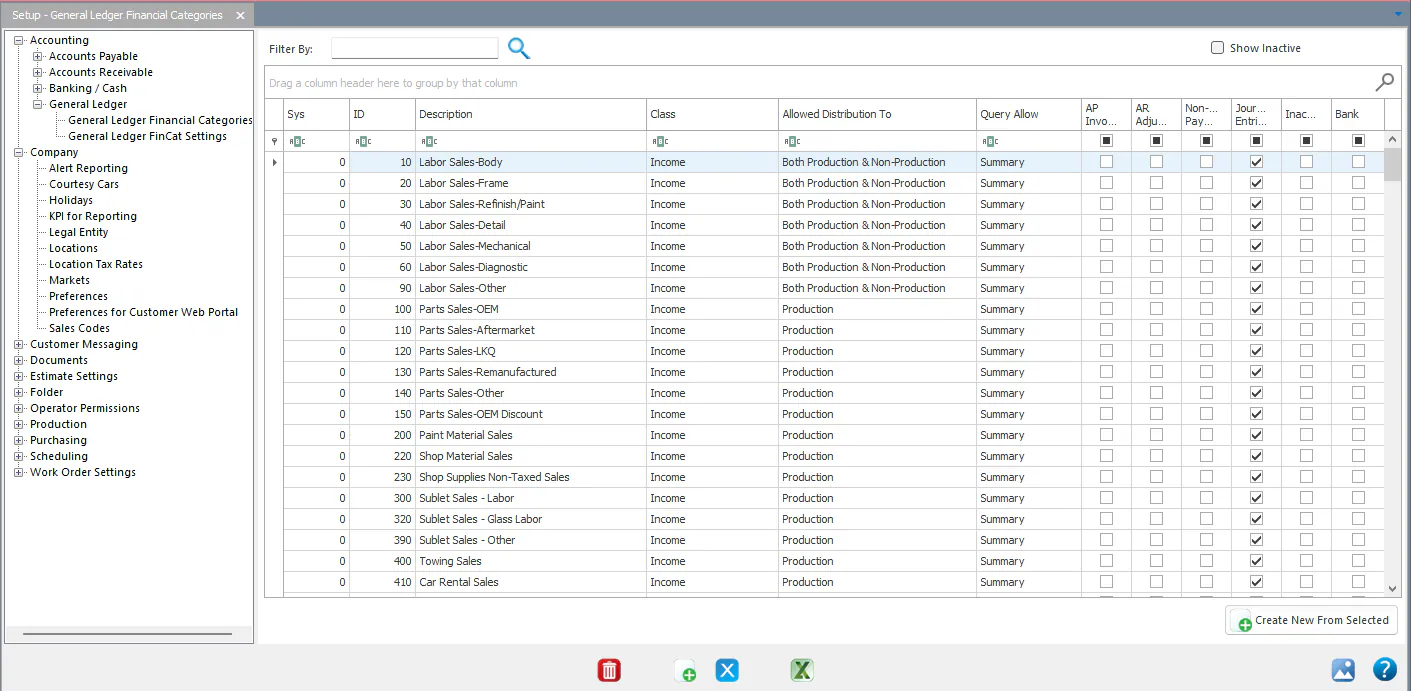
Financial categories are listed in Setup › Accounting › General Ledger › General Ledger Financial Categories.
What the checkboxes do
Section titled “What the checkboxes do”The checkboxes control where an account appears:
- AP: when posting AP invoices.
- AR Adjustments: when posting AR adjustments.
- Non-AR Payments: when posting non-AR payments.
- Journal Entries: when entering journal entries.
For example, a sales account is usually set up like this:
- AP: cleared. You never pay vendors to a revenue account.
- AR Adjustments: selected, in case it needs adjustments.
- Journal Entries: selected, in case it needs manual GL entries.
- Non-AR Payments: cleared. It doesn’t apply.
Create a financial category
Section titled “Create a financial category”- Select an existing account that’s like the new one. For example, to create a sales account, select an existing sales account; to create a cost account, select an existing cost account.
- Select Create New From Selected.
- Change the account number and name to match the new financial category.
- Review and set the checkboxes.
After you create it, map it to your financial statements, or ask Nexsyis Support to. See Request a new GL account or financial category.
GL FinCat Settings
Section titled “GL FinCat Settings”Setup › Accounting › General Ledger › General Ledger FinCat Settings identifies the control accounts that Nexsyis posts to automatically, such as Accounts Receivable and Inventory - Purchases. It also includes:
- Unclaimed Property: the account an item is posted to when you want to remove it from the check register without changing the financial record behind it. For example, a check that never cleared, where you don’t want to void the check and reopen the invoice for payment.
- Legal Fees and Rent: used to identify postings for 1099 purposes. These may not apply to you. Review your 1099 plans to confirm.
- AP Cash Discounts: required even if you don’t take payment terms discounts from vendors.
- Payroll accounts: needed only if you use the full Nexsyis payroll system.