
Assign and complete tasks
Tasks are to-dos you assign to yourself, a coworker or a group. A task can be linked to a folder.
How tasks work
Section titled “How tasks work”-
To-Do lists your tasks due today or earlier. Late tasks show in red.
-
Completed lists the tasks you’ve marked complete.
-
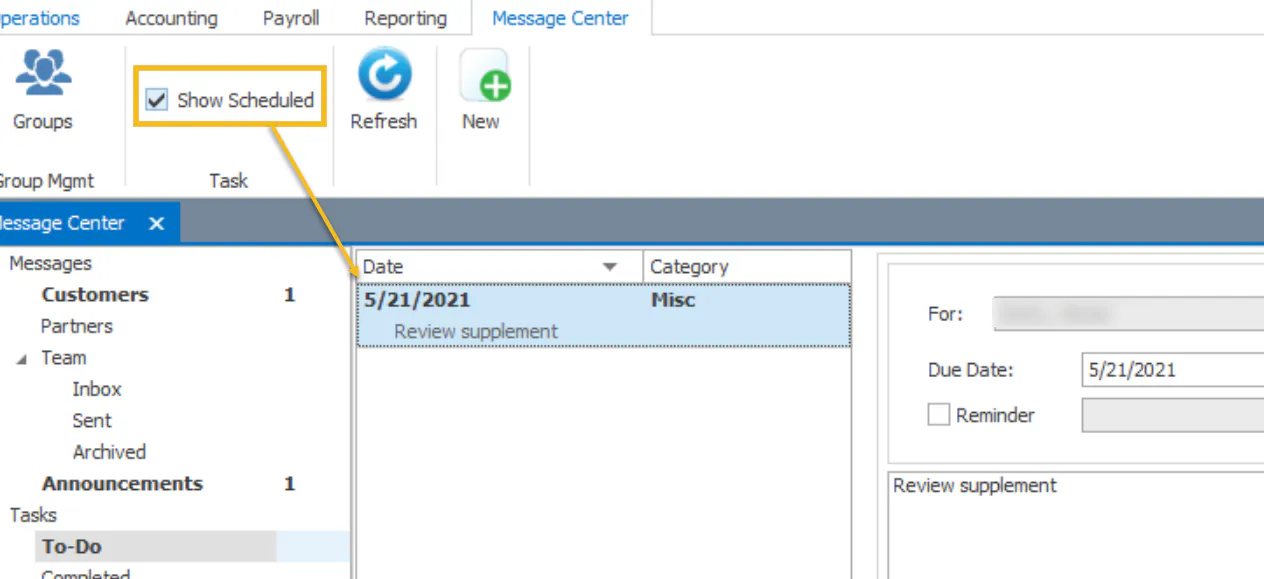
A task due later shows only when you select Show Scheduled.
-
When you have tasks due, a red tasks indicator shows at the bottom right of Nexsyis.

-
You can set a reminder on a task. At that date and time, a pop-up shows at the bottom right.
-
You can assign a task to a group and see which members have completed it.
-
Folder Needs Invoiced tasks are created by Nexsyis for folders that need to be invoiced again. They have their own inbox, and by default only the folder’s sales and service resources see them. To see all of them, turn on Subscribe to all.
Create a task
Section titled “Create a task”-
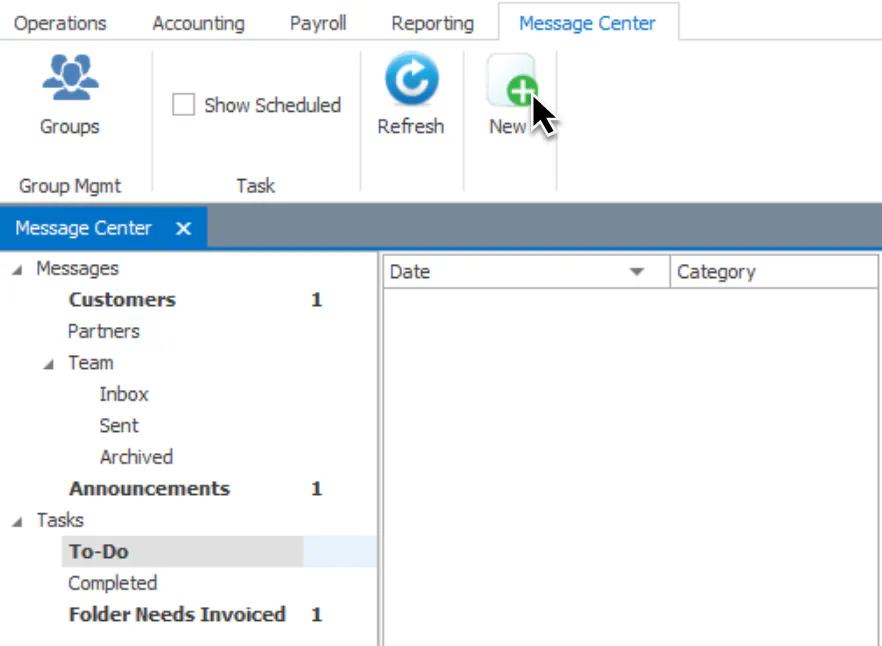
In the Message Center, go to Tasks and select New.
-
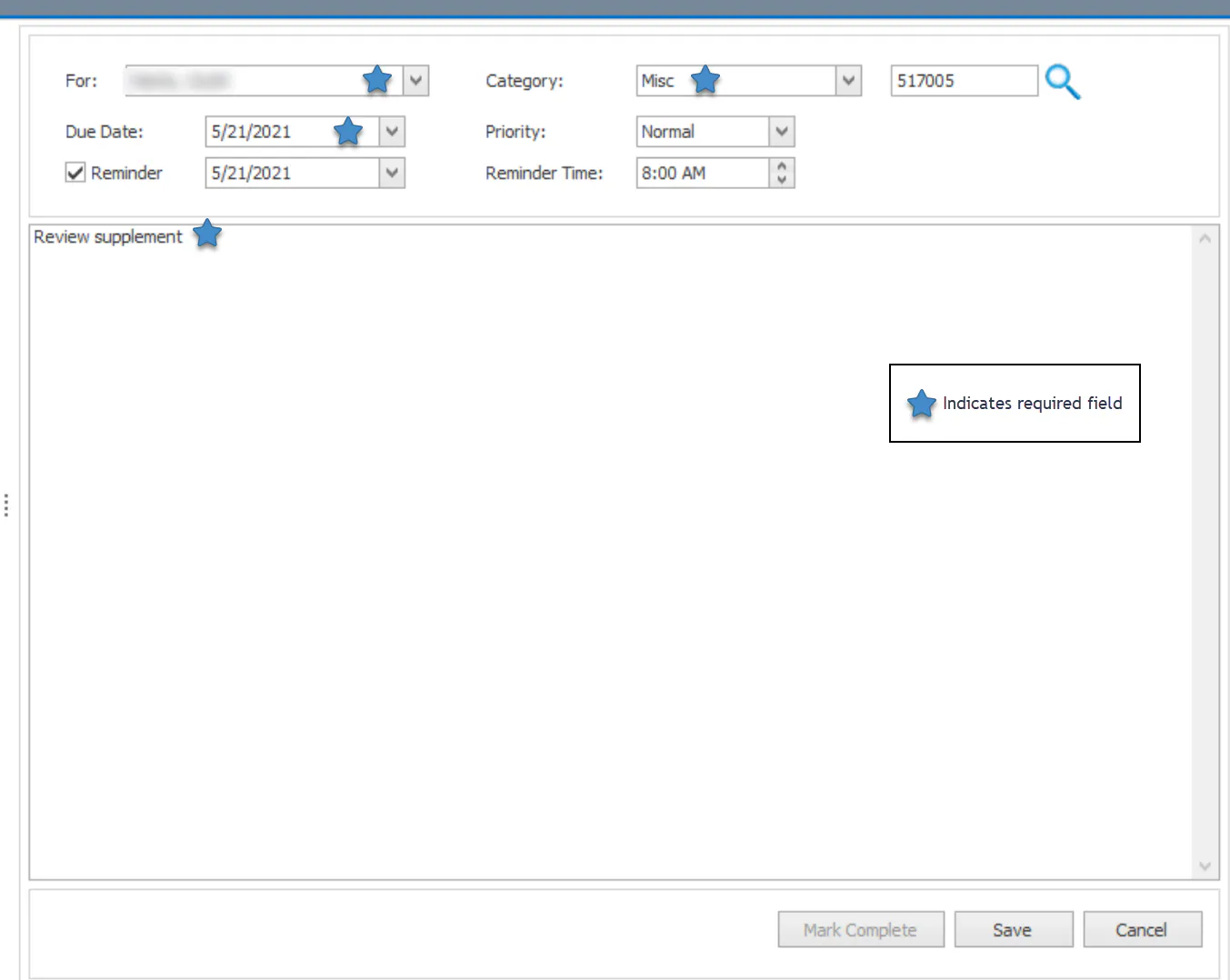
Fill in the task. To get a reminder, select Reminder and set the date and time.
-
Select Save.
The task shows in the list on the left. If it’s due on a later date, select Show Scheduled to see it.
Create a task for a folder
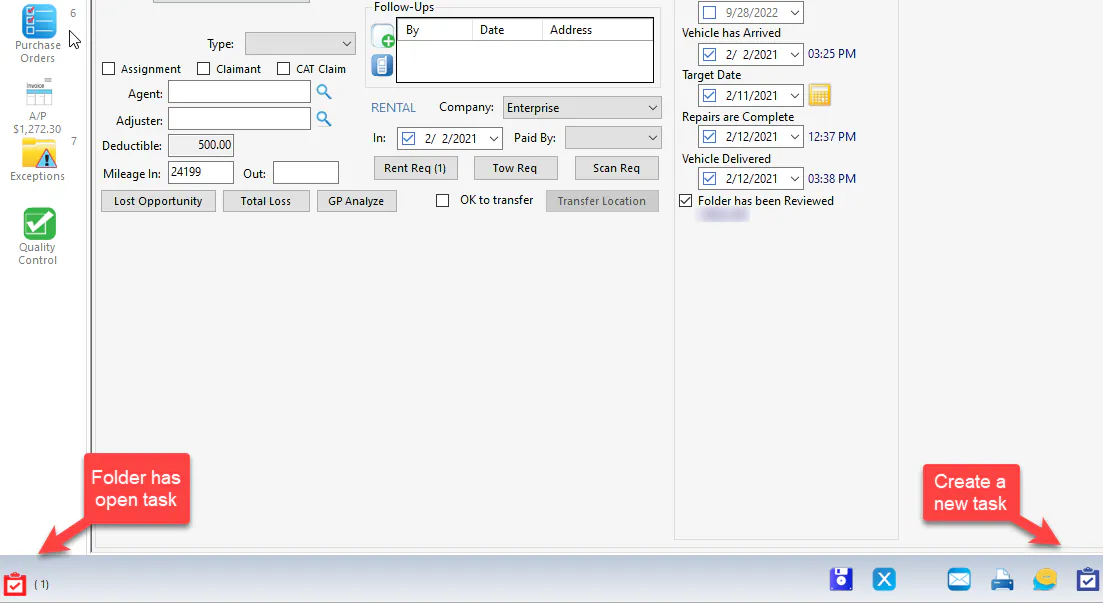
Section titled “Create a task for a folder”Create the task in the Message Center and link it to the folder, or select the blue Tasks button on the folder’s button bar.
When a folder has an open task, a red tasks indicator with the count shows at the bottom left of the folder. The task is recorded on the folder’s Notes tab with the category New Task. When it’s completed, a Task Complete note is added.
Complete a task
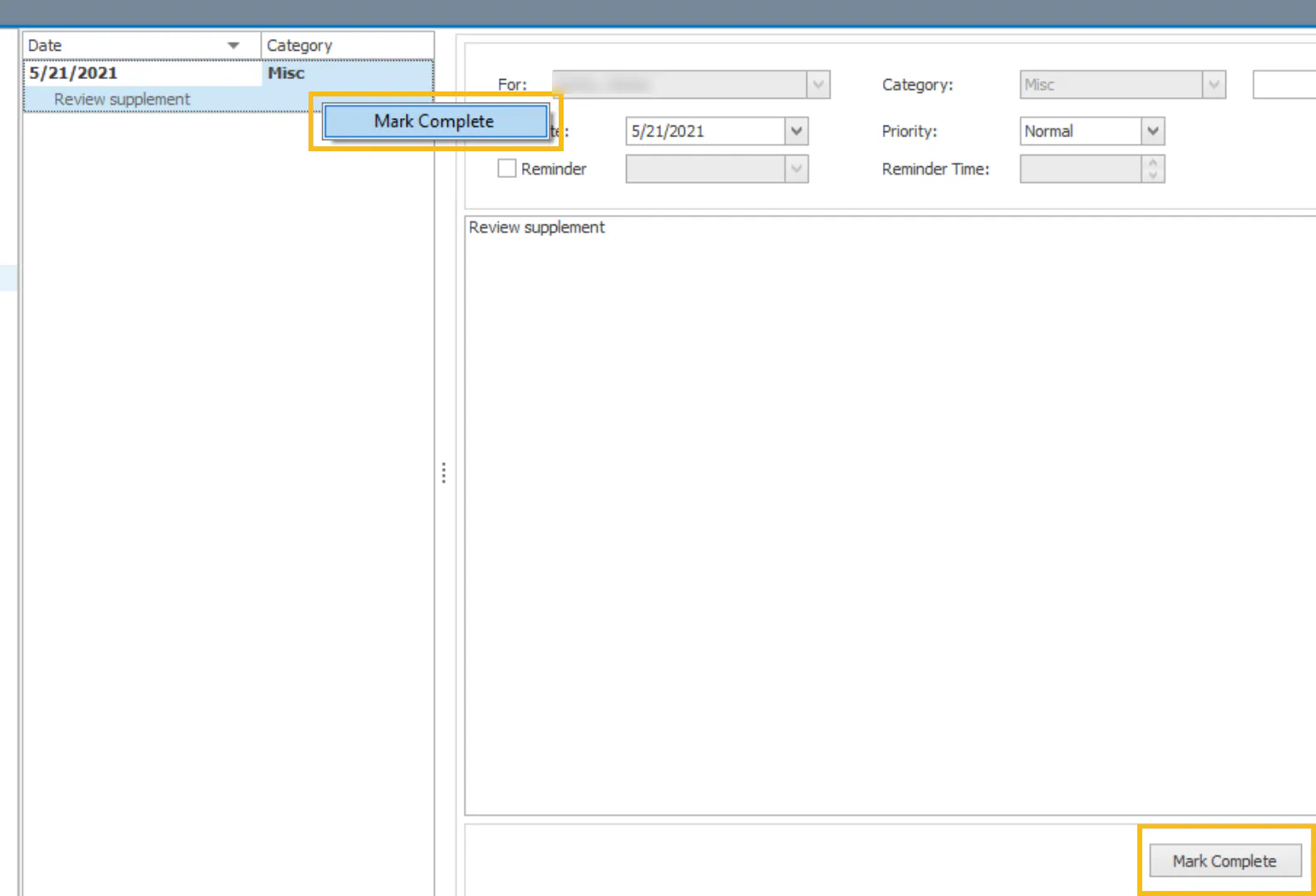
Section titled “Complete a task”Select Mark Complete at the bottom of the task, or right-click it in the list and select Mark Complete.
Set up task categories
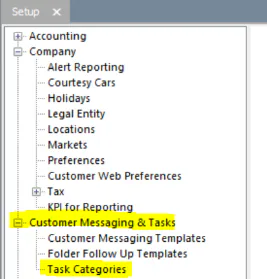
Section titled “Set up task categories”To manage task categories, go to Setup › Customer Messaging & Tasks › Task Categories.
The task list
Section titled “The task list”Select the tasks icon at the top right to open Tasks in the Message Center. Your tasks are sorted by priority and due date.
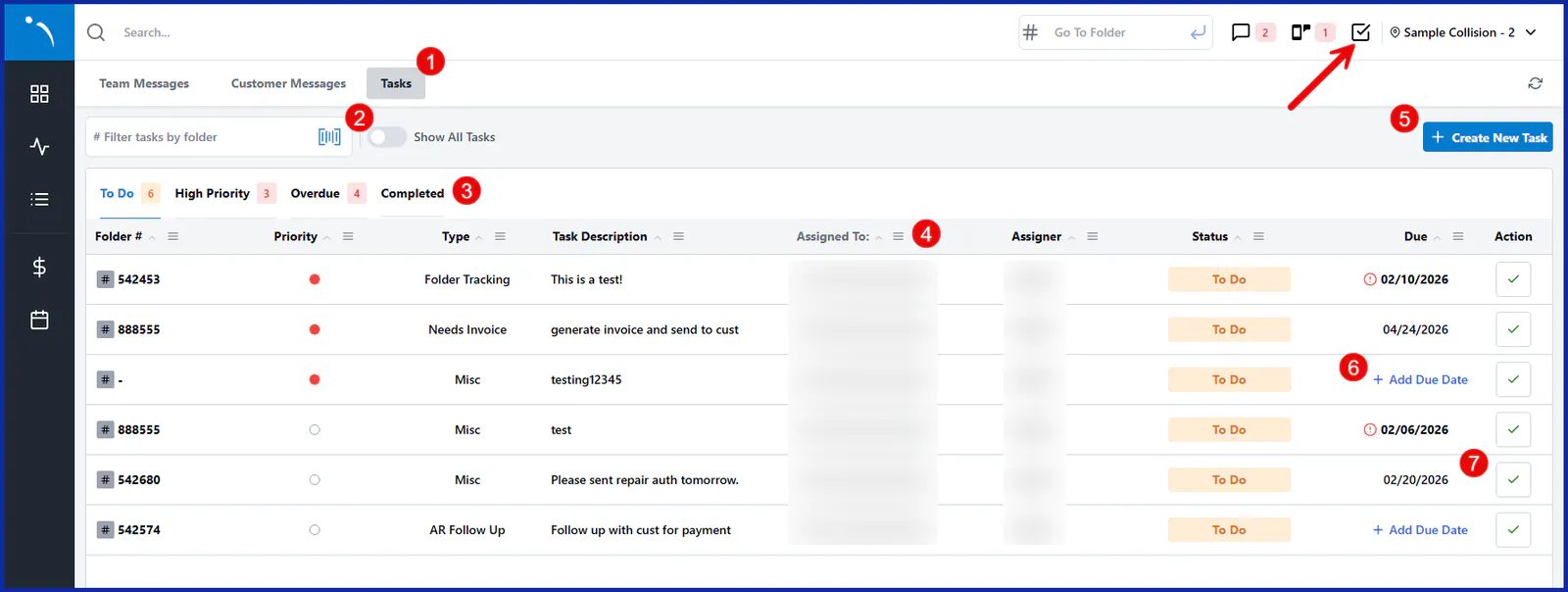
- Switch between Team Messaging, Customer Messaging and Tasks at the top.
- Turn on Show All Tasks to see tasks for every location.
- Switch between To Do, High Priority, Overdue and Completed.
- Filter or sort any column. For example, show all tasks and filter by assignee to see what a coworker has pending.
- To change a task’s details, such as its due date, select the pencil icon next to the field.
- To complete a task, select the green check mark on its line.
Create a task
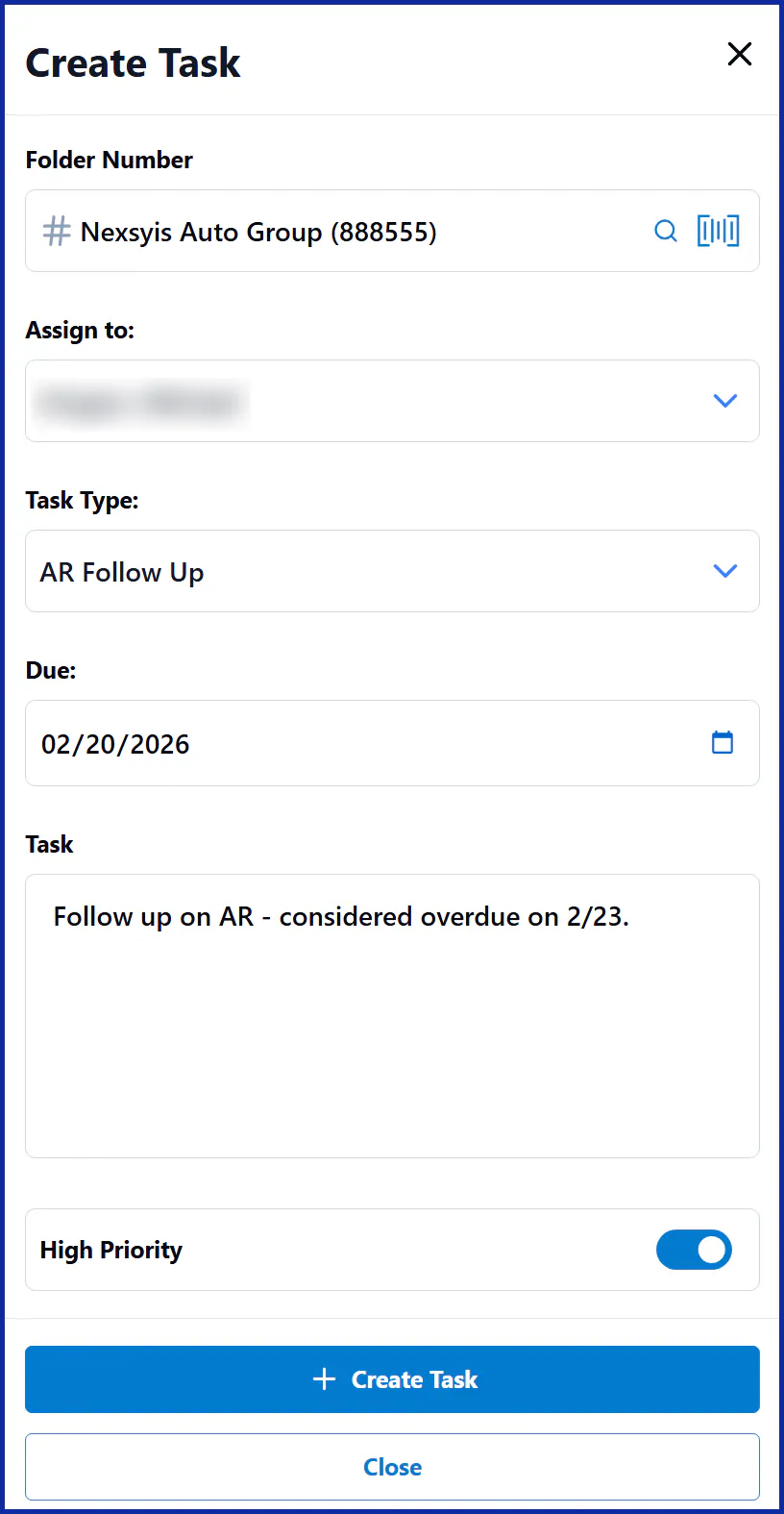
Section titled “Create a task”- Select +Create New Task.
- To link the task to a customer, search for and choose the folder number.
- Choose an assignee, if needed.
- Choose a task type. It’s required.
- Enter a due date, if needed, and the task description.
- To flag the task as important, turn on High Priority.
- Select + Create Task.
Tasks on a folder
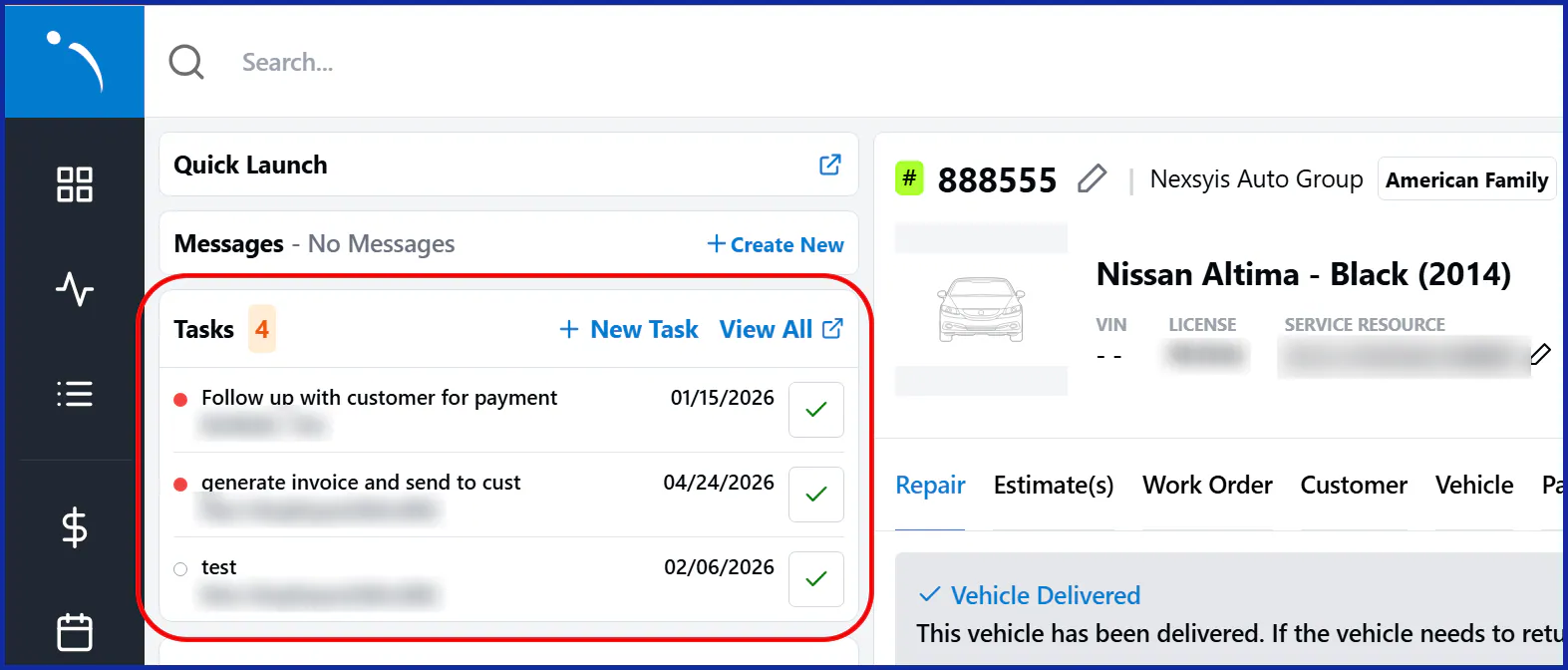
Section titled “Tasks on a folder”A folder’s tasks show in the left panel, under customer messaging and above appointments and the repair timeline. Up to three tasks show, sorted by priority and due date.
- Select +New Task to create a task for the folder.
- Select View All to see all the folder’s open tasks, whoever they’re assigned to. You can create, edit and complete tasks there as you would in the Message Center.
In the Nexsyis mobile app
Section titled “In the Nexsyis mobile app”- View your tasks: the Tasks screen shows tasks assigned to you.
- Complete a task: swipe left on it.
- See all open tasks on a folder: in the folder, turn on Show All Open Tasks. Otherwise you see only your own.
To create a task, start from a folder or the Tasks screen:
- Enter the folder number. If you started from a folder, it’s filled in.
- Choose the task type.
- Set the due date.
- Enter the task description.
- Select Assign Task.
- Choose who to assign it to. When you start from a folder, the list shows the folder’s technician, sales and service resources, and you can switch to see everyone else. Star the people you assign to most so they show at the top.
- Confirm.