
Set up labor resources
A resource is an employee who can be chosen on a folder, for example as the estimator in Sales Resc, or allocated labor on the Labor Allocation screen. Make an employee a resource on their pay rate record, then set the sales codes for their job code so they show in the labor allocation list.
How the Resource list works
Section titled “How the Resource list works”On the Labor Allocation screen, the Resource drop-down lists resources for the selected labor type at the current location.
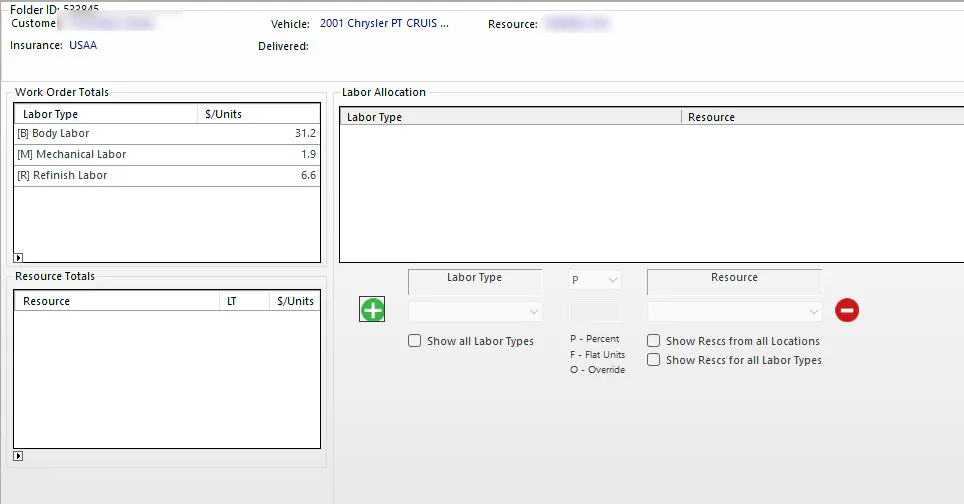
An employee shows in the list when:
- They’re set as a resource on their pay rate record.
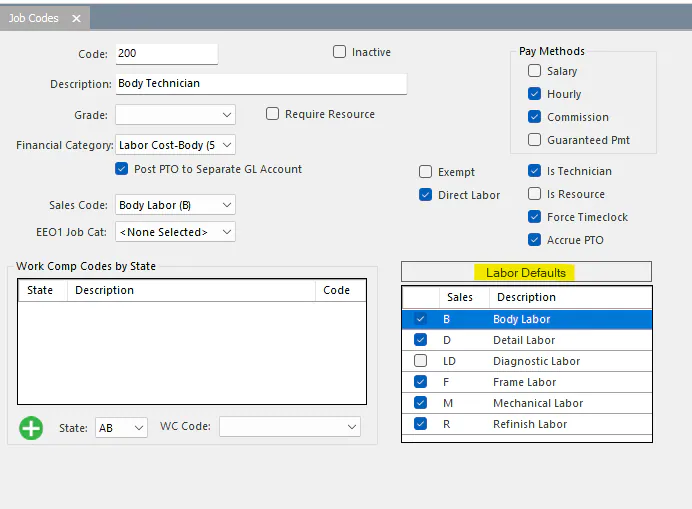
- Their job code has the labor type’s sales code under Labor Defaults.
The same resource setting puts an employee, such as an estimator, in the Sales Resc and Service Resc drop-downs on the folder.
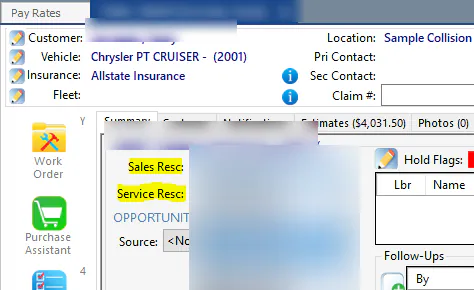
Set an employee as a resource
Section titled “Set an employee as a resource”-
On the Payroll tab, select Pay Rates.
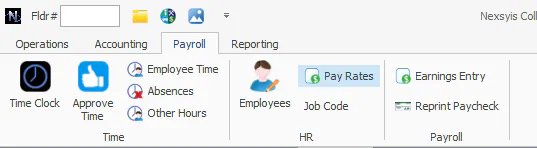
-
Search for the employee and select them.
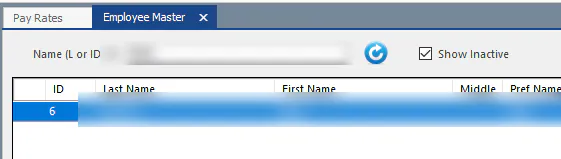
-
Select the employee’s active pay rate record. If they don’t have one yet, see Set employee pay rates.
-
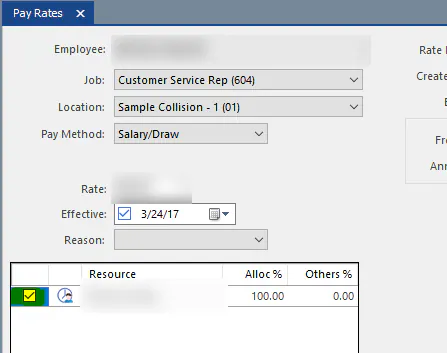
In the Resource section, select the checkbox next to the employee’s name.
-
Select a Reason, for example Correction.
-
Select Save.
Set the job code’s labor defaults
Section titled “Set the job code’s labor defaults”-
On the Payroll tab, select Job Code.
-
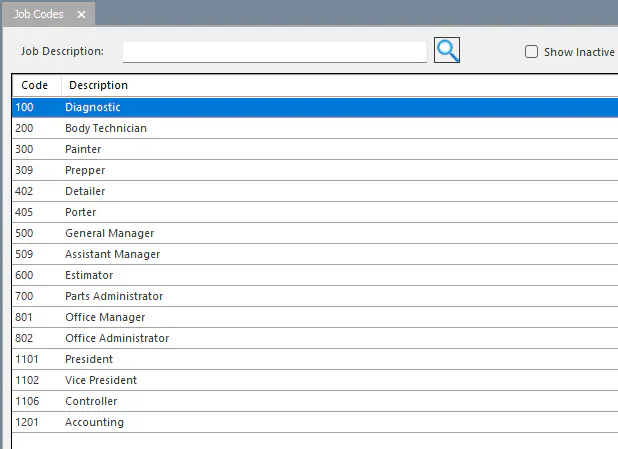
Double-click the job code to open it.
-
Under Labor Defaults, select the checkbox for each sales code that applies to this job code.
-
Select Save.
Every employee with this job code now shows as a resource in the default Resource list for those sales codes.