
NexsyisNow overview
NexsyisNow is the Nexsyis web app for production. It runs in any internet browser and sizes itself to the device’s screen, so you can use it on a computer, tablet or phone.
Open NexsyisNow
Section titled “Open NexsyisNow”Open NexsyisNow in any internet browser:
- United States: www.nexsyisnow.com
- Canada: www.nexsyisnowca.com
To open NexsyisNow from your phone like an app, add it to your home screen.
Log in
Section titled “Log in”Log in with the same username and password you use for desktop Nexsyis.
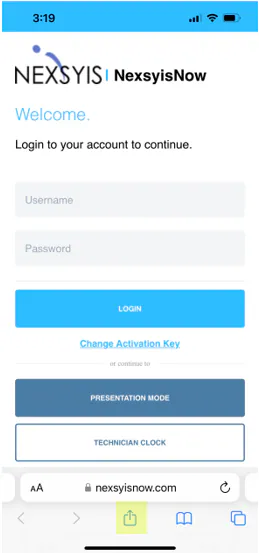
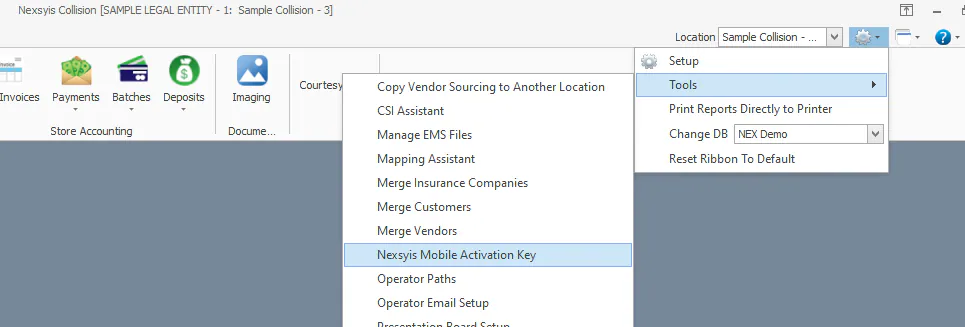
The first time you log in on a device, you also enter your company’s activation key. To find the activation key:
-
In desktop Nexsyis, open the settings menu at the top right and select Tools.
-
Select Nexsyis Mobile Activation Key.
To enter a different activation key later, select Change Activation Key on the login page.
The login page also opens Presentation Mode and the Technician Clock. See Show the production board in presentation mode and Clock in and out of repairs.
What you can do in NexsyisNow
Section titled “What you can do in NexsyisNow”Work the In Process list
Section titled “Work the In Process list”- See every folder from arrival through the final repair stage.
- Search the In Process list, or all folders in Nexsyis.
- Change locations, apply filters and choose what’s shown.
See Use the In Process list and Find a folder.
View and update folders
Section titled “View and update folders”From a folder you can:
- View customer and vehicle information. See Folder overview.
- Update production information such as holds, actions and priority. See Put a vehicle on hold.
- View the estimate and work order. See View a work order.
- Check in customers. See Check in a vehicle with e-Vehicle Check-In.
- Update dates. See Set the target date and View the repair timeline.
- Add and view documents. See Attach documents to a folder.
- Add notes. See Add notes to a folder.
- Add and manage photos and videos. See Add photos to a folder and Add videos to a folder.
- Update the repair plan and repair stages. See Edit a vehicle’s repair plan.
- Manage quality control. See Complete a quality control check.
- Message customers. See Text customers.
- Allocate labor. See Allocate labor.
- Mark a folder as a total loss or lost opportunity. See Handle a total loss and Mark a folder as a lost opportunity.
Message your team
Section titled “Message your team”View messages and send messages to coworkers. See Message your team.
Schedule appointments
Section titled “Schedule appointments”Book and view appointments. See Create an appointment and Scheduling screen overview.
Use Presentation Mode
Section titled “Use Presentation Mode”Show the In Process list in a read-only view that refreshes on its own, for example on a TV on the shop floor. You can also show dashboards this way. See Show the production board in presentation mode.