
Run the sales tax report
Each month, close your GL periods, finalize the month’s sales tax, then run the Sales Tax Report to see what you owe.
Nexsyis doesn’t calculate tax on imported estimates. It reports the tax from your estimating system and helps you spot problems: estimate lines coded as taxable or non-taxable incorrectly, and folders with the wrong tax-exempt setting.
Before you begin: keep tax coding accurate
Section titled “Before you begin: keep tax coding accurate”Review these two areas regularly so the report is right at month end.
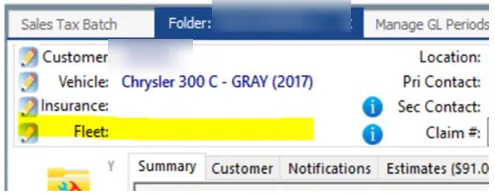
Set the fleet on fleet vehicles
Section titled “Set the fleet on fleet vehicles”Make sure the Fleet is set on the folder for every fleet vehicle. The fleet record controls whether its folders are taxed.
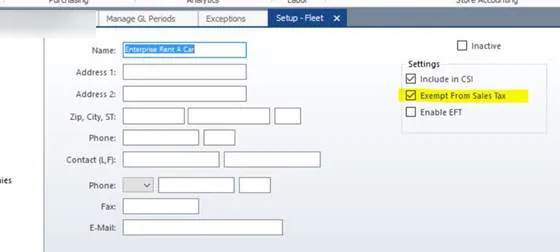
If the fleet doesn’t pay sales tax, select Exempt From Sales Tax under Settings on the fleet record.
See Add or change fleets and Add a fleet vehicle to a folder.
Review Sales Tax Conflict exceptions
Section titled “Review Sales Tax Conflict exceptions”When you import an estimate, Nexsyis creates a Sales Tax Conflict exception for each line it thinks is incorrectly coded as taxable or non-taxable in the estimating system. Review these on the Exceptions screen.
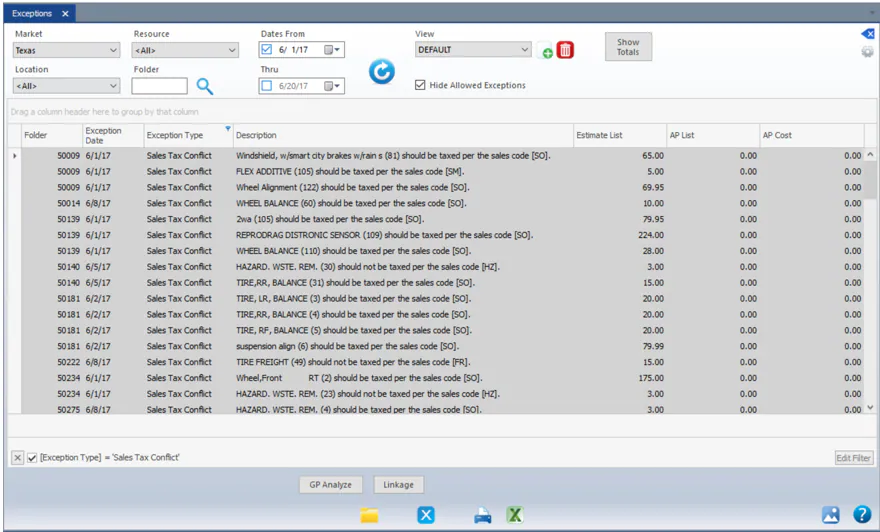
To fix a conflict, see Sales tax on estimates and Review exceptions.
Report sales tax for the month
Section titled “Report sales tax for the month”- Close your GL periods for the month. See Manage GL periods.
- Go to Accounting › Sales Tax.
- Review the month’s sales tax, then select Finalize at the bottom of the screen.
- Go to Reporting › Reports › Accounting › Accounts Receivable, and run the Sales Tax Report.
- Open the Summary tab. It shows the amount to pay.