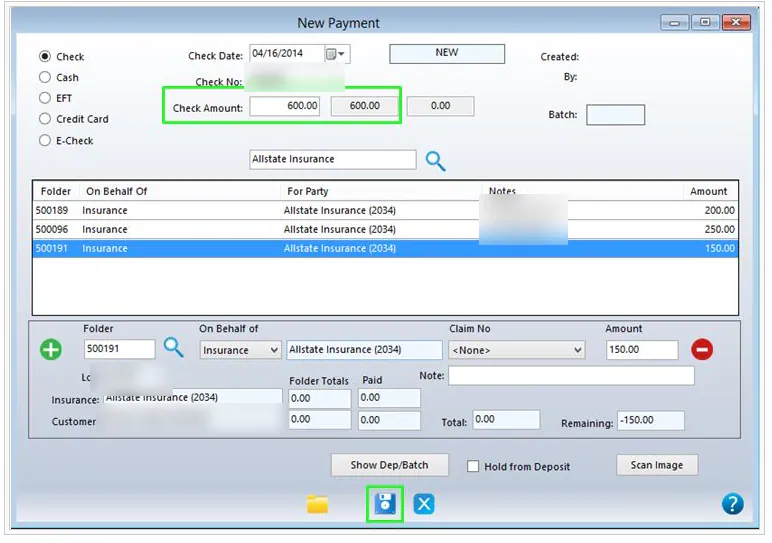
Apply one payment across several folders
When one payment covers several repairs, enter it once and add a distribution line for each folder.
-
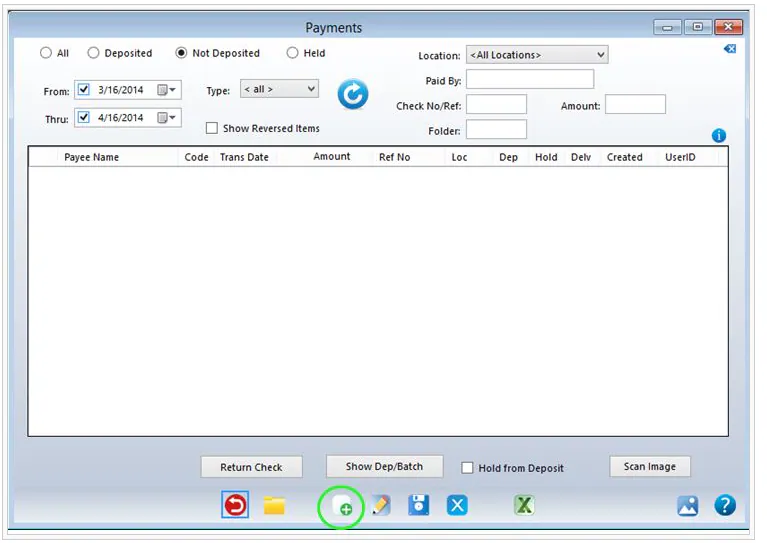
Open the Payments screen and select New.
You can open it from the AR Payment button on the imaging screen after scanning the payment, from Accounting › Accounts Receivable › Payments, or from the A/R tab of one of the folders.
-
Enter the payment details at the top. Use the search button to find the right Paid By party.
-
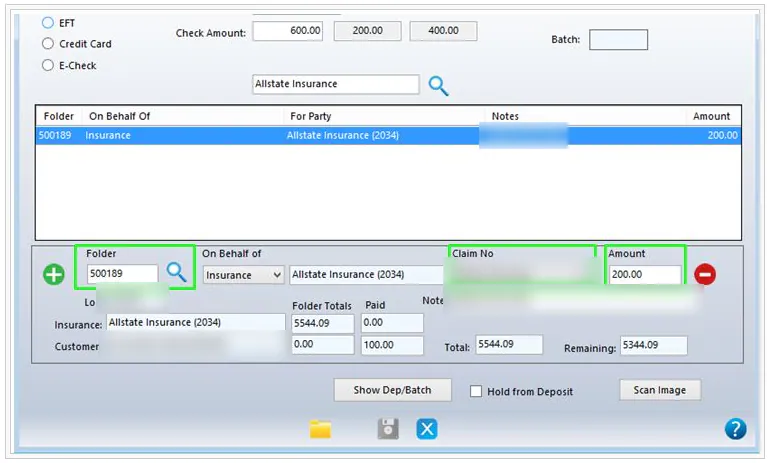
In Folder, type the folder number or the first few letters of the customer’s last name, and select the search button to find the folder.
-
Fill in the rest of the line, including Claim No and the Amount for that folder.
-
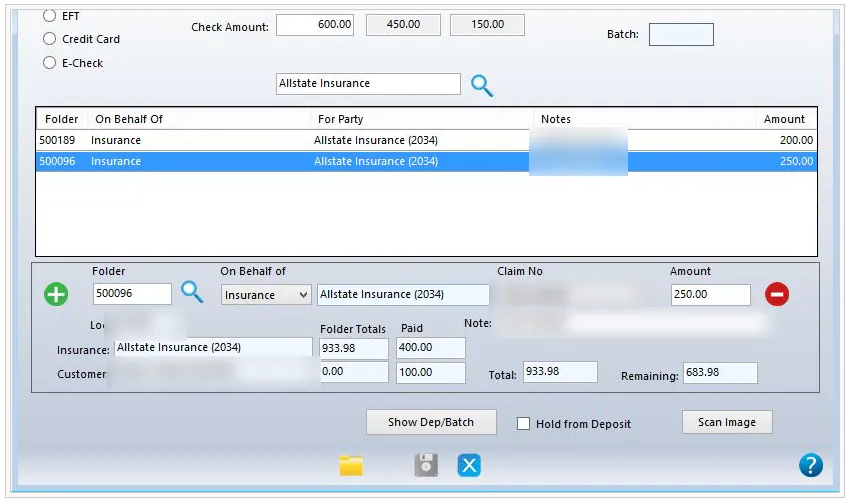
Select the green + button to add a line, then find the next folder and enter its details. Repeat for each folder.
-
When the line amounts add up to the payment amount, select Save.