
Get help from Nexsyis Support
When something in Nexsyis isn’t working as expected, email Nexsyis Support with a screenshot of the problem. This page shows how to capture the screenshot, what happens after you send it, and where to read about recent updates.
Capture a screenshot with Snipping Tool
Section titled “Capture a screenshot with Snipping Tool”A screenshot helps Support see exactly what you see. Windows includes Snipping Tool for this.
-
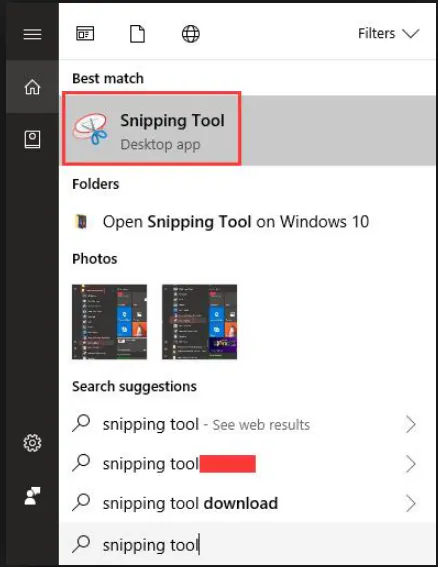
Select the Windows Start button, type snipping tool, then select Snipping Tool in the results.
-
In Snipping Tool, select Mode (in older versions, the arrow next to New), and choose the kind of snip:
- Free-form snip: draw any shape around an object.
- Rectangular snip: drag the cursor around an object to form a rectangle.
- Window snip: select a window, such as a dialog box.
- Full-screen snip: capture the entire screen.
-
Select the area of the screen you want to capture. The snip opens in the Snipping Tool window.
Send your request to Support
Section titled “Send your request to Support”Send the snip in one of these ways:
-
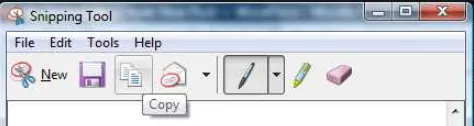
Select Copy, then paste the snip into your email or support ticket.
-
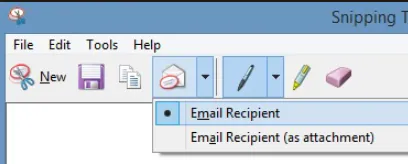
Select the email button’s arrow, then Email Recipient or Email Recipient (as attachment), and send it to support@nexsyis.com.
What happens next
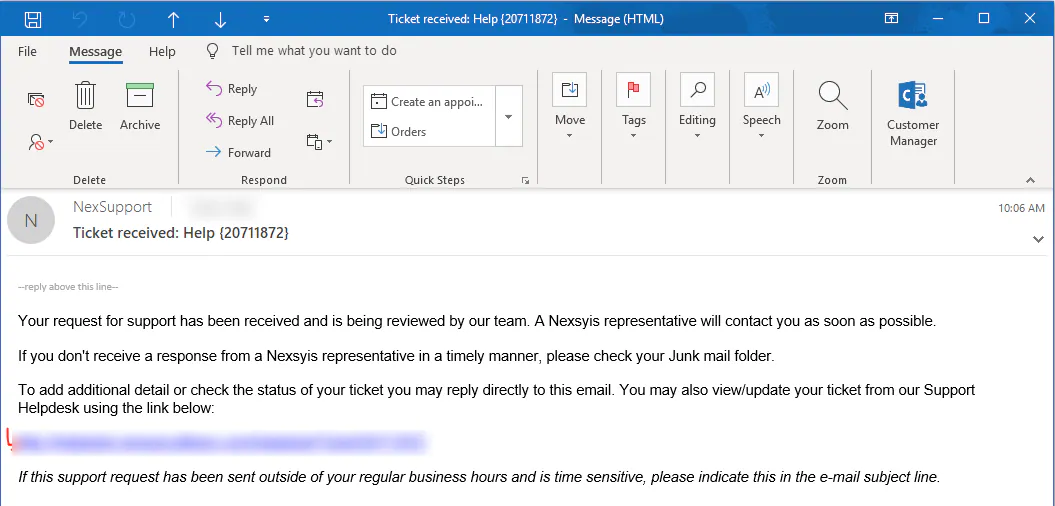
Section titled “What happens next”You get an automatic email from NexSupport confirming that your ticket was received. To add details or ask more questions, reply to that email.

A Nexsyis representative replies with a solution or asks for more information. They may ask you to start a remote support session so they can look at the problem on your computer.
Start a remote support session
Section titled “Start a remote support session”In a remote support session, the representative can see and control your computer from their location. If a representative emails you a support session link, open it and follow the instructions:
- When you’re prompted, download the file.
- Open the downloaded file.
- If you’re asked, select Run.
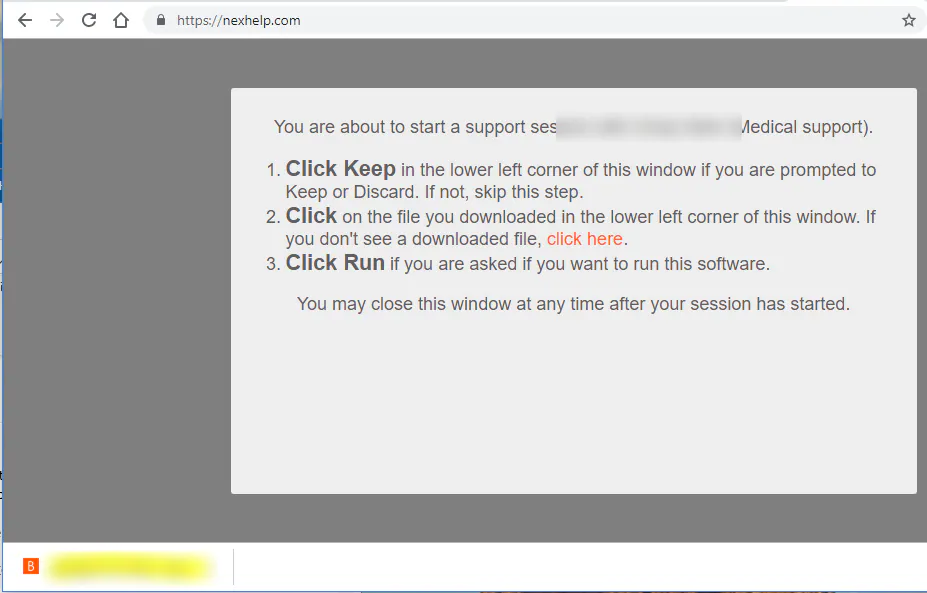
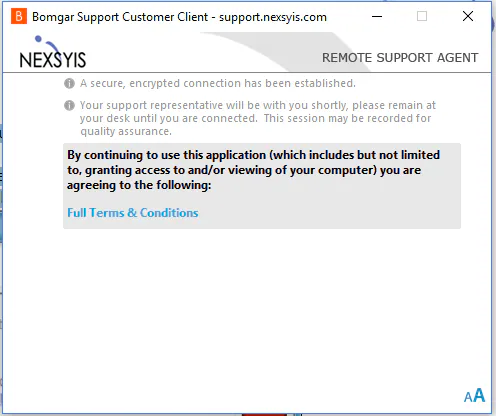
When the installation is done, a window tells you a representative will be with you shortly. You can use this window to chat with your representative.
Check the status of your ticket
Section titled “Check the status of your ticket”Reply to the confirmation email, or select the link in it to open the Nexsyis Support Helpdesk. Register on the Helpdesk to see the status and history of all your open tickets.
Read about recent updates
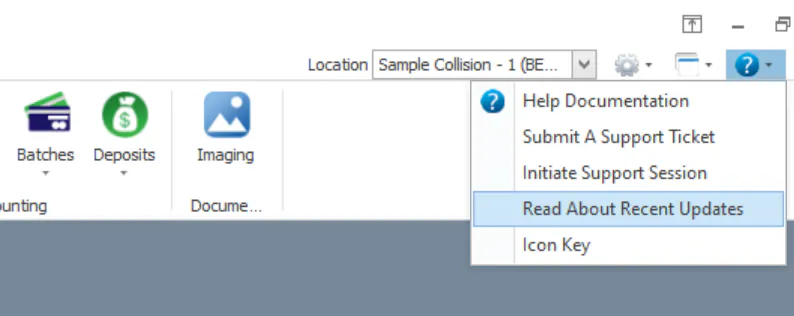
Section titled “Read about recent updates”To see what’s changed in Nexsyis, select the help icon (?) at the top right, then select Read About Recent Updates.
You can also subscribe to the Nexsyis updates email list.