
Record a parts labor credit
Use this when a vendor issues a separate credit memo for labor, and the vendor doesn’t discount the invoice total. The parts employee enters the credit memo, and the estimator or manager adds the labor to the folder.
Enter the credit memo (parts employee)
Section titled “Enter the credit memo (parts employee)”This is like entering a normal credit memo, but there’s no purchase order.
-
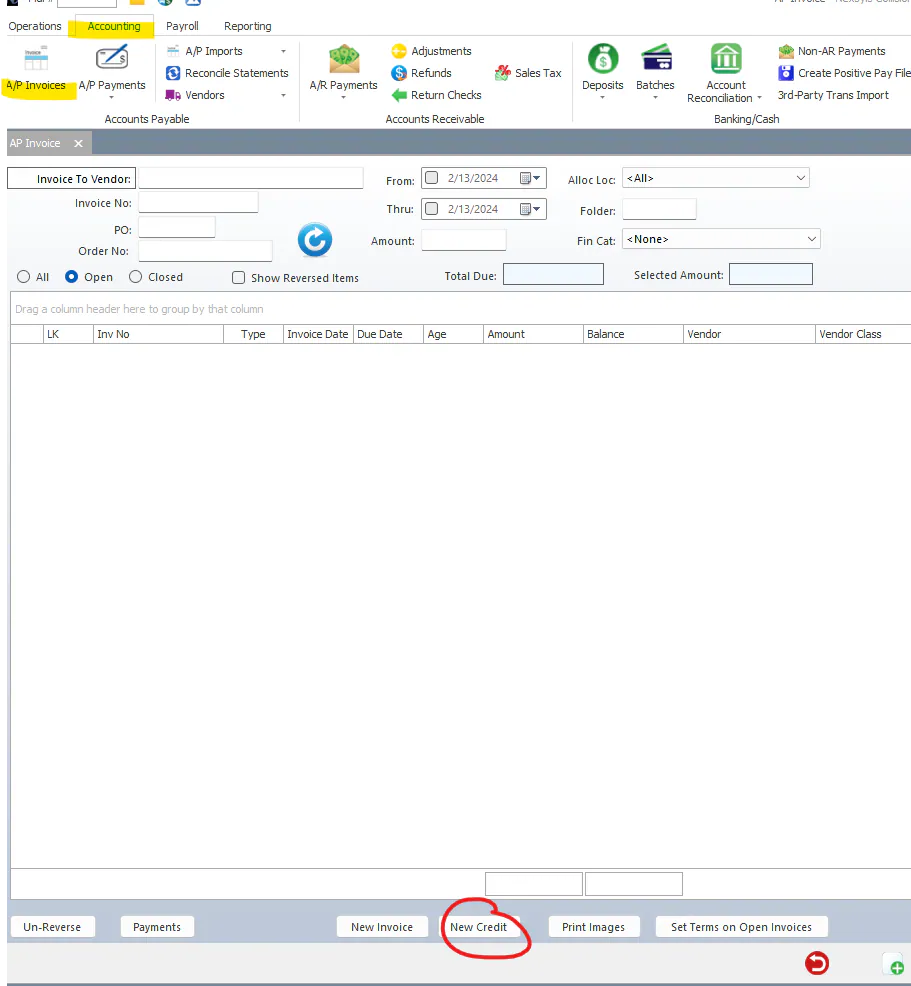
Open Accounting › A/P Invoices and select New Credit.
-
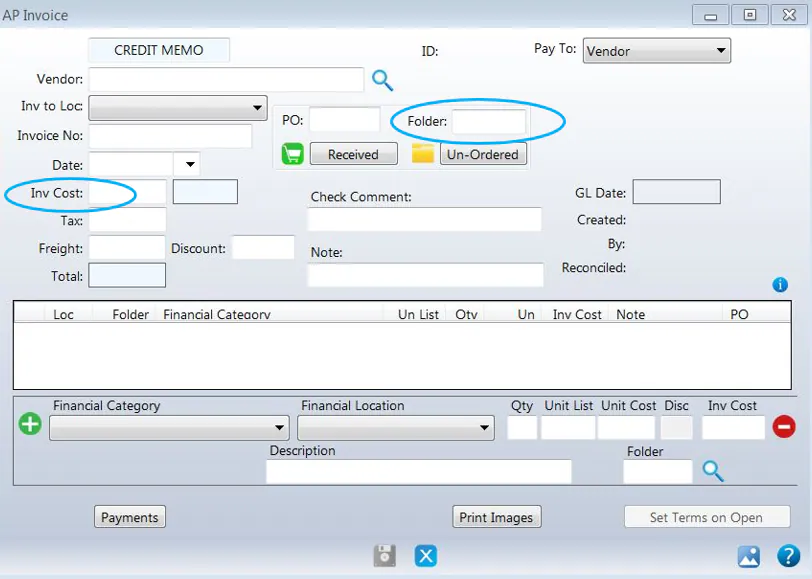
Enter the vendor, the invoice number and the amount.
-
In the bottom part of the screen, select New to add a line.
-
Choose Parts Labor Credit or Parts OEM as the financial category.
-
Enter the cost and the folder number.
-
Select Save.
Add the labor to the folder (estimator or manager)
Section titled “Add the labor to the folder (estimator or manager)”-
Open the folder’s work order.
-
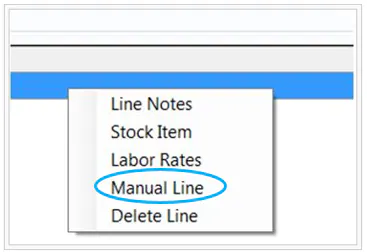
Right-click any line and select Create ‘Manual’ Line.
-
Create a labor line for the hours, using your shop’s approved formula and labor rate.

Troubleshooting: the right financial category isn’t in the list
Section titled “Troubleshooting: the right financial category isn’t in the list”Choose Labor COS as the financial category. If it isn’t in the list for that vendor, your accounting team needs to map it in the general ledger first. Contact Nexsyis Support if you need help setting this up.