
Message Center overview
The Message Center holds your customer messages, team messages, tasks and announcements in one place.
Open the Message Center
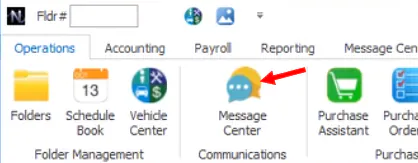
Section titled “Open the Message Center”- Select Message Center on the Operations tab.
- Or select one of the indicators at the bottom right of Nexsyis.
There’s a separate indicator for new customer messages, team messages, tasks and announcements. This user has all four:

Inboxes
Section titled “Inboxes”| Inbox | What’s in it | See |
|---|---|---|
| Customers | Texts and replies from customers | Text customers |
| Team | Messages from your coworkers | Message your team |
| Tasks | Tasks assigned to you, and Folder Needs Invoiced tasks | Assign and complete tasks |
| Announcements | Company-wide announcements | Post announcements |
| Partners | Texts with tow request drivers | Message partners |
Who’s notified of new customer messages
Section titled “Who’s notified of new customer messages”By default, the sales and service resources on a folder are notified of its messages. They’re also notified of unassigned messages for their default location. To get notifications for every location you have access to, turn on Subscribe to all.
When you log in, the message count includes unread messages for every location you have permission to. The Message Center itself opens filtered to your default location. To see counts for all locations, change the Location filter at the top.

Troubleshooting
Section titled “Troubleshooting”Marking a message as read marks it read for everyone
Section titled “Marking a message as read marks it read for everyone”Yes. Read status is shared across your company. Only mark a message as read if you’re the person who will answer it. Replying marks it read automatically.
Messages show in red
Section titled “Messages show in red”A red message failed to send. Usually the customer’s phone was off, or the number isn’t valid or is a landline.
- If the number is valid, wait and send the message again.
- To clear a red message, right-click it and select Delete. The menu also has Resend Failed Message.

The indicator shows new messages, but the Message Center doesn’t
Section titled “The indicator shows new messages, but the Message Center doesn’t”There are two usual reasons:
- The messages are more than 30 days old. Clear Restrict to last 30 days and refresh.
- The messages are for another location. The Message Center opens filtered to your default location and resource. To find them:
- Set the Location filter to All.
- Set the Resource filter to All.
- Filter the Read column by the unread icon.
If you don’t need messages for some locations, you can have your permissions for those locations removed. You’ll still see their folders in the Vehicle Center and folder search. Or leave the Message Center open in a tab, filtered to one location. The message count then shows only that location.
Messages show as unassigned
Section titled “Messages show as unassigned”A customer message isn’t assigned to a folder when its phone number isn’t on any folder, or is on more than one. Messages aren’t assigned to archived folders automatically either. Unassigned messages show folder number 0. To assign one, see Assign a message to a folder.