
Card payments aren't posting
If a card payment doesn’t show in the folder, or the card terminal gives an error, use this page to find and fix the cause.
How card payments post
Section titled “How card payments post”- Nexsyis sends the payment to Global Payments.
- Global Payments sends a confirmation back to Nexsyis.
- When the confirmation arrives, the payment shows in the folder.
If the connection to Global Payments drops and the confirmation doesn’t arrive, Nexsyis shows an error. In almost every case Global Payments did receive the payment.
Post a payment that didn’t show in the folder
Section titled “Post a payment that didn’t show in the folder”-
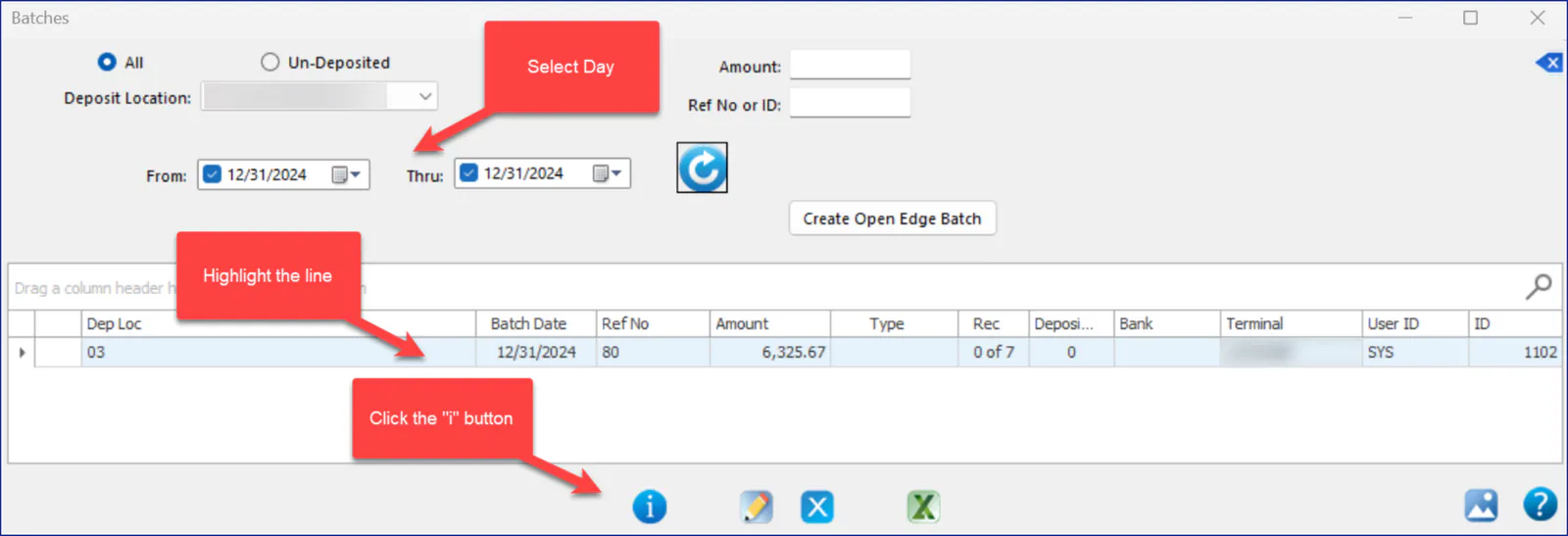
Select Batches › View Batches List.
-
Choose the Deposit Location and the date, then select the refresh button.
-
Select the batch line to highlight it, then select the i button.
-
The window that opens shows every payment sent to Global Payments on that date. Scroll to the far right.
-
Select the line that has a blank ARCheckID.
-
Select the New button.
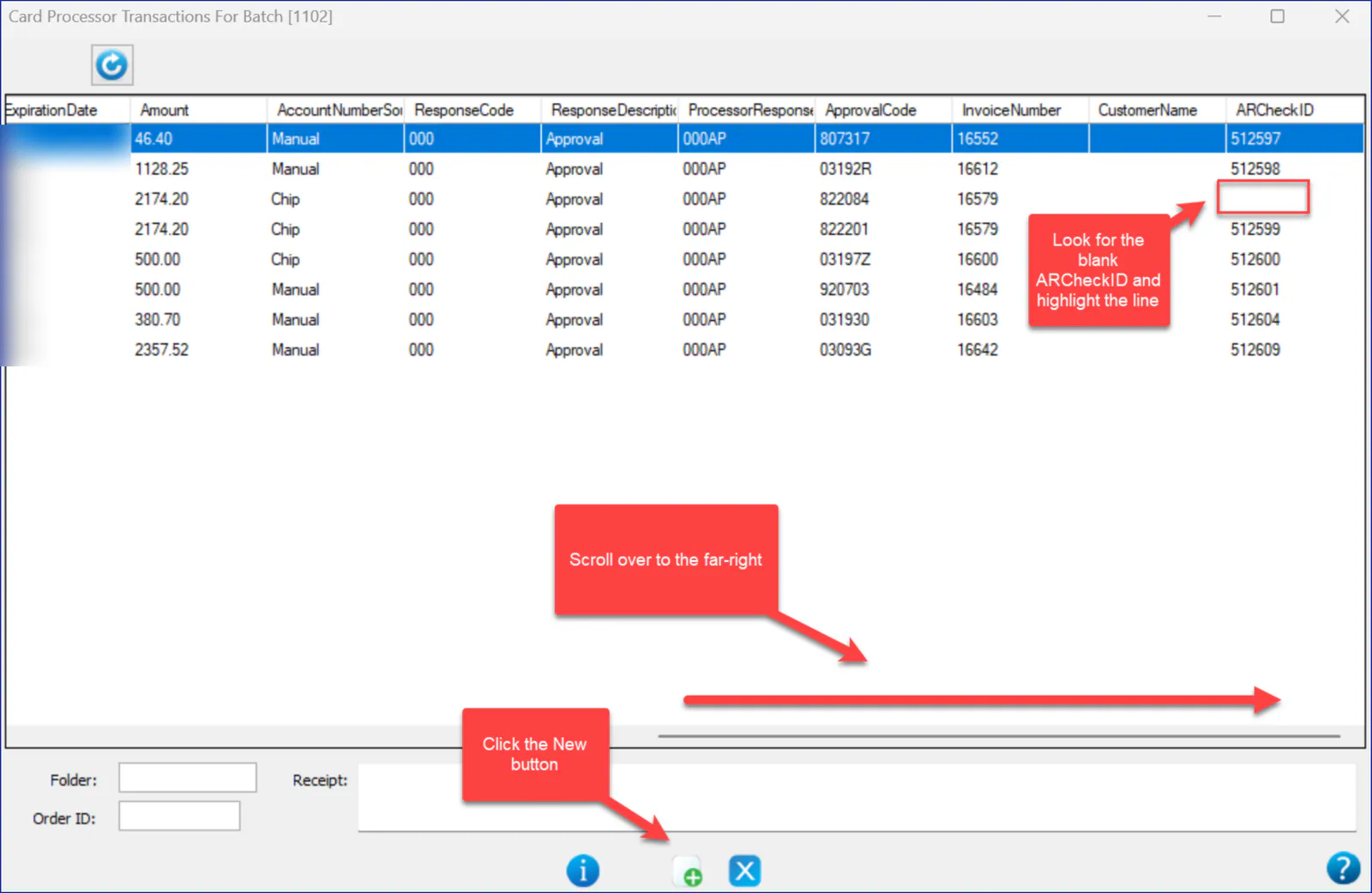
The payment now shows on the folder’s A/R tab, and you can refund it if you need to.

If the customer was charged twice, see Correct a duplicate charge.
Check that RCM is running
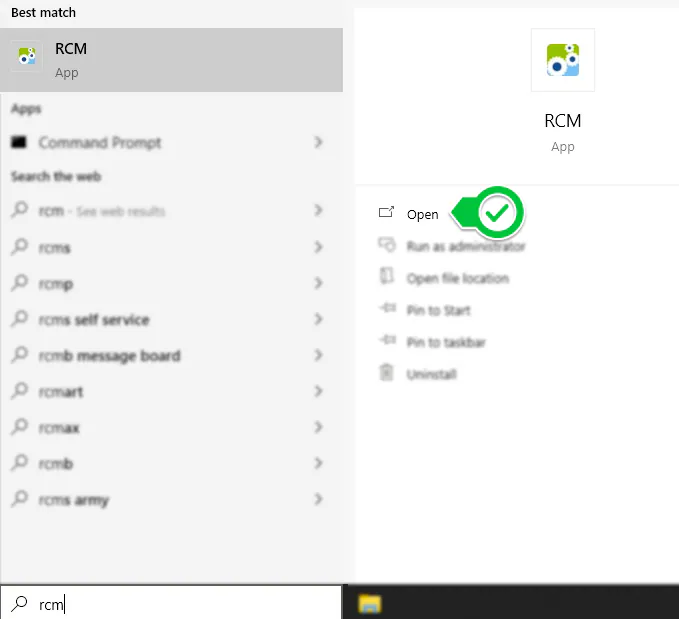
Section titled “Check that RCM is running”The Global Payments card terminal works with Nexsyis only while a program called RCM is running on the computer the terminal is connected to. If you get an error processing a card, check that the RCM icon shows at the bottom right of the screen.

If it isn’t there, search for RCM in Windows and select Open.
If RCM is running and you still get errors processing transactions, contact OpenEdge technical support:
- Phone: 800-774-6462, option 2
- Email: support@openedgepay.com
- Available 24 hours a day, 365 days a year
For other terminal problems, see Set up a payment terminal.