Show the production board in presentation mode
Presentation mode shows the NexsyisNow production board on a large screen, so everyone can see a live view of the production list. The page refreshes every 60 seconds. You choose which repair stage columns and KPI cards it shows.
Start presentation mode
Section titled “Start presentation mode”-
Open presentation mode in one of these ways:
-
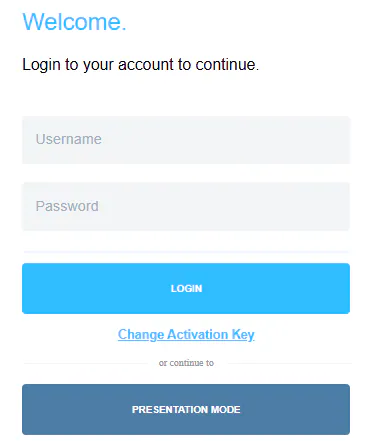
On the NexsyisNow login screen, select Presentation Mode. You don’t need a username and password.
-
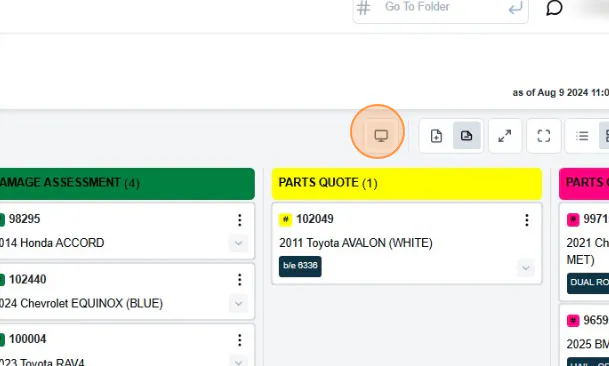
If you’re already logged in, select the presentation mode button on the In Process tab.
-
-
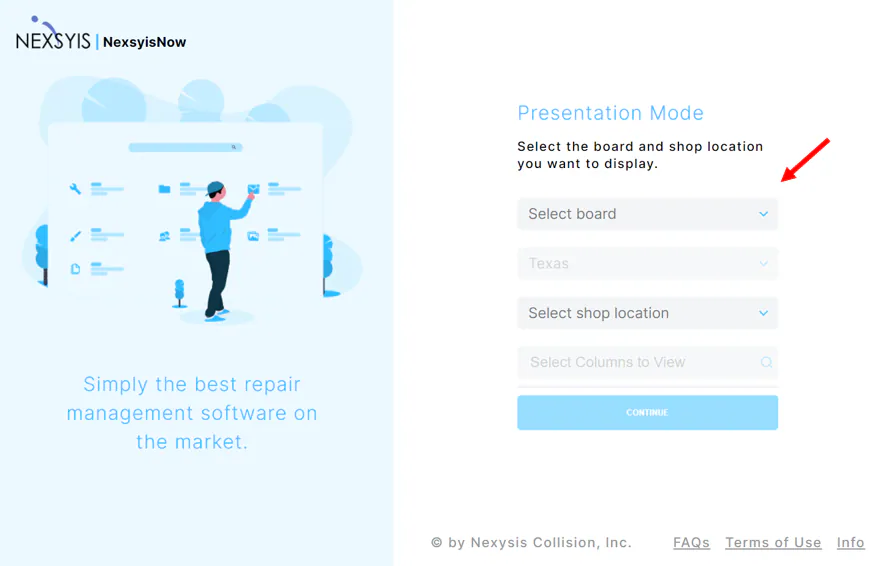
Select the board type, state, shop location, columns (repair stages) and KPI cards to show.
Compact Card View shows a smaller version of the production list with less folder information.
-
Select Continue.
The production board opens in presentation mode, with only the stages and KPI cards you selected.
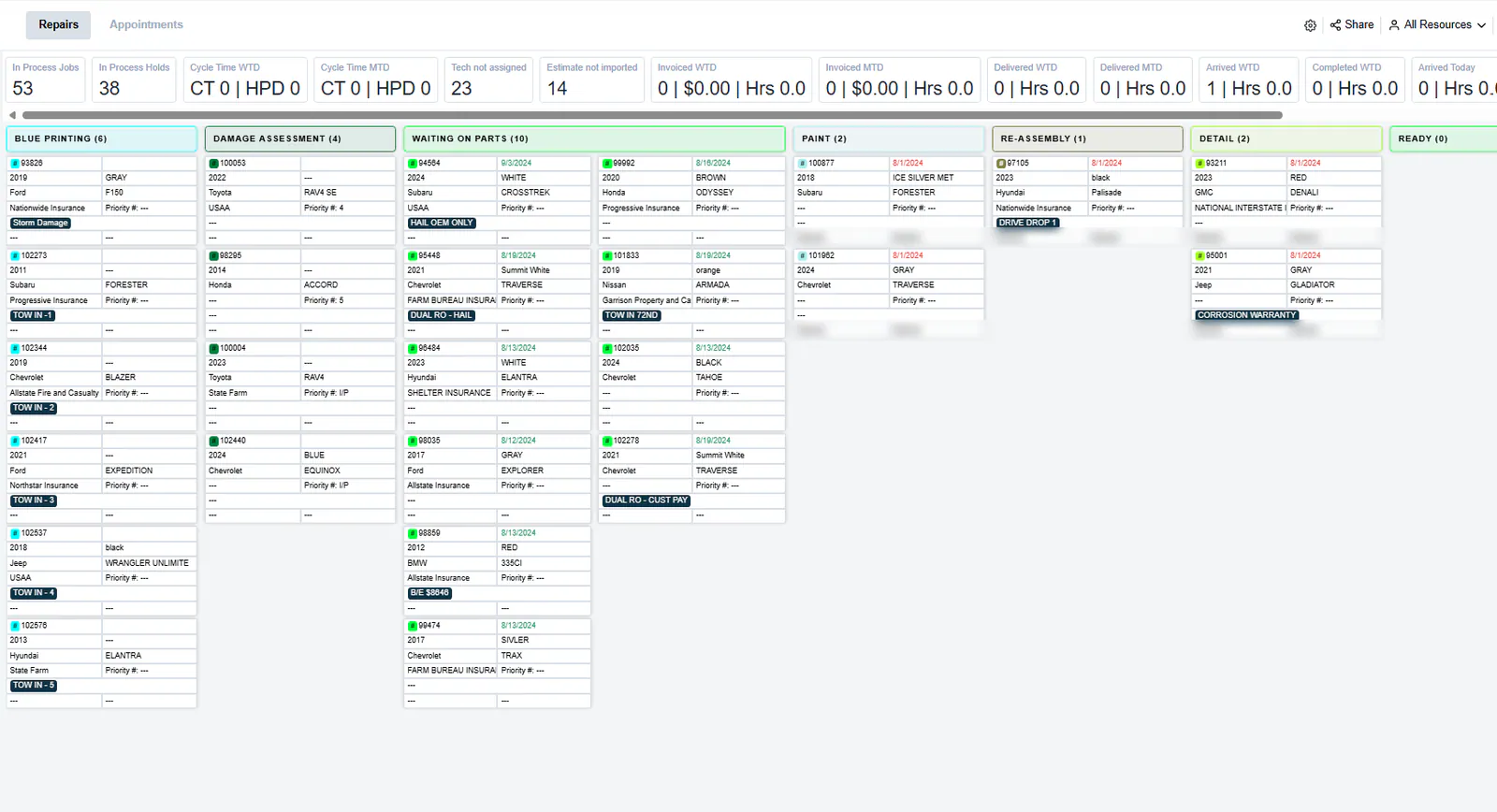
To change what’s shown, or to switch to a different view, select the settings (gear) icon at the top right.
Share the view with another device
Section titled “Share the view with another device”-
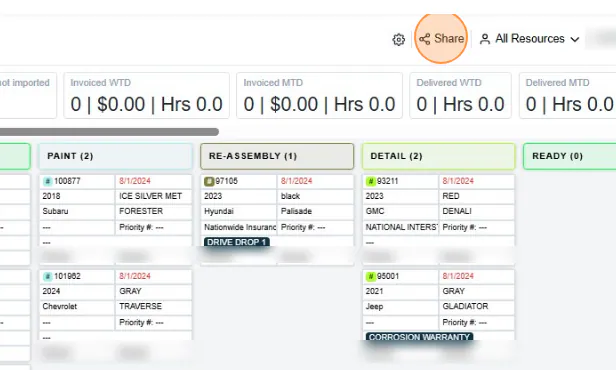
Select Share.
-
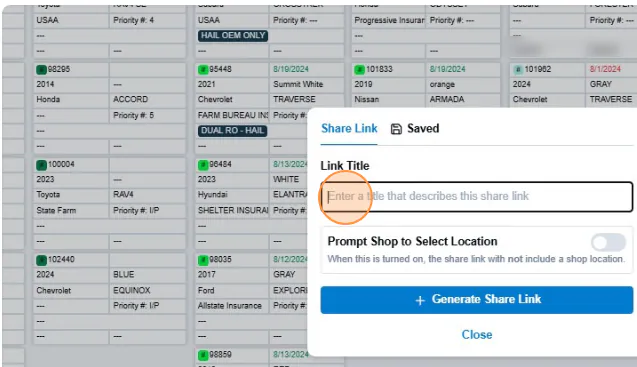
In Link Title, enter a title that describes the link.
-
If you have more than one location, turn on Prompt Shop to Select Location. The link then loads every board setting except the location, and whoever opens it is asked to choose a location.
-
Select Generate Share Link, then copy the link.
KPI cards
Section titled “KPI cards”KPI cards show key numbers at the top of the production list in NexsyisNow and in presentation mode. They refresh when the board refreshes.

| KPI card | What it shows |
|---|---|
| In Process Jobs | The number of folders in process. |
| Cycle Time WTD | Week-to-date arrived-to-delivered cycle time and hours per day. |
| Cycle Time MTD | Month-to-date arrived-to-delivered cycle time and hours per day. |
| Invoiced WTD | Week-to-date number of folders invoiced, sales and total hours. |
| Invoiced MTD | Month-to-date number of folders invoiced, sales and total hours. |
| Delivered WTD | Week-to-date number of folders delivered and total hours. |
| Delivered MTD | Month-to-date number of folders delivered and total hours. |
| Estimate not imported | The number of folders without an estimate. |
| Tech not assigned | The number of folders with labor not allocated, the same folders that show the A flag. |
To request a new KPI card, contact Nexsyis Support.
Choose the KPI cards
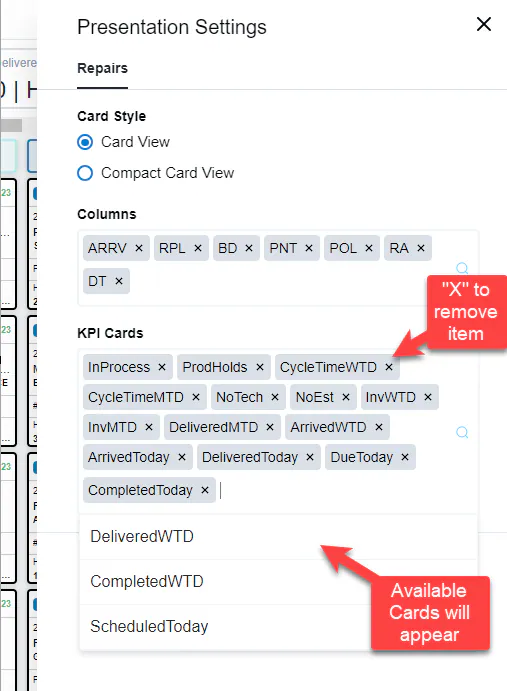
Section titled “Choose the KPI cards”- Select the settings (gear) icon at the top right.
- Under KPI Cards, select the X on a card to remove it, or select in the box and choose a card from the list to add it.
- Select Apply.