
Invoice overhead expenses
Overhead invoices, such as rent, utilities and equipment, are entered on the same AP invoice screen as parts invoices, with a few differences:
- A parts invoice is found by its PO number. An overhead invoice has no PO, so you use the invoice number to find it.
- Because you don’t search by PO, you search for the vendor yourself.
- You enter the lines from the invoice by hand.
Overhead vendors are usually set up with the Overhead vendor class and a default financial category. See Set up an AP vendor.
Enter an overhead invoice
Section titled “Enter an overhead invoice”-
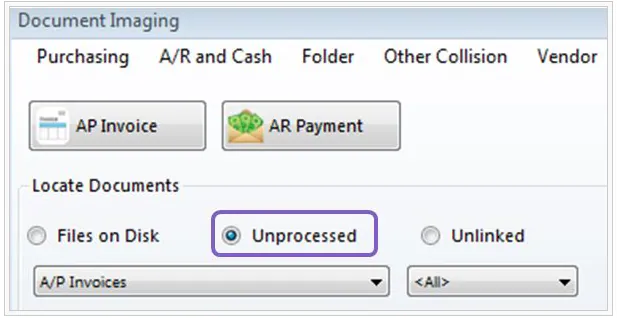
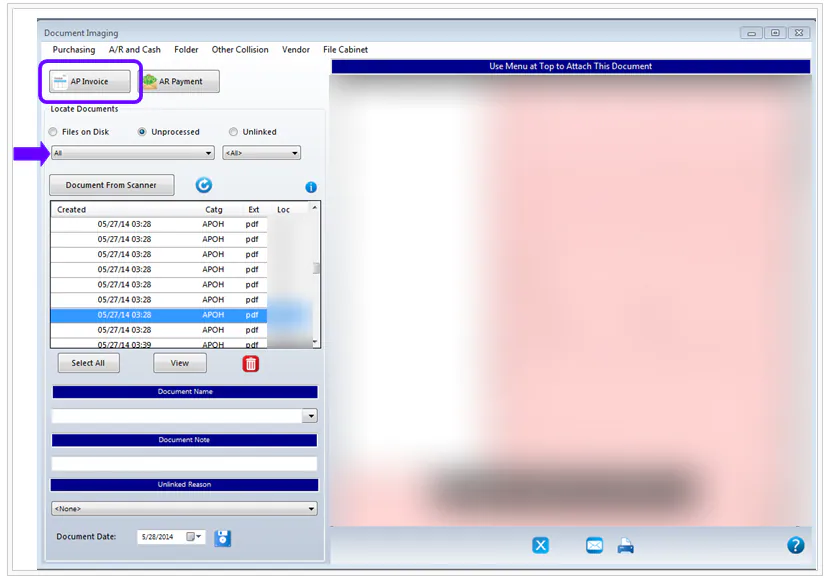
In Document Imaging, select Unprocessed and the drop-down that overhead invoices are sent to. Select an invoice from the list, then select AP Invoice.
-
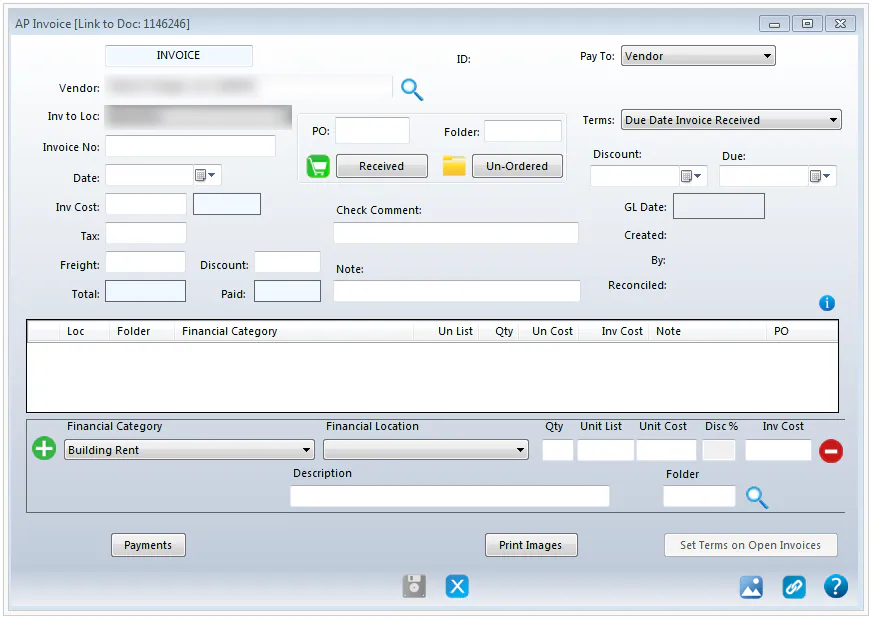
Type the invoice number and select Refresh, to make sure the invoice hasn’t already been entered. Then select New Invoice.
-
Type the first few letters of the vendor name and select the search button next to Vendor to find the vendor.
-
Select the Date and enter the Inv Cost.
-
At the bottom of the screen:
- Check the Financial Category. It fills in from the vendor’s default.
- Choose the Financial Location the line is expensed to.
- Enter the Qty, Unit List and Unit Cost.
- Enter a Description and, if the expense is for a repair, the Folder.
- Select the green plus button to add the line.

-
Add the remaining lines until the total matches the Inv Cost, then select Save.