Use the GL report map
Some Nexsyis reports, including your financial statements, group your financial categories into report lines. The GL Report Map screen is where you choose which financial categories go on each line.
When you need it
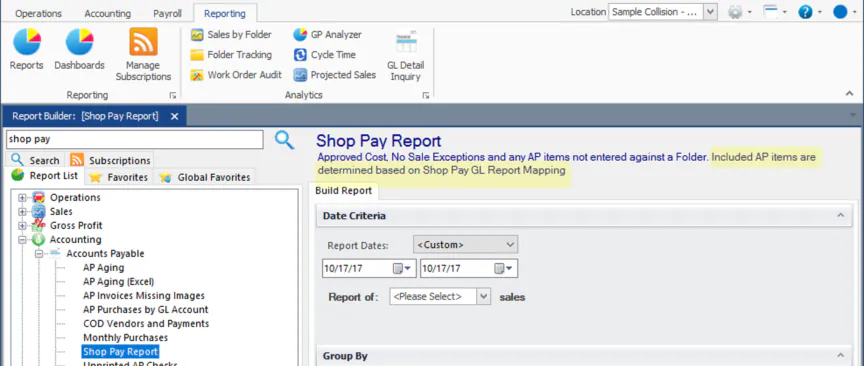
Section titled “When you need it”A report’s description tells you if it uses GL report mapping. For example, the Shop Pay Report includes AP items based on its GL report mapping.
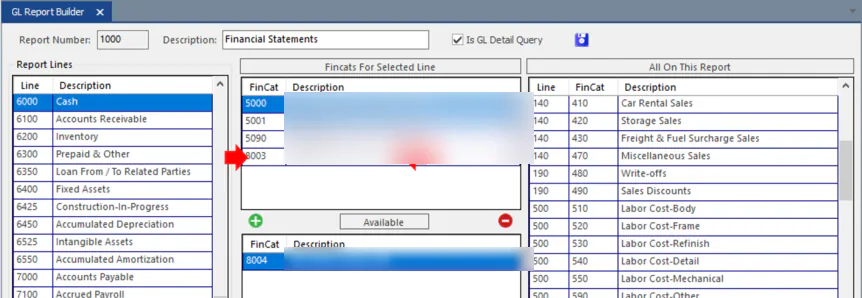
Your financial statements are set up for your company, so you’ll usually need to map a new financial category when one is added. If a new financial category isn’t mapped, your financial statements can be out of balance.
Open the GL Report Map
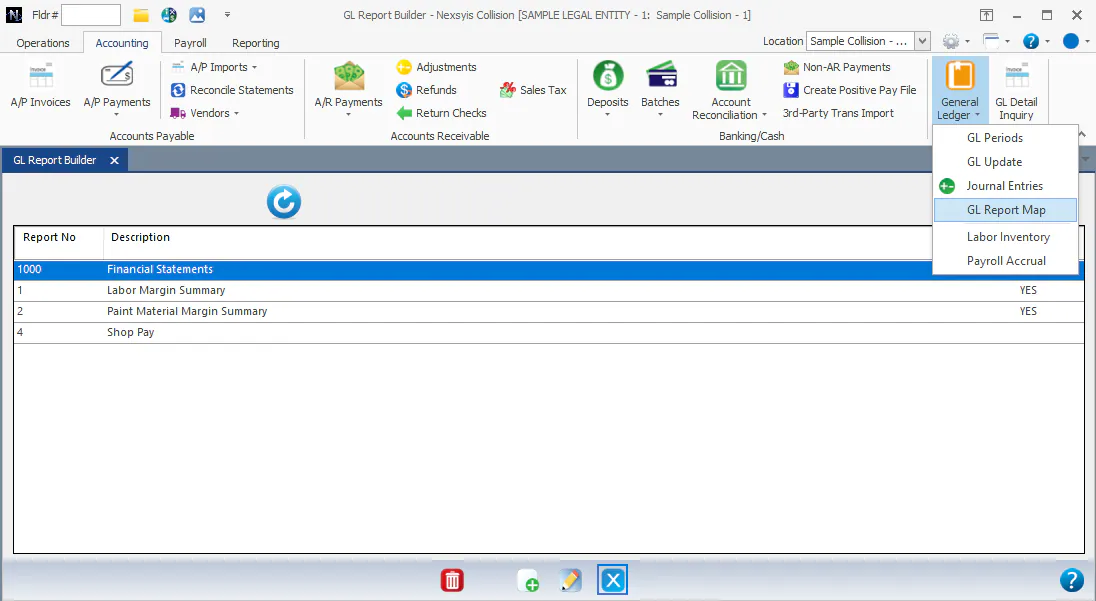
Section titled “Open the GL Report Map”- Go to Accounting › General Ledger › GL Report Map.
- Select the report you want to map.
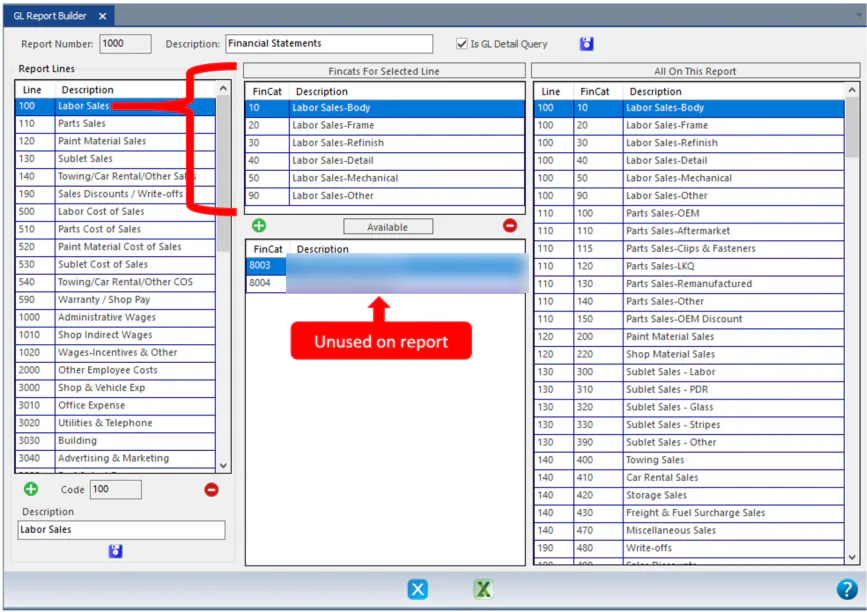
The screen shows:
- Report Lines on the left. Select a line to see the financial categories mapped to it in Fincats For Selected Line.
- Available: the financial categories not used on the report. Map these to the right line.
- All On This Report: every financial category on the report and its line.
Map an available financial category
Section titled “Map an available financial category”-
Select the report line on the left.
-
In Available, select the financial category.
-
Select the green + button.
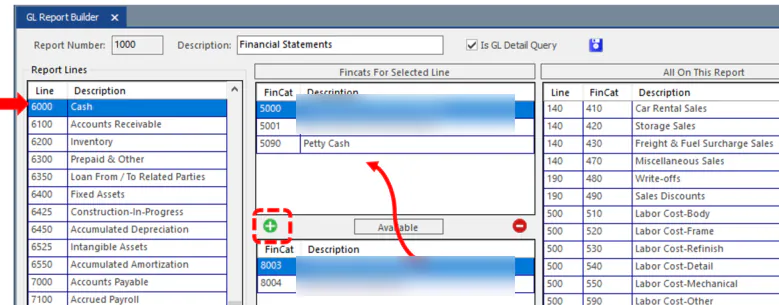
The financial category is added to the line you selected and removed from Available.