Set password rules
Use these settings to make Nexsyis passwords more secure: lock a user’s account after failed sign-in attempts, require complex passwords and make passwords expire.
Before you begin
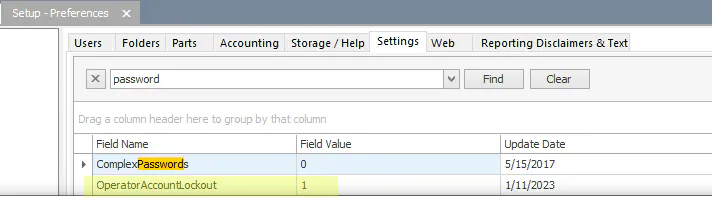
Section titled “Before you begin”The account lockout and complex password settings are under Setup › Company › Preferences, on the Settings tab. To find them, type password in the search box and select Find.
Lock accounts after failed sign-in attempts
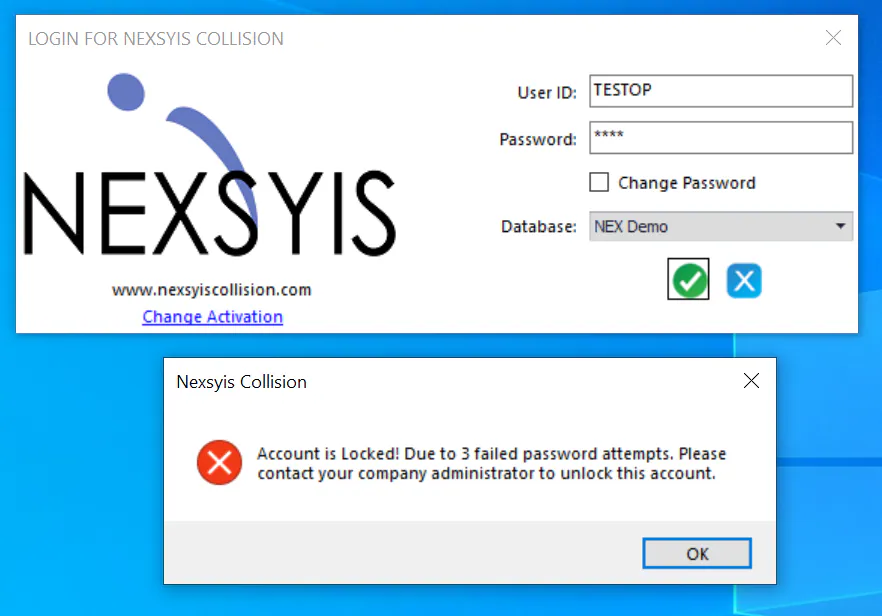
Section titled “Lock accounts after failed sign-in attempts”When OperatorAccountLockout is set to 1, a user’s account is locked after 3 failed password attempts. The user sees a message telling them to contact their company administrator.
Unlock an account
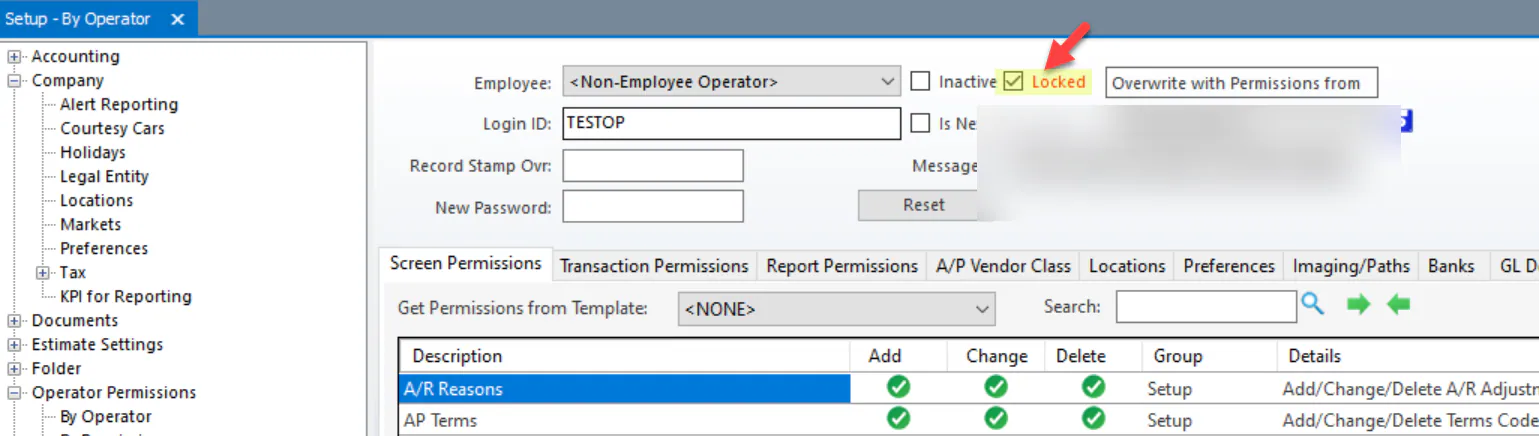
Section titled “Unlock an account”- Open Setup › Operator Permissions › By Operator and open the user’s record.
- Clear the Locked checkbox.
- Select Save.
The user’s password stays the same. If they’ve forgotten it, use Reset instead. See Reset a user’s password.
Require complex passwords
Section titled “Require complex passwords”When ComplexPasswords is set to 1, passwords must:
- Be at least 8 characters long.
- Contain both uppercase and lowercase letters.
- Contain at least one special character.
- Contain at least one number.

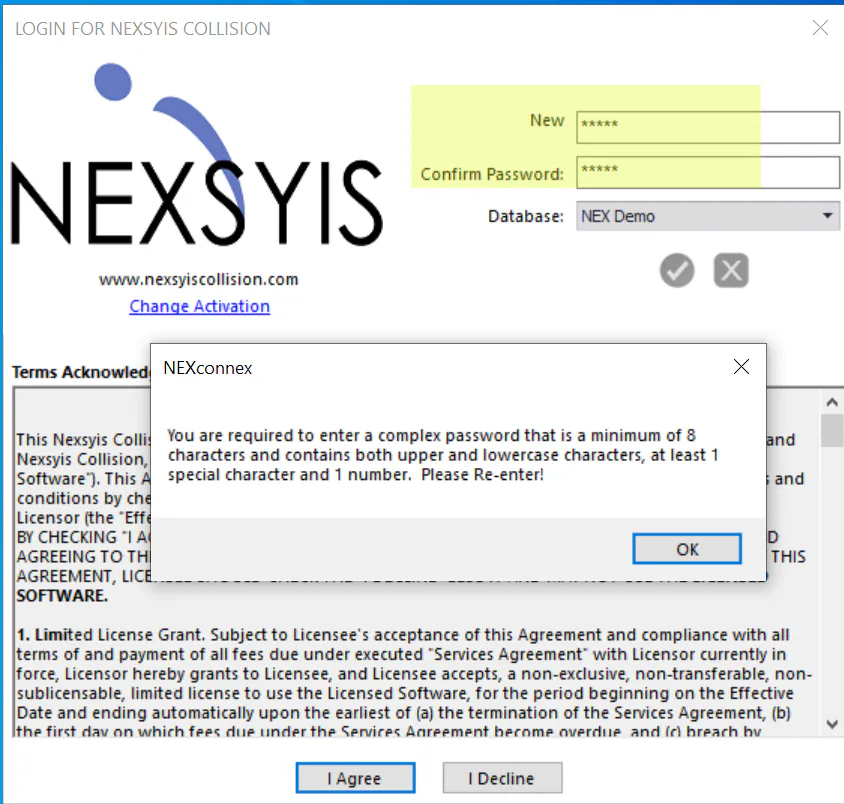
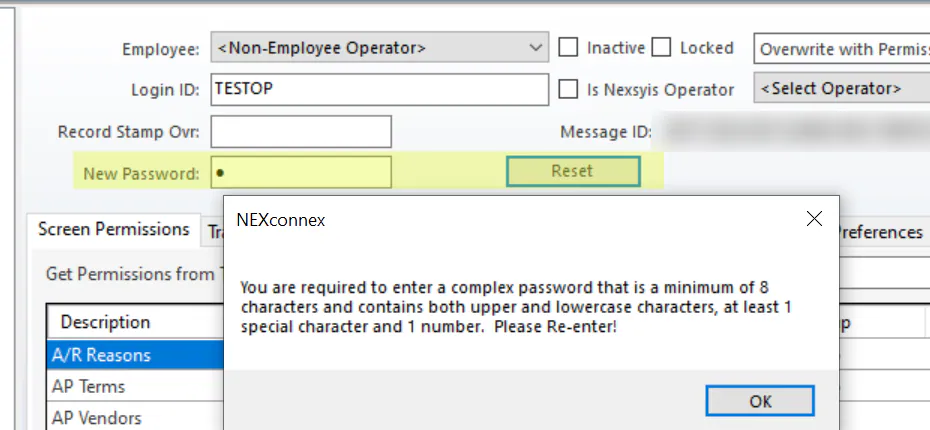
The rules apply when a user sets their own password and when an administrator resets a password. If a password doesn’t meet them, Nexsyis shows a message asking for a complex password.
Set when passwords expire
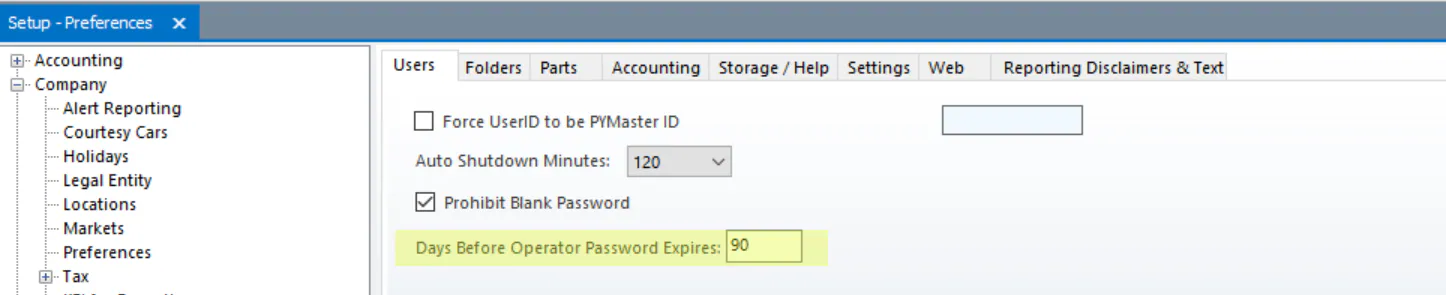
Section titled “Set when passwords expire”Under Setup › Company › Preferences, on the Users tab, enter the number of days in Days Before Operator Password Expires.