View card batches
Card transactions are batched automatically, and each batch is finalized at midnight Eastern time. You can view a batch and its transactions in Nexsyis or on the Global Payments merchant portal.
View a batch in Nexsyis
Section titled “View a batch in Nexsyis”-
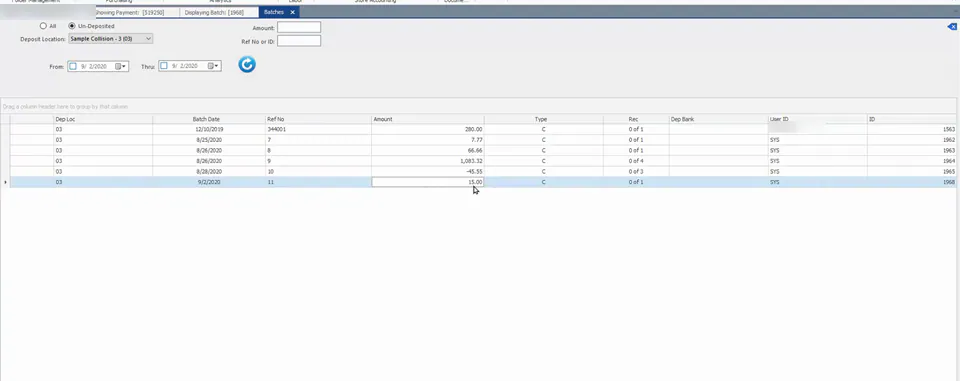
Select Batches under Store Accounting on the Operations tab, or Batches on the Accounting tab.
-
Choose the Deposit Location and the From and Thru dates, then select the refresh button.
-
Open a batch to see its transactions.
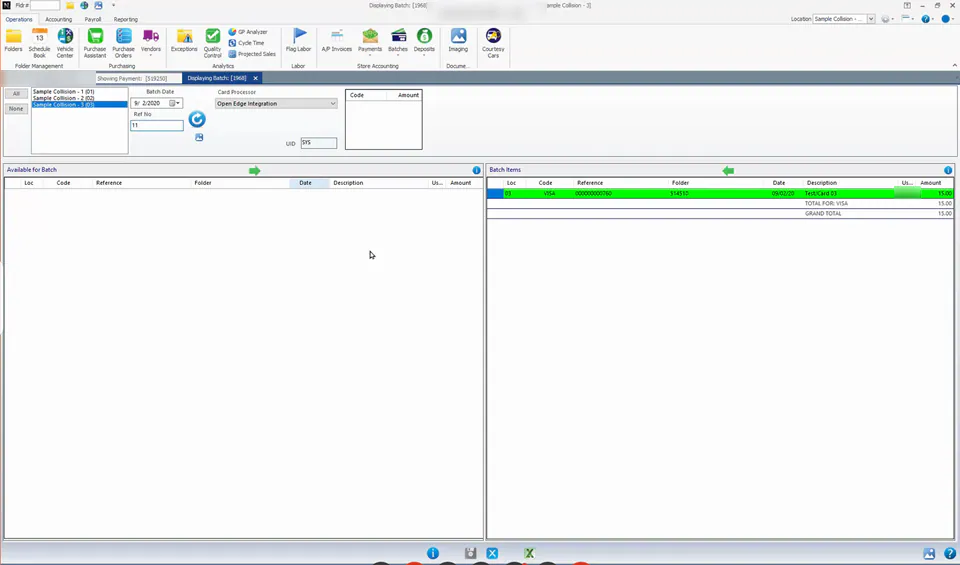
You can see the batch and its transactions, but you can’t change the batch.
View the batch transactions from Global Payments
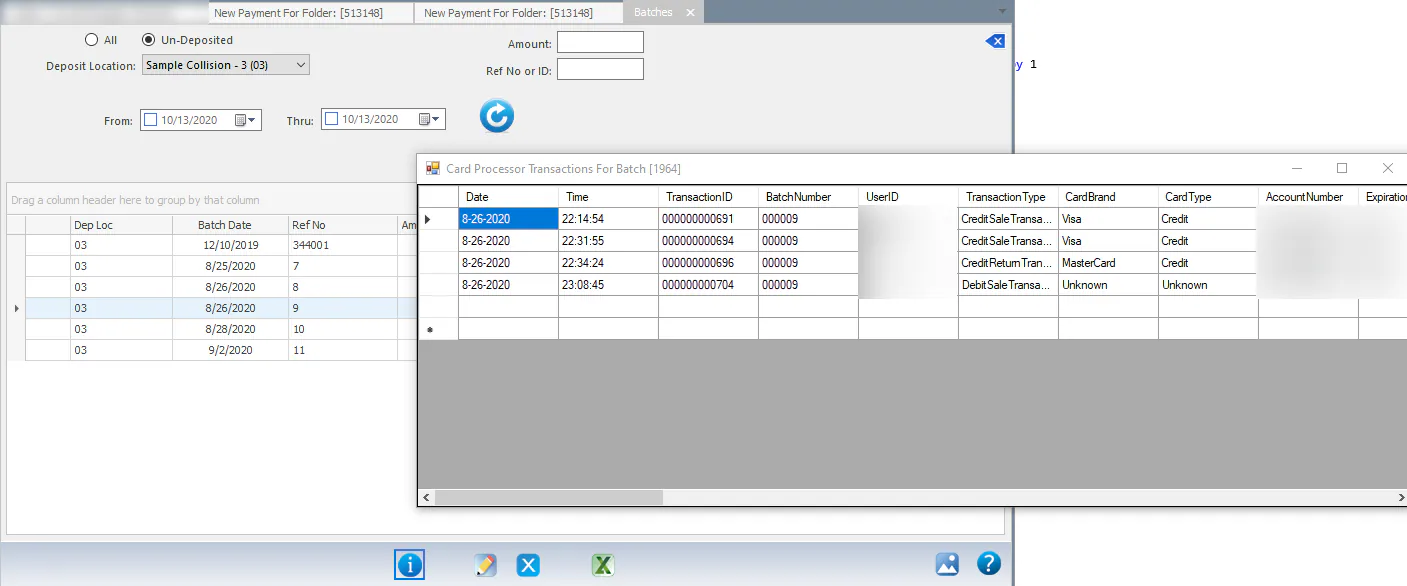
Section titled “View the batch transactions from Global Payments”To see the Global Payments list of transactions on a batch, select the batch in the batch list and select the i button on the bottom bar. The Card Processor Transactions For Batch list opens. The bottom of the Amount column shows the total.
View a batch on the Global Payments merchant portal
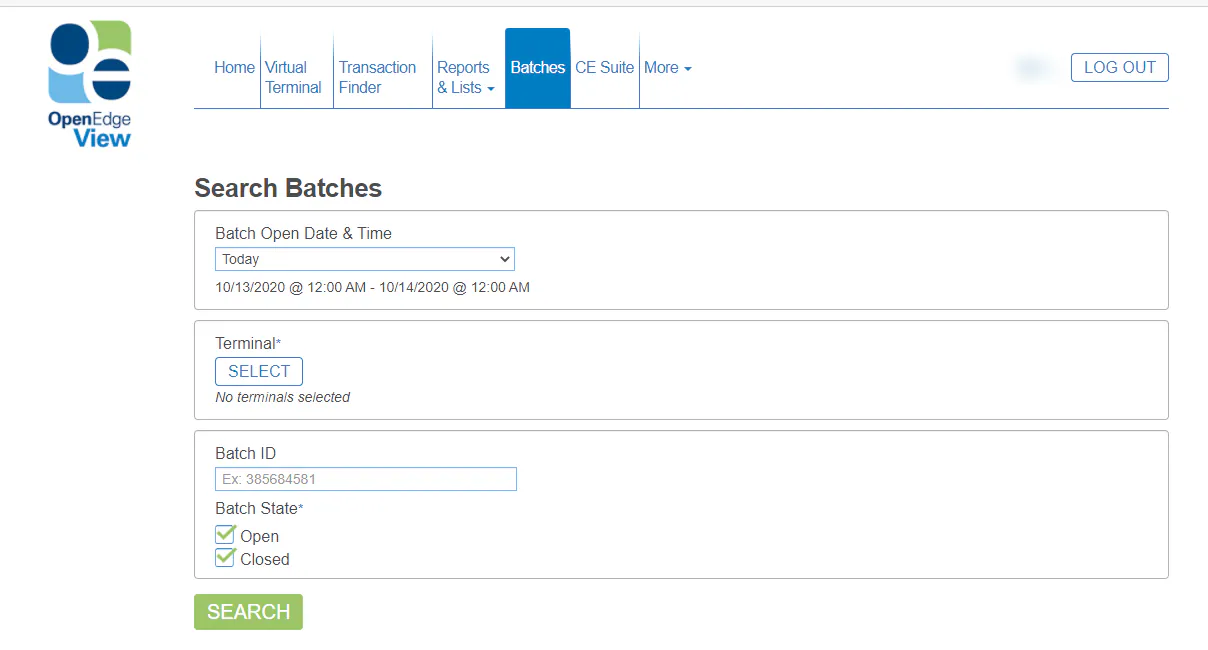
Section titled “View a batch on the Global Payments merchant portal”- Sign in to the Global Payments merchant portal.
- Choose the date.
- Under Terminal, select Select and choose a terminal ID. If you have several locations, each location has its own terminal ID.
- Check or clear Open and Closed as needed, then select Search.
- Use the Detail and Summary options to view the transactions.