
Manage GL periods
Closing a period stops new transactions from posting to it. Nexsyis closes sales, cash, cost and the GL separately, so you can review and close each area in order.
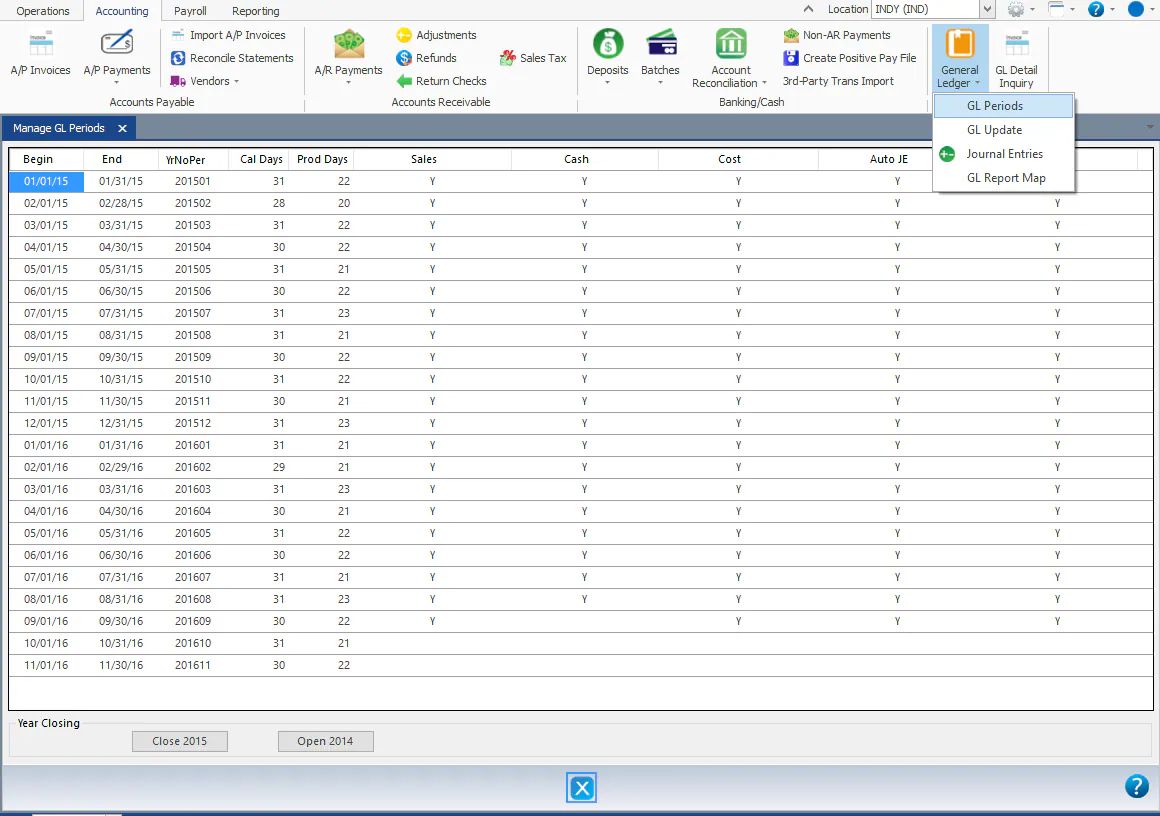
To open the screen, go to Accounting › General Ledger › GL Periods.
How it works
Section titled “How it works”- Closing GL periods applies to all locations, and to every legal entity.
- When a period is closed, a transaction dated in it posts on the first day of the next open period. See Financial dates explained.
- Sales should be closed within a day or two after month end. Needing longer usually means locations are backdating, which points to a problem with how vehicles are being completed or delivered.
- Cash should be closed when you’ve completed the bank reconciliation.
- Cost should be closed once you’re comfortable that all AP for the month has been recorded. For some shops that’s 3 to 5 days, for others 10 to 15. You can also wait until vendor statements are reconciled.
Close a period
Section titled “Close a period”Sales, Cash, Cost, Auto JE and GL are each closed separately for each YrNoPer. A Y means the period is closed. A blank means it’s open.
-
Double-click the blank cell in the column you want to close.

-
The cell changes to Y and you see “Update Complete”. The change is saved automatically.
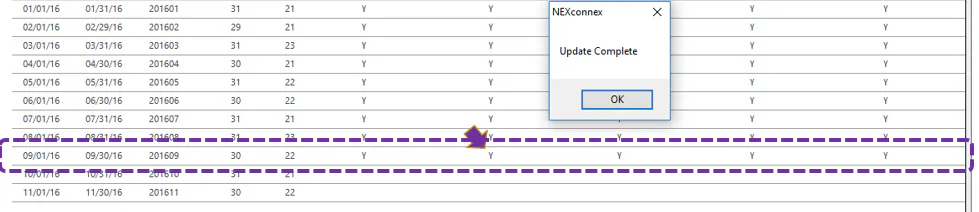
If you’re behind, close the latest period. All earlier periods close automatically.
Reopen a period
Section titled “Reopen a period”We don’t recommend reopening a period once it’s closed. If the month needs more review, it isn’t finished and shouldn’t be closed yet.
The exception is the GL column, for journal entries. You can open and close it as needed, for example at year end. See Close year vs. lock GL.
To reopen a period, double-click the Y to remove it. All periods after the one you reopen are reopened too.
Close a year
Section titled “Close a year”At the start of a new year, close the prior year. Select the Close button for that year (for example Close 2015) in Year Closing at the bottom of the screen.
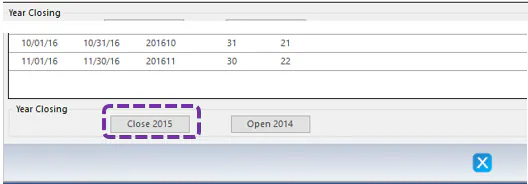
Closing a year hides its periods from this screen. To see them again, select the Open button for that year (for example Open 2014).