
Use the time clock
Use the Nexsyis Time Clock to clock in and out for the workday and to check your hours for the week.
Before you begin
Section titled “Before you begin”Your manager must set you up to use the time clock. Your clock number is your employee ID.
Clock in
Section titled “Clock in”- Open the Nexsyis Time Clock. In Nexsyis, select Time Clock on the Payroll tab.
- Type your clock number in Clock Number.
- Press Enter twice to record the punch.
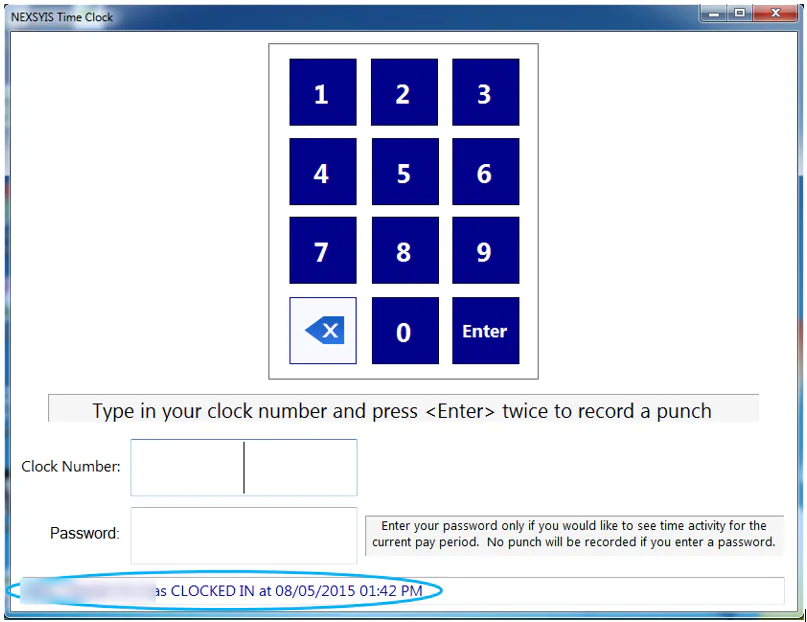
If you clocked in correctly, the bottom of the screen shows your name and clock number, has CLOCKED IN, and the current date and time.
Clock out
Section titled “Clock out”- Type your clock number in Clock Number.
- Press Enter twice to record the punch.
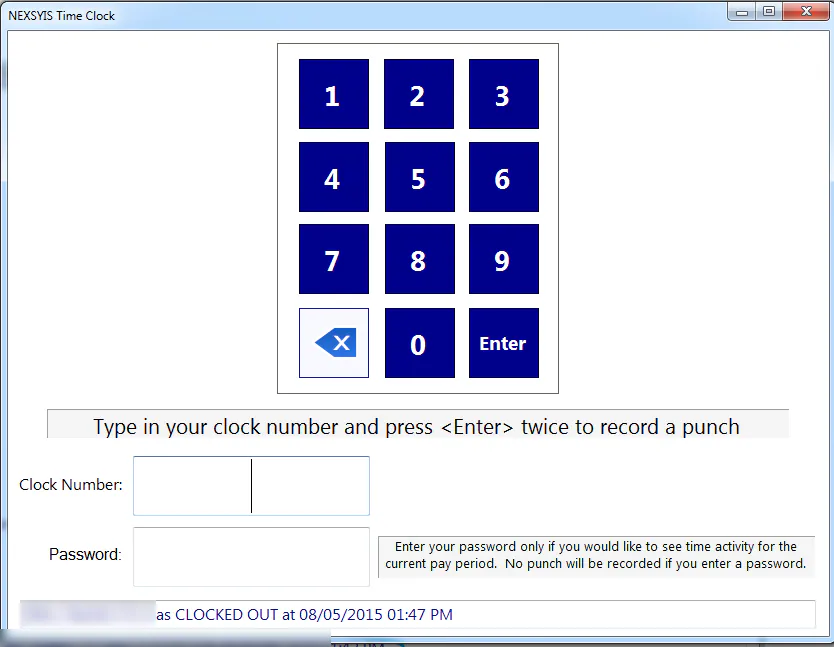
If you clocked out correctly, the bottom of the screen shows your name and clock number, has CLOCKED OUT, and the current date and time.
View your hours for the week
Section titled “View your hours for the week”-
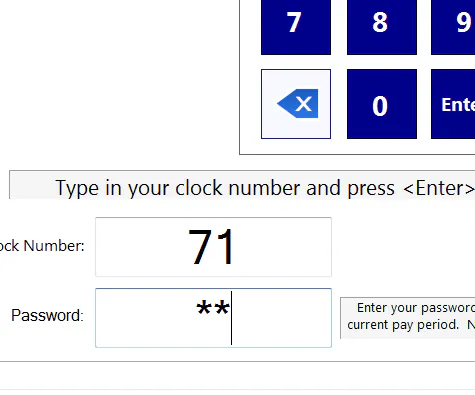
Type your clock number in Clock Number.
-
Type your password in Password.
-
Press Enter.
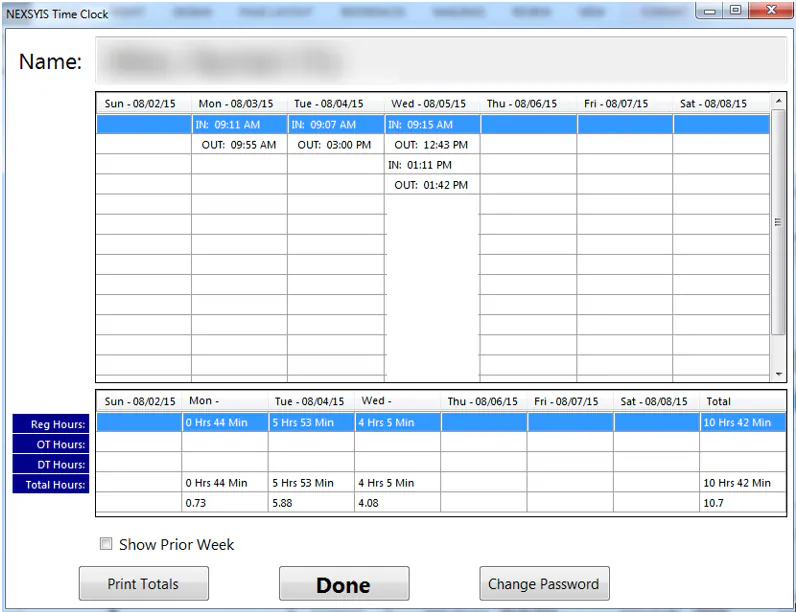
Your weekly record opens. It shows your in and out punches for each day, and your Reg Hours, OT Hours, DT Hours and Total Hours. Select Show Prior Week to see last week, Print Totals to print, or Change Password to change your password. Select Done when you’re finished.
If you forget your password, ask your manager to reset it.