
Close a purchase order
A purchase order closes when every line on it is fully dealt with. If a PO still shows as open, use this page to find out why and fix it.
Find a purchase order
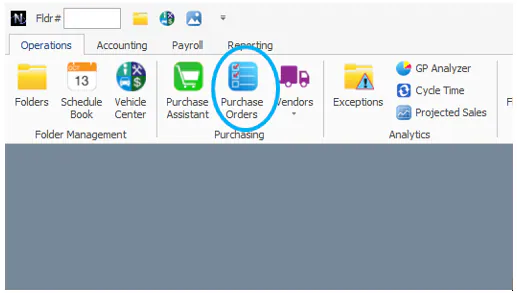
Section titled “Find a purchase order”Nexsyis creates a purchase order automatically when you order parts. To see purchase orders, select the Purchase Order tab under Operations.
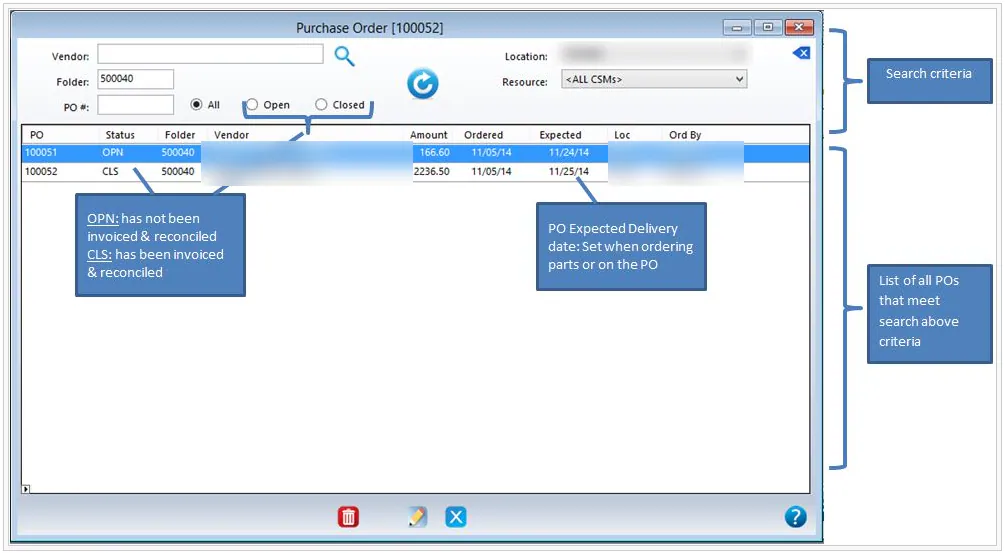
On the search screen, double-click a purchase order, or select it and then select Edit.
Why a purchase order stays open
Section titled “Why a purchase order stays open”None of the parts were received
Section titled “None of the parts were received”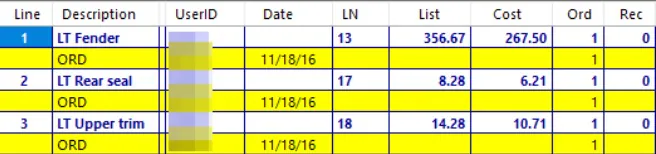
Do one of the following:
-
On the purchase order screen, select Corrections, then Cancel Order.

-
If you have permission, delete the purchase order.

Some parts were never received
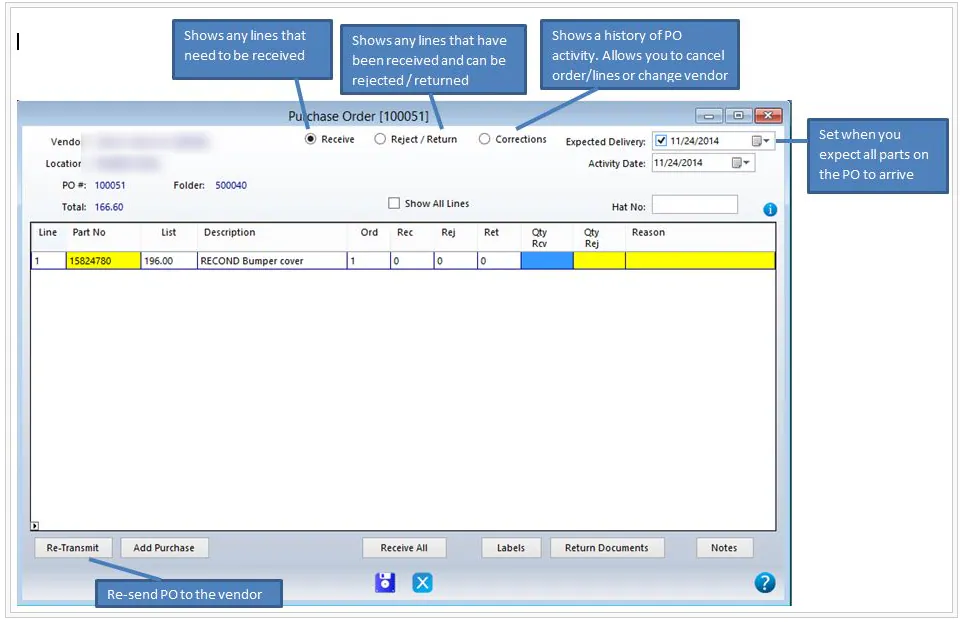
Section titled “Some parts were never received”If the Receive view on the purchase order screen still shows part lines, those parts haven’t been received.
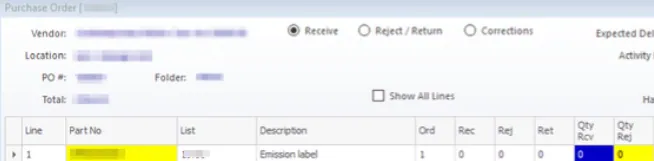
- Note the line numbers of those parts.
- Select Corrections.
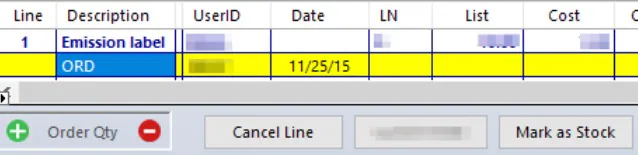
- Find each line and select its yellow ORD line.
- Select Cancel Line or Mark as Stock.
More were received than ordered
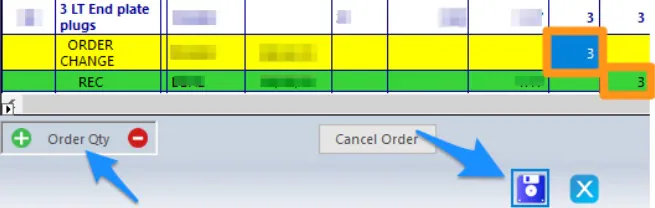
Section titled “More were received than ordered”For example, 1 was ordered and 3 were received.

- Select the yellow ORD line.
- Change the Order Qty so it matches the quantity on the green received line.
- When all the quantities match, select Save.
See also Receive more than was ordered.
A line was ordered and received, then cancelled
Section titled “A line was ordered and received, then cancelled”This can happen when a part was rejected and then un-rejected.

- Select Corrections.
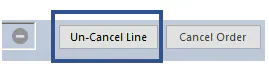
- Select the gray CAN line.
- Select Un-Cancel Line.
- Select Save.
If your purchase order is open for a reason not listed here, contact Nexsyis Support at nexsupport@nexsyis.com.