
Scheduling screen overview
The Scheduling screen shows each location’s booked appointments and open slots. Use it to check capacity before you book an appointment and to see who’s coming in today.
Open the Scheduling screen
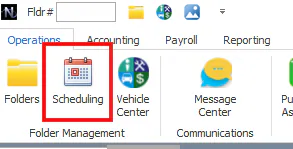
Section titled “Open the Scheduling screen”On the Operations tab, select Scheduling.
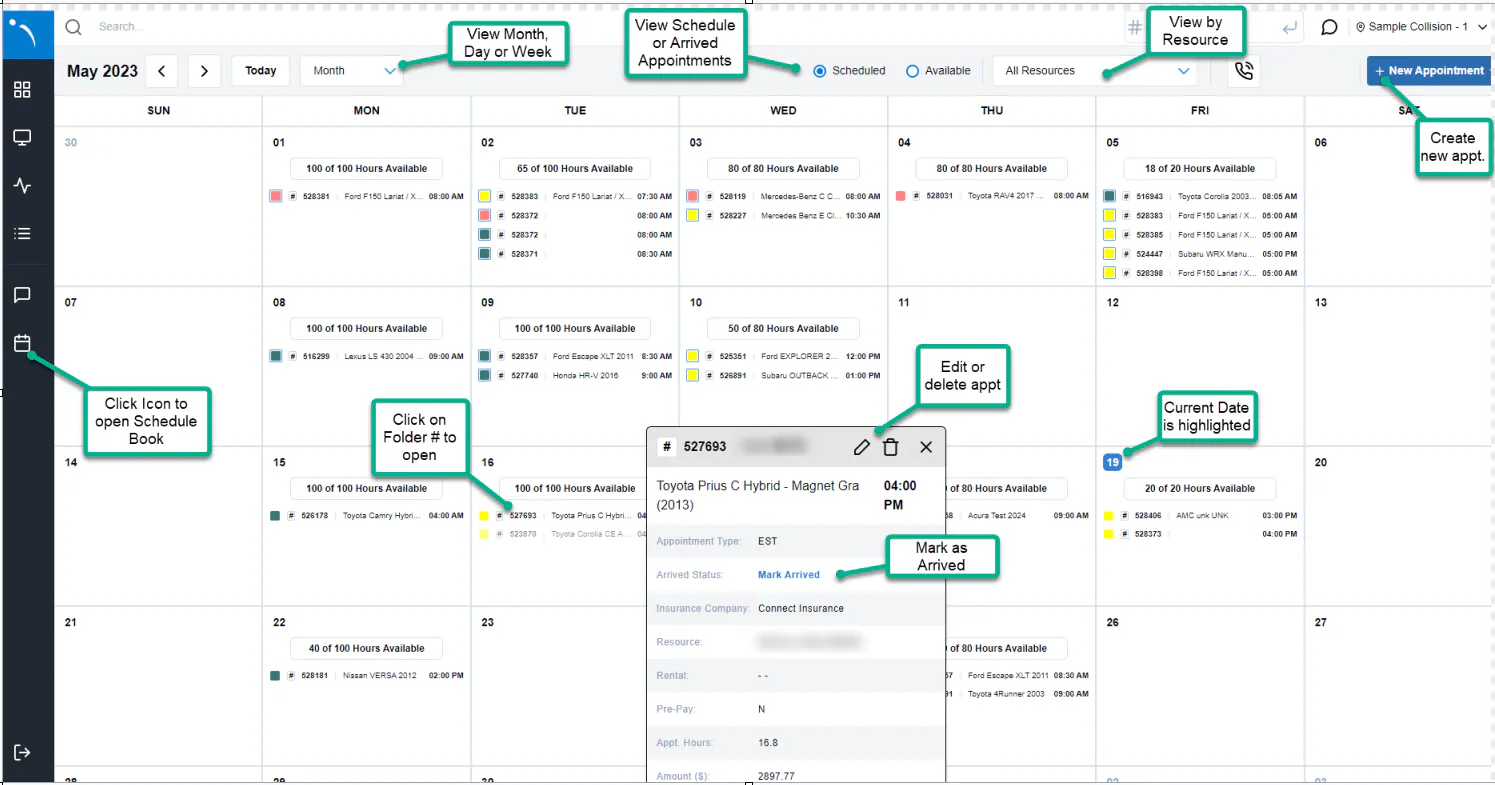
Select the calendar icon in the left navigation bar.
Filter what you see
Section titled “Filter what you see”Use the filters at the top of the Scheduling screen to find appointments and open slots quickly:
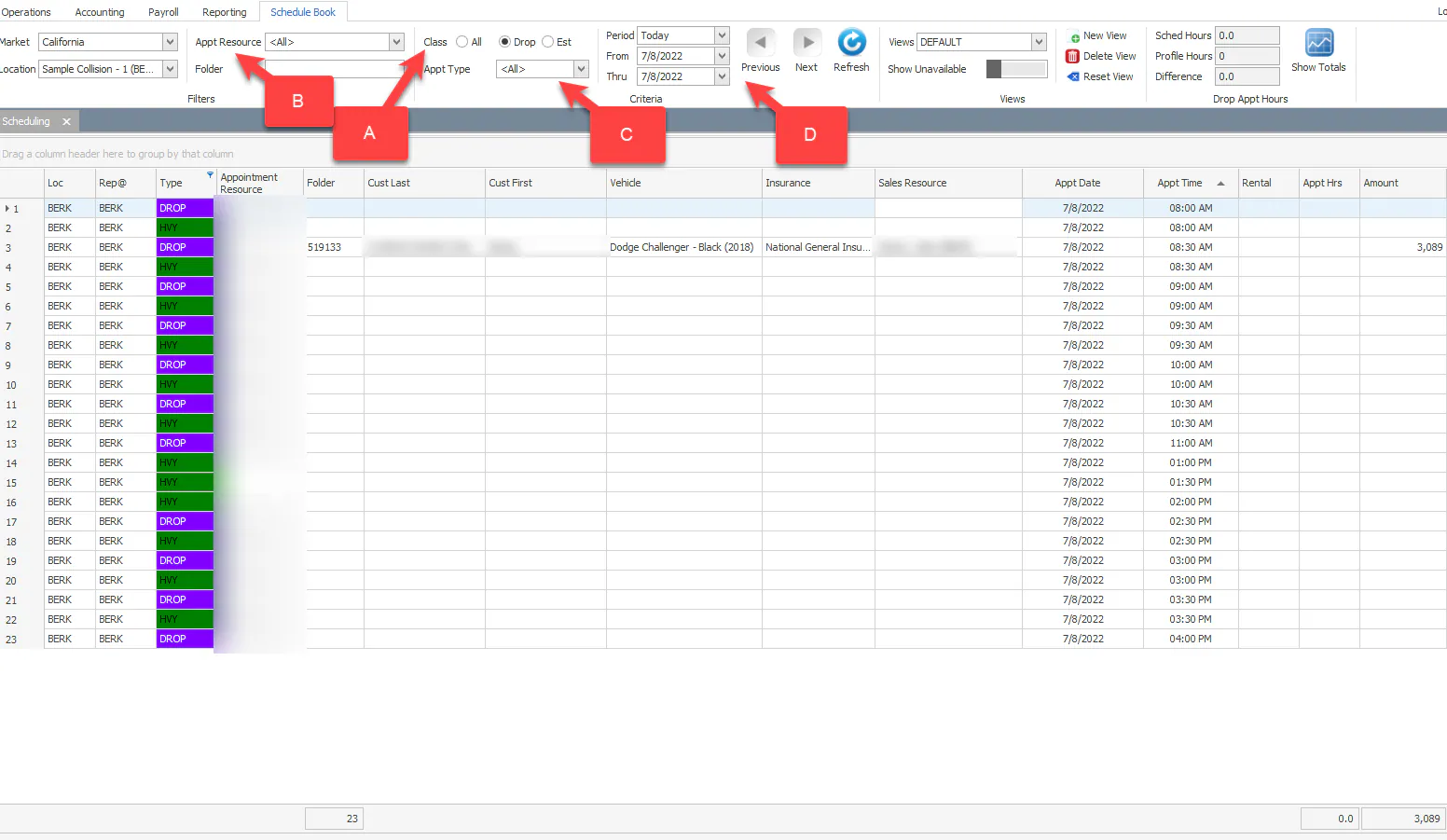
- Class: show All, only Drop or only Est (estimate) appointments.
- Appt Resource: show appointments by resource.
- Appt Type: show one appointment type, for example Estimate, Heavy Drop, Drop or Vehicle Return.
- Period, From and Thru: choose the dates to show.
- Choose Month, Week or Day.
- Select Scheduled to see booked appointments, or Available to see how many times are open for each appointment type on each day. A type that’s full shows Max Reached.
- Use All Resources to view the schedule for one resource.
- The color key at the top shows each appointment type, for example Drop Off, Estimate and Vehicle Return.
- Select a folder number on an appointment to open the folder.
- Select an appointment to open Edit Appointment. From there you can Mark Arrived, Cancel Appointment, or change the appointment and select Save Appointment Changes.
See which resources are unavailable
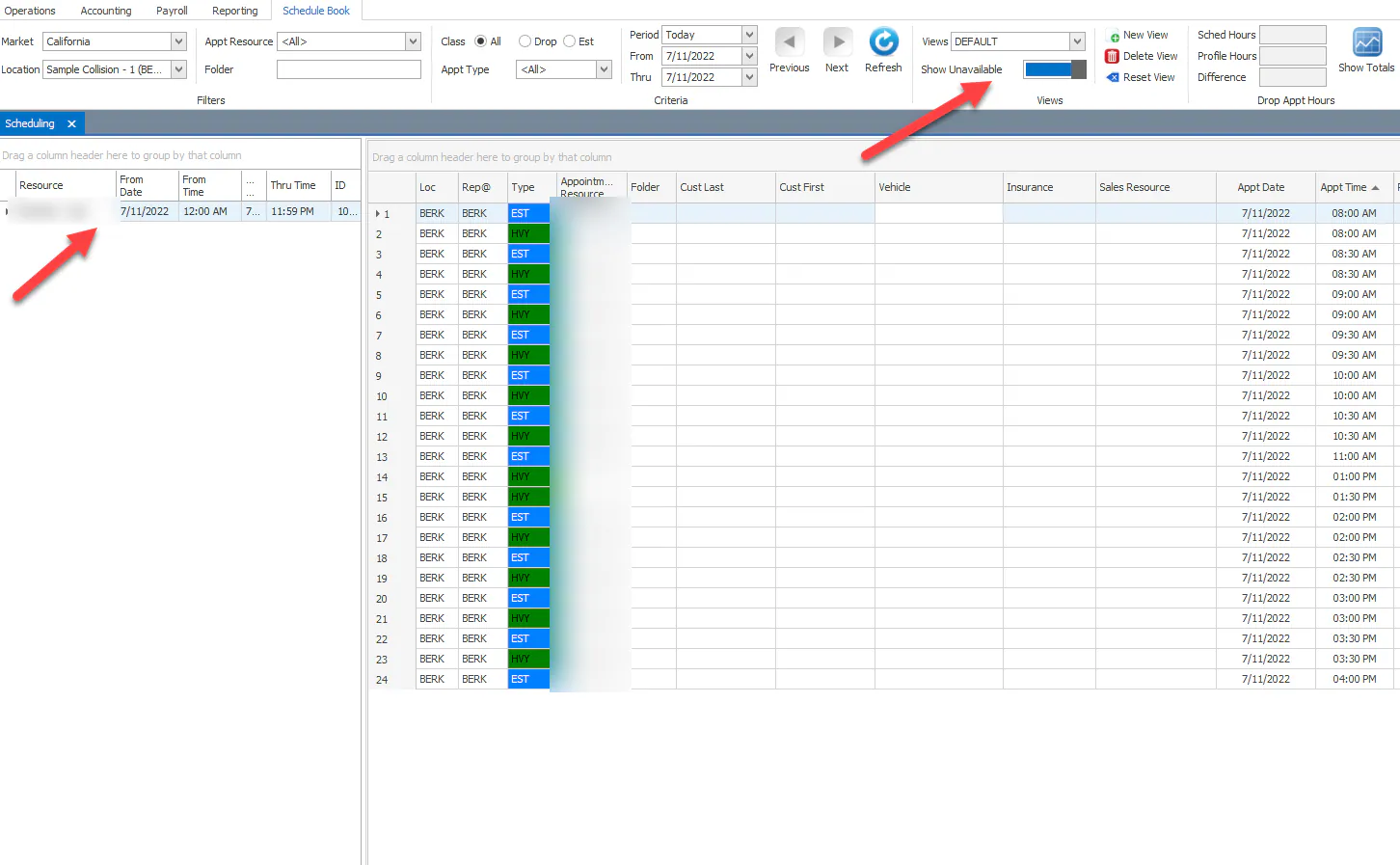
Section titled “See which resources are unavailable”In Nexsyis, turn on Show Unavailable. A panel on the left lists the resources who are out at any time that day, and the Scheduling screen shows no slots for them while they’re unavailable.
When an absence is approved, that resource’s schedule is cleared for the days they’re out.
To block out time for a meeting or appointment, see Block time when a resource is unavailable.
View appointments across locations
Section titled “View appointments across locations”The NexsyisNow Call Center view shows availability for several locations at once.
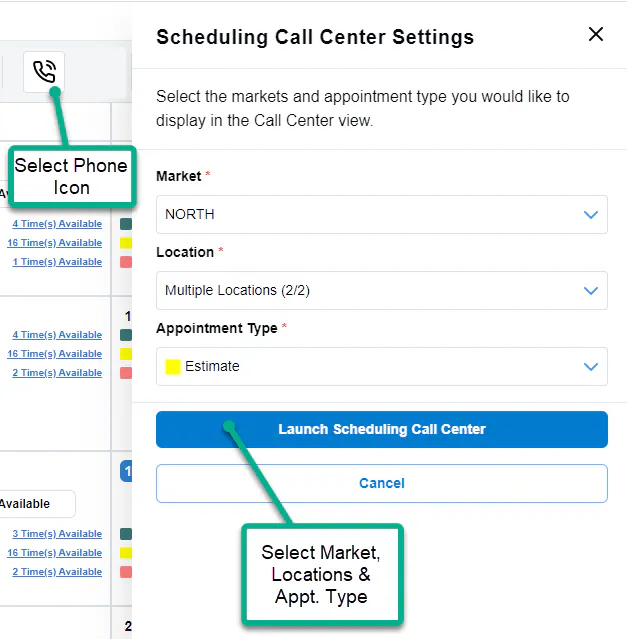
- On the NexsyisNow Scheduling screen, select the phone icon in the top-right corner.
- Choose the Market, Location and Appointment Type.
- Select Launch Scheduling Call Center.
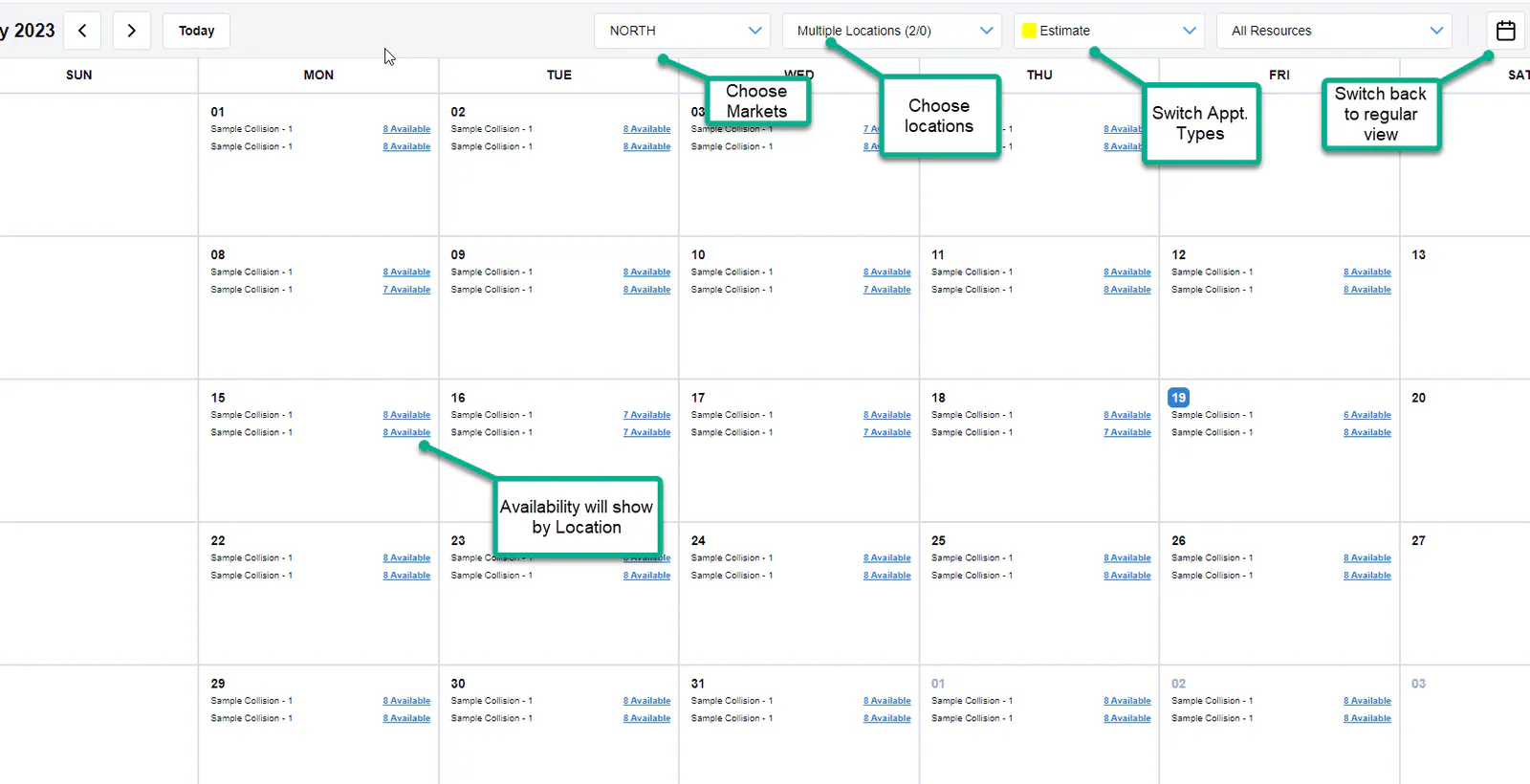
The calendar shows availability by location. Use the lists at the top to change markets, locations or appointment types, and select the calendar icon to go back to the regular view.
View a folder’s appointments
Section titled “View a folder’s appointments”Open the folder in NexsyisNow. Its appointments are listed in the Repair Timeline in the left panel, for example Estimate Appointment with its date and time.