Look up GL detail
The GL Detail Inquiry screen lists every transaction in a financial category with a GL date in the period you choose. From there you can open the invoice behind each line and view its attached image.
Search GL detail
Section titled “Search GL detail”- On the Accounting tab, select GL Detail Inquiry.
- Choose a Period, or set the dates in Period From and Thru.
- Search for the Fin Category (financial category).
- Select the refresh button.
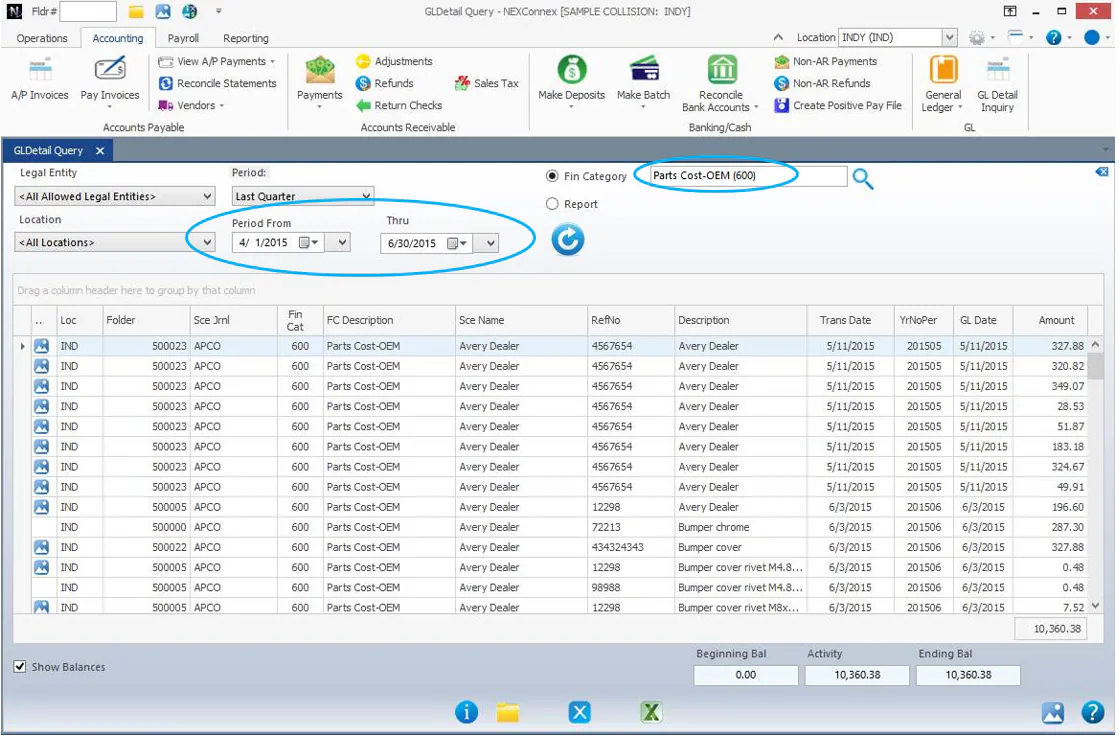
You see a list of transactions in that financial category with a GL date in the period. Select Show Balances to see the Beginning Bal, Activity and Ending Bal for the period.
You can also filter by Legal Entity and Location. Location is recorded on every GL transaction, so you can see one location or all of them from the same financial category.
View the invoice behind a line
Section titled “View the invoice behind a line”-
Select the line.
-
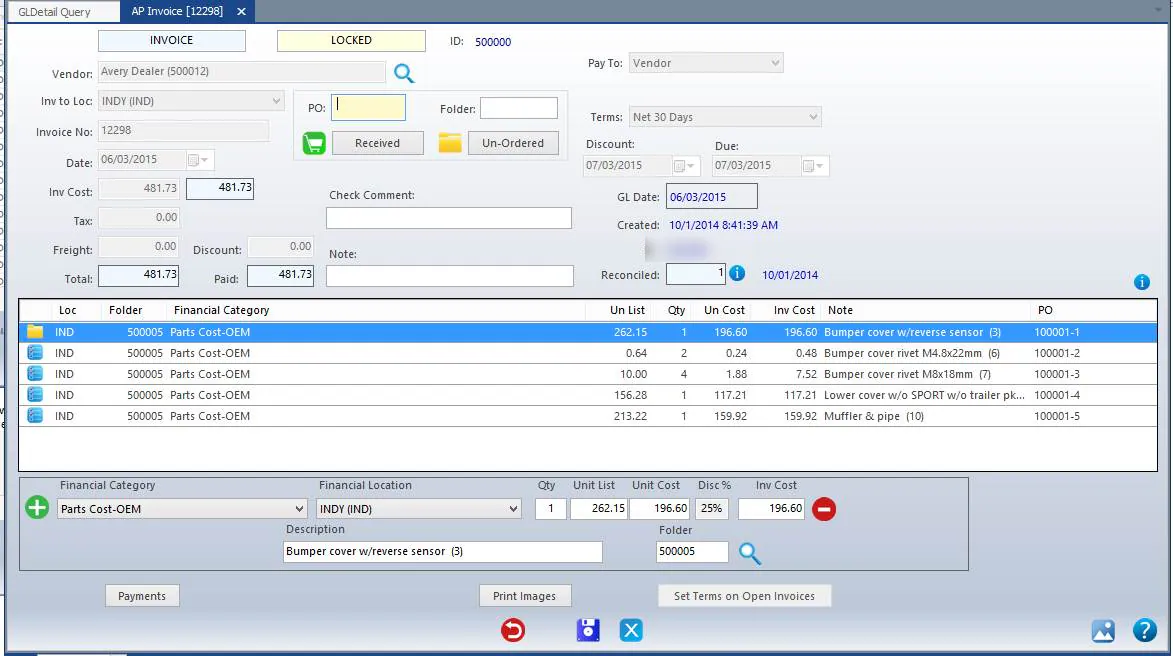
Select the details button (i) at the bottom of the screen.

The invoice opens, for example the AP invoice with its vendor, GL date and lines.
View an invoice image
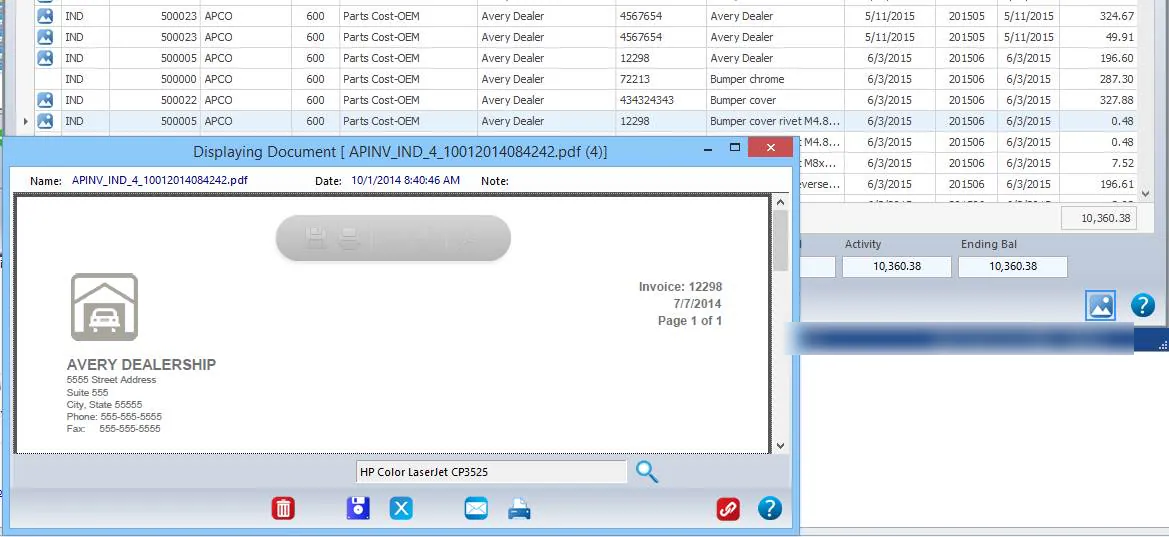
Section titled “View an invoice image”A line with a blue image icon has an AP invoice image attached.
- Select the line.
- Select the image button at the bottom right of the button bar.
Set who can see GL detail
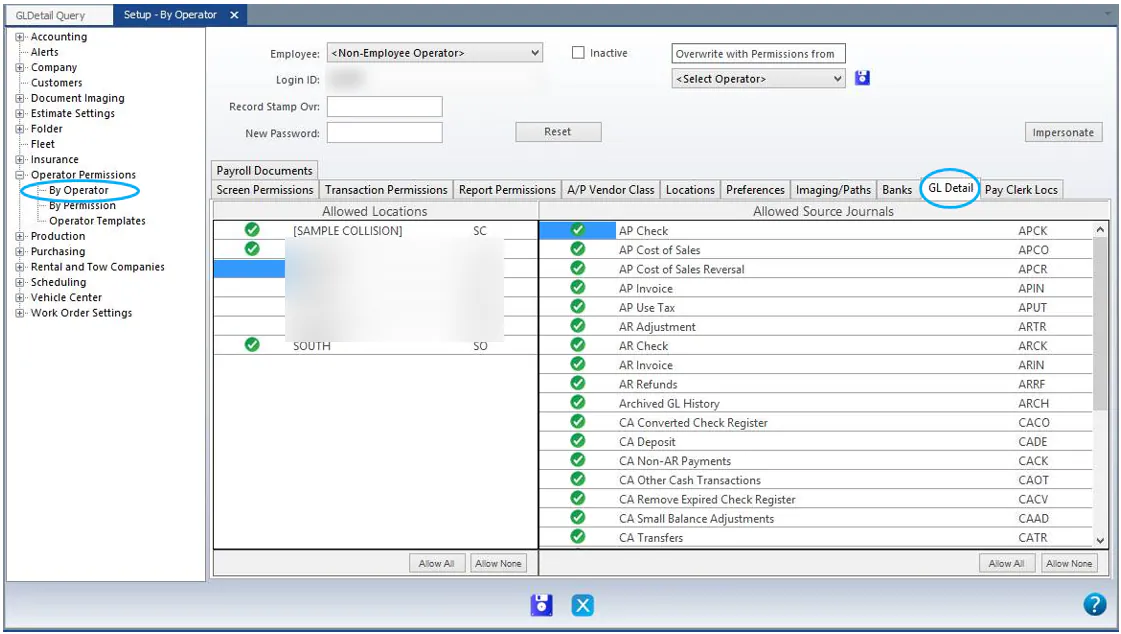
Section titled “Set who can see GL detail”GL Detail permissions are separate from other permissions. You can give someone access to financial information for a location even if they don’t work at that location.
These permissions are set for each operator. They aren’t part of operator templates, so set them up for each operator.
- Go to Setup › Operator Permissions › By Operator and choose the operator.
- Select the GL Detail tab.
- Select the Allowed Locations and Allowed Source Journals.
- Select the save button.