Email from a folder
Email the customer, an insurer or anyone else from the folder, with folder documents and photos attached.
Before you begin
Section titled “Before you begin”The first time you email from Nexsyis, you’re asked to set up your email profile. See Set up email with Outlook.
Send an email
Section titled “Send an email”-
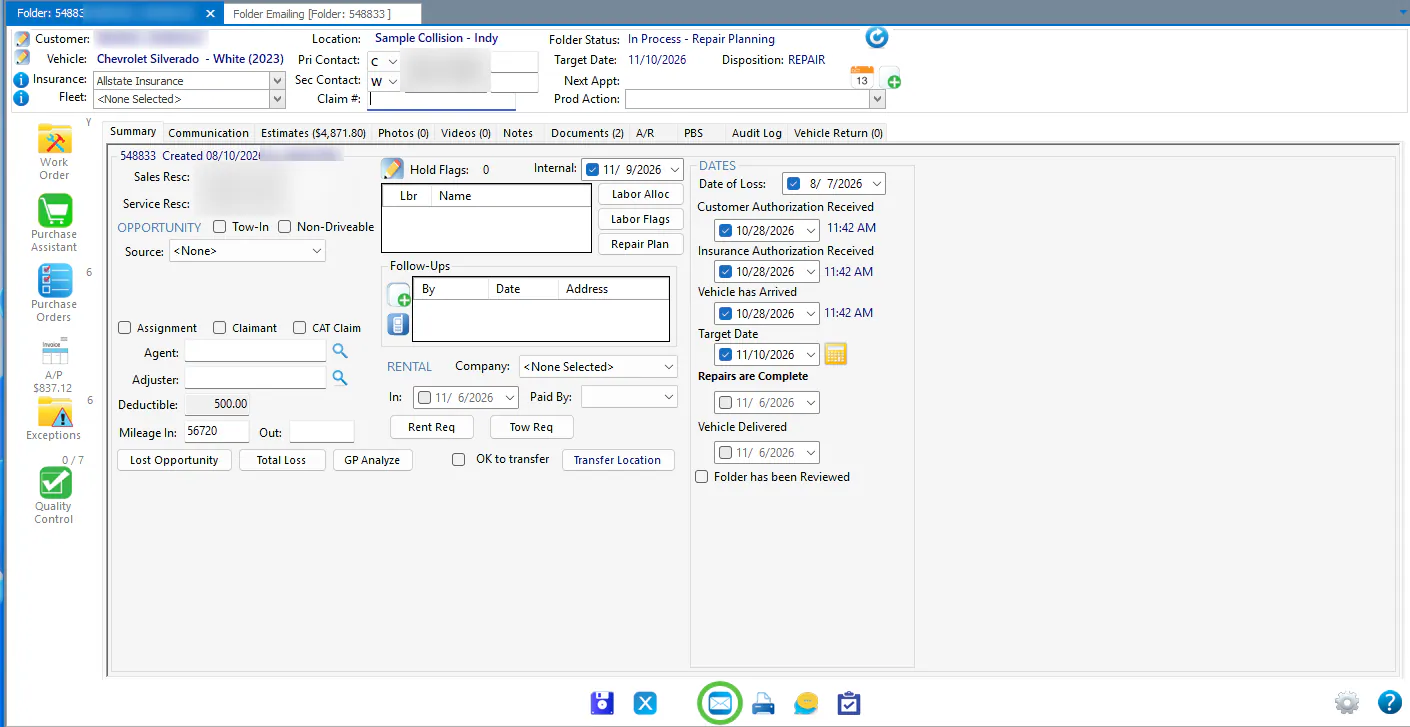
At the bottom of the folder, select the email button (envelope icon).
-
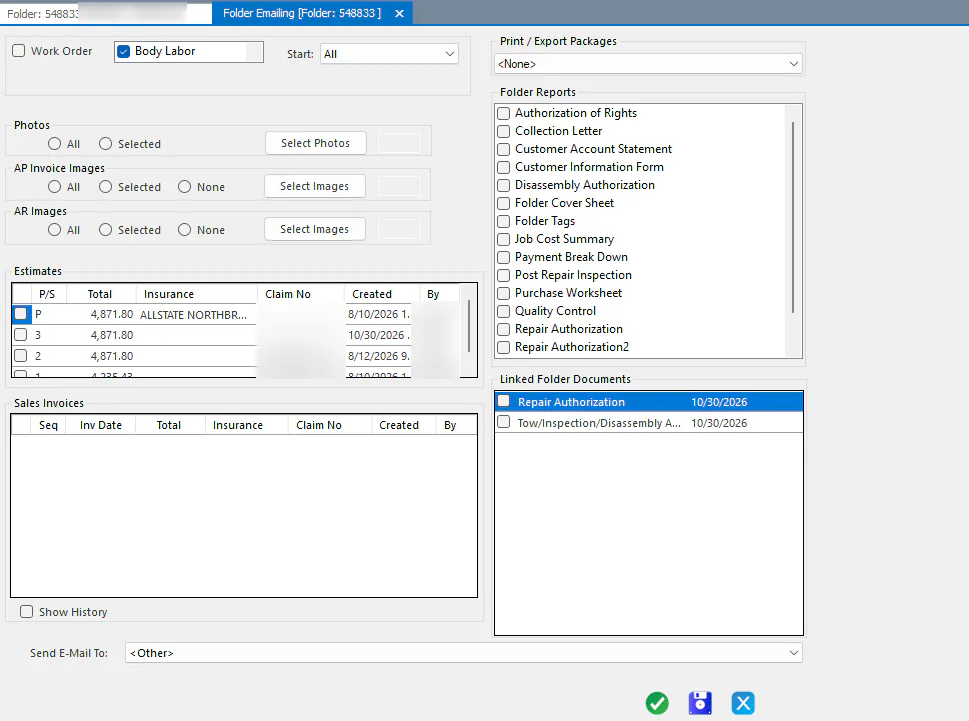
The Folder Emailing screen opens. It works like the Folder Printing screen. Check any reports, documents or photos you want to attach.
-
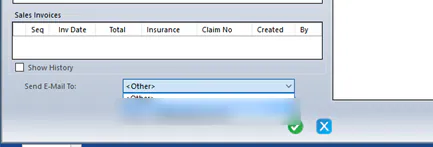
Choose who to send to in Send E-Mail To:
-
To email or text the customer, choose their email or text address from the list.
-
To email someone else, leave <Other> selected.
-
-
Select the green Process check mark.
-
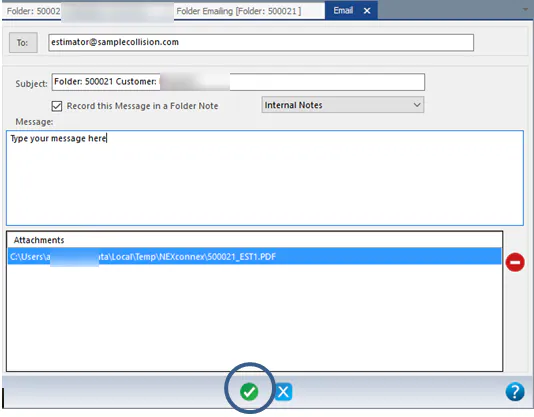
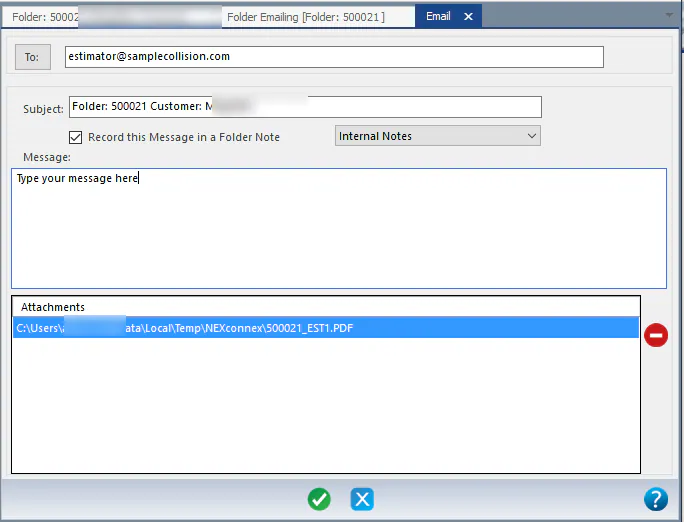
In the email window, enter the email addresses and your message. The attachments you chose are listed under Attachments.
-
To keep a copy of the email on the folder, check Record this Message in a Folder Note, then choose the note type.

-
Select the green Process check mark to send the email.