
Set up team messaging groups
A group lets you send a message or task to several people at once. Everyone in the group gets it.
Create a group
Section titled “Create a group”-
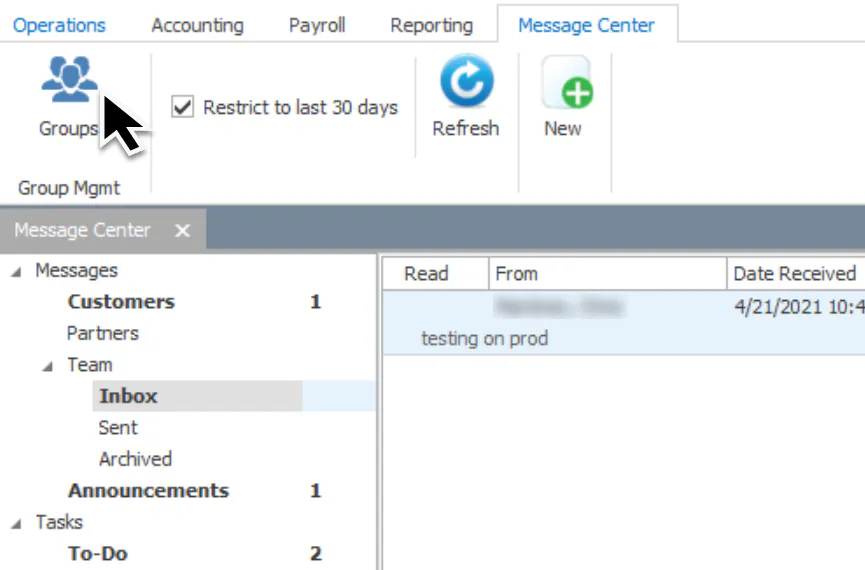
In the Message Center, in the Team or Tasks section, select Groups.
-
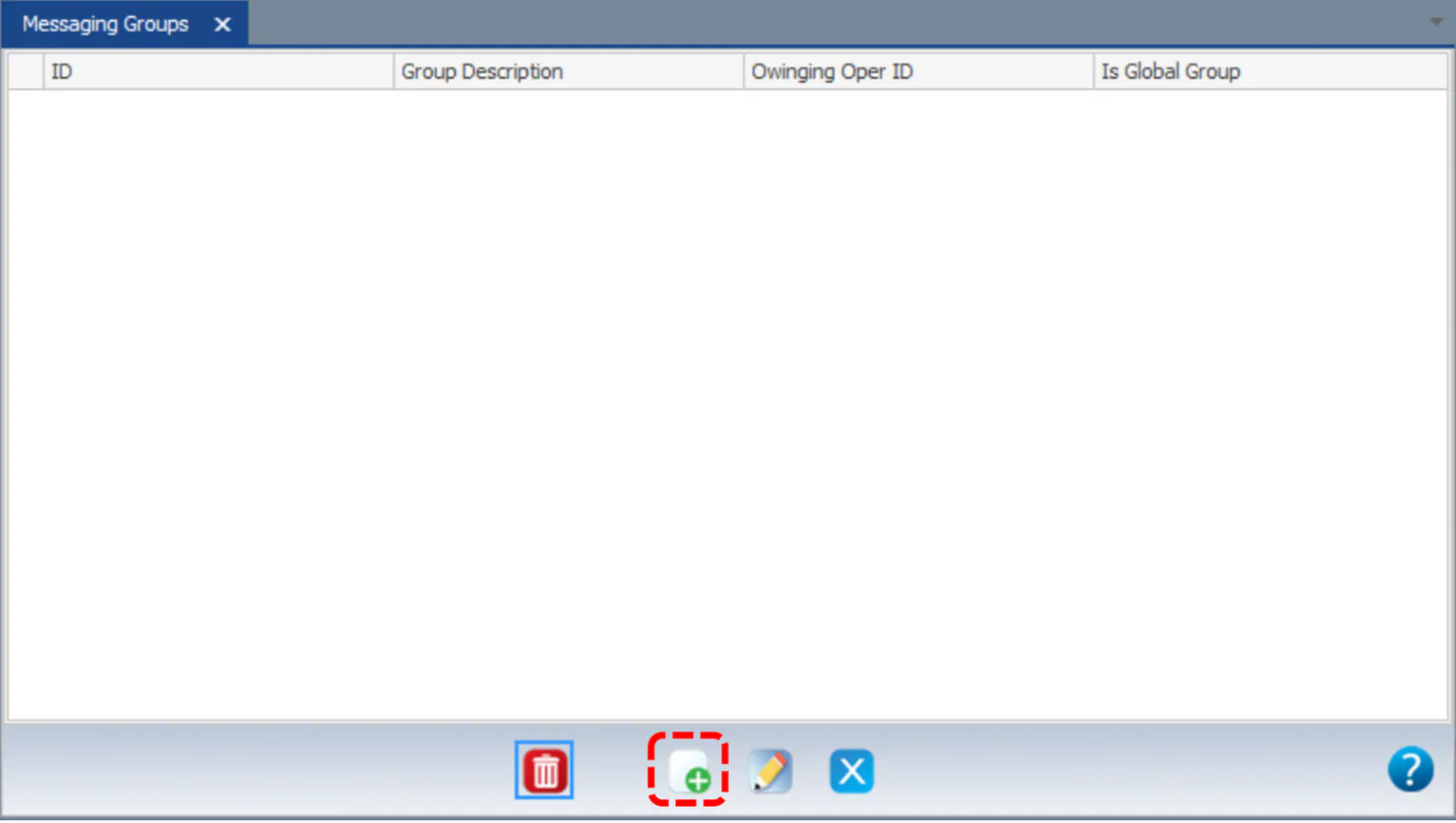
Select Add.
-
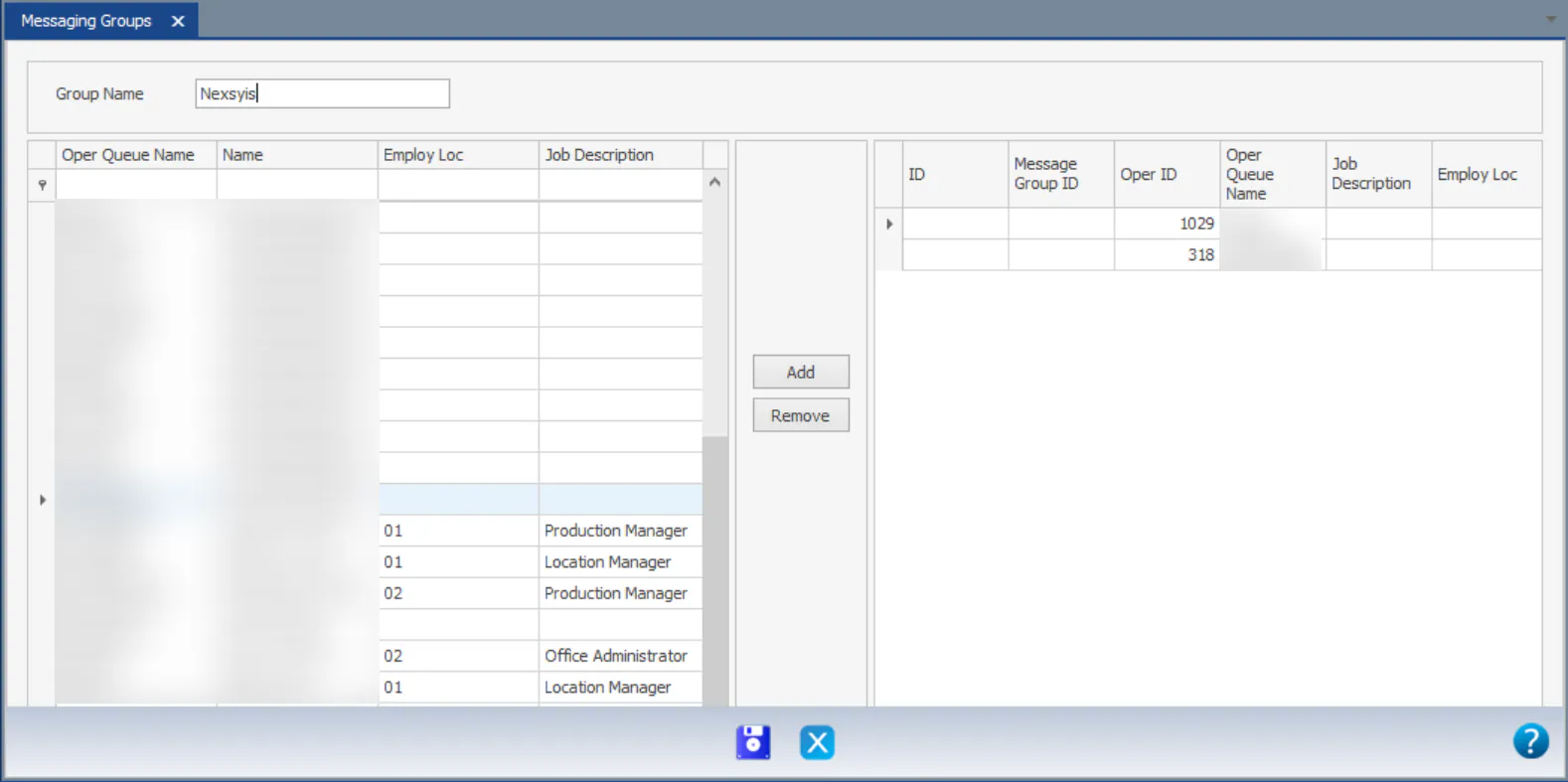
At the top, enter the Group Name.
-
Select users on the left and move them to the right, by double-clicking them or selecting Add.
-
Select Save.
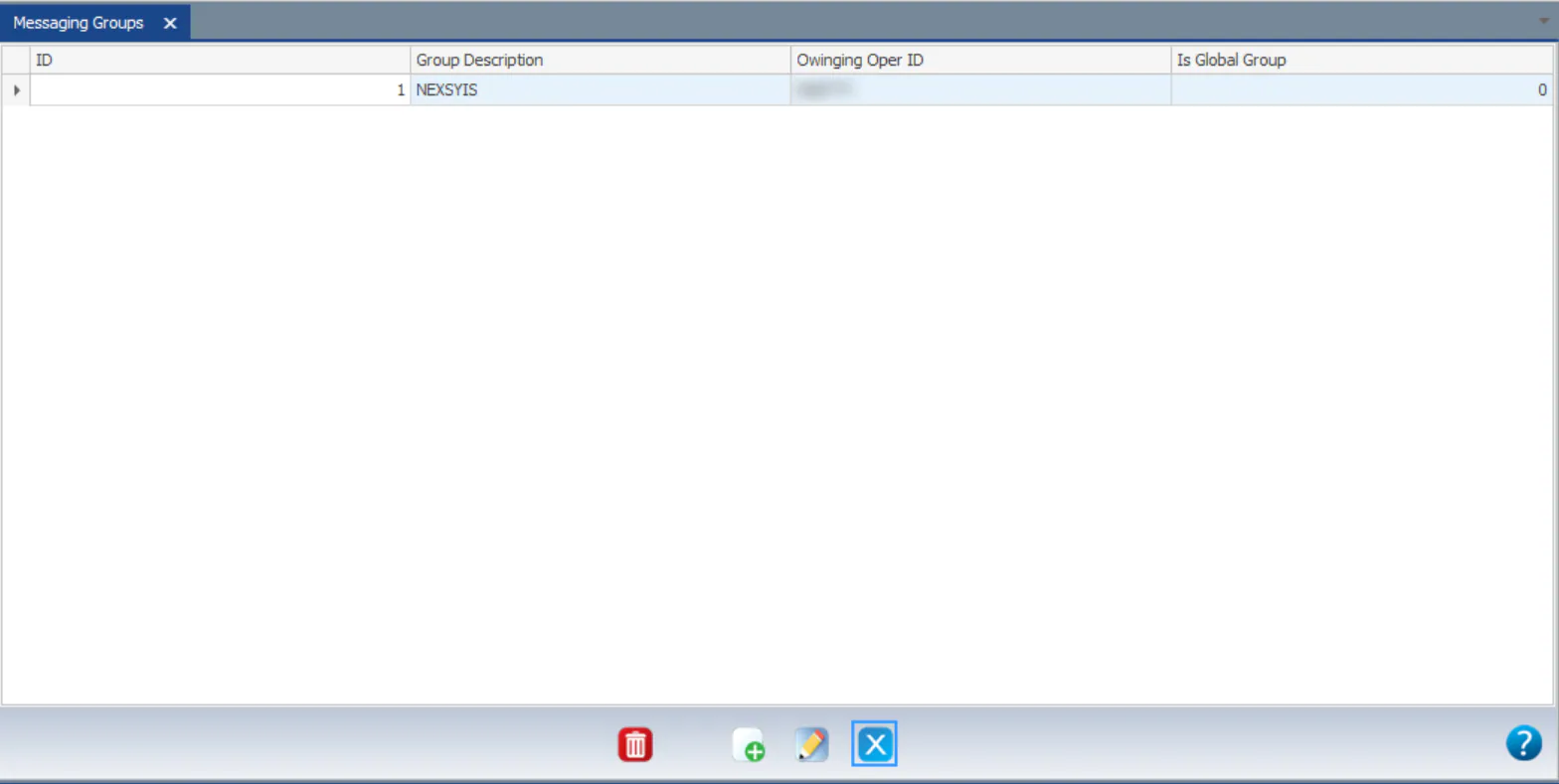
The group shows in your groups list, and you can choose it in the To: field of a new message.
Create a global group
Section titled “Create a global group”A global group shows in everyone’s To: list.
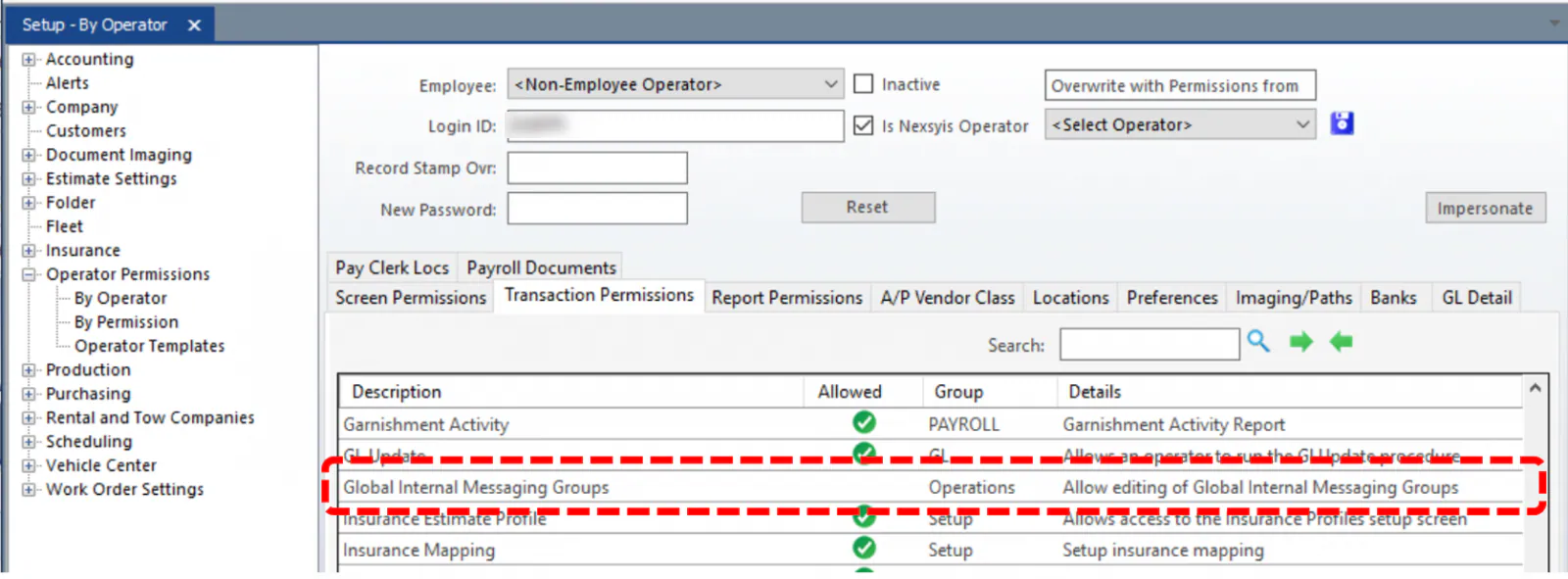
Before you begin: you need the Global Internal Messaging Groups transaction permission to add, edit or delete global groups.
When you have the permission, Is Global Group? shows next to the group name. Select it to make the group available to everyone.
