
Set up repair plan stages
Repair plan stages are the production steps, such as Body, Paint and Detail, that make up a vehicle’s repair plan. Add a stage here, then add it to a repair plan template.
Before you begin
Section titled “Before you begin”- You need the Repair Plan Stage Setup transaction permission.
- A new stage shows automatically only on folders created after you add it to your default repair plan template. For vehicles already in process, add the stage to each repair plan by hand. See Edit a vehicle’s repair plan.
Check your current stages
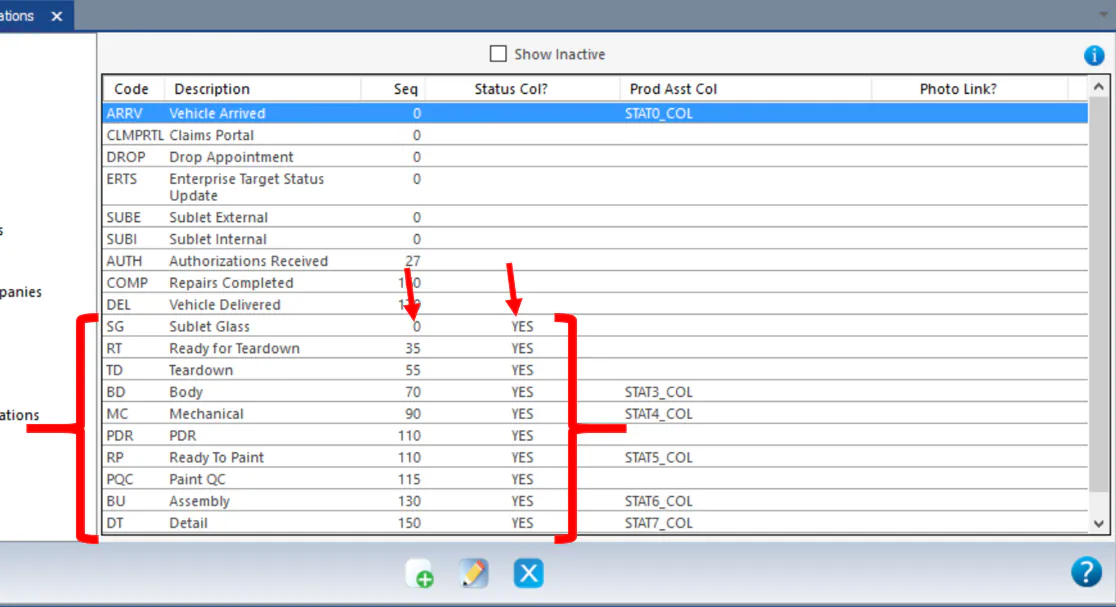
Section titled “Check your current stages”- Open System › Setup › Production › Stages / Quality Control.
- Your current repair plan stages are the ones with YES in the Status Col? column.
- Note each stage’s Seq (sequence) number. Stages appear in the repair plan in sequence-number order.
Add a stage
Section titled “Add a stage”- Select the new button (green +) at the bottom of the screen.
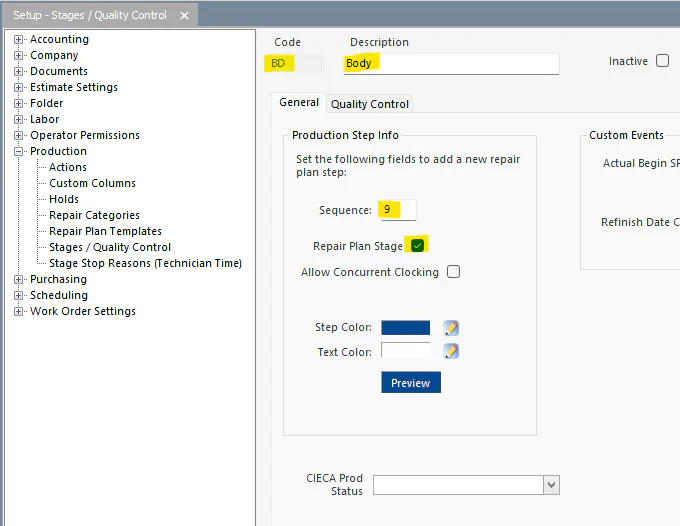
- Fill in these fields:
- Code: the stage abbreviation.
- Description: the stage name.
- Sequence: the stage’s place in the order (see above).
- Repair Plan Stage: select this checkbox.
- Step Color and Text Color: the colors the stage shows in.
- Select the save button.
Next, add the stage to a template. See Set up repair plan templates.
Edit a stage
Section titled “Edit a stage”Double-click the stage, or select it and then select the edit button.