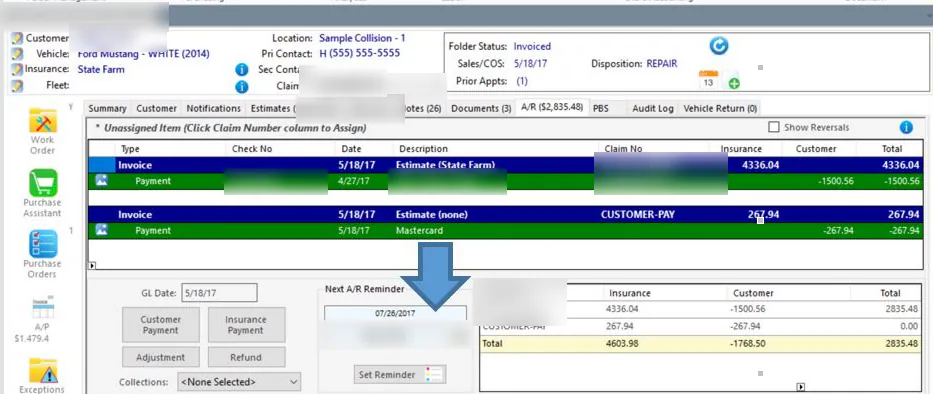
Set AR follow-up reminders
An AR follow-up reminds you, or someone else, to contact a customer or insurance company about an unpaid balance. You create it as a task with the category AR Follow Up.
Create an AR follow-up
Section titled “Create an AR follow-up”-
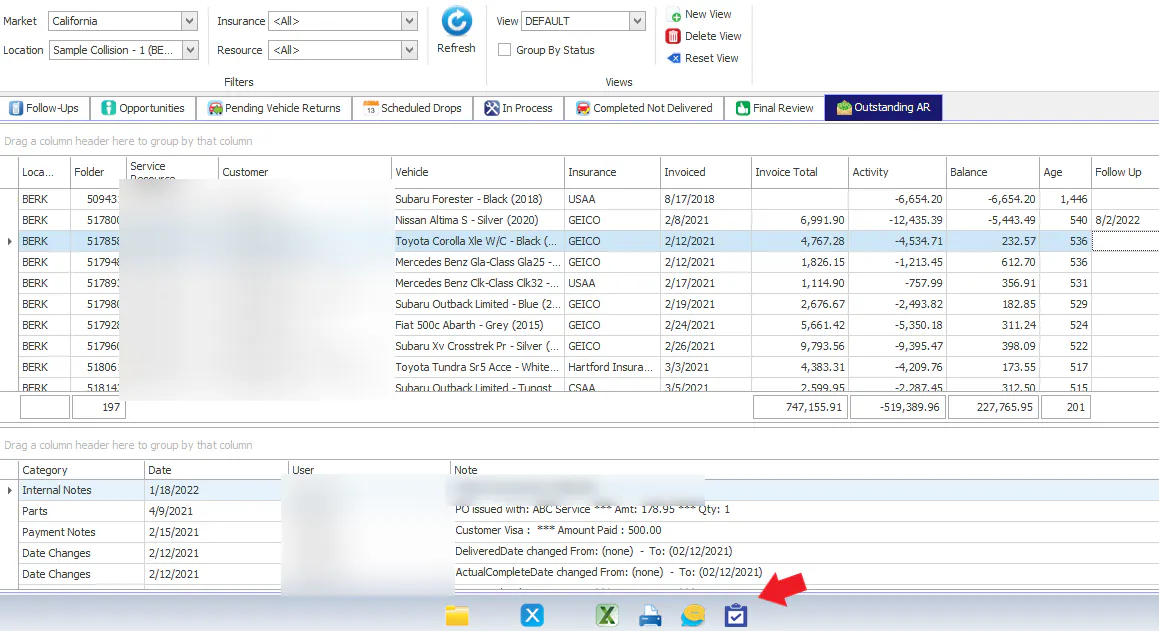
On the Vehicle Center Outstanding AR tab, select the folder.
-
Select the task icon at the bottom of the screen.
-
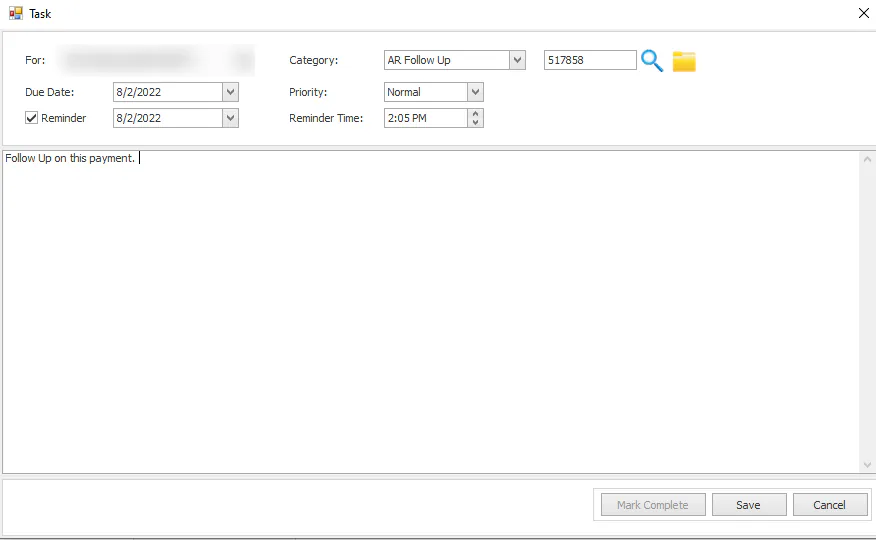
In the Task window, enter:
- For: who should follow up.
- Category: AR Follow Up.
- Due Date.
- Reminder and Reminder Time, if you want a pop-up reminder.
- A note about what to follow up on.
-
Select Save.
Complete the follow-up
Section titled “Complete the follow-up”-
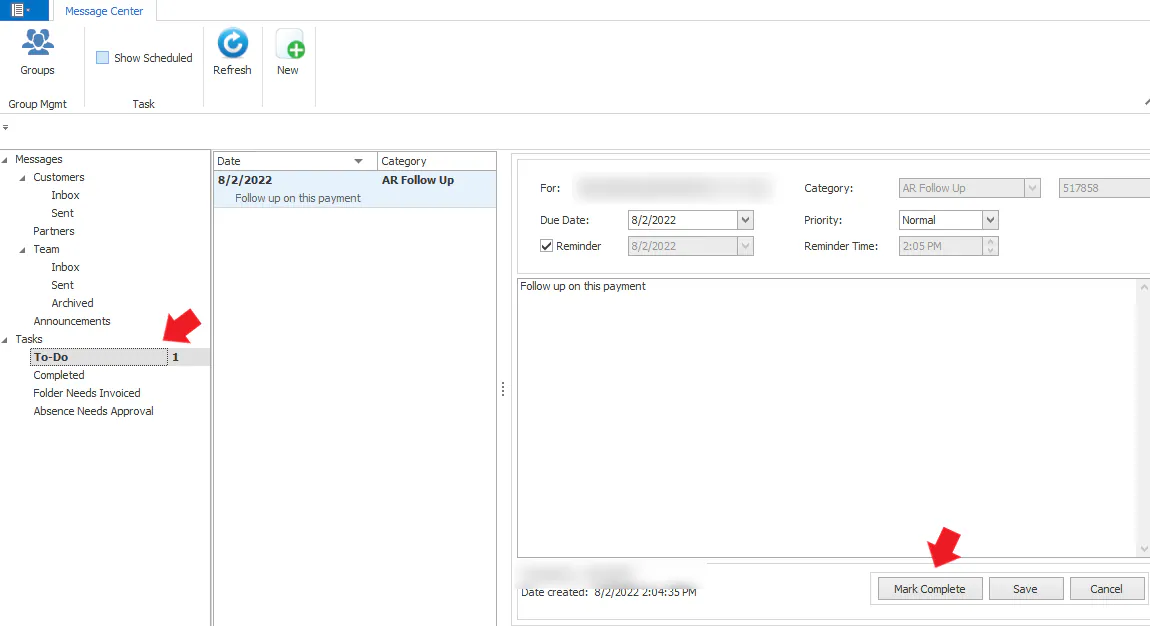
Open the Message Center and select Tasks › To-Do.
Tasks that aren’t due today are hidden. Select Show Scheduled to see future tasks.
-
Select the task. When you’ve followed up, select Mark Complete. The task is removed from your to-do list.
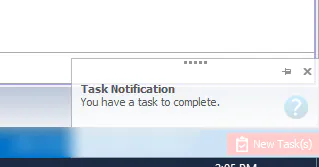
At the reminder time, a Task Notification pops up at the bottom right of your screen, and a red New Task(s) flag shows until you complete the task.
For more about tasks, see Assign and complete tasks.
See follow-ups on the Outstanding AR tab and the folder
Section titled “See follow-ups on the Outstanding AR tab and the folder”Follow-up reminders also show:
-
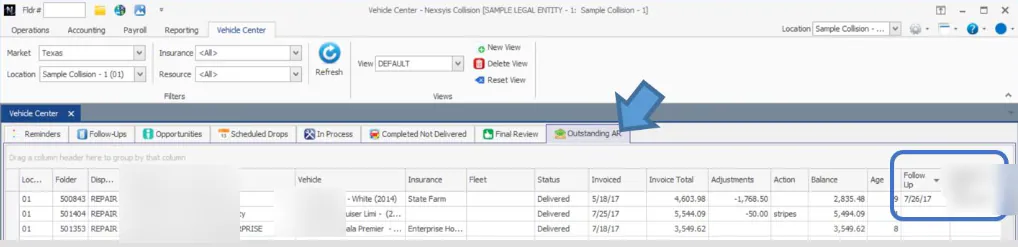
On the Vehicle Center Outstanding AR tab, in the Follow Up and Follow Up User columns. Add the columns to your grid if you don’t see them.
-
On the folder’s A/R tab, under Next A/R Reminder. You can also set one from there with Set Reminder.