
Record an absence
Record an absence for an employee on the Absences screen, or straight from the Approve Time screen when an employee has no punches for a day.
Record an absence from the Absences screen
Section titled “Record an absence from the Absences screen”-
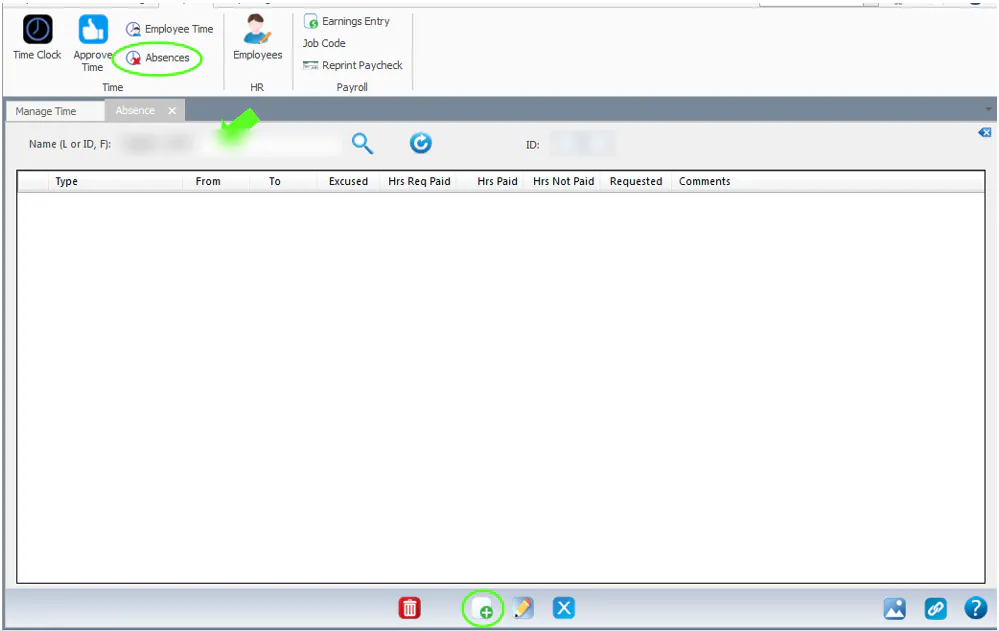
On the Payroll tab, select Absences.
-
In Name (L or ID, F), search for the employee.
-
Select New at the bottom of the screen.
-
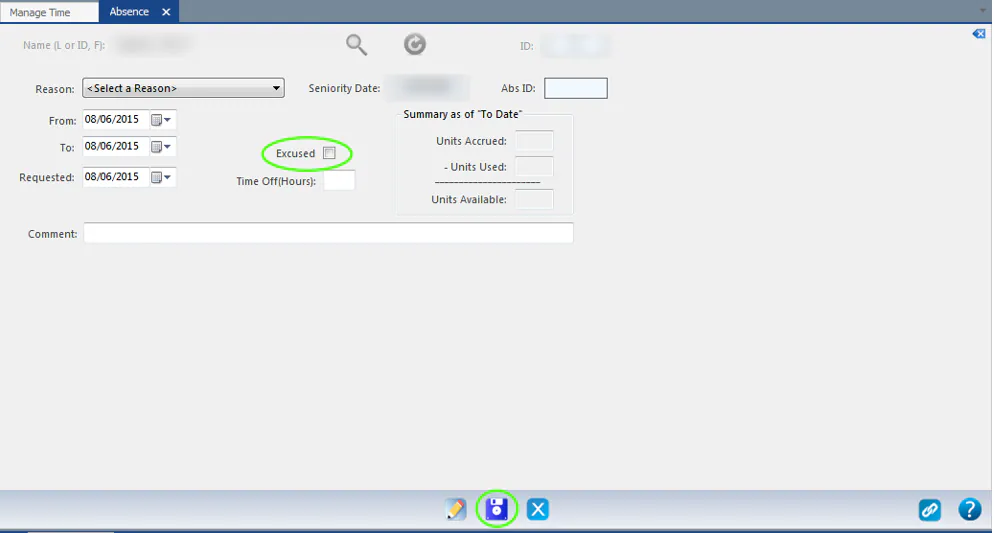
Select the Reason and enter the From and To dates.
-
If the absence is excused, select Excused.
-
Enter the number of hours taken off in Time Off(Hours).
-
Select Save.
Record an absence from the Approve Time screen
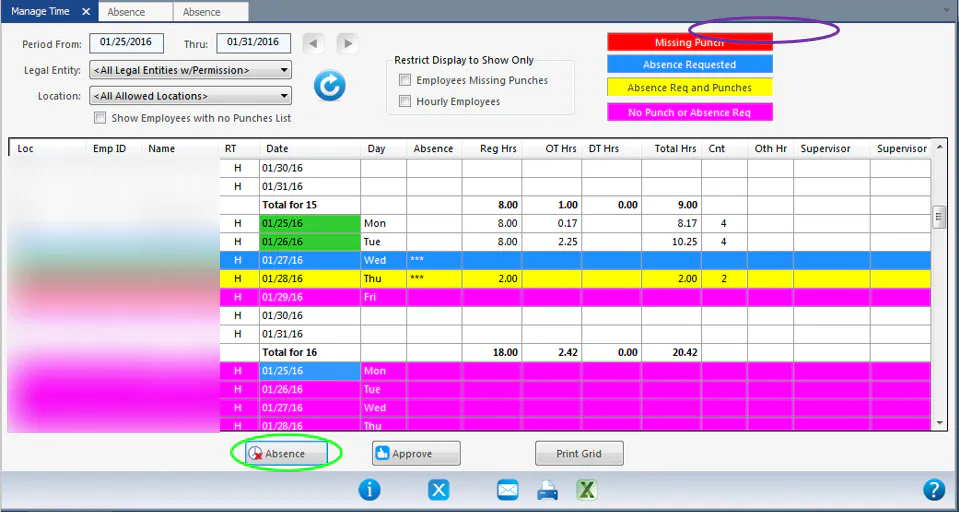
Section titled “Record an absence from the Approve Time screen”On the Approve Time screen, days with no punches and no absence request show in pink (No Punch or Absence Req).
-
Select the pink line.
-
Select Absence at the bottom of the screen.
-
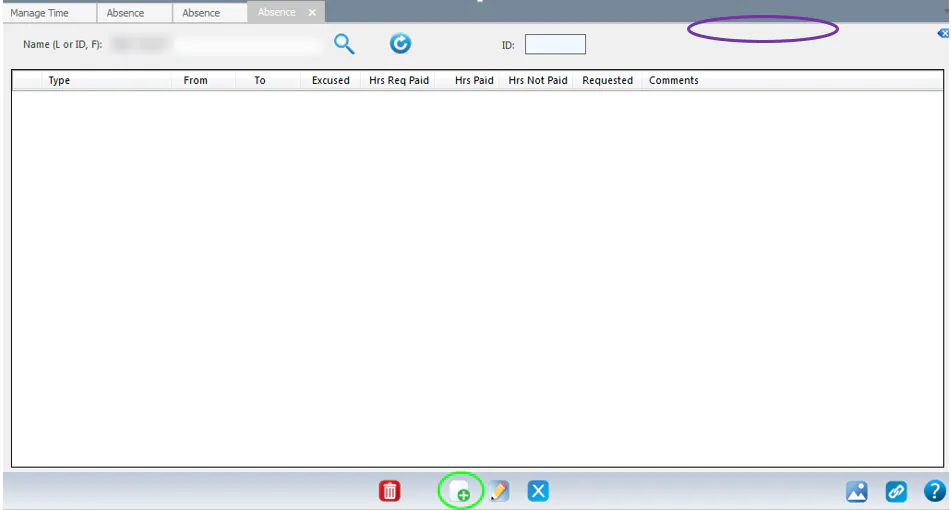
Select New at the bottom of the screen.
-
Fill in the absence details, then select Save.