
Insurance assignments overview
Insurance companies send assignments by email. When you forward those emails to Nexsyis, Nexsyis creates a folder for each new assignment and updates the folder when an update arrives, so fewer assignments are missed.
Before you begin
Section titled “Before you begin”To turn on assignment processing:
- Ask your IT team to automatically forward emails from your assignment inbox to assignments@nexsyiscollision.com. If you have more than one location, each location needs its own unique email address. Nexsyis uses the name in the email address to choose the folder’s location.
- Once forwarding is set up, contact Nexsyis Support at nexsupport@nexsyis.com. Support watches for your assignments and finishes the setup.
When a new assignment arrives
Section titled “When a new assignment arrives”-
Nexsyis creates a folder from the information in the assignment email. The folder appears on the Opportunities tab, created by the user WEB.
-
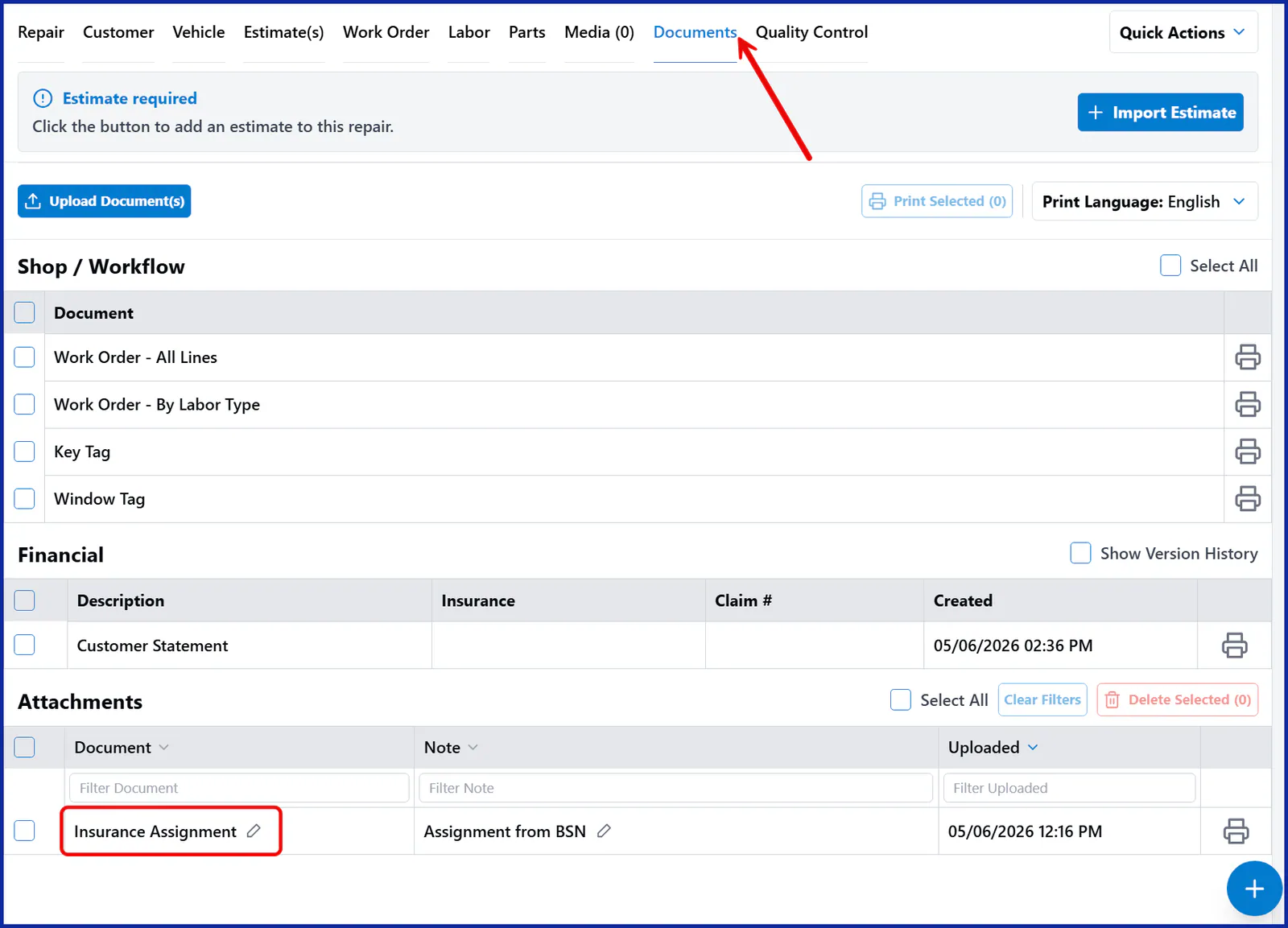
A document showing the contents of the assignment email is attached to the folder’s documents, named Insurance Assignment.

-
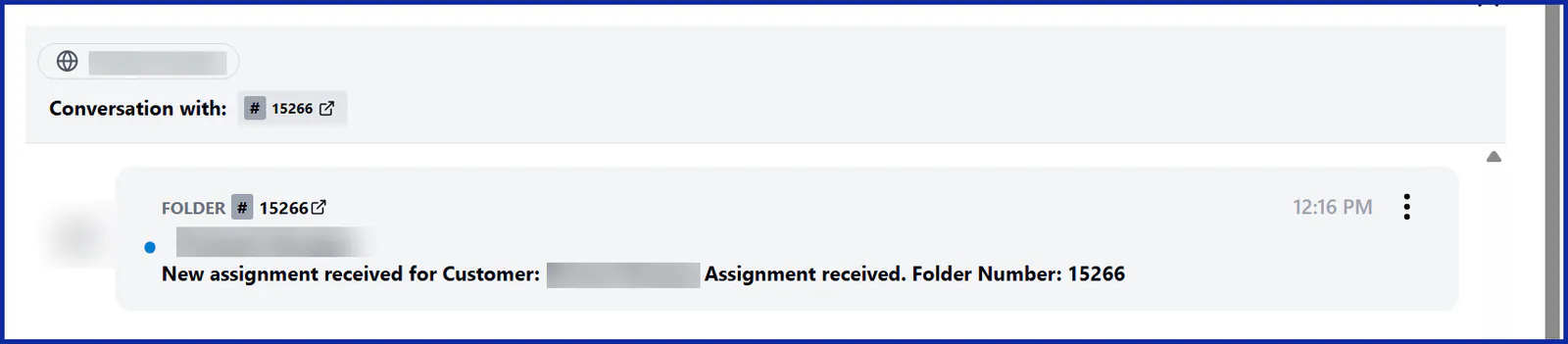
A message is sent to the Message Center saying a new assignment was received, with the folder number.
-
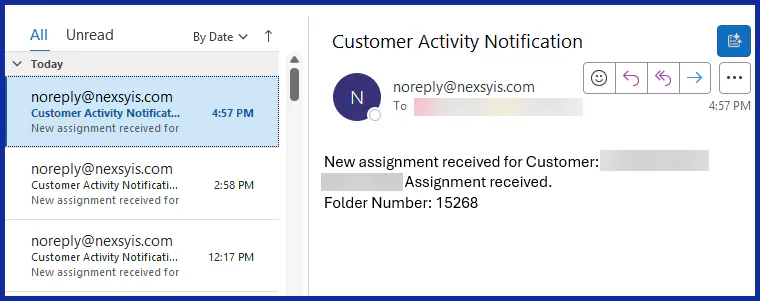
The location email addresses set up on the location’s Location tab also get an email notification.
-
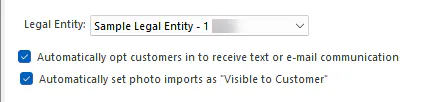
If your company has Automatically opt customers in to receive text or e-mail communication turned on, and you have a customer messaging template for Assignment Received, Nexsyis texts that message to the customer’s phone number.
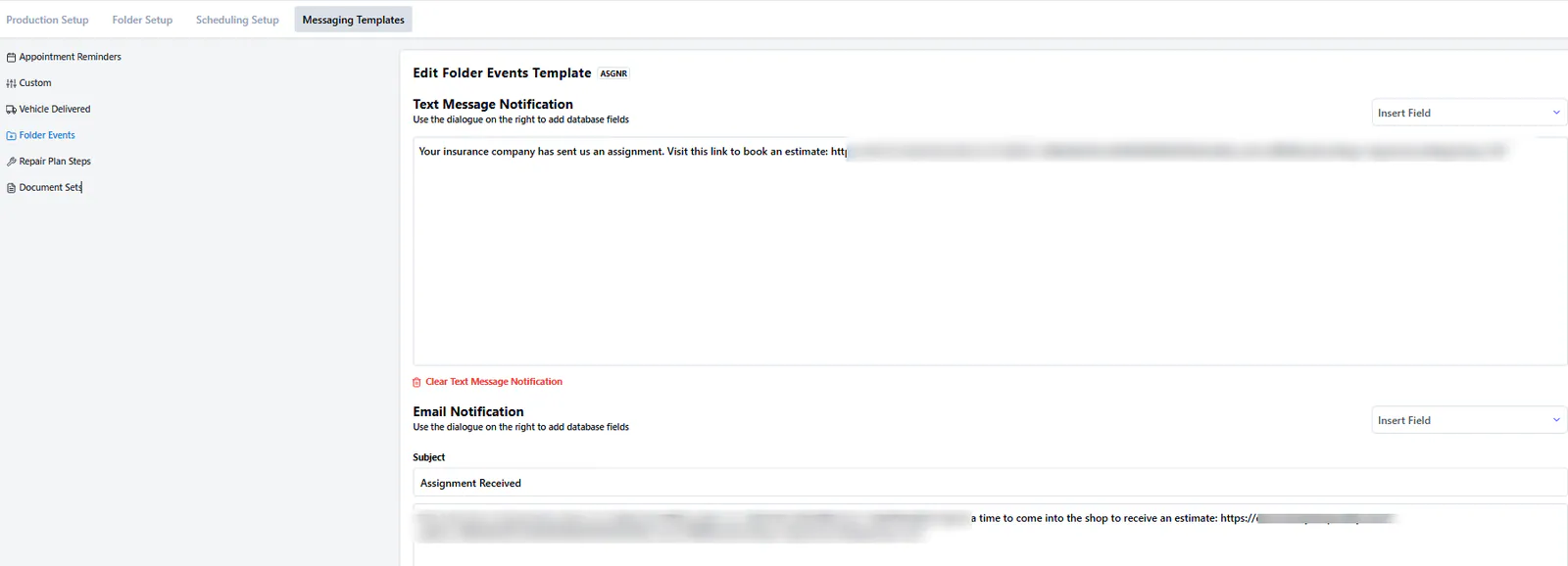
To set up the template, see Set up customer messaging templates.
When an assignment update arrives
Section titled “When an assignment update arrives”Nexsyis finds the folder to update in this order:
- A folder with the same claim number.
- If there’s no match, a folder with the same VIN.
- If there’s still no match, a folder with the same first name, last name, vehicle year, make and model, and phone number.
When it finds the folder:
-
The folder’s sales resource or service resource gets an Assignment Update task, with the update from the email as the task description.

-
A document showing the contents of the update email is attached to the folder’s documents, the same way as for a new assignment.
To choose whether updates go to the sales resource or the service resource, go to Settings › Folder Setup › Tasks, open the Assignment Update task, and choose an option under Assigned to.
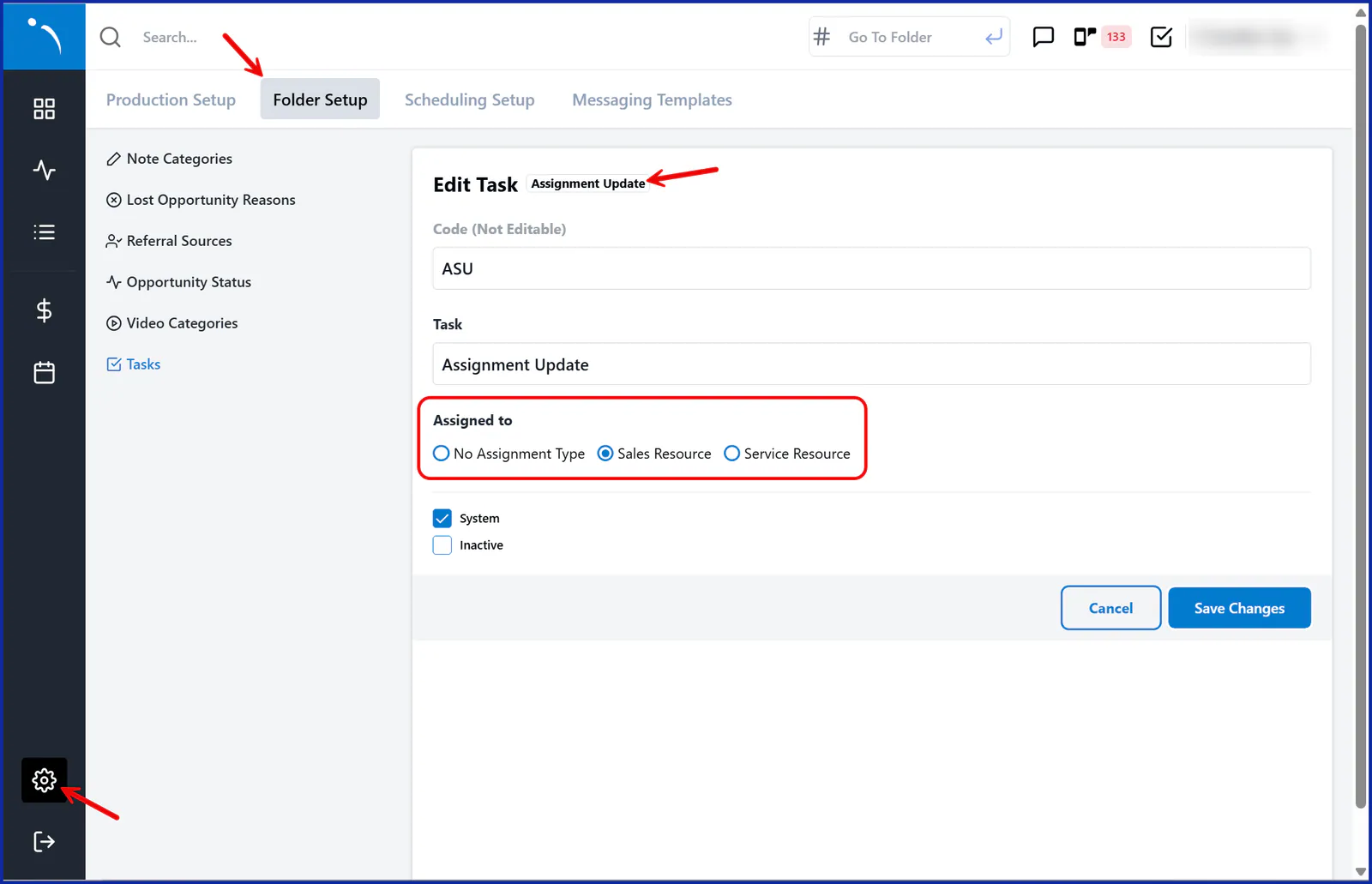
For more about tasks, see Assign and complete tasks.
When an assignment can’t be processed
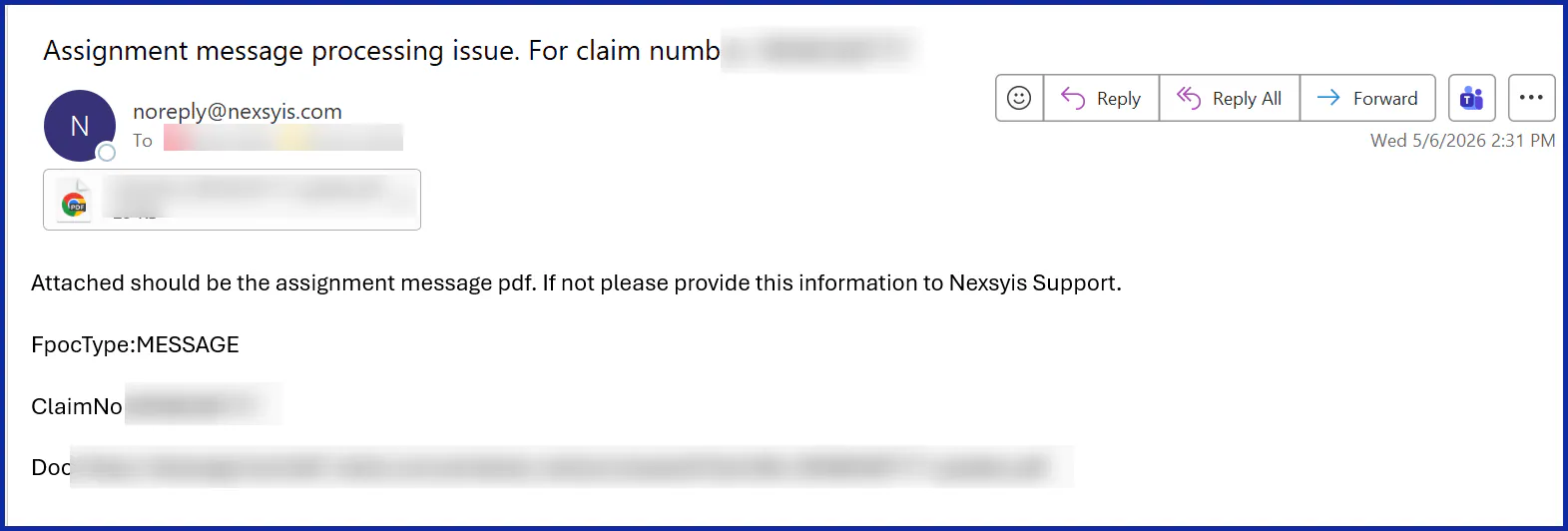
Section titled “When an assignment can’t be processed”If Nexsyis can’t process an assignment, it sends an email to the location’s email addresses. The email includes the claim number and the assignment as an attachment, so you can create the folder yourself.
Set up email processing for Mitchell and Audatex
Section titled “Set up email processing for Mitchell and Audatex”Start with a dedicated inbox
Section titled “Start with a dedicated inbox”Create a new inbox just for assignments, and set it to forward automatically to assignments@nexsyiscollision.com. Then change the notification settings in Audatex (Qapter) and Mitchell so they send to the new address. This way Nexsyis receives only the emails it needs.
Update Audatex (Qapter)
Section titled “Update Audatex (Qapter)”Complete Audatex’s request form and email it to canadatechsupport@audatex.com.
Update Mitchell
Section titled “Update Mitchell”- Assignments, estimates and tasks: in Mitchell, go to Settings › Notification Preferences, and update the recipient email for each insurance company under each notification type.
- Journal notifications: call Mitchell Tech Support at 800-448-4401. No form is needed. They update the shop’s email address for each insurance company over the phone.