
Troubleshoot third-party orders
Fix an order with a red CON status
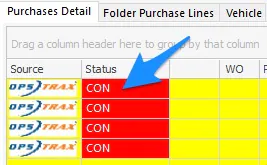
Section titled “Fix an order with a red CON status”A red CON means the third-party vendor isn’t mapped to a Nexsyis vendor, so Nexsyis can’t create the purchase order. Create it by hand, then map the vendor so it doesn’t happen again.
Create the purchase order
Section titled “Create the purchase order”-
Double-click CON to open the Third Party Purchase Management screen.
-
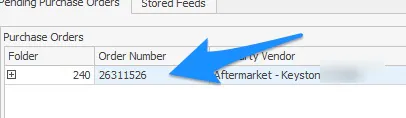
Select the order line on the left.
-
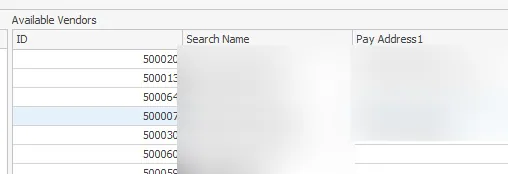
Select the Nexsyis vendor on the right.
-
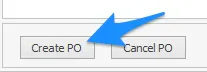
Select Create PO at the bottom.
You can now receive the parts as usual.
Map the vendor
Section titled “Map the vendor”-
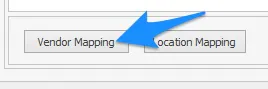
Select Vendor Mapping at the bottom of the screen.
-
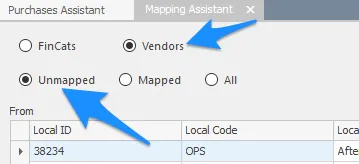
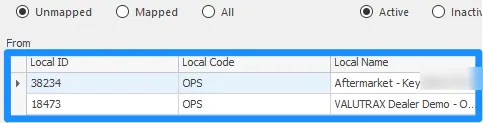
On the Mapping Assistant screen, select Vendors and Unmapped. Unmapped vendors are listed.
-
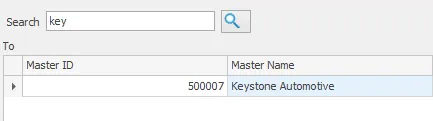
Search for the Nexsyis vendor on the right.
-
Select Map.
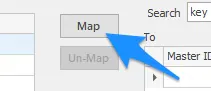
Future orders to this vendor now work correctly.
OPS Trax isn’t working
Section titled “OPS Trax isn’t working”Check these in order:
-
Check your credentials. Make sure your OPS Trax user ID and password are set up. See Order and invoice through OPS Trax.
-
Re-import the estimate into Nexsyis. If your company uses the Nexsyis EMS service to import estimates, restart it.
-
Clear the web cache on your computer:
- Close Nexsyis.
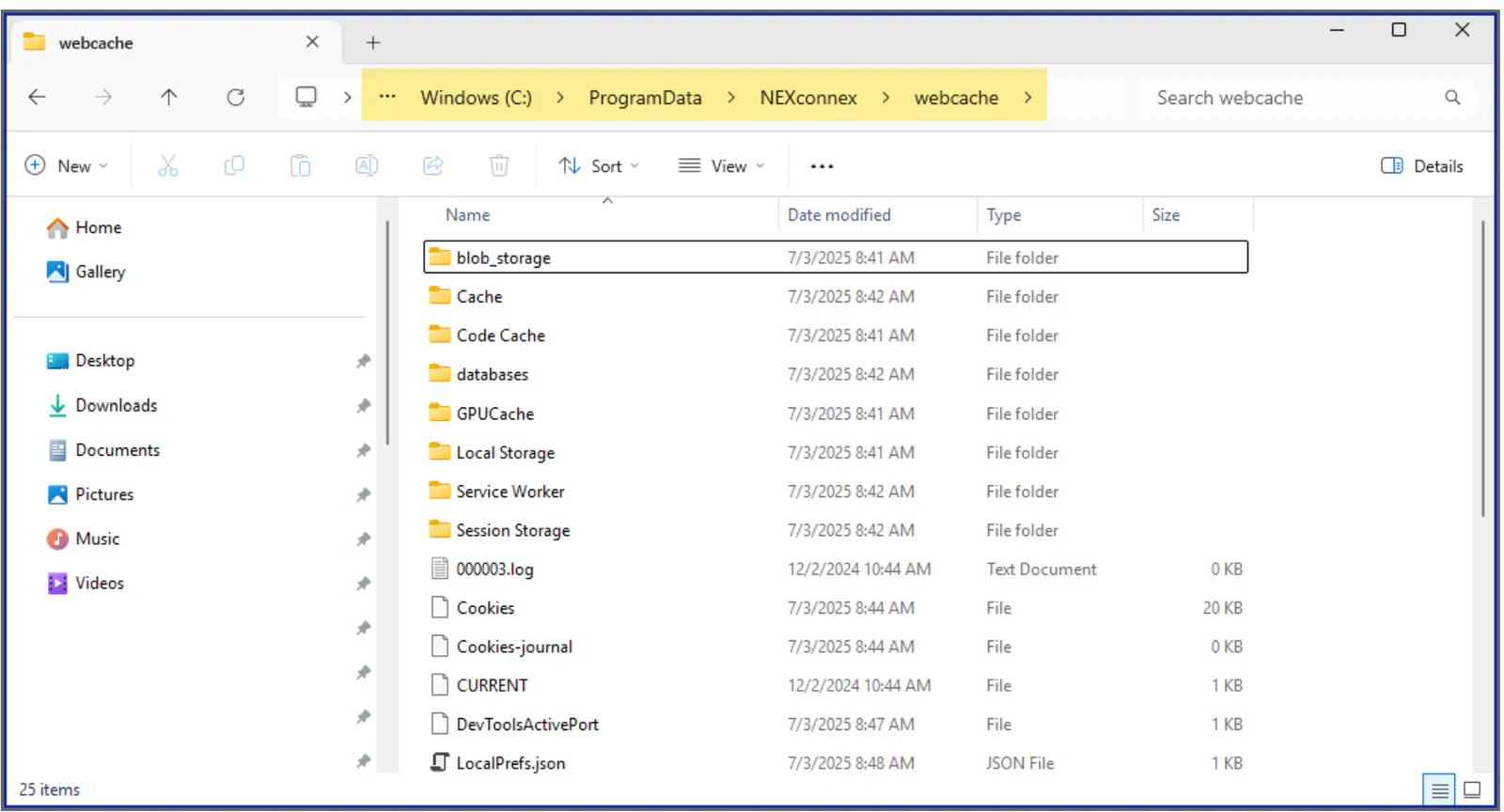
- In File Explorer, go to
C:\ProgramData\NEXconnex\webcache. - Select all the files in the folder (Ctrl+A) and delete them.
- Open Nexsyis and check whether OPS Trax works.
-
Ask your IT team to restart the OPS Trax service.