
Invoice a folder
Nexsyis turns the estimate into the final invoice automatically when you mark the vehicle as delivered. You don’t need a separate invoicing step.
Invoice the estimate
Section titled “Invoice the estimate”On the folder’s Summary tab, under Dates, select Vehicle Delivered and set the date. The estimate is invoiced when the folder has a delivered date.
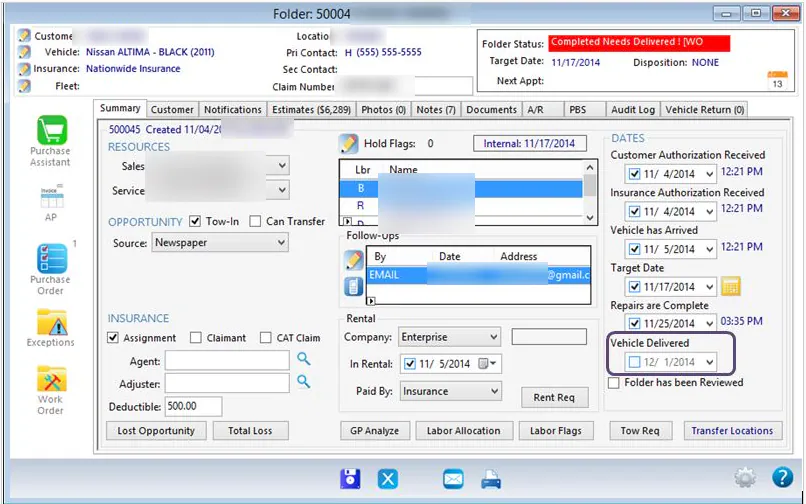
For more about recording delivery, see Mark a vehicle as delivered.
If the customer needs a copy of the invoice before delivery, create a pre-delivery invoice.
Re-invoice a folder
Section titled “Re-invoice a folder”Nexsyis re-invoices estimates automatically, for example after you import a revised estimate on an invoiced folder. The audit log shows these entries with the user SYS-AUTO.
Automatic re-invoicing started with an update on October 1, 2022. Folders that were flagged as needing re-invoicing before that update must be re-invoiced by hand.
Find folders that need re-invoicing
Section titled “Find folders that need re-invoicing”Use either of these:
- Run the Folder AR Invoice Tracking Report.
- Open the Folder Needs Re-invoiced section of the Message Center.
Re-invoice the estimate
Section titled “Re-invoice the estimate”-
Open the folder.
-
Select the Estimates tab.
-
Select Invoice Estimates.
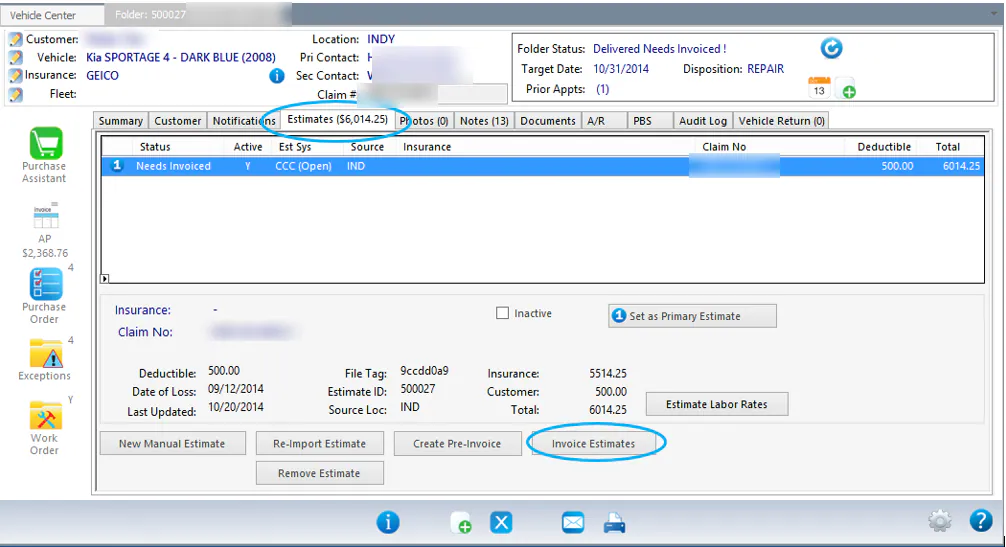
The estimate’s Status changes to Invoiced.

Invoices that aren’t for a vehicle
Section titled “Invoices that aren’t for a vehicle”Every invoice in Nexsyis is created through a folder, so you can’t create an invoice that isn’t tied to a vehicle, such as intercompany billing for payroll or supplies. For those, use an invoice template outside Nexsyis, for example one made in Word.