
Import AR payments
Some insurance companies send a file listing every claim a payment covers. Import the file to create the payment and match each line to a folder automatically.
Prepare the file
Section titled “Prepare the file”These files usually arrive by email as Excel spreadsheets, but they’re really tab-delimited text files.
- Drag the attachment from the email to your desktop. Don’t open the file.
- Change the file extension from .xls to .txt. Don’t change anything else in the name, and don’t open the file.
Import the file
Section titled “Import the file”-
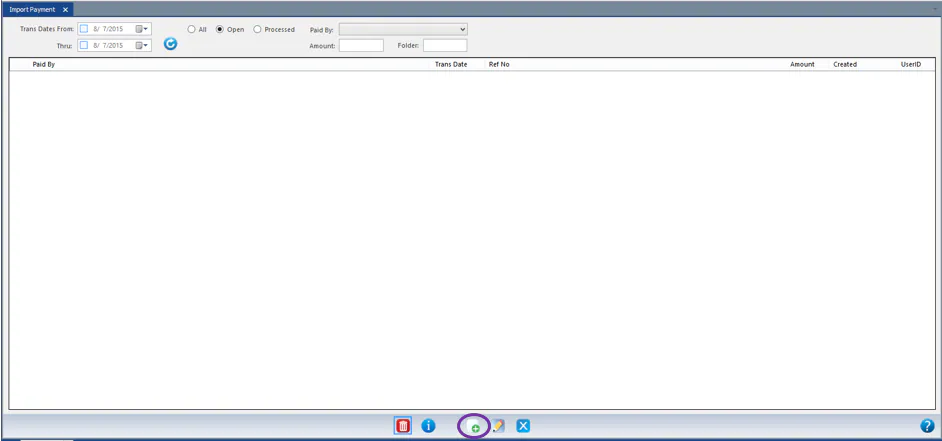
Go to Accounting › A/R Payments › Import Payments.
-
Select New on the bottom button bar.
-
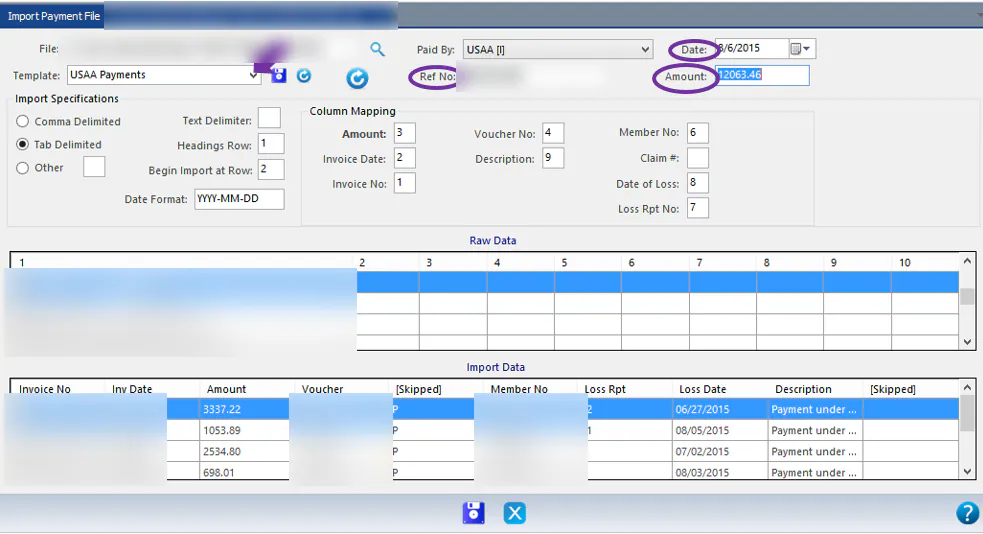
On the import screen, browse to the file in File and choose the Template.
-
Enter the payment details. You’ll find them by expanding the first column of the raw data, or in the body of the email:
- Date: the date the payment was remitted.
- Ref No: the payment reference.
- Amount: the payment amount.
-
Select Save.
-
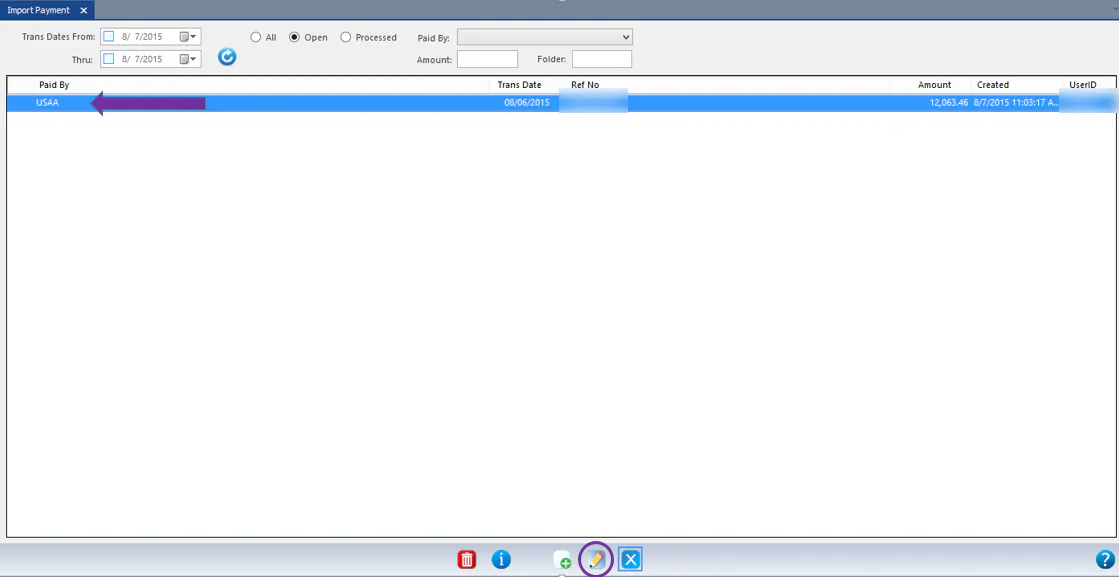
The payment is loaded and a search list opens. Select the payment, then select the edit button.
Match lines to folders
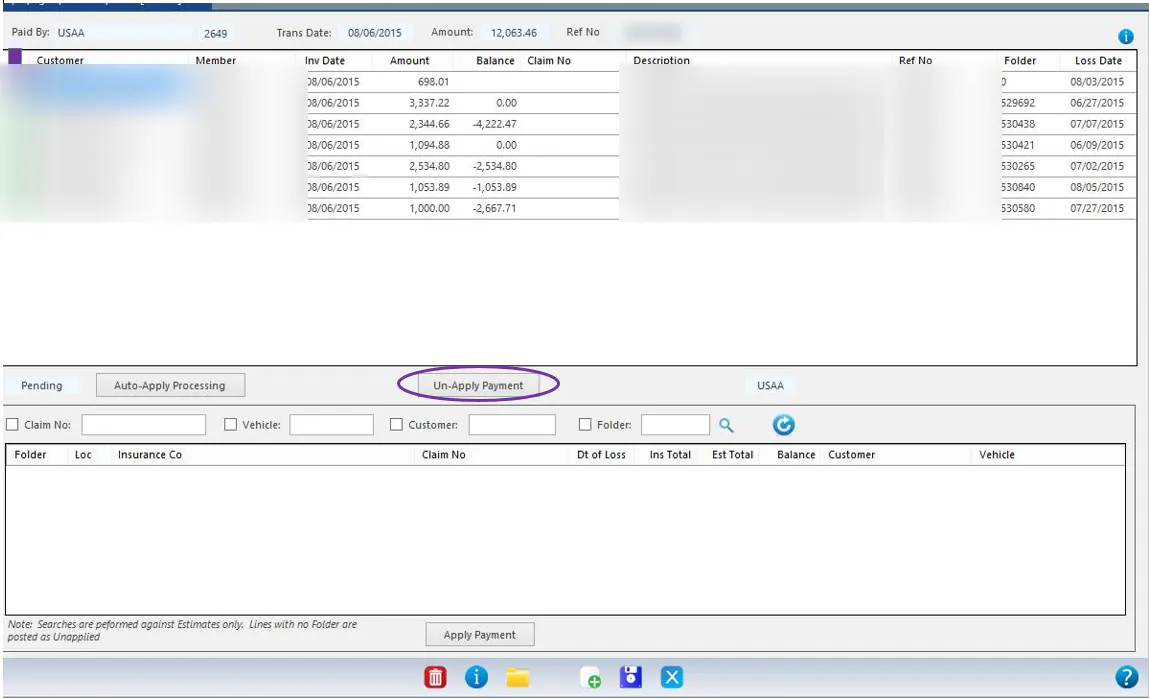
Section titled “Match lines to folders”When the file loads, Nexsyis tries to match each line to a folder and estimate. Matched lines show a green check mark.
For a line that isn’t matched:
- Type what you know in the search boxes at the bottom: Claim No, Vehicle, Customer or Folder. Select the checkbox next to each one you want to use, then search.
- Select the line at the top and the matching folder at the bottom.
- Select Apply Payment.
To unlink a line, select Un-Apply Payment. To run the automatic matching again, select Auto-Apply Processing.
Create the payment
Section titled “Create the payment”You can save at any time and come back to the payment later. Each time you save, you’re asked whether to write the payment records.
- Select No to keep working on the import.
- Select Yes to create the AR payment. After that, you can’t change the import. Make any changes on the payment screen instead.
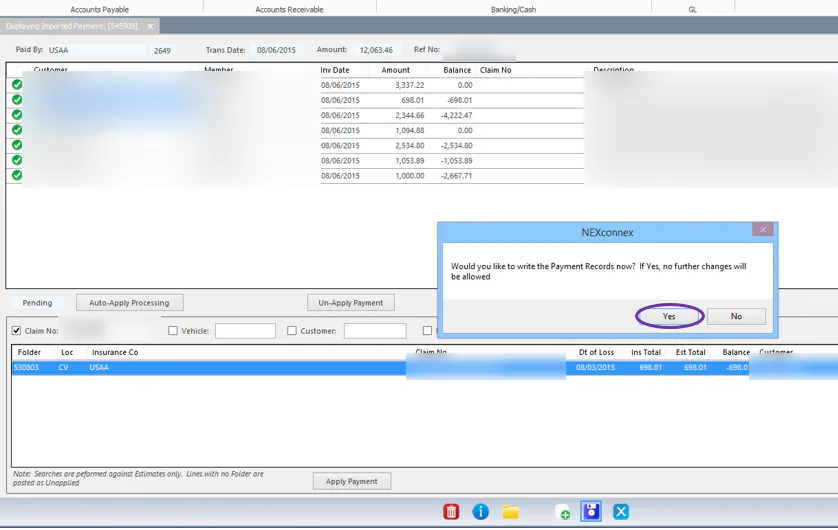
Unmatched lines go to unapplied payments. You can change them later on the AR payment screen.
You can delete the import at any time until the AR payment has been created.