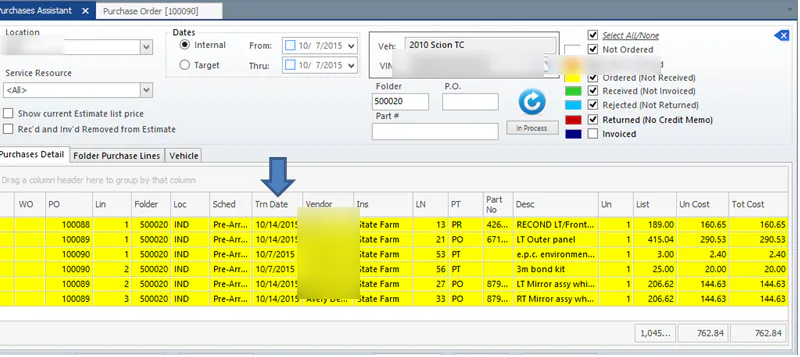
Set expected delivery on a PO
Record when ordered parts are expected to arrive. The date shows in the Trn column of the Purchase Assistant for every line on the purchase order.
Set it while ordering
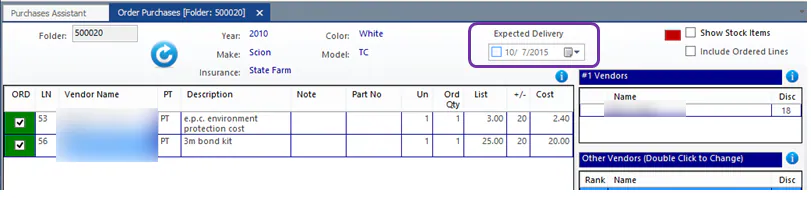
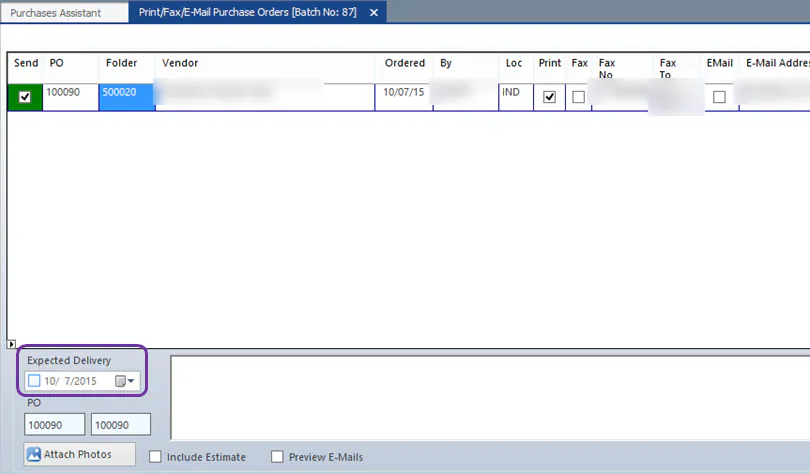
Section titled “Set it while ordering”Enter the Expected Delivery Date at the top of the order screen, or on the screen for sending the purchase order.
Set or change it after ordering
Section titled “Set or change it after ordering”For parts that are Ordered (Not Received), do either of the following:
-
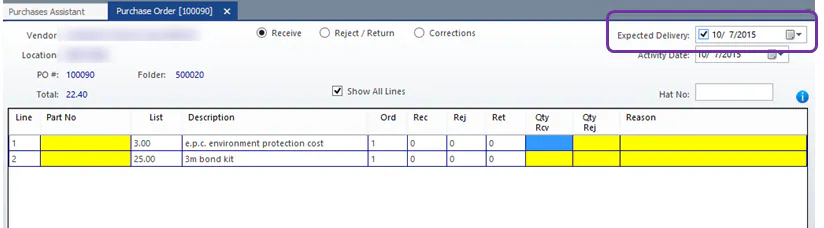
On the purchase order screen, enter the expected delivery date.
-
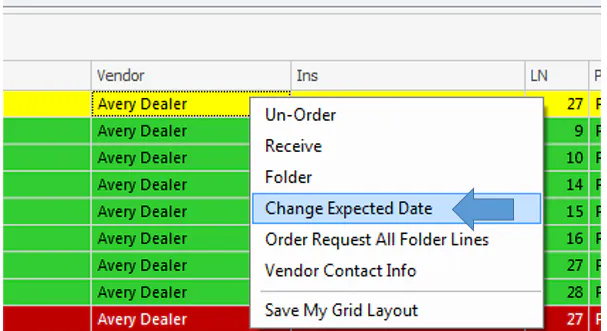
In the Purchase Assistant, right-click the grid and select Change Expected Date. Set the new date, then select Process.
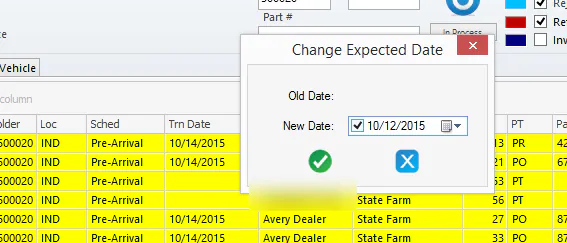
The date now shows in the Trn column for every line on that purchase order.