Record a non-AR payment
Money you receive that isn’t for a repair, such as a refund, rebate, commission or interest check from a vendor, is entered as a non-AR payment. Once saved, it can be deposited like any other payment.
Create a non-AR payment
Section titled “Create a non-AR payment”-
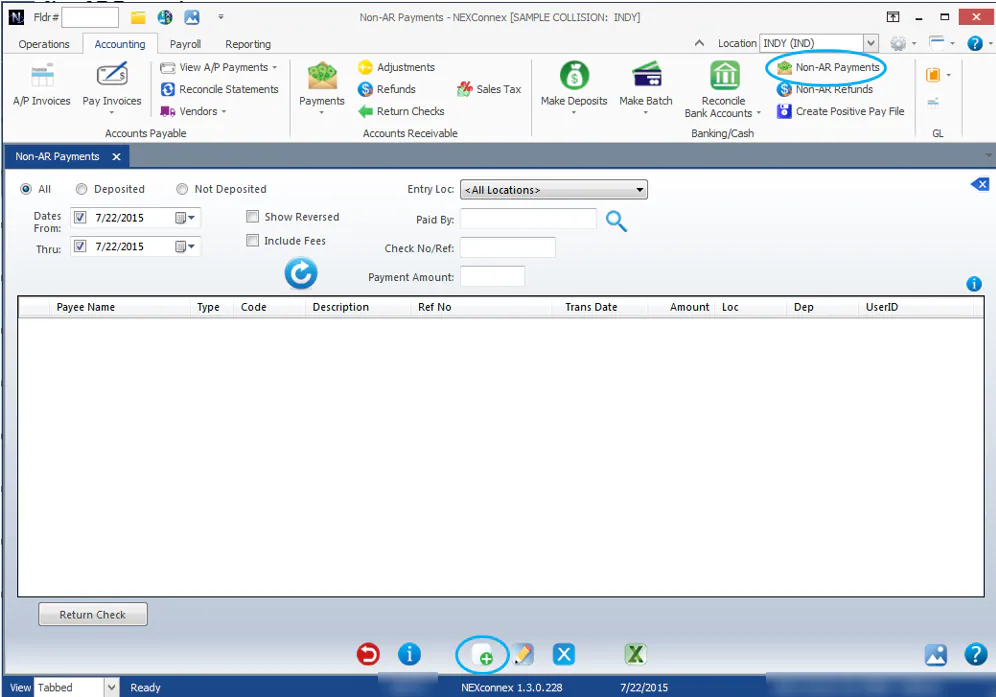
On the Accounting tab, select Non-AR Payments, then select New.
-
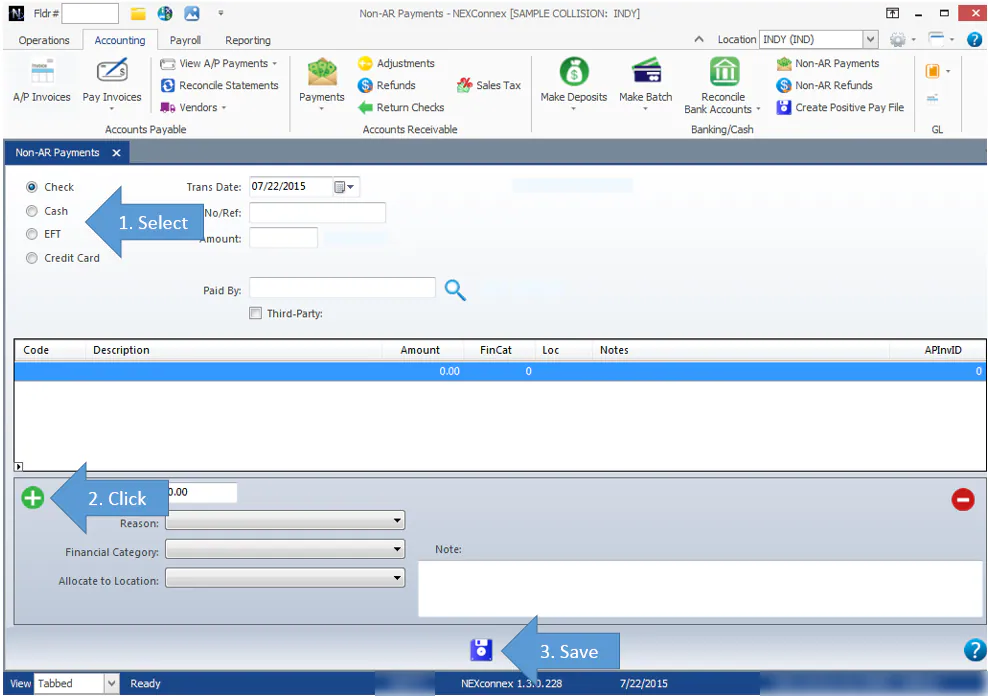
On the left, select the type of payment: Check, Cash, EFT or Credit Card.
-
At the top, enter the No/Ref, the Amount and who it’s Paid By.
-
Select the add button to insert a line.
-
Enter the line’s amount, and select the Reason, Financial Category and Allocate to Location.
-
If the check covers several items, add a line for each.
-
When the total matches the check amount you entered at the top, select Save.
The payment shows in yellow under deposit items on the Make a Deposit screen. See Make a deposit.
Set up non-AR payment reasons
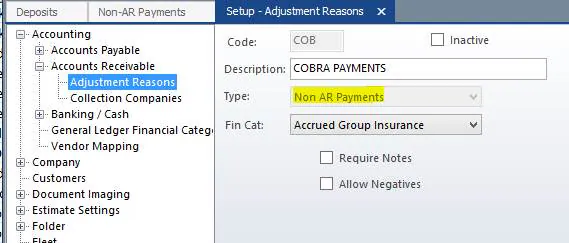
Section titled “Set up non-AR payment reasons”Non-AR payment reasons set the financial distribution for common kinds of non-AR payments, which reduces data entry errors.
- Open Setup › Accounting › Accounts Receivable › Adjustment Reasons.
- Create or edit a reason, and set Type to Non AR Payments.
- Select the Fin Cat the reason posts to, then save.