
Pre-order parts
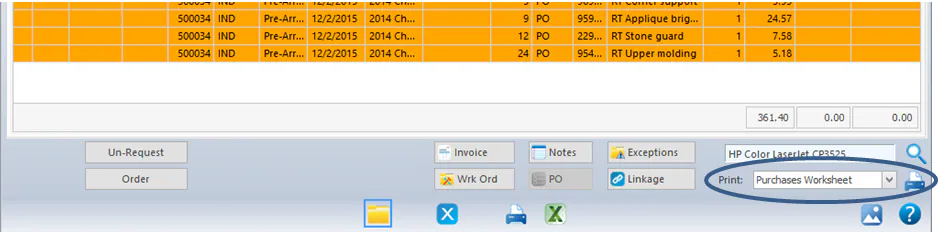
Mark a folder’s parts as needing to be ordered, so the parts employee knows what to buy. The parts turn orange (Order Requested) in the Purchase Assistant.
Before you begin
Section titled “Before you begin”The folder must have a work order. Parts don’t appear in the Purchase Assistant until the work order exists.
Request the parts
Section titled “Request the parts”-
Open the folder.
-
Select Work Order to create the work order.
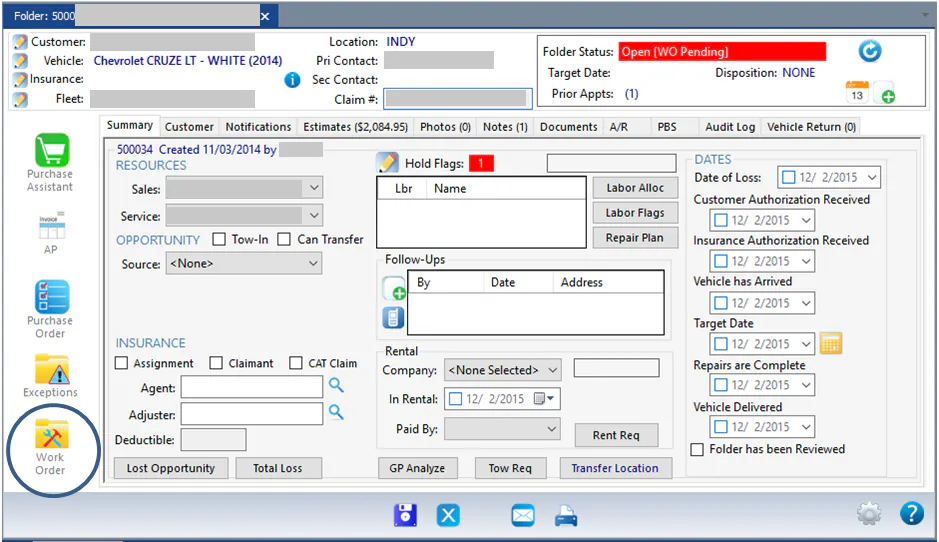
-
Select Purchase Assistant.
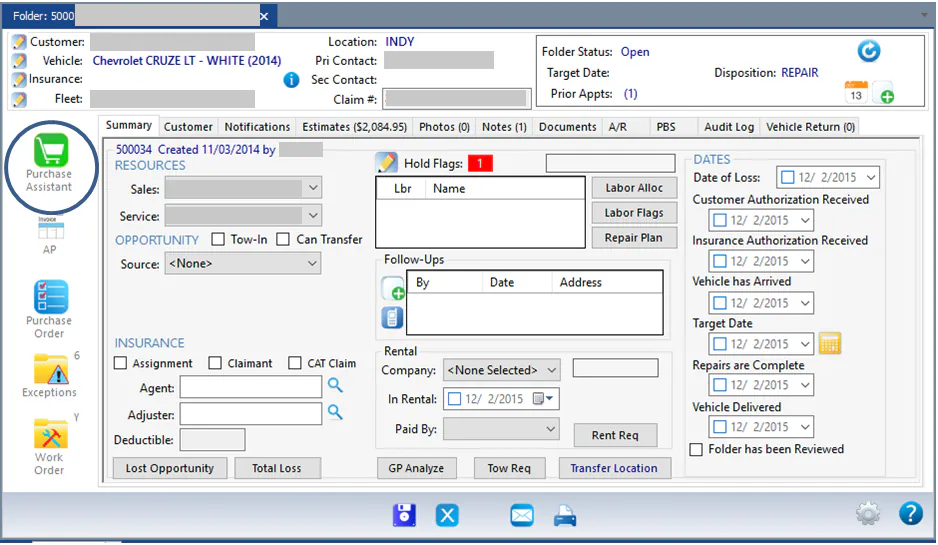
-
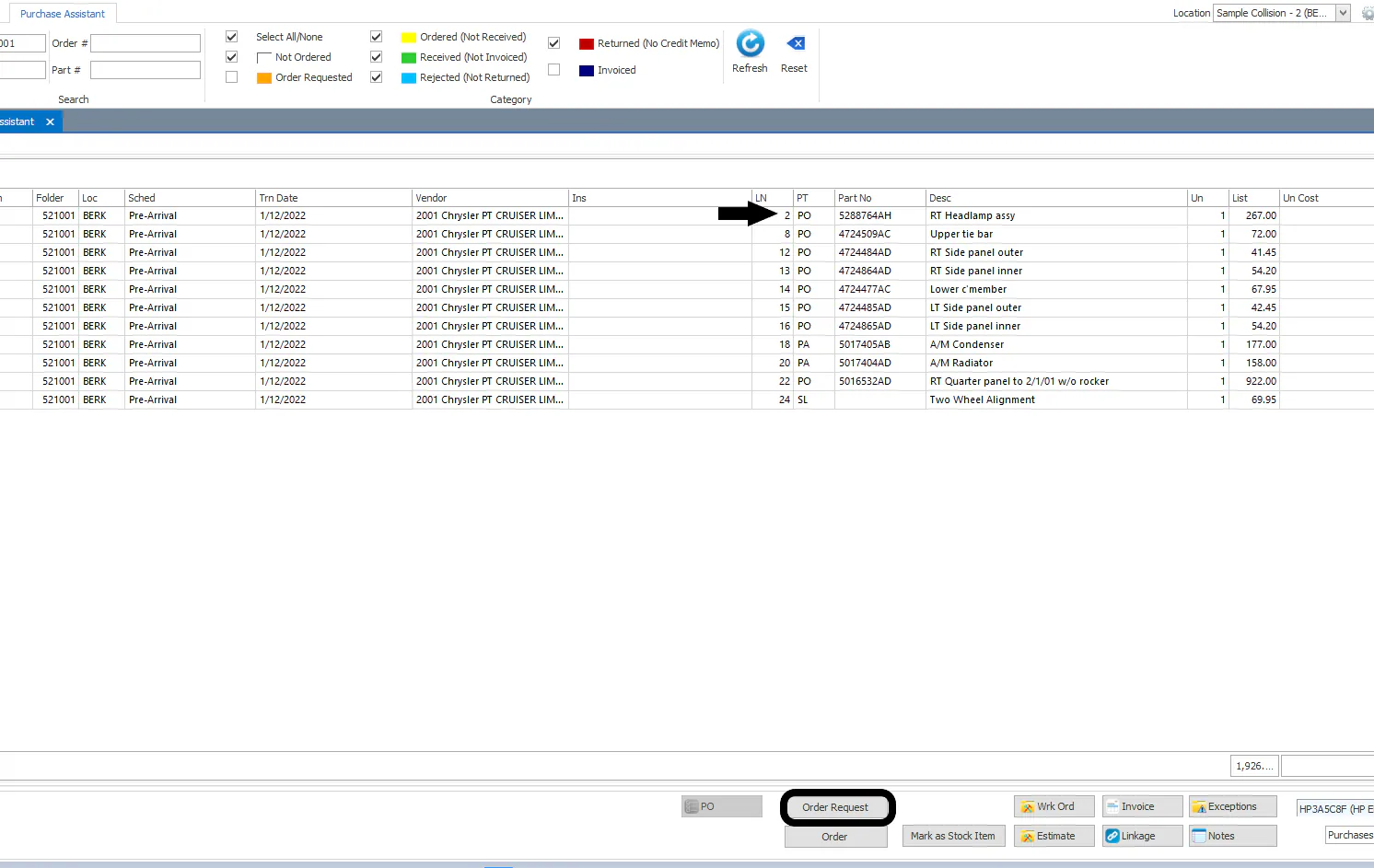
Select the white Not Ordered lines, then select Order Request.
The lines turn orange: Order Requested.
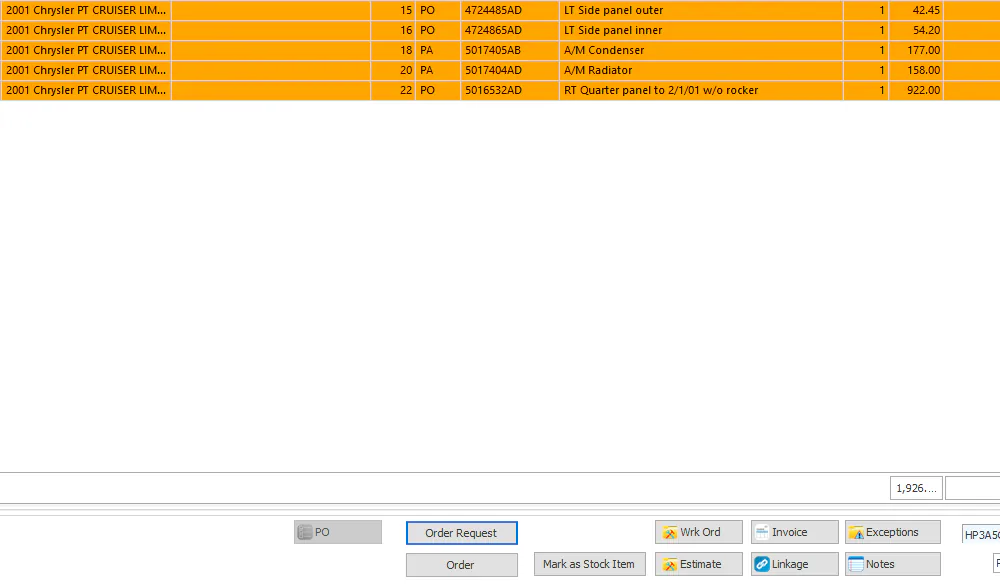
Hand off to the parts employee
Section titled “Hand off to the parts employee”-
In the Print list at the bottom right of the screen, choose Purchases Worksheet and print it.
-
Give the worksheet to the employee who orders parts. They then order the parts.