
Edit customer and vehicle details
Update the customer and vehicle details on a folder from the folder header.
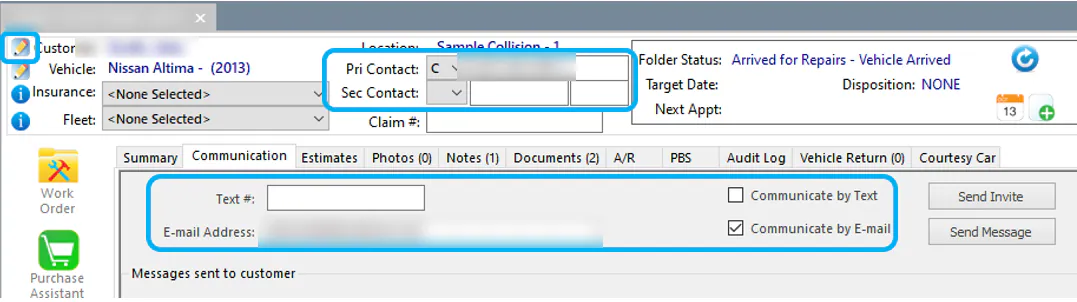
Edit the customer’s name, address and settings
Section titled “Edit the customer’s name, address and settings”-
Select the Edit button next to the customer name on the folder.
-
Update the name, address and settings fields.
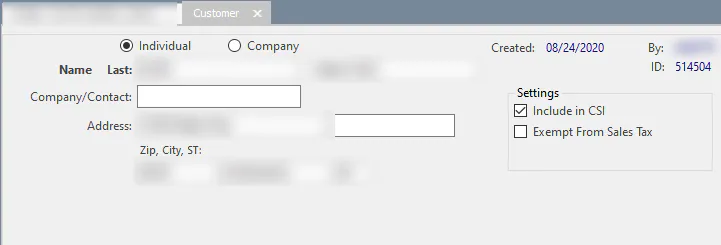
-
Under Settings:
- Clear Include in CSI to leave this folder out of the CSI batch.
- Select Exempt From Sales Tax if the customer or company is exempt from sales tax. See Sales tax on estimates.
Edit phone numbers
Section titled “Edit phone numbers”Edit the customer’s phone numbers directly in the folder header, in Pri Contact and Sec Contact.
Turn on text and email
Section titled “Turn on text and email”On the folder’s Communication tab, select Communicate by Text, Communicate by E-mail, or both. See Customer communication overview.
Edit the vehicle
Section titled “Edit the vehicle”Select the Edit button next to the vehicle in the folder header. The Vehicle screen opens, where you can update the vehicle details, such as VIN, License, Other ID and Repair Category.
Edit the claim number
Section titled “Edit the claim number”The claim number is in Claim # in the folder header.
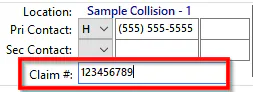
You can edit the claim number in Nexsyis only until an estimate is imported. After that, Nexsyis uses the claim number from the estimate. To change it, update the claim number in your estimating system and import the estimate again.