
Create an appointment
Book an appointment for a customer’s folder so it shows on the Scheduling screen.
Set an appointment from the Scheduling screen
Section titled “Set an appointment from the Scheduling screen”-
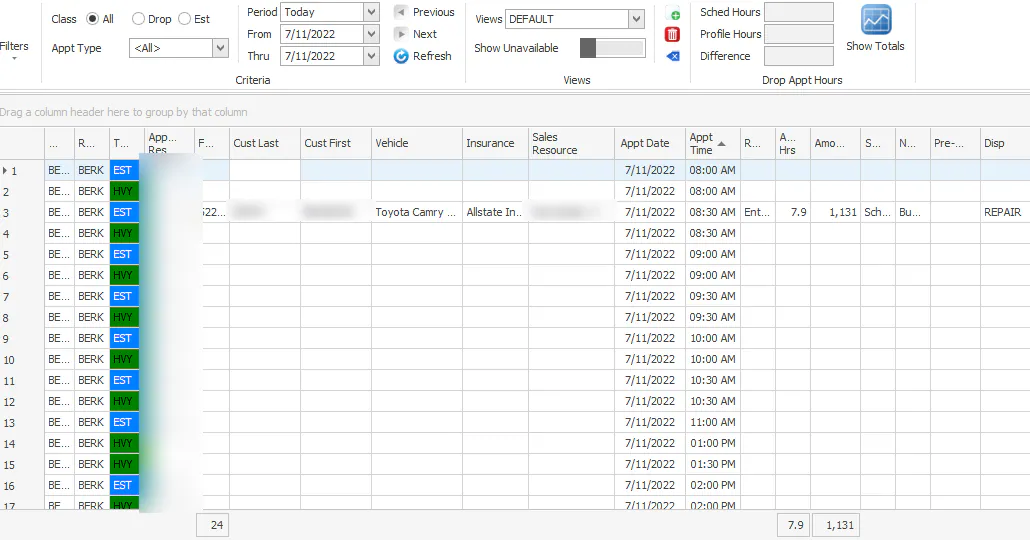
Open the Scheduling screen.
-
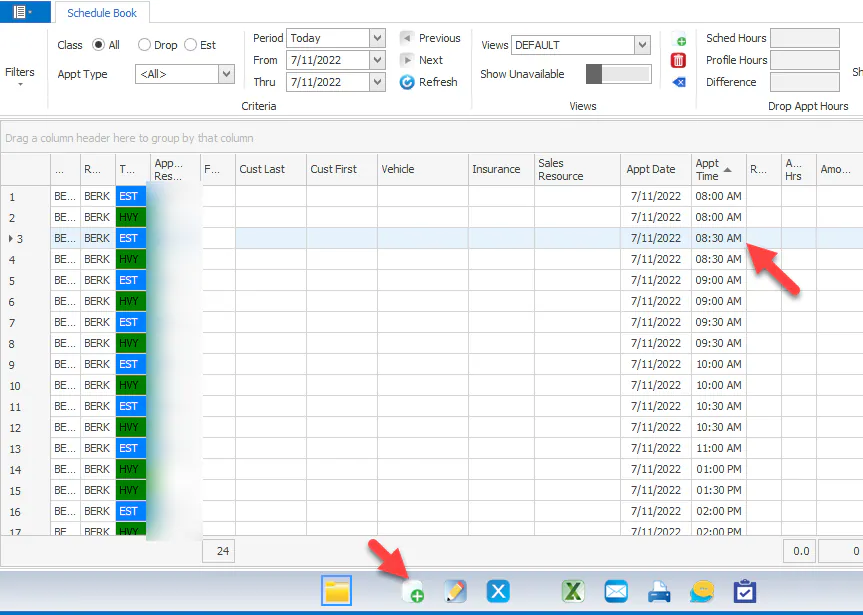
Double-click the open slot you want, or select New at the bottom of the screen.
-
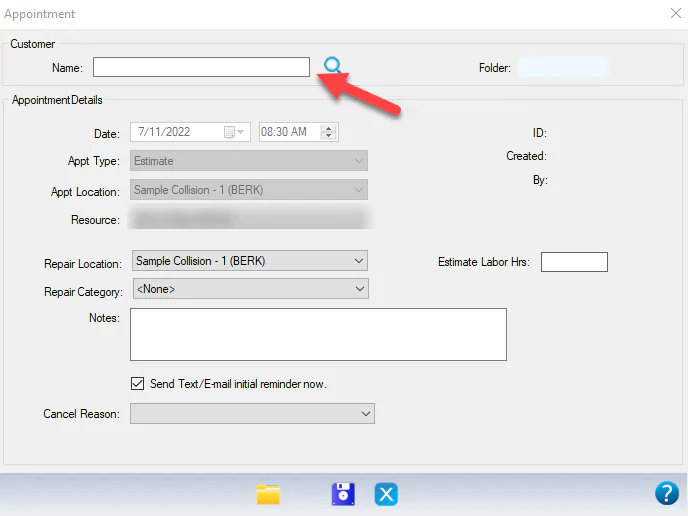
In the Appointment window, select the search icon next to Name.
-
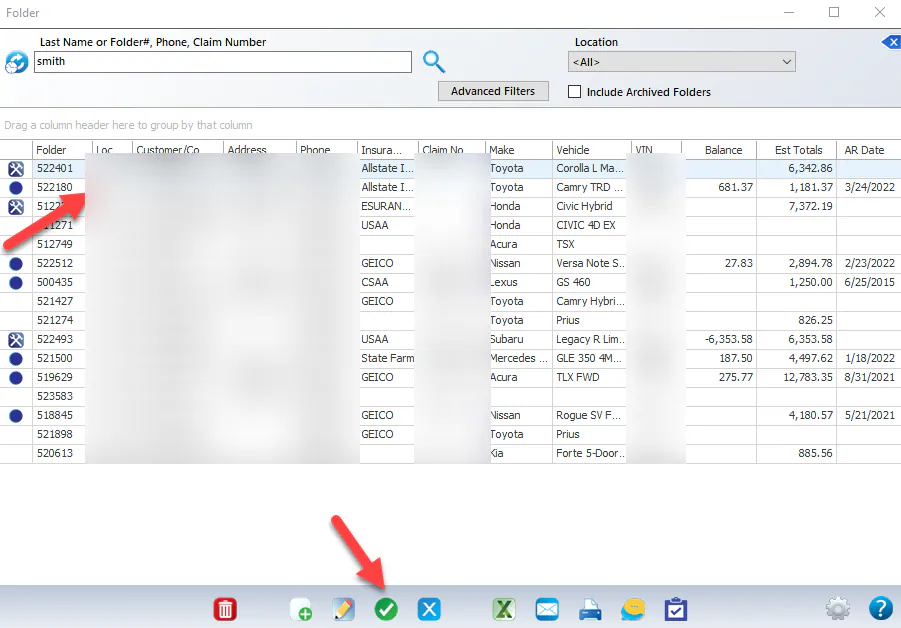
Search for the customer’s folder.
-
Double-click the folder, or select it and then select the green check mark.
-
Add notes, choose a Repair Category, or change the location if you need to.
-
Select Save.
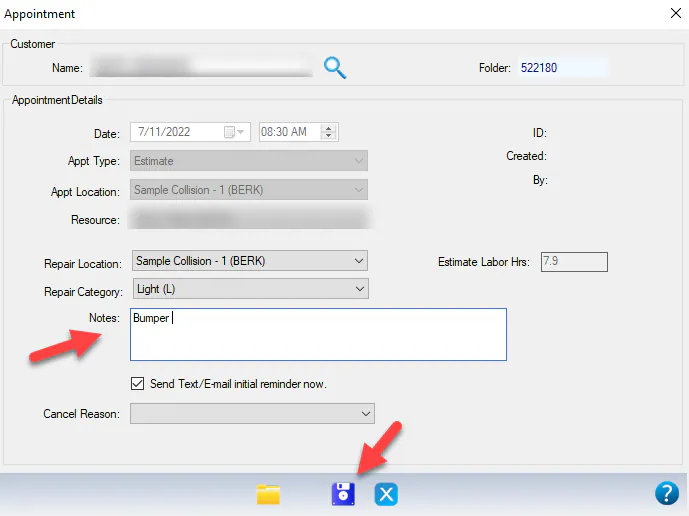
The appointment appears on the Scheduling screen in the slot you chose.
-
Open the Scheduling screen.
-
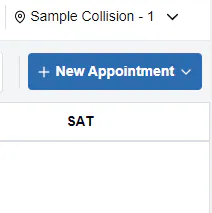
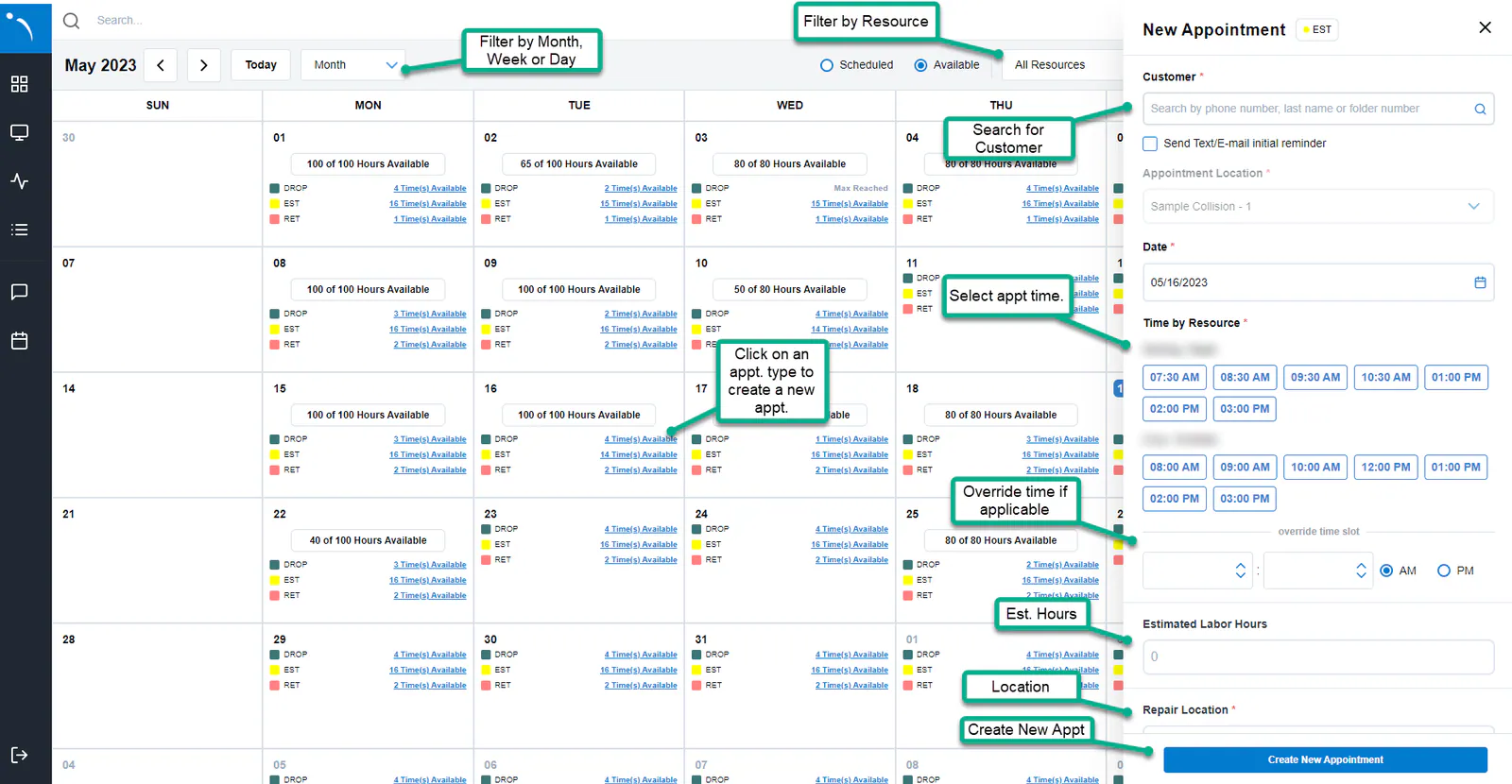
Select New Appointment in the top-right corner. You can also select an appointment type’s Time(s) Available link in the Available view.
-
Choose the appointment type, for example Drop Off, Estimate or Vehicle Return.
-
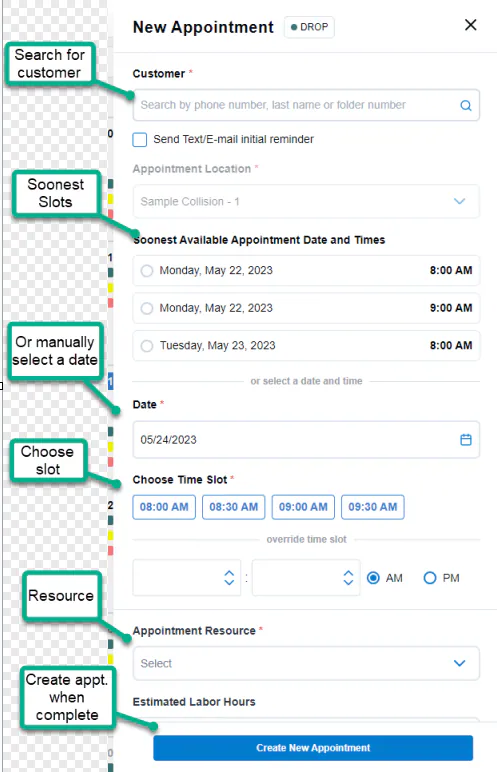
Under Customer, search by phone number, last name or folder number, then press Enter or select the search icon.
-
To text or email the customer a reminder now, select Send Text/E-mail initial reminder.
-
Choose one of the Soonest Available Appointment Date and Times, or choose a Date and then a time under Choose Time Slot.
-
Choose the Appointment Resource and the Repair Location.
-
If you need to, enter the Estimated Labor Hours, choose a Repair Category, and add a note under Add Note.
-
Select Create New Appointment.
Book from a folder
Section titled “Book from a folder”-
Open the customer’s folder.
-
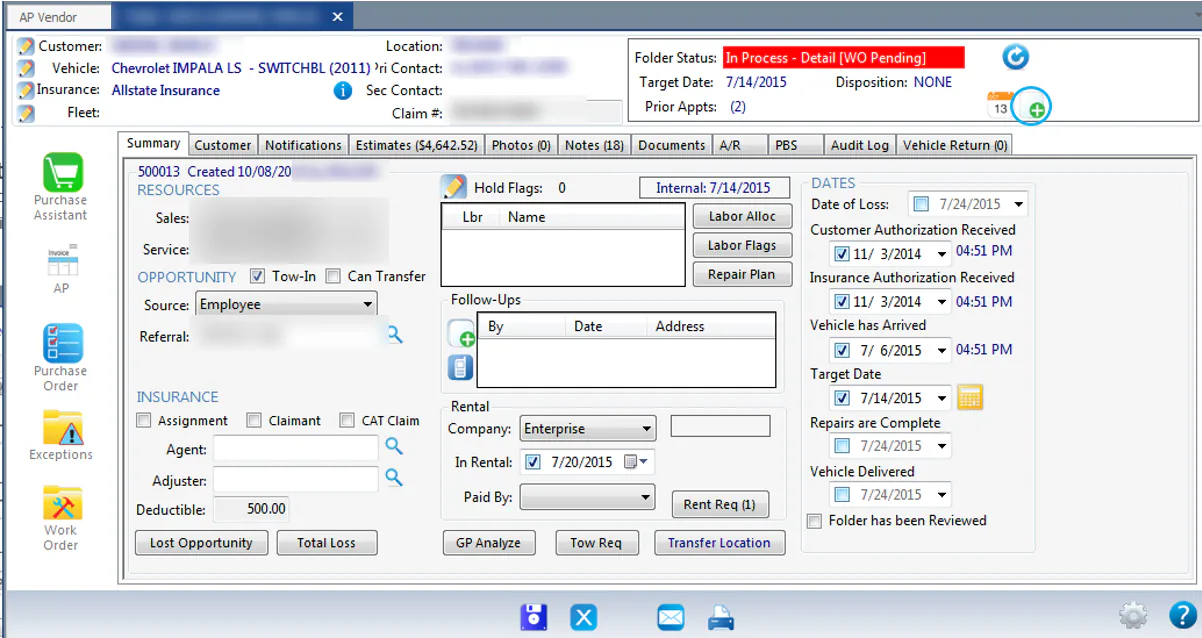
In the Folder Status box in the top-right corner, select the new appointment button.
-
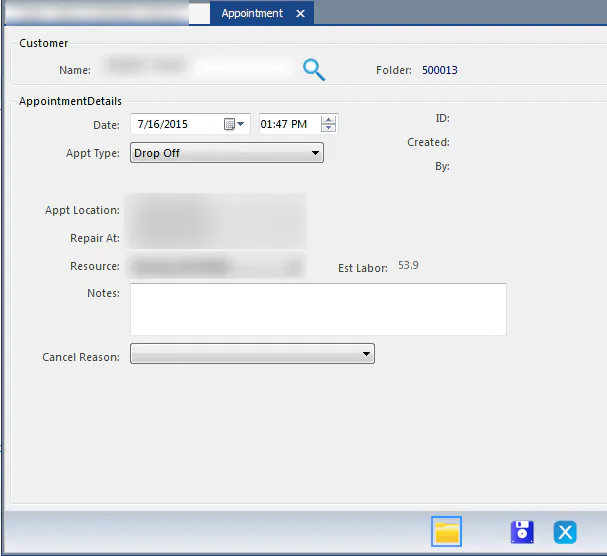
In the Appointment window, fill in the Date and time, Appt Type and Resource, and add any notes.
-
Select Save.
- Open the folder.
- In the left panel, next to Appointments, select + Add Appointment.
- Choose the appointment type, for example Drop Off, Estimate or Vehicle Return.
- Complete the New Appointment panel that opens on the right, then select Create New Appointment.