
Set up a payment terminal
Install the software for your Global Payments card terminal, check that the terminal works, and fix common errors.
OpenEdge technical support
Section titled “OpenEdge technical support”For terminal installation, errors processing transactions, reinstalls, broken equipment, existing hardware orders, tracking information and incomplete shipments, contact OpenEdge technical support:
- Phone: 800-774-6462, option 2
- Email: support@openedgepay.com
- Available 24 hours a day, 365 days a year
Install the terminal
Section titled “Install the terminal”-
Download the RCM installer from https://install.nexsyis.com/rcm/RCM_2.18.3.exe.
-
Connect the card reader to the computer.
-
Run the RCM installer and accept the default options.
-
Verify the terminal, as described below.
Verify the terminal
Section titled “Verify the terminal”Before you take card payments on a new terminal, check that it’s set up correctly.
-
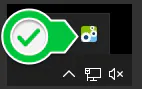
Find the RCM icon in the system tray.
-
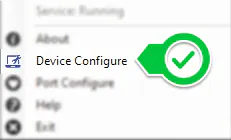
Right-click the icon and select Device Configure.
-
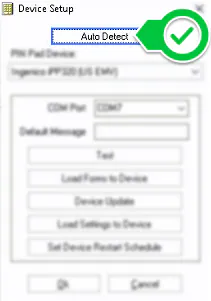
Select Auto Detect to detect your terminal.
-
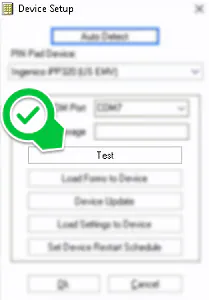
Select Test. On a brand-new terminal, this starts an update. The update takes a few minutes, and the terminal restarts several times.
-
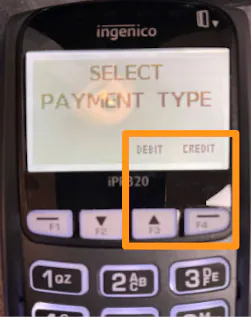
When the update is complete, select Test again. The terminal shows SELECT PAYMENT TYPE. Press CREDIT or DEBIT.
-
If everything is working, a message on the computer says the test was successful.
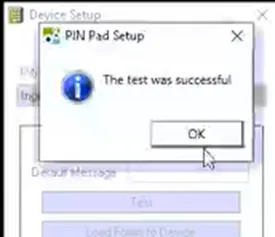
If the test fails, contact OpenEdge technical support at support@openedgepay.com or 800-774-6462, option 2.
Troubleshooting: errors processing transactions
Section titled “Troubleshooting: errors processing transactions”Try these in order:
-
Unplug the card reader and power it off. After about 15 seconds, plug it back in and turn it on. Then detect the terminal again using the steps in Verify the terminal.
-
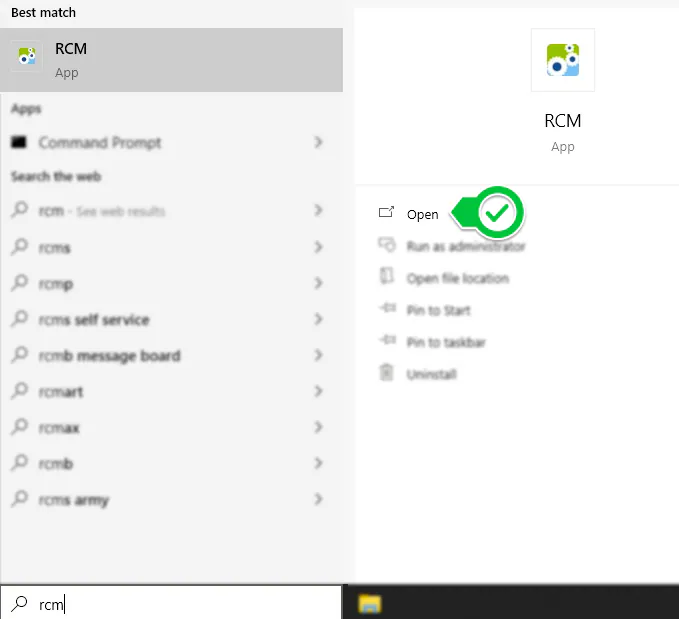
Check that RCM is running: its icon should show in the system tray of the computer connected to the card reader. If it isn’t there, search for RCM in Windows and select Open.
-
If the terminal is connected to a thin station, move the terminal to a laptop that isn’t a thin station, run the pin pad update again, then move it back to the thin station.