Set up courtesy cars
Add the courtesy vehicles your shop lends to customers, so you can assign and track them on folders.
Before you begin
Section titled “Before you begin”- The courtesy cars feature must be turned on for your company. To turn it on, email Nexsyis Support at nexsupport@nexsyis.com.
- You need the Courtesy Cars Setup transaction permission.
Add a courtesy car
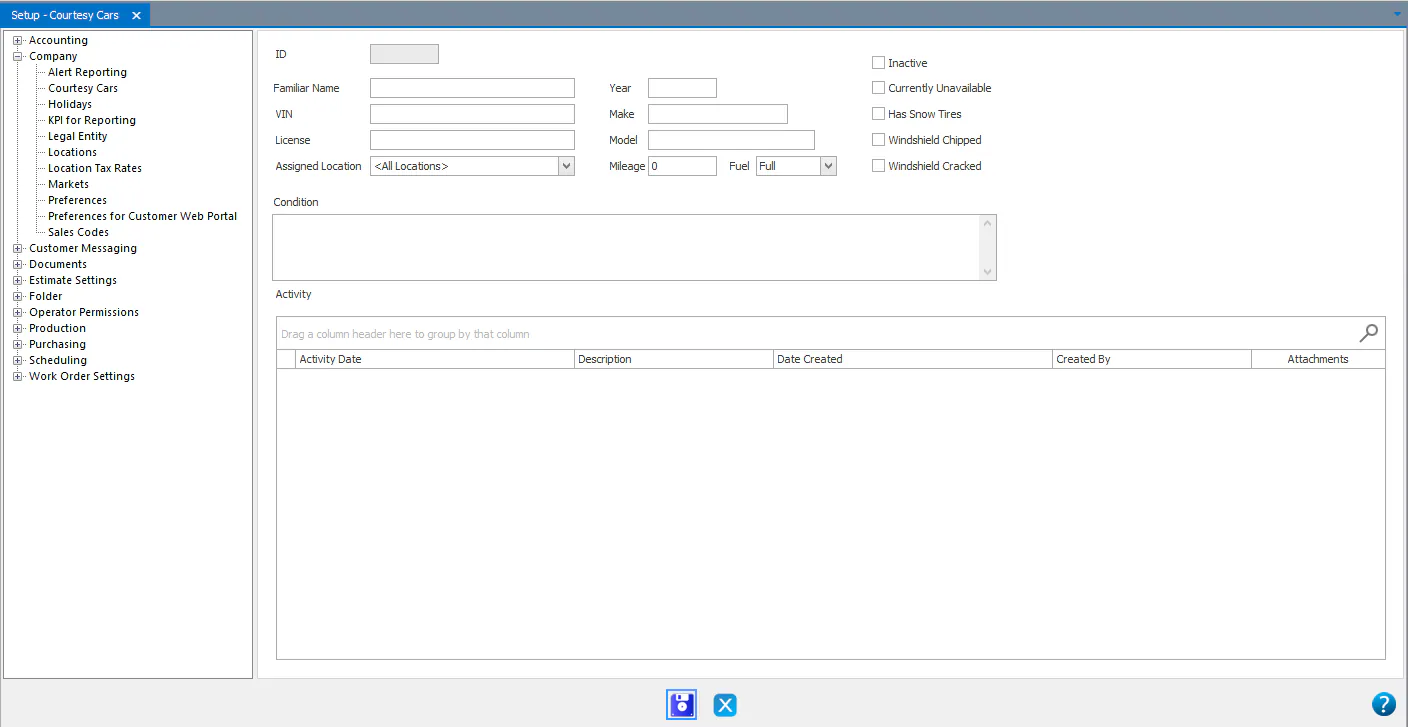
Section titled “Add a courtesy car”- Go to Setup › Company › Courtesy Cars.
- Select New at the bottom of the screen.
- Enter the car’s details: Familiar Name, VIN, License, Year, Make and Model.
- In Assigned Location, choose the location the car belongs to.
- Enter the car’s current Mileage, Fuel and Condition. Select Windshield Chipped, Windshield Cracked or Has Snow Tires if they apply.
- Select Save.
Show courtesy car documents on the folder menu
Section titled “Show courtesy car documents on the folder menu”To store courtesy car documents on a folder, add the Courtesy Car document type to the Folder menu in Document Imaging setup.
-
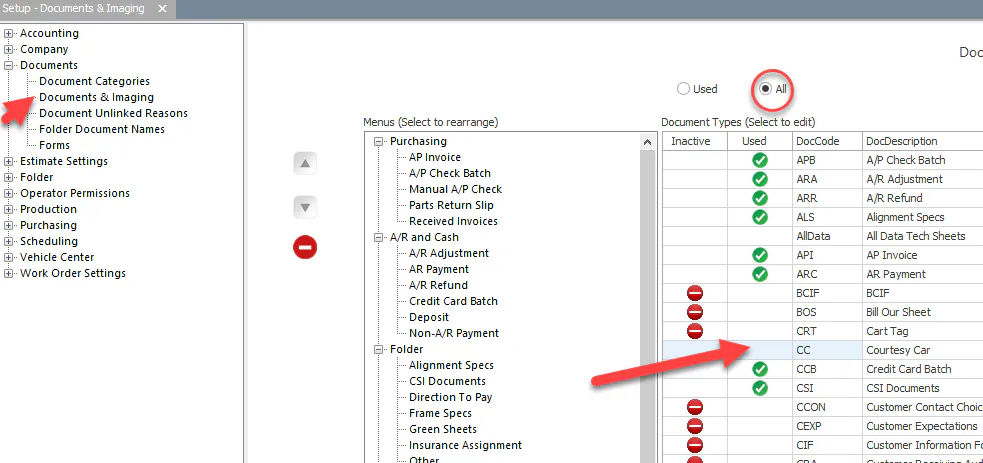
Go to Setup › Documents › Documents & Imaging.
-
Select the All option at the top.
-
In the Document Types list on the right, double-click Courtesy Car.
-
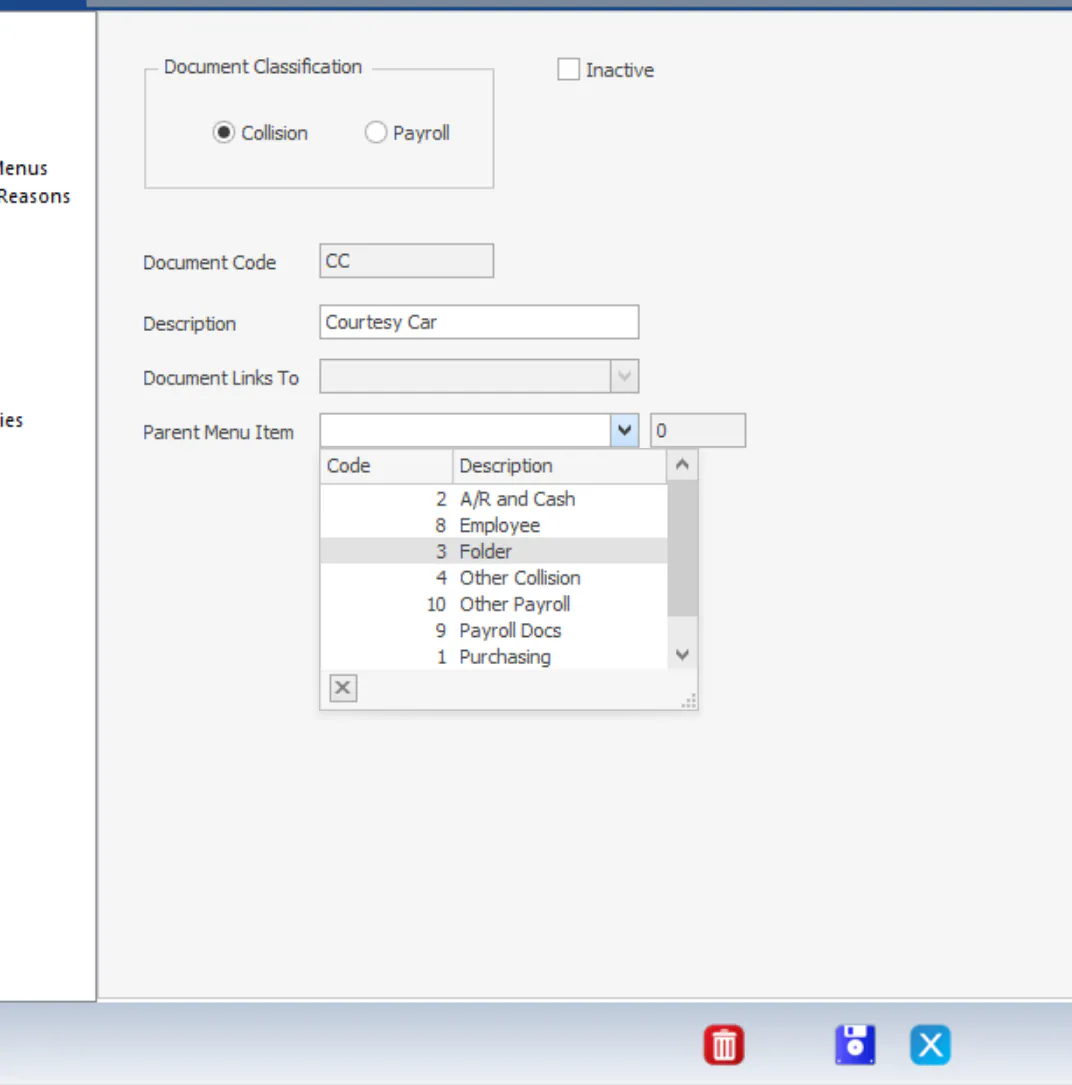
In Parent Menu Item, choose Folder, then select Save.
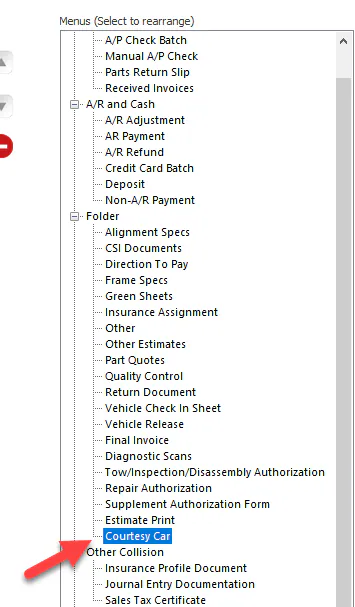
Courtesy Car now shows under Folder in the Menus list on the left. To change where it appears on the menu, select it and use the arrows to the left of the list.