
Restrict NexsyisNow by IP address
To stop employees from signing in or clocking time away from an approved location, restrict NexsyisNow and the Technician Clock to the location’s Wi-Fi IP addresses.
Before you begin
Section titled “Before you begin”Nexsyis Support must turn on these preferences:
- Technician Clock: RestrictClockByIPAddress set to 1.
- NexsyisNow: RestrictClientByIPAddress set to 1.
Add the allowed IP addresses
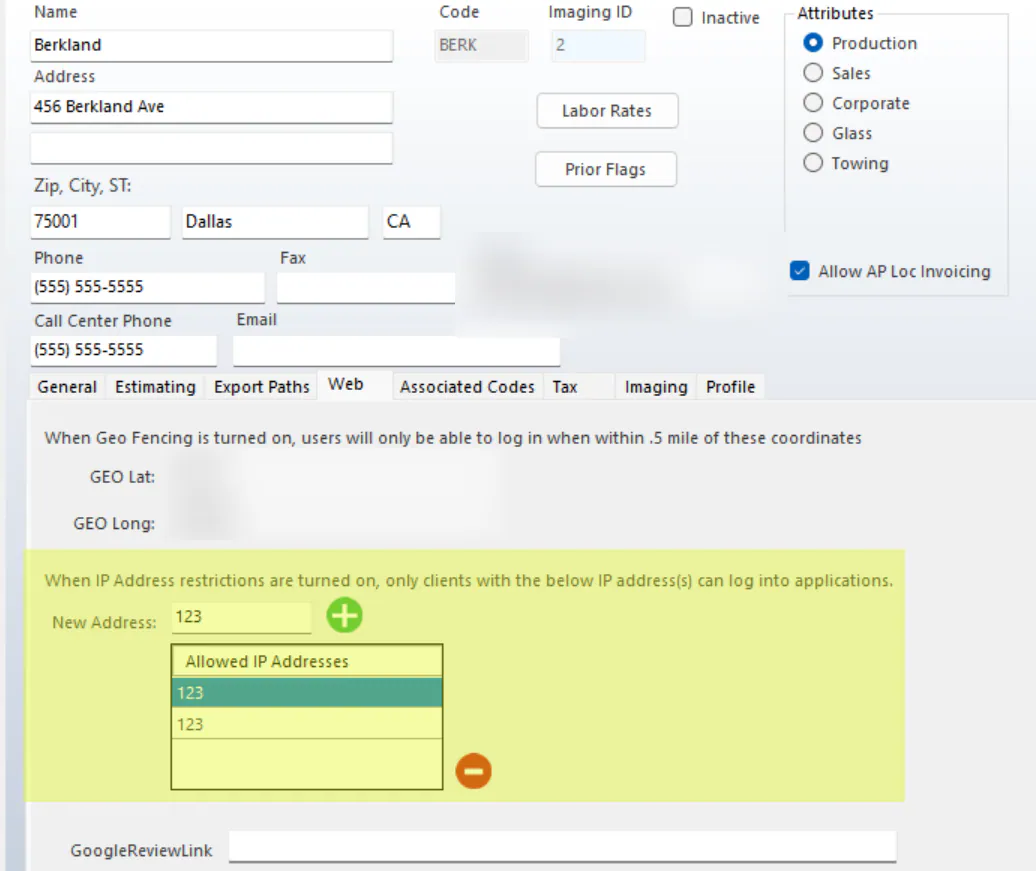
Section titled “Add the allowed IP addresses”- Open the location’s setup screen. See Set up a location.
- Select the Web tab.
- Enter an IP address in New Address, then select the green plus button.
- Repeat for each approved IP address.
Allowed addresses show in the Allowed IP Addresses list.
What employees see
Section titled “What employees see”On the Technician Clock, the employee enters their Employee ID:
- If their device is on a network with an approved IP address, they can clock in.
- If the IP address isn’t on the allowed list, they see Clock In Error and can’t clock in.
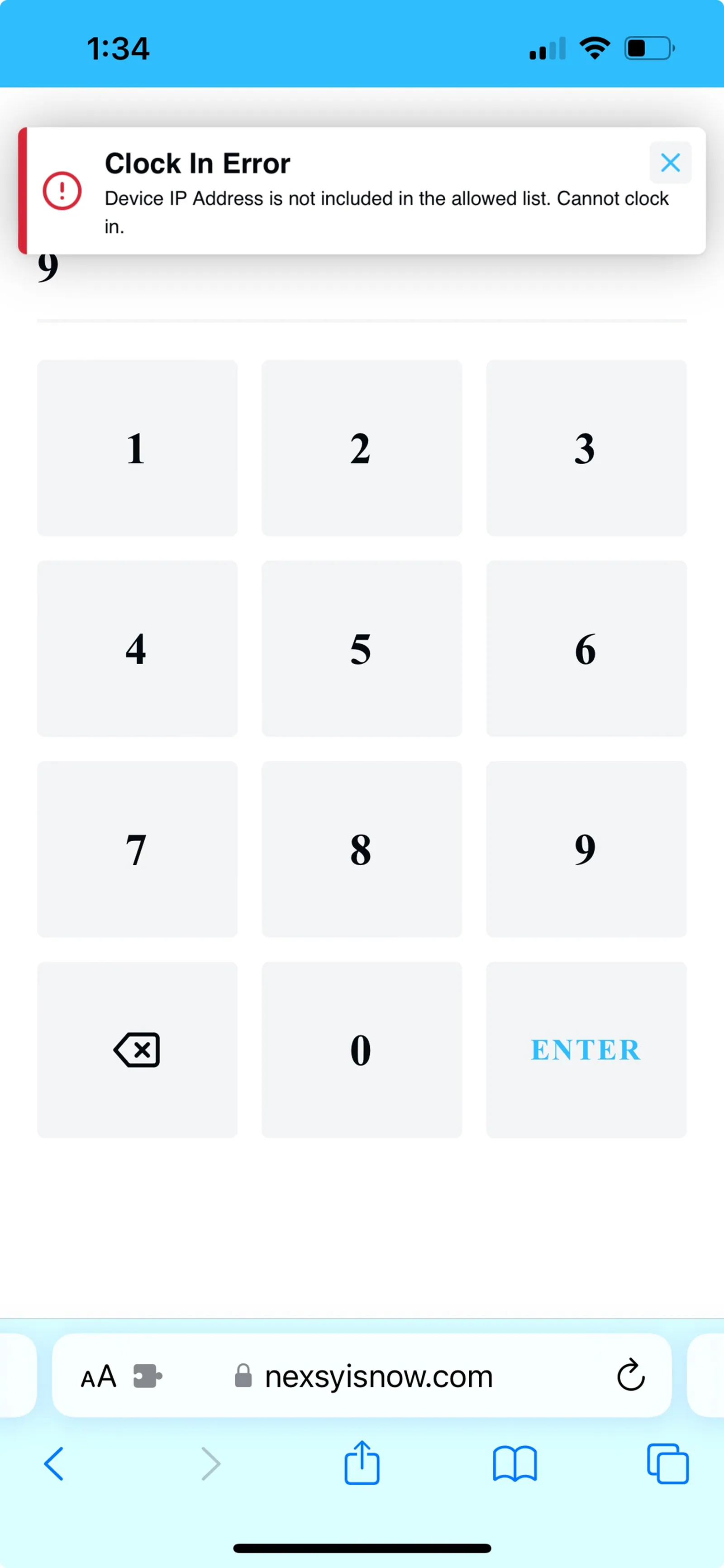
If NexsyisNow sign-in is also restricted, employees see a similar message when they select Login.