
Invoice parts automatically with PartBay
Nexsyis works with PartBay to automate parts AP invoicing. You photograph or upload a PDF of a parts invoice in PartBay. PartBay reads it, matches it to the repair order (RO) and purchase order (PO) in Nexsyis, flags anything that doesn’t match, and sends the approved AP invoice to Nexsyis, so no one has to key in each line.
How it works
Section titled “How it works”- PartBay can invoice purchase lines that are yellow (Ordered (Not Received)) or green (Received (Not Invoiced)).
- Parts invoices, credits and return slips must match the correct RO and PO in Nexsyis.
- Invoices that reconcile cleanly post automatically. Invoices with problems are flagged for review.
PartBay processes each invoice in four stages.
1. Upload
Section titled “1. Upload”In the PartBay mobile app, upload one or more photos of a single invoice for the shop location. When prompted, choose the correct category: received, returned or return slip.
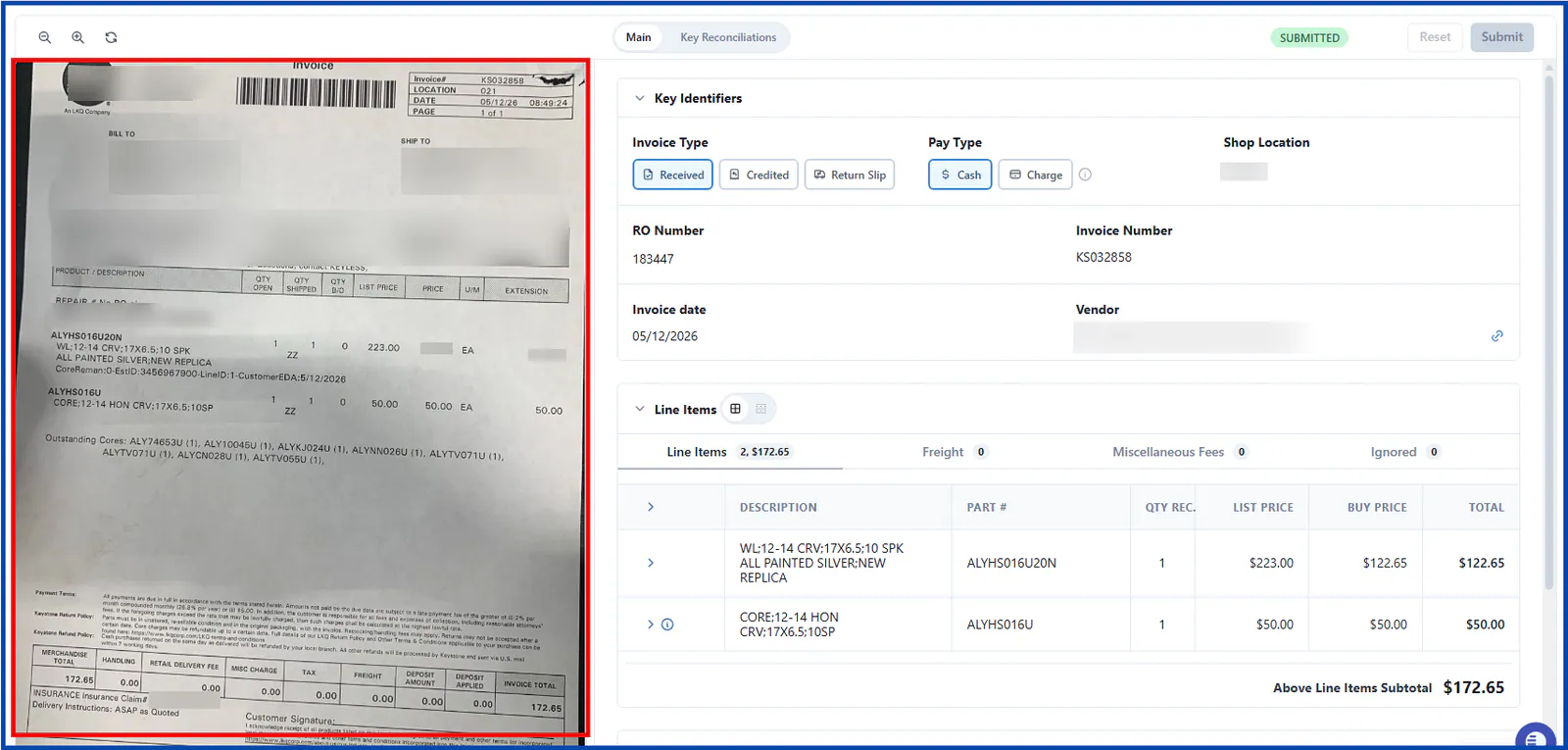
2. Extract
Section titled “2. Extract”PartBay reads the vendor, invoice number, dates, RO/PO, line items, freight, tax, discounts and totals, and turns them into a digital invoice.
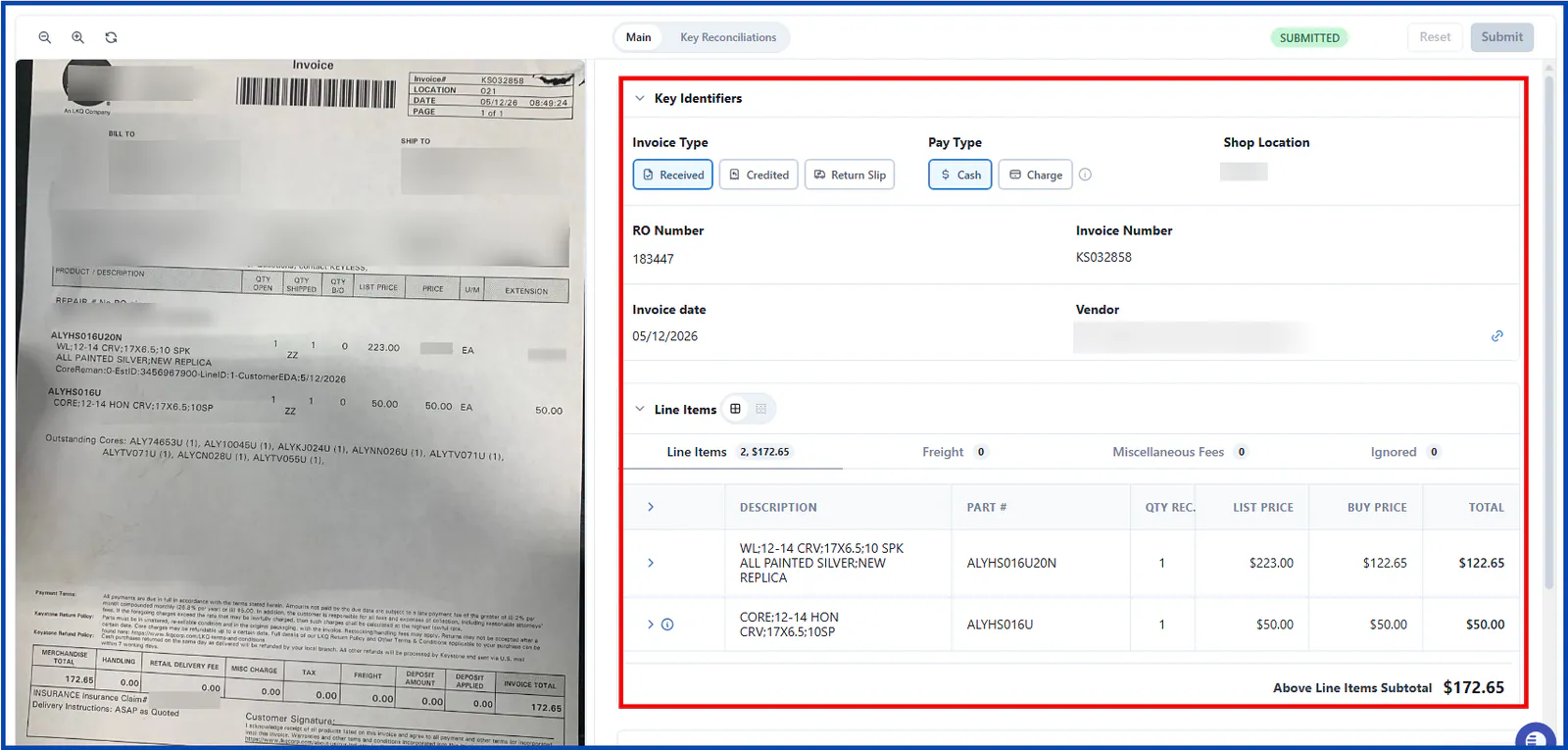
3. Reconcile
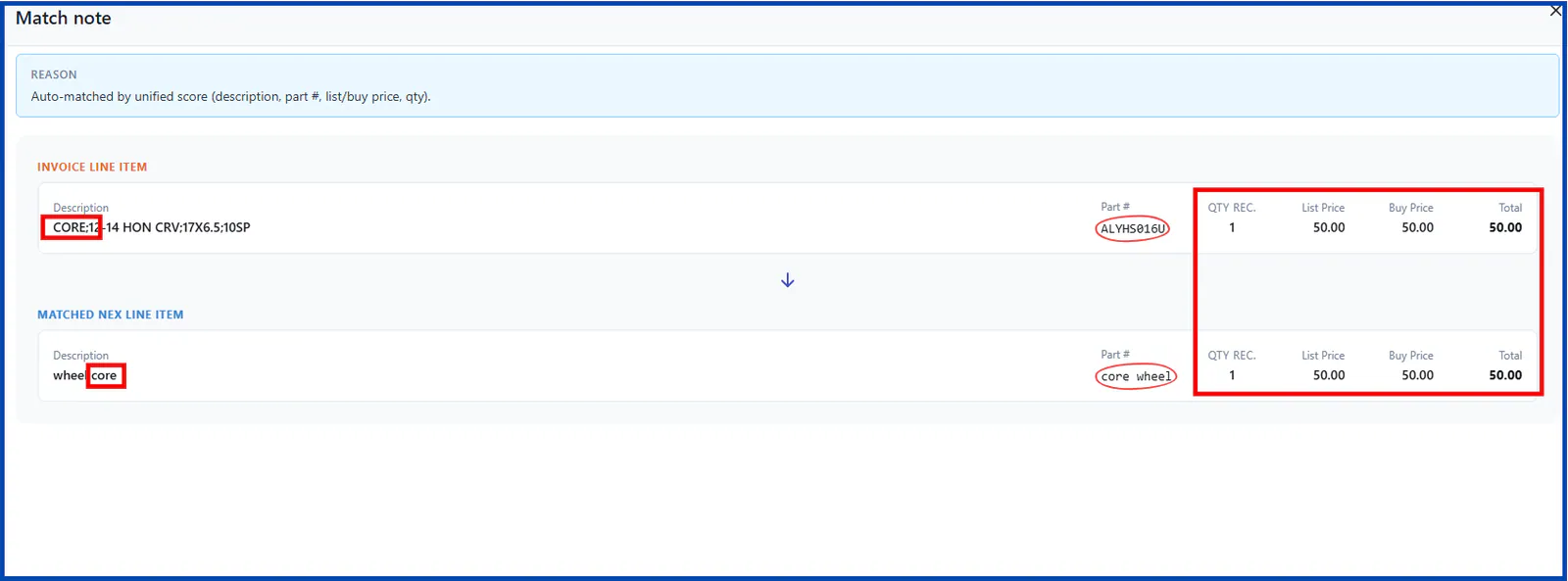
Section titled “3. Reconcile”PartBay loads the Nexsyis data for the RO/PO and matches the invoice lines to the Nexsyis lines. It checks descriptions, part numbers, quantities, prices, amounts, math and totals against your shop’s rules.
For example, a Nexsyis line described as “wheel core” with part number “core wheel” can still be matched to an invoice line for a core with the same quantity and price, even though the part numbers differ.
4. Submit or flag for review
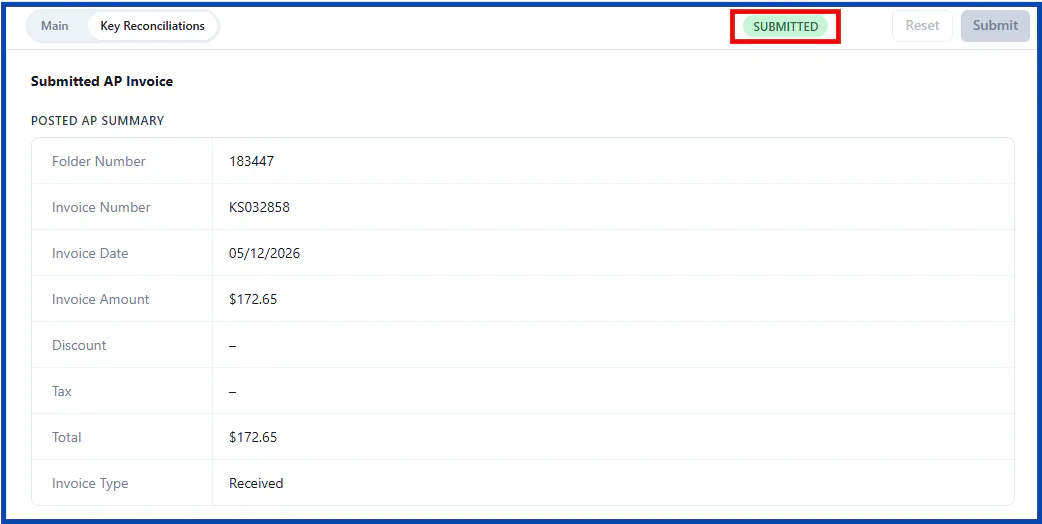
Section titled “4. Submit or flag for review”If there are no blocking issues and Nexsyis accepts it, the invoice posts automatically and shows SUBMITTED.
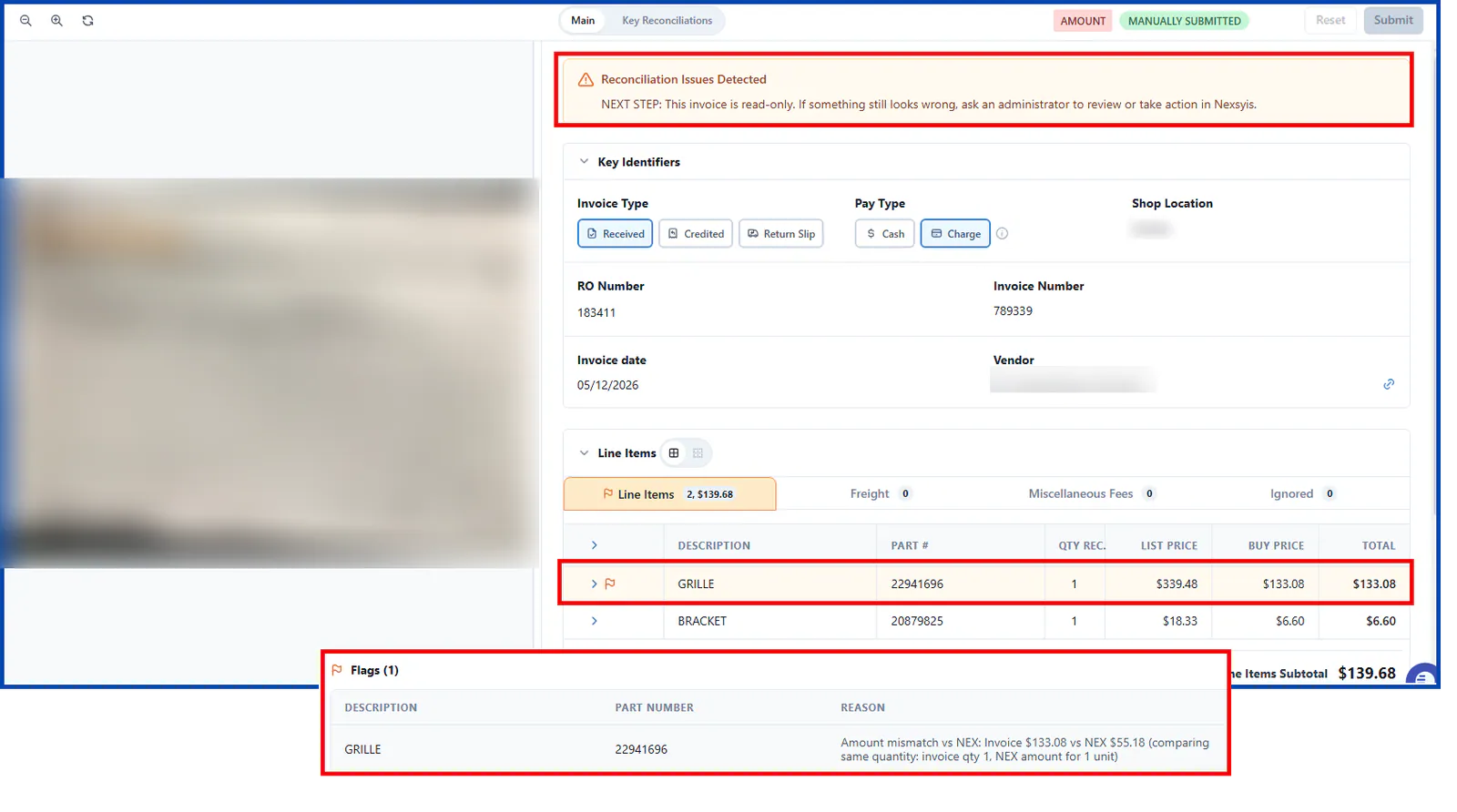
If something doesn’t line up, or your shop has chosen to review that vendor’s invoices, the invoice is flagged until someone fixes or confirms it.
PartBay sends Nexsyis the totals, freight, taxes, credits and line details. Shop settings in PartBay control handling rules, vendor reviews and mismatch thresholds.
Tips for good photos
Section titled “Tips for good photos”- Include only one invoice in each submission.
- Use good light and avoid glare.
- Upload pages in order.
- Use portrait orientation.
- Crop the image to the document.
If you leave the RO/PO blank and PartBay can’t read it from the document, the invoice is flagged with an RO/PO badge. Enter the correct RO/PO, or select Refresh Nexsyis Data in the invoice detail view, before you submit.
Invoice flags
Section titled “Invoice flags”When PartBay can’t fully reconcile an invoice, it holds it for review and tags it with one or more reason badges.
- Reconciliation flags (such as Match, PRICE, QTY and AMOUNT): resolve these in PartBay by comparing the invoice to Nexsyis and correcting the mismatch. See Reconciling flagged invoices in the PartBay knowledge base.
- NEX Error: an error from Nexsyis. Email nexsupport@nexsyis.com. Errors sent to PartBay support are passed to Nexsyis.
| NEX Error code | Meaning |
|---|---|
| 400 | Validation or application error |
| 401 | Unauthorized |
| 404 | Not found |
| 406 | Duplicate |
| 500 | Internal service error |
Who to contact
Section titled “Who to contact”Nexsyis Support (nexsupport@nexsyis.com): any invoice flagged NEX Error.
PartBay Support: problems with how PartBay works, for example:
- An invoice was submitted that shouldn’t have been.
- How to change settings.
- Questions or problems with the PartBay screens.
- Reconciliation questions or discrepancies.
Contact PartBay through the in-app chat (bottom right of the PartBay platform) or by email at support@partpay.ai.
For more about PartBay invoicing, see Invoicing in the PartBay knowledge base.