
Send a payment request
Send a customer a text or email with a link to pay by card on the Nexsyis payment portal. The payment is posted to the folder automatically.
Before you begin
Section titled “Before you begin”- Your company uses the Global Payments or XplorPay card integration and automated text and email messages.
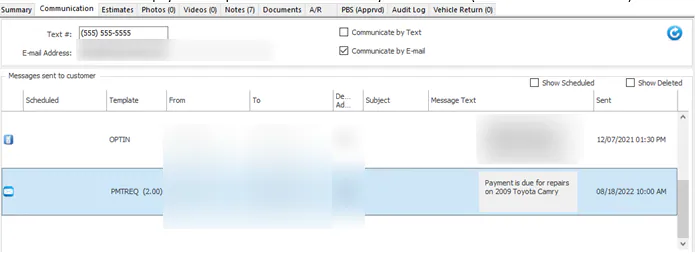
- On the folder’s Communication tab, the customer is set to Communicate by Text or Communicate by E-mail.
- The Payment Breakdown Sheet (PBS) is filled in, so the amount to pay fills in for you.
Send the request
Section titled “Send the request”-
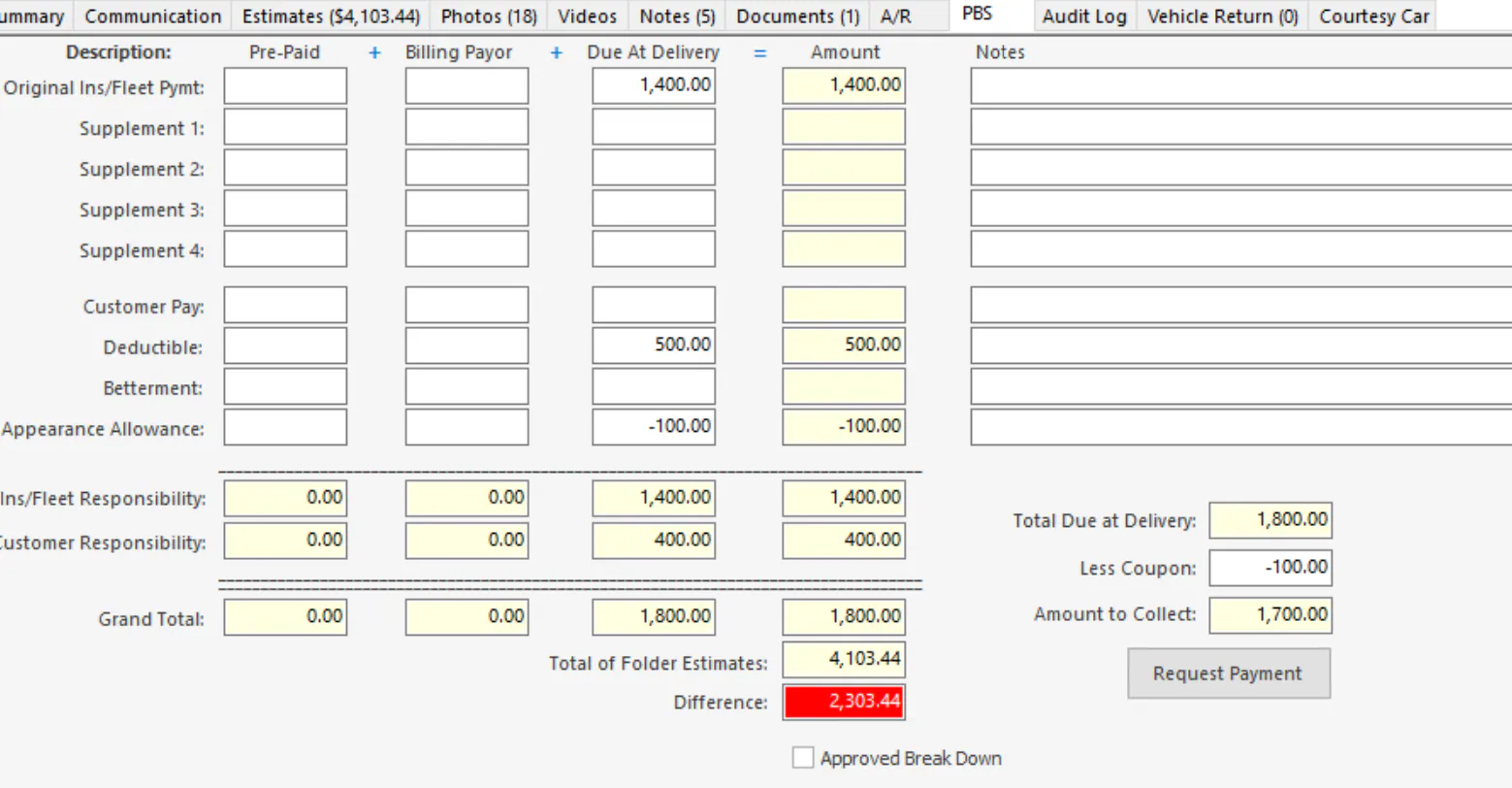
Open the folder’s PBS tab and select Request Payment.
-
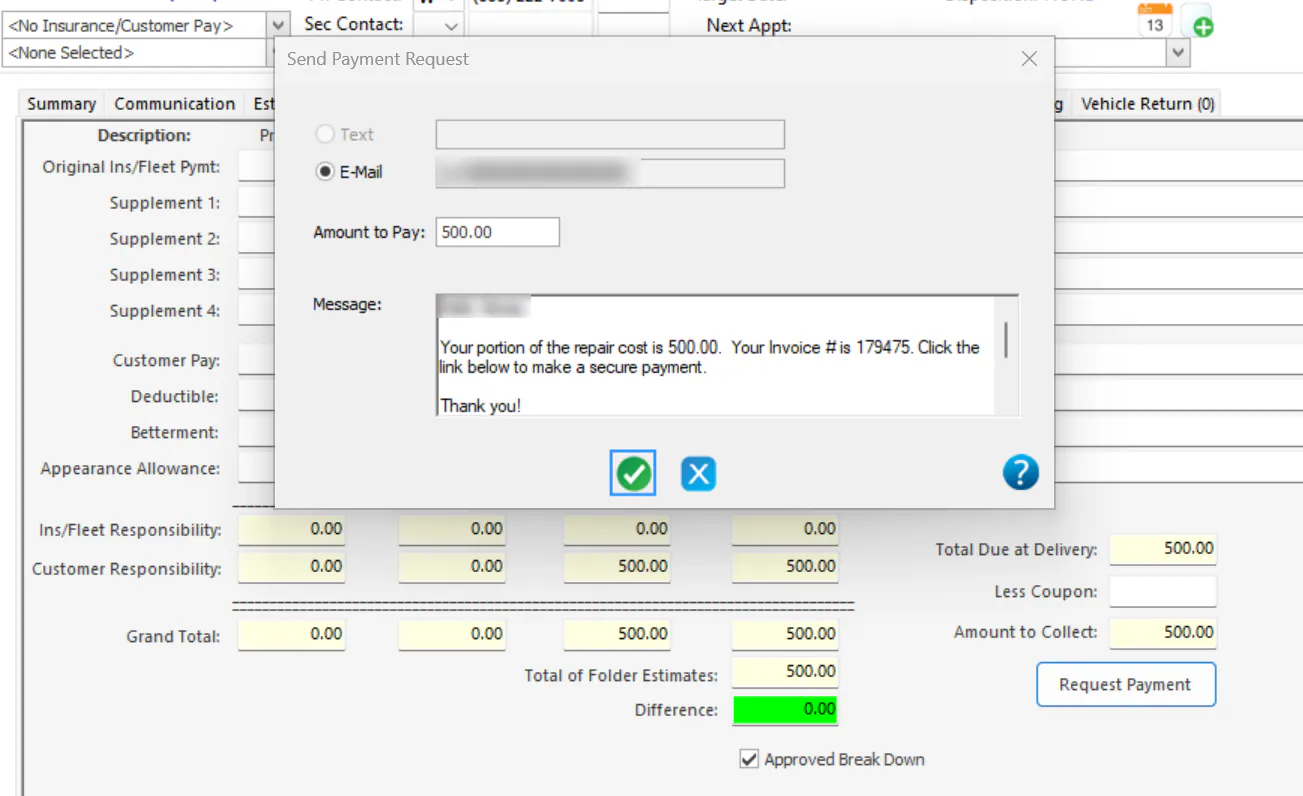
In the Send Payment Request window, check the amount and message:
- Amount to Pay defaults to the Due At Delivery total less any coupon (the Amount to Collect).
- Message defaults to the Payment Request message in your customer communication settings. See Set up customer messaging templates.
You can change both.
-
Select the check mark button to send.
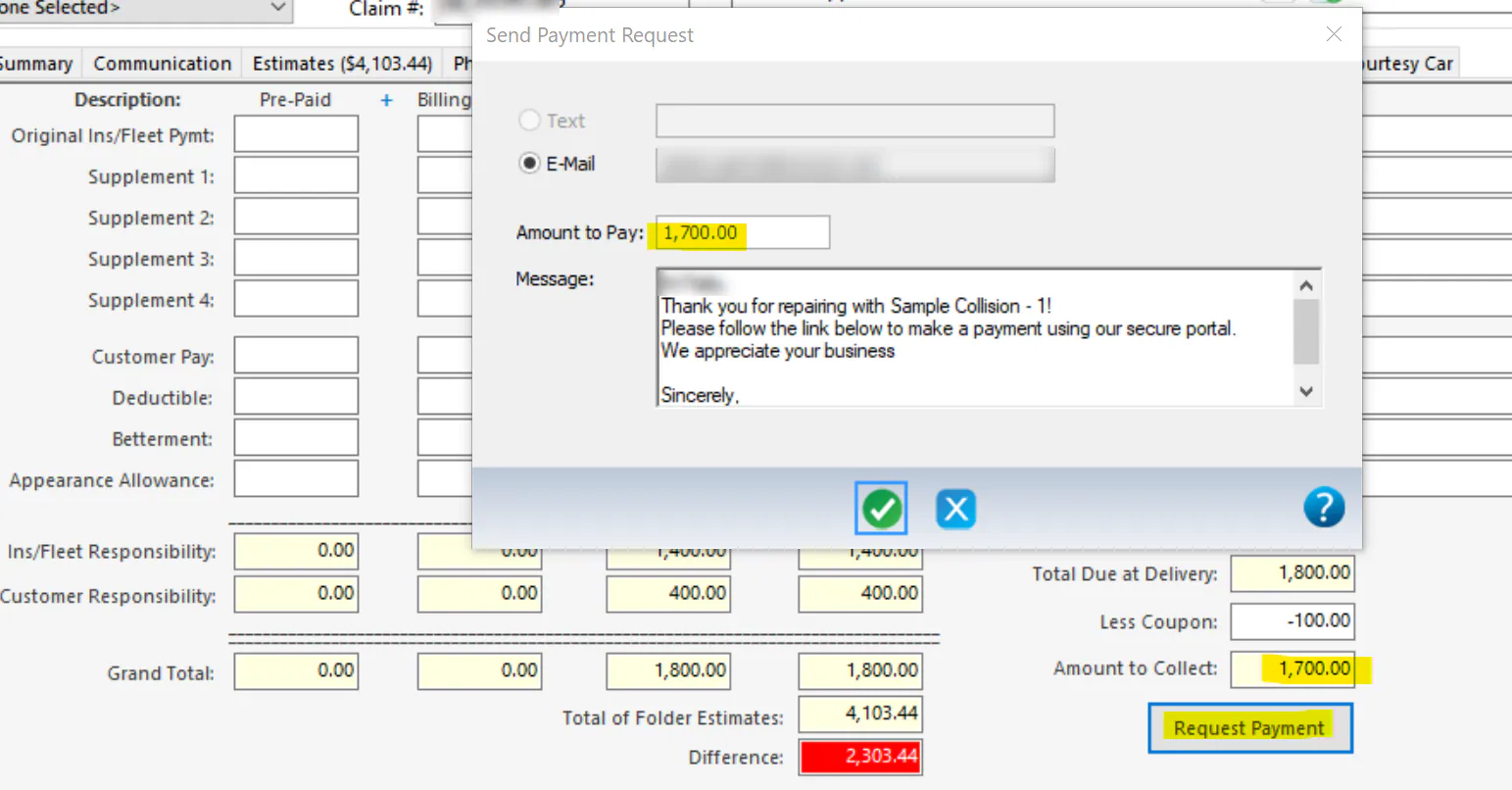
The request is sent as a PMTREQ message and recorded on the folder’s Communication tab.

-
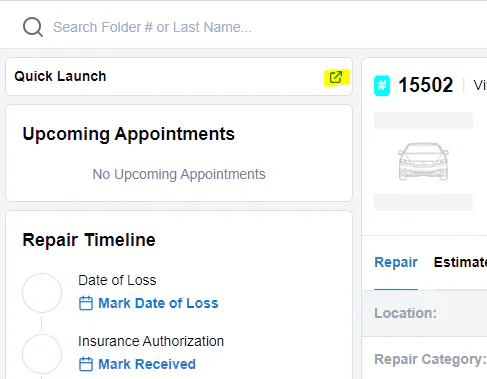
In the folder, select Quick Launch.
-
Next to Payment Portal, check the Amount to Pay. If the PBS is filled in, the amount fills in for you; otherwise, enter it. You can always change it.
-
Select Send.
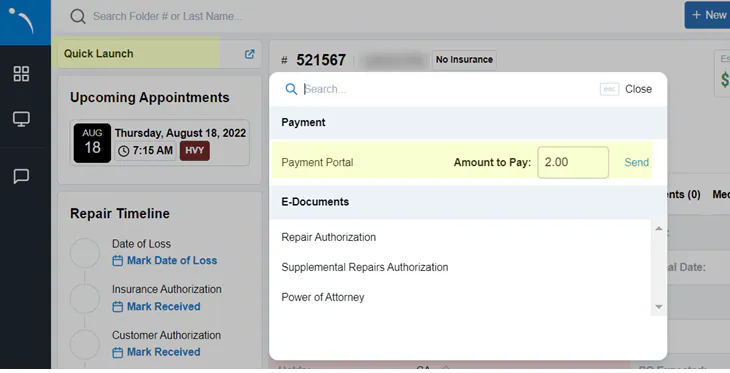
The request is sent by text or email, depending on what’s checked on the folder’s Communication tab, and recorded there.
What the customer sees
Section titled “What the customer sees”-
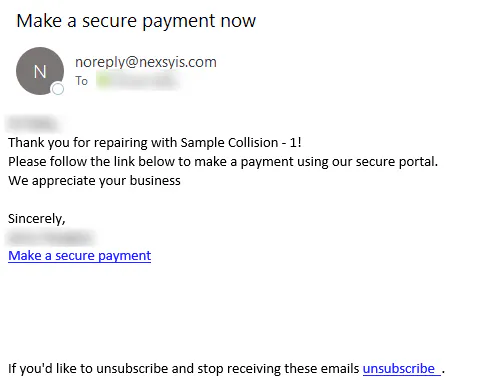
The customer gets your text or email with a Make a secure payment link.
-
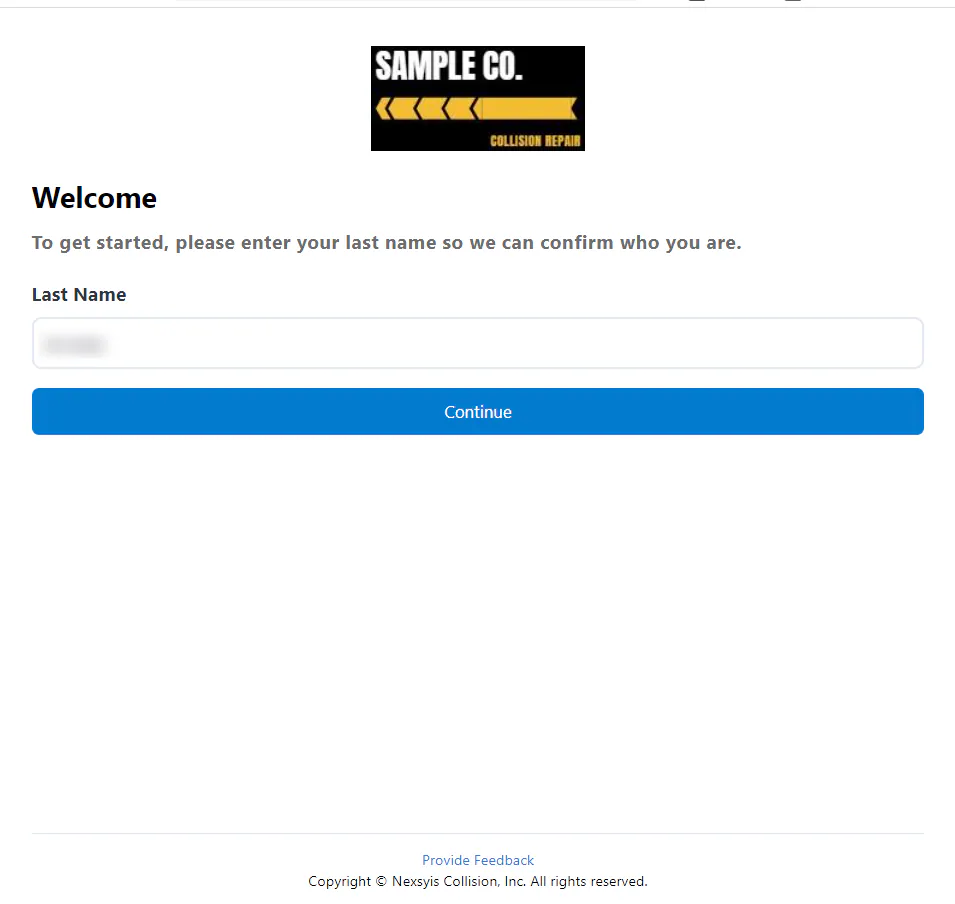
When they open the link, they enter their last name to confirm who they are.
-
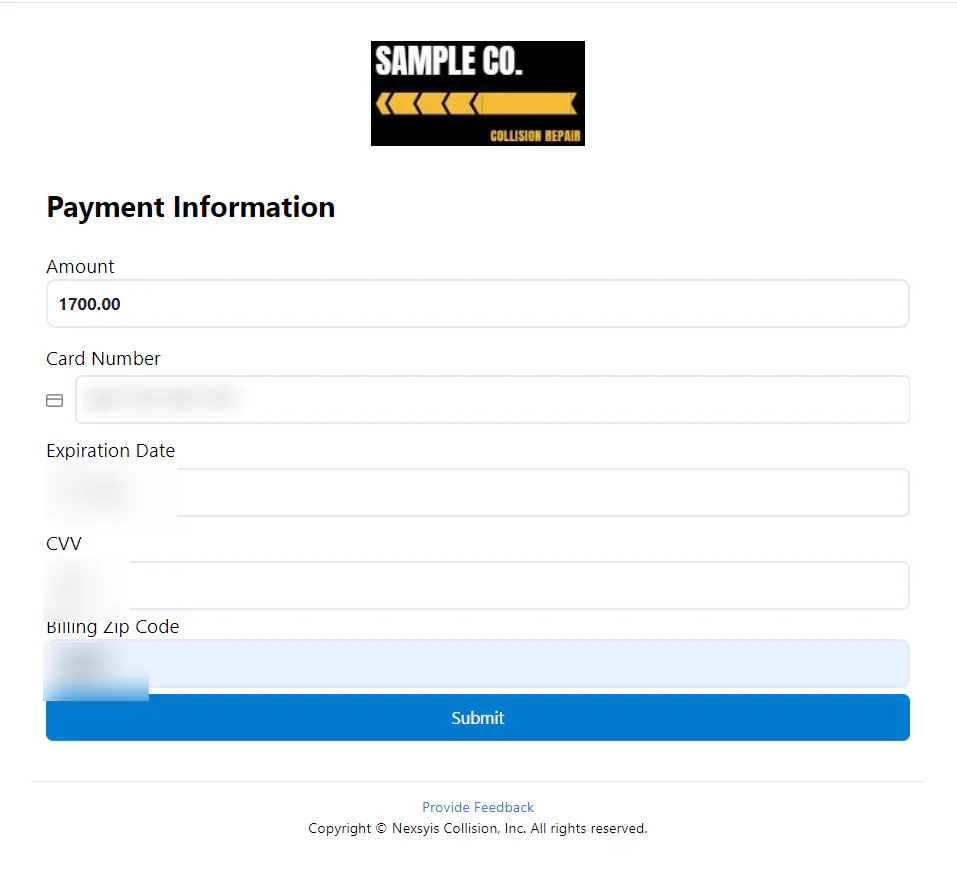
The Amount is filled in with the amount you requested. The customer can change it.
-
They enter their card information and select Submit.
-
A confirmation page shows the payment details.
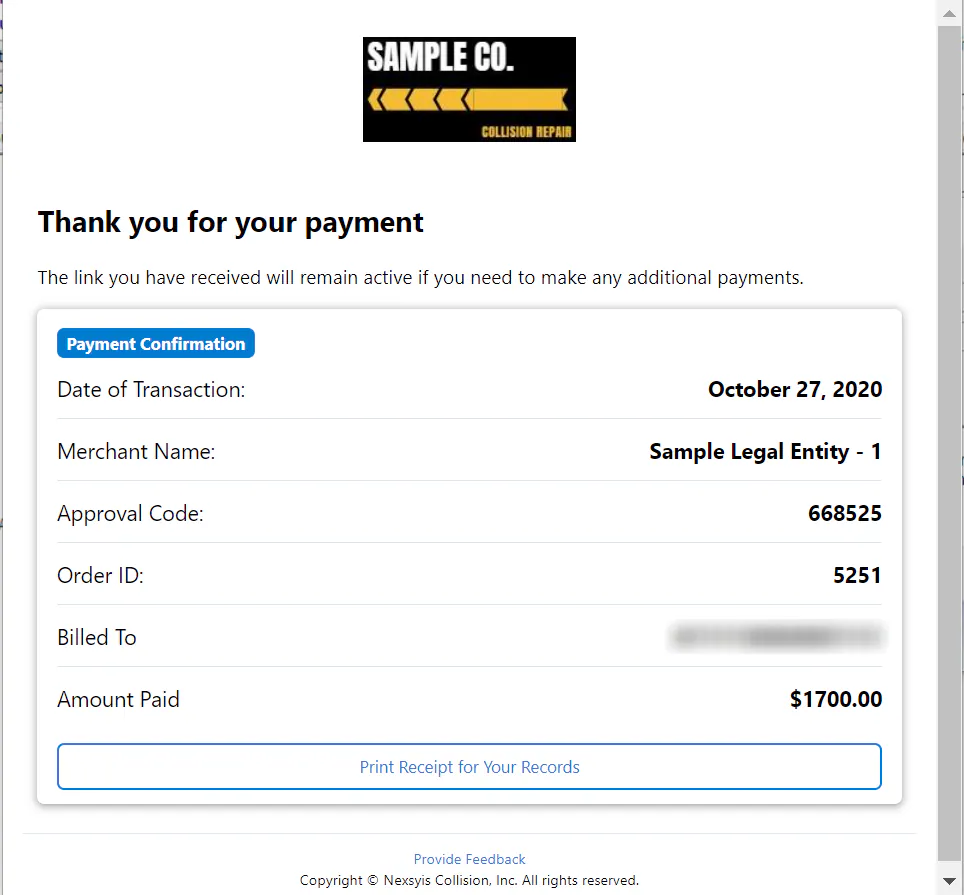
The link stays active, so the customer can use it again to make more payments.
See the payment in Nexsyis
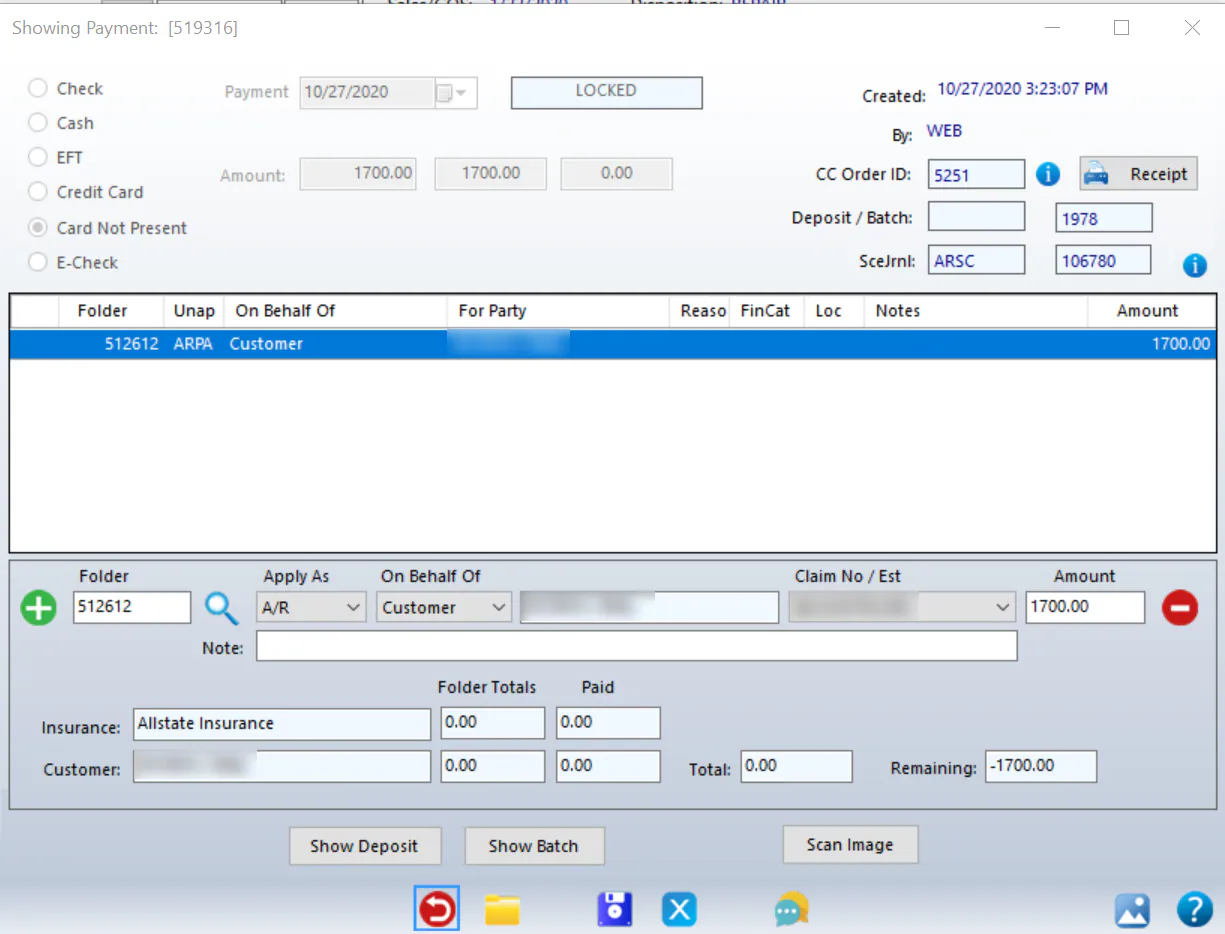
Section titled “See the payment in Nexsyis”The payment is posted to the folder’s A/R tab automatically as a Card Not Present payment, created by WEB.
When your location charges a card fee
Section titled “When your location charges a card fee”If the location is set up with a credit card processing fee, the Amount to Pay you send is the amount you want to collect, and the fee is added to it on the payment portal.
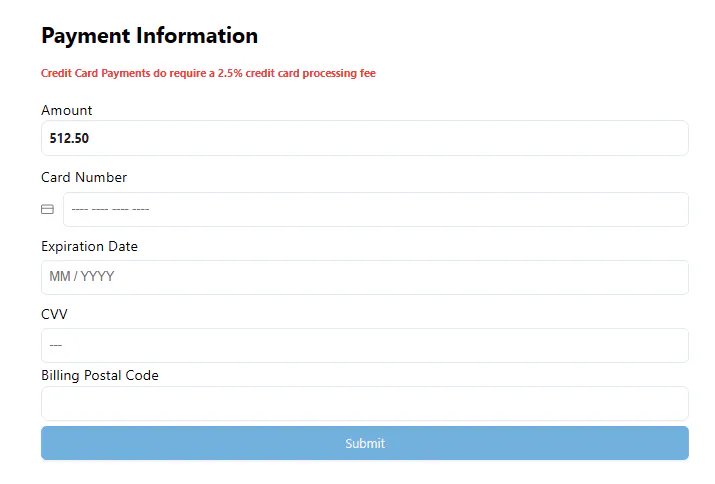
If the customer changes the amount, the fee is taken out of what they pay. For example, with a 2.5% fee, if the customer pays $500, $488.00 is applied to AR and $12.00 is recorded as the fee. You can then see the customer hasn’t paid in full and send another request for the rest.
See also Charge credit card fees.