Troubleshoot NexsyisNow
If NexsyisNow doesn’t load or doesn’t work as expected, check your device first, then work through the fixes below in order.
Check your device
Section titled “Check your device”- Make sure your device’s operating system is up to date. Install any available updates.
- Make sure you aren’t in private browsing mode. NexsyisNow doesn’t run in private browsing mode.
- Use the browser recommended for your device:
- Android: Google Chrome
- Apple: Safari
- Samsung: Internet
- If the camera shows a black screen when you take photos, close all other apps and browser tabs that use the camera or microphone, then try again.
Try these fixes
Section titled “Try these fixes”-
Refresh your browser two or three times.
-
If you open NexsyisNow from an icon on your home screen, remove the icon. Open a new window in the recommended browser and go to nexsyisnow.com (in Canada, nexsyisnowca.com). To add the icon again, see Add NexsyisNow to your phone’s home screen.
-
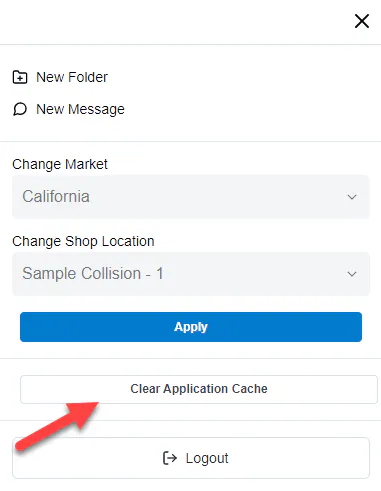
Clear the application cache. See Clear the application cache.
-
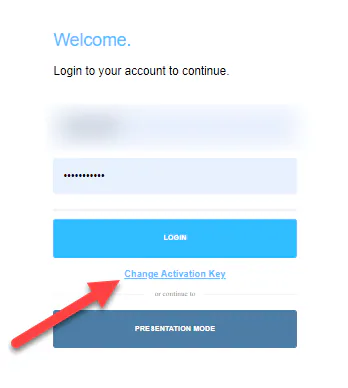
Log out, select Change Activation Key, enter the activation key again and log in.
-
Clear the cookies and cache in your browser. The steps for each browser are in Allow camera access.
Clear the application cache
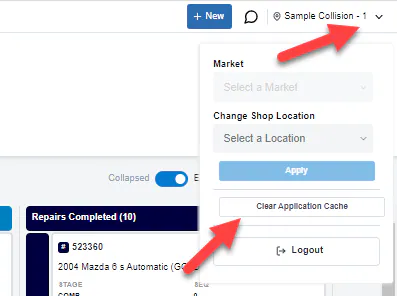
Section titled “Clear the application cache”On a computer: select the location drop-down at the top right, then select Clear Application Cache.
On a phone:
-
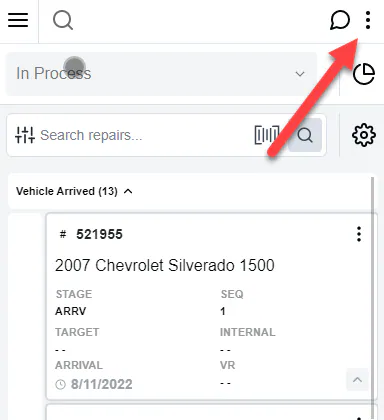
Select the three-dot menu at the top right.
-
Select Clear Application Cache.