
View unpaid invoices by vendor due this month
Use the AP Invoice screen to see every open AP invoice due this month, grouped by vendor with a total for each. You can expand each vendor or export the list to Excel.
Show all open invoices
Section titled “Show all open invoices”-
On the Operations or Accounting tab, select A/P Invoices.
-
Make sure Open is selected.
-
Select the refresh button to list all open invoices.
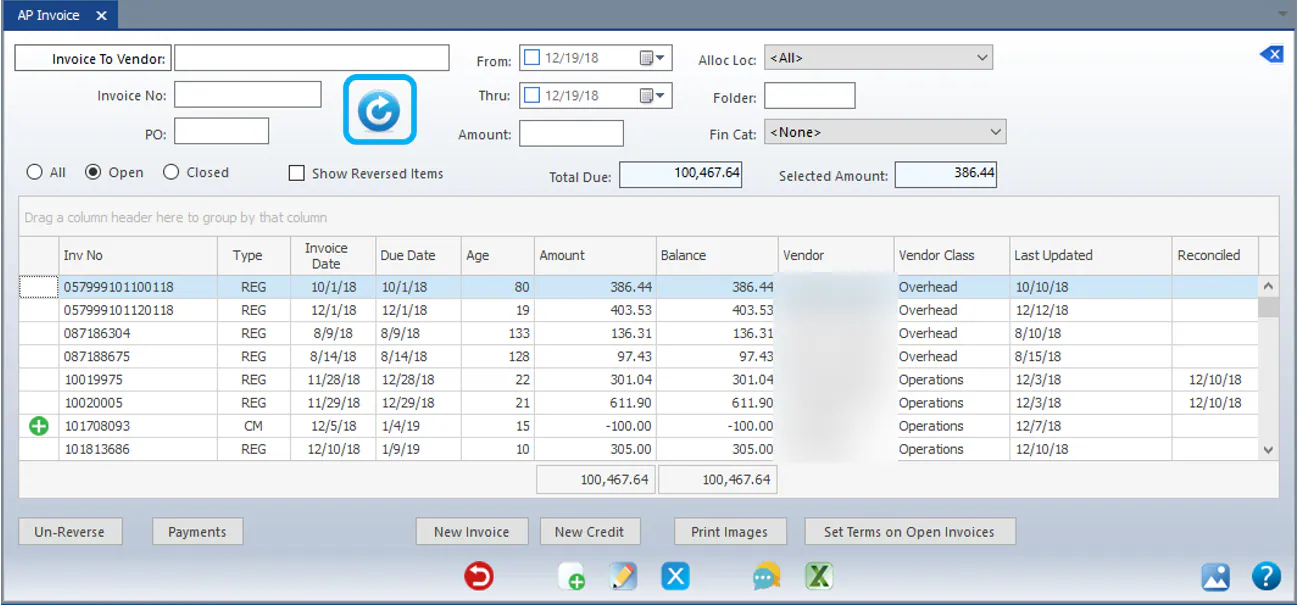
Total Due shows the total of the invoices in the list.
Filter by due date
Section titled “Filter by due date”-
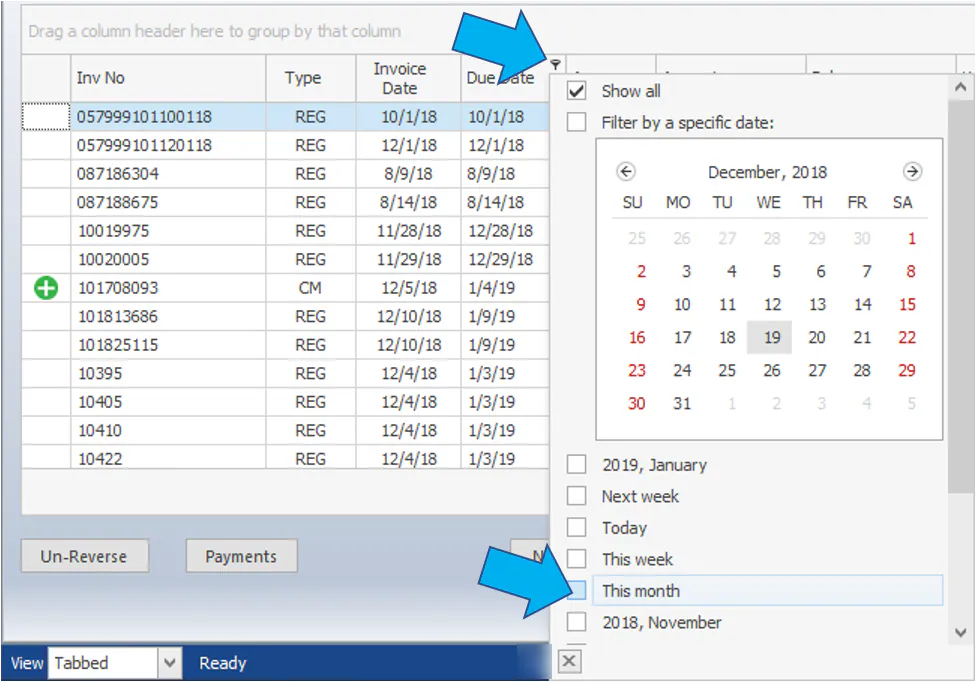
Hover over the Due Date column header and select the filter icon that appears at the top right of the header.
-
Select This month. To use a different period, select a date or range from the list instead.
Group by vendor
Section titled “Group by vendor”-
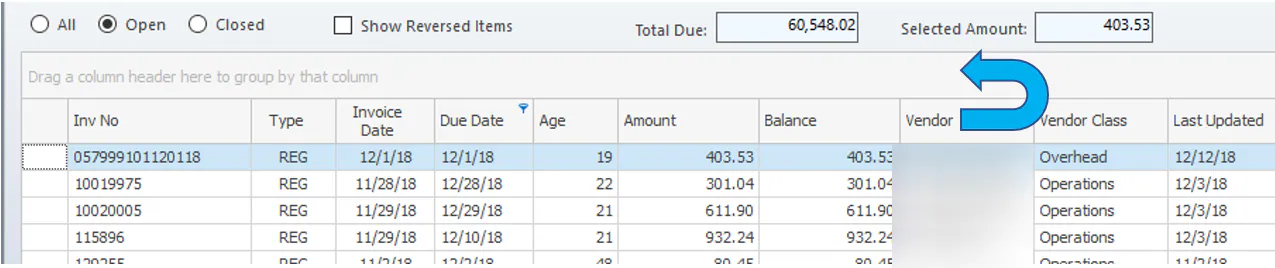
Select and hold the Vendor column header.
-
Drag it up to the area labeled Drag a column header here to group by that column, and drop it.
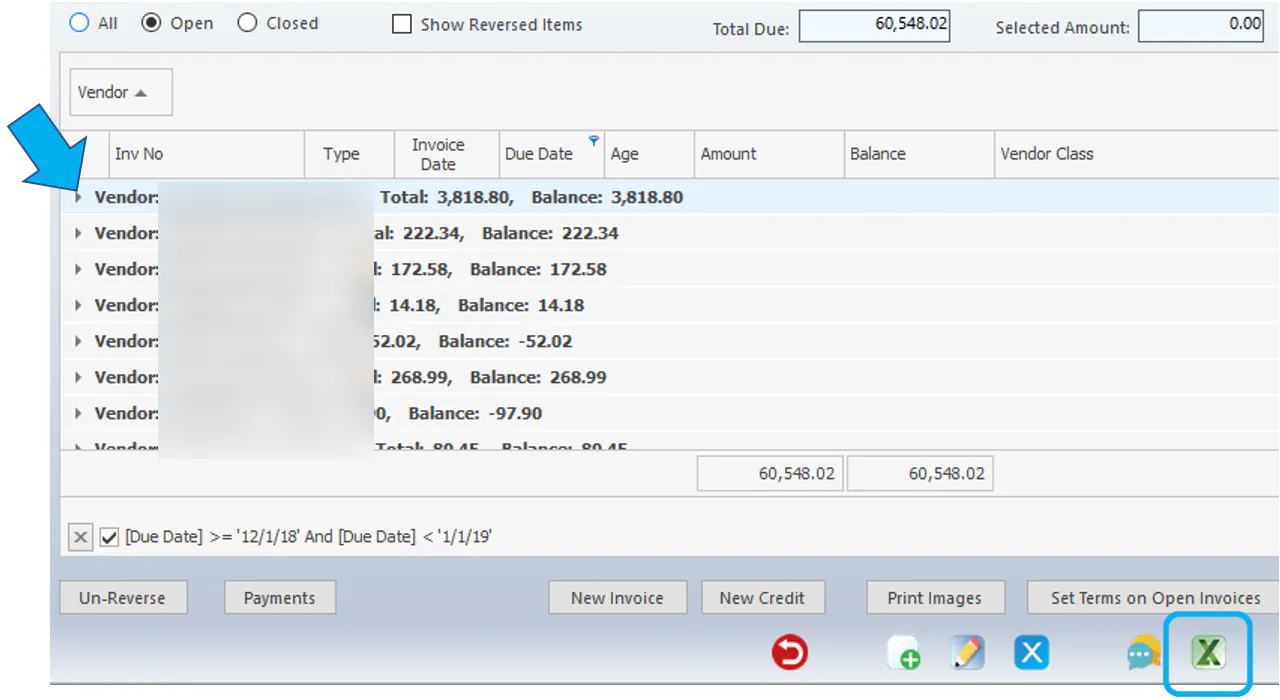
The list now shows the invoices due this month grouped by vendor, with the Total and Balance for each vendor.
See or export the invoices
Section titled “See or export the invoices”- To see each vendor’s invoices, select the arrow next to the vendor.
- To export the list, select the Excel button at the bottom of the screen.
For more about filtering and grouping, see Search, filter and save grid views.