
Track your capture rate
Your capture rate is the share of opportunities (folders or estimates) that become repairs. Keep your opportunities up to date, then run the capture analysis reports to measure it.
Keep your opportunities up to date
Section titled “Keep your opportunities up to date”-
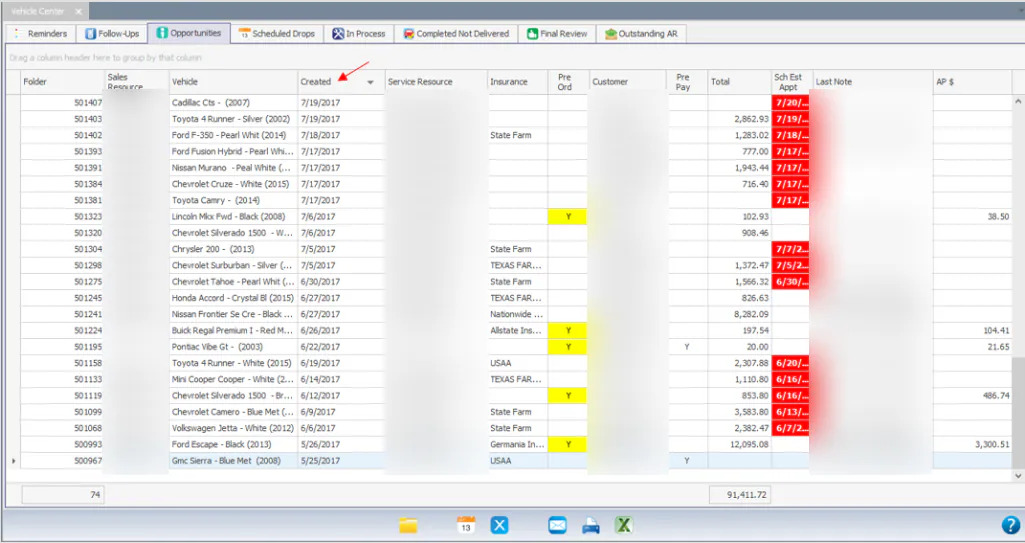
Check the Vehicle Center Opportunities tab regularly. Sort by the Created column to see folders in the order they were created.
-
Try to contact each customer to schedule a drop appointment. Record each attempt in the folder’s notes.
-
When you know you won’t repair a vehicle, mark its folder as a lost opportunity. See Mark a folder as a lost opportunity.
Run the capture reports
Section titled “Run the capture reports”-
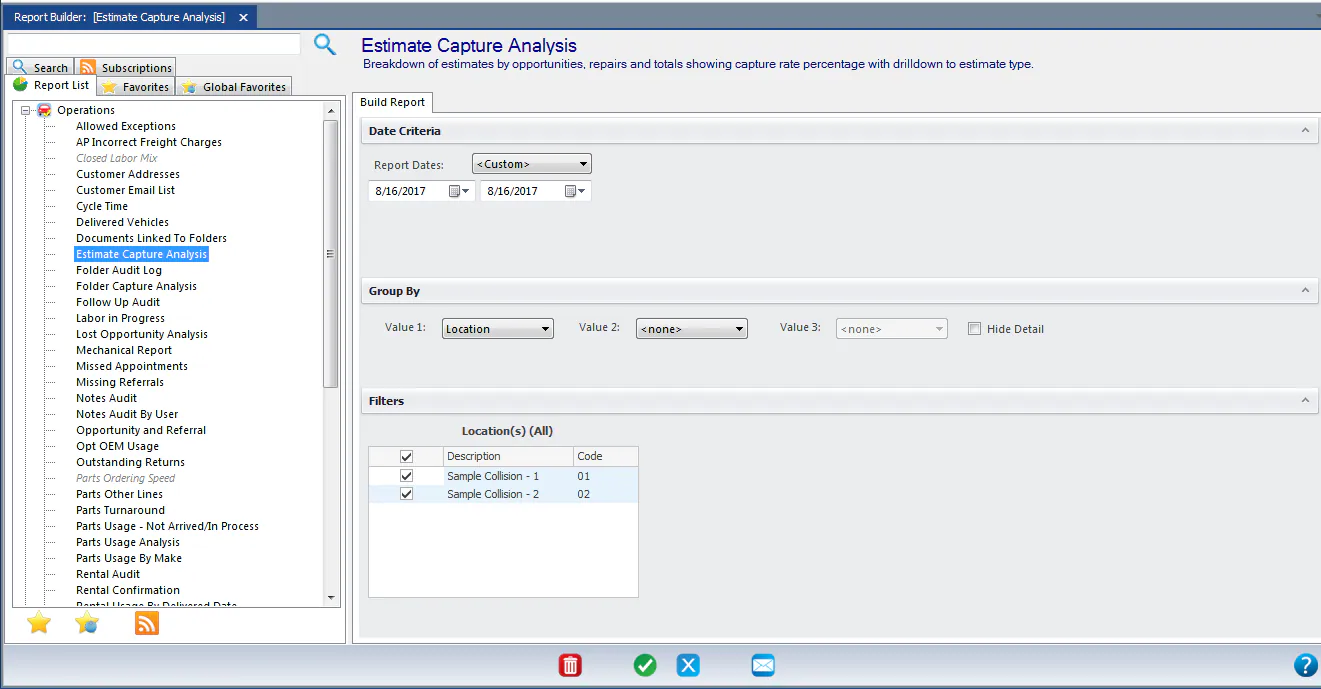
Go to Reporting › Reports › Operations.
-
Select the report you want:
- Estimate Capture Analysis shows the percentage of estimate opportunities that became repairs.
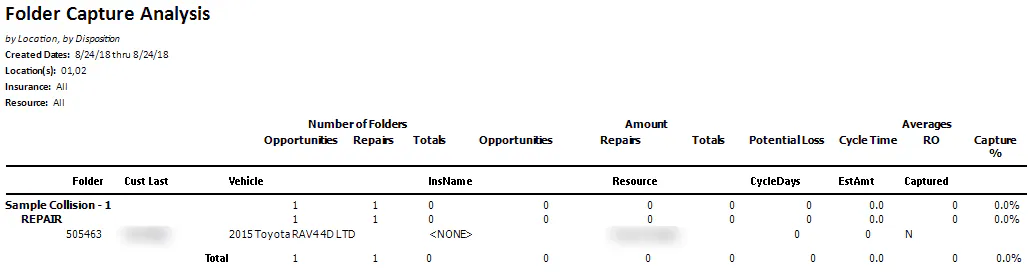
- Folder Capture Analysis shows the percentage of folder opportunities that became repairs.
- Lost Opportunity Analysis lists folders marked as a lost opportunity, with the reason. It also shows any AP cost on the folder that wasn’t refunded, and the pre-tax total, so you can see what the lost work cost you.
An estimate or folder counts as a repair when its work order is created.
Estimate or folder capture analysis?
Section titled “Estimate or folder capture analysis?”A folder can be created without an estimate, and it can hold more than one estimate, each Active or Inactive. So the two reports count differently:
- Folder Capture Analysis counts by folder. A folder with no estimate is counted, and a folder’s estimates are grouped together.
- Estimate Capture Analysis counts each estimate.
What the report shows
Section titled “What the report shows”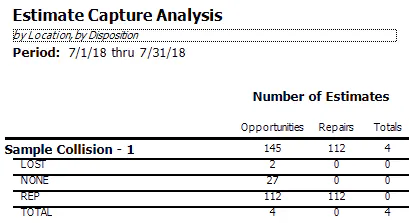
Dispositions
Section titled “Dispositions”| Disposition | Meaning |
|---|---|
| LOST | The folder was marked as a lost opportunity. |
| NONE | No work order exists. |
| REP | A work order exists. |
| TOTAL | The folder was marked as a total loss. |
Columns
Section titled “Columns”| Column | Meaning |
|---|---|
| Opportunities | The number of folders created or estimates imported. |
| Repairs | How many of the opportunities have a work order. |
| Totals | How many of the opportunities were marked as a total loss. |
How Capture % is calculated
Section titled “How Capture % is calculated”Total losses aren’t counted as captured, but they don’t lower your capture rate either, because they’re taken out of the opportunities:
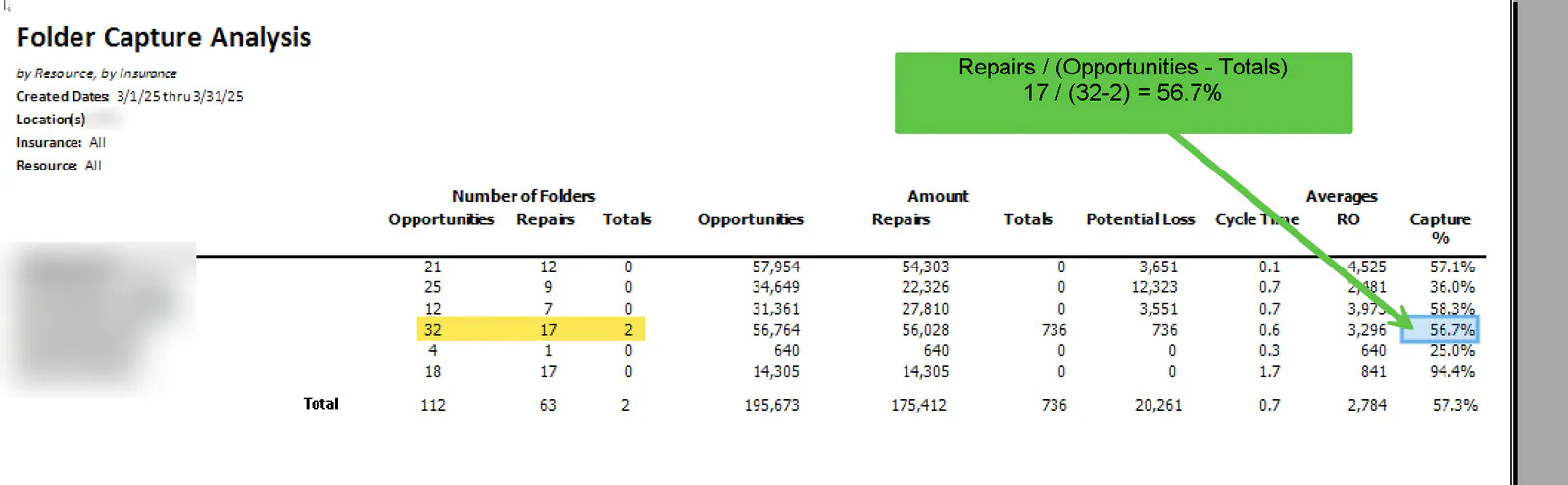
Capture % = Repairs ÷ (Opportunities − Totals)
For example, 17 repairs from 32 opportunities with 2 total losses is 17 ÷ (32 − 2) = 56.7%.
How a folder moves through the reports
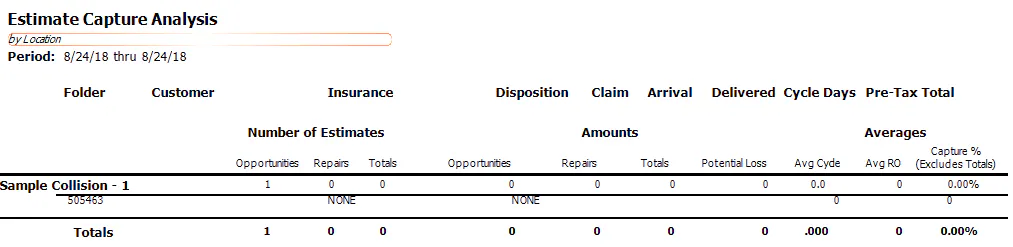
Section titled “How a folder moves through the reports”A folder is created and no estimate exists. The folder is counted as one opportunity with the disposition NONE.
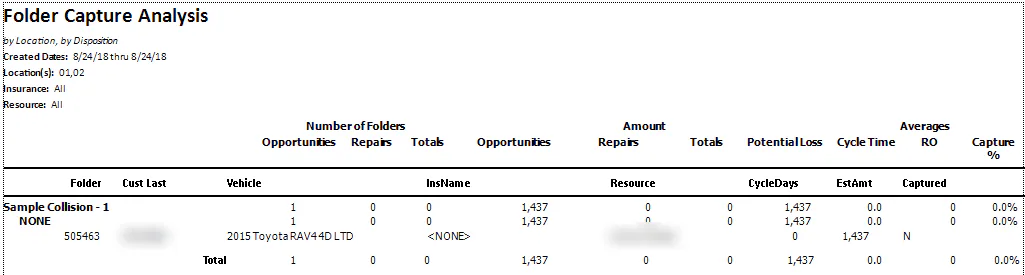
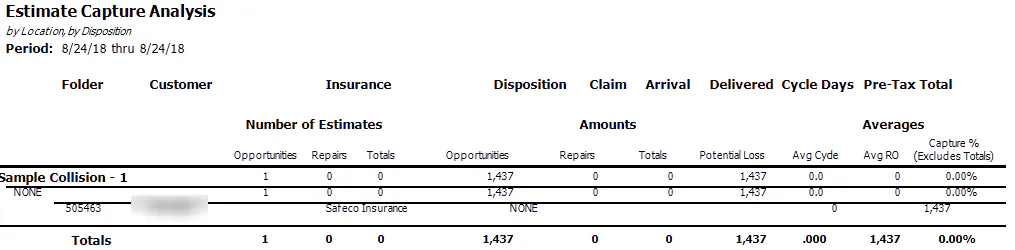
An estimate is imported and no work order exists. The folder and the estimate show under NONE, with the estimate amount as a potential loss.
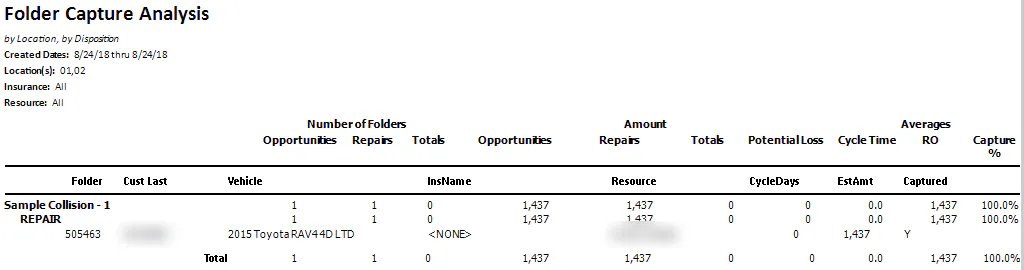
A work order is created. The folder moves to REPAIR (REP on the estimate report) and is counted as captured.
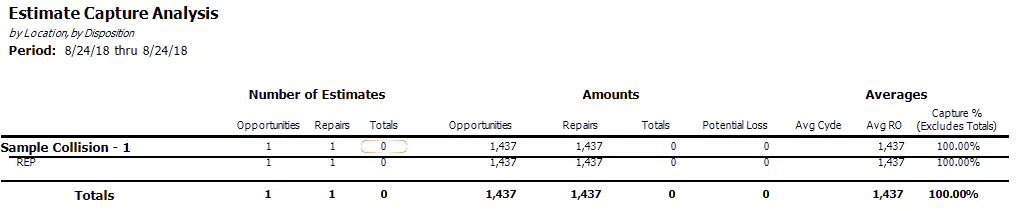
The estimate is marked inactive after the work order was created. The folder report shows the folder under REPAIR with zero amounts, and Captured shows N.
Common questions
Section titled “Common questions”How do I remove a work order so the disposition shows NONE? Work orders are deleted automatically when the estimate is marked inactive or removed from the folder.
The estimate or folder was created in June, but the work order was created in July. Which month changes? June. The June report changes from an opportunity to a repair.
The estimate was created in June, but the folder was marked as a lost opportunity in July. Which month changes? June. The disposition changes from NONE or REP to LOST on the June report.
A folder is marked as a total loss and the estimate is left active. What happens? The folder disposition shows TOTAL. The estimate amount is invoiced when you deliver the vehicle or invoice the estimate.
A folder is marked as a total loss and the estimate is made inactive. What happens? The folder doesn’t show on the report. You never had a chance to repair a total loss, so it isn’t counted as lost money.