
Attach an invoice line to a PO line
An AP invoice line that isn’t attached to a purchase order (PO) line can’t be rejected. Put the part on a PO, then update the invoice to use the new PO line.

Put the part on a PO
Section titled “Put the part on a PO”Use one of these options:
- If the invoice has other parts on a PO, add a purchase line to that PO.
- If there are no other parts, add a manual work order line.
Add the PO line to the invoice
Section titled “Add the PO line to the invoice”-
Open the AP invoice.
-
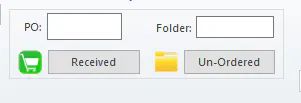
At the top of the invoice, use the PO box if you used option 1, or the Folder box if you used option 2, and select Received.
-
Select the part from the list, adjust the Act List and Act Cost if needed, then select the green check mark.
If you used option 2, also select Create PO.

-
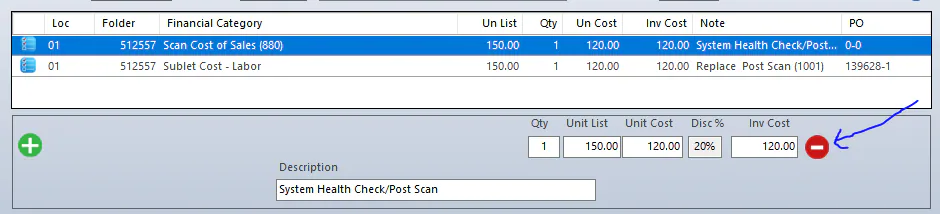
Select the old line that has no PO and select the red minus button to remove it.
-
Select Save.
You can now reject the line. See Reject a part.