
Paint materials and mixing machine data
If your location receives paint mixing machine data from your paint provider, Nexsyis pulls in the actual paint costs and calculates margins from real usage. This page shows how to set it up and how the data appears in the GP Analyzer and on folder reports.
Supported paint providers:
- AkzoNobel
- BASF Automotive Solutions
- PPG
- Sherwin-Williams
Set up mixing machine data
Section titled “Set up mixing machine data”-
In Preferences:
- Set GPAnalyzerPaintMaterialCost to 1.
- Set PaintPercentNonLiquid to the percentage of paint materials sales to allocate to non-liquid materials.

For example, if it’s set to 30, 30% of the paint materials sales on the estimate go to non-liquid materials and 70% go to liquid materials.
-
On the location’s Profile tab, set the percentage of cost distributed to non-liquid materials.
How paint materials are split
Section titled “How paint materials are split”When mixing machine data is turned on, paint materials split into three categories. Each one is costed differently.
| Category | Where the cost comes from | How gross profit is calculated | When you see it |
|---|---|---|---|
| Paint Materials - Liquid | Actual data from your paint provider’s mixing machine | From the real usage cost | Locations and folders with mixing machine data |
| Paint Materials - NonLiquid | The percentage set on the location Profile tab | Expected GP %, not actual data | All locations and folders, with or without mixing machine data |
| Paint Materials | Expected GP % from the location Profile tab | Expected GP %, not actual data | Folders with no mixing machine data |
Mixing machine data in the GP Analyzer
Section titled “Mixing machine data in the GP Analyzer”For a location
Section titled “For a location”When you choose a date range in the GP Analyzer and mixing machine data exists, paint materials show on three lines: Paint Materials - NonLiquid, Paint Materials - Liquid and Paint Materials.
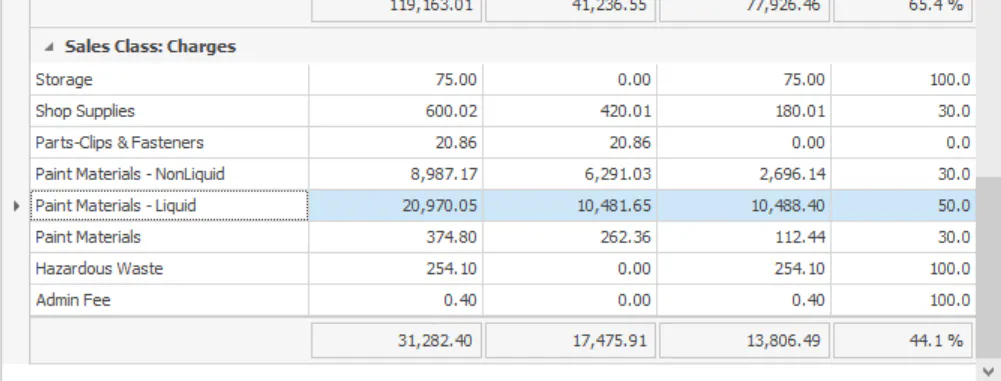
Double-click any paint materials line to see the GP amount for each folder in that date range.
For a folder
Section titled “For a folder”When you analyze one folder that has mixing machine data, you see two lines:
- Paint Materials - NonLiquid: cost calculated from the expected GP % for the location.
- Paint Materials - Liquid: actual cost from the mixing machine.
Print the Paint Materials Costs report
Section titled “Print the Paint Materials Costs report”When a folder receives mixing machine data, the Paint Materials Costs report is available on the folder print screen.
-
Open the folder print screen.
-
Under Folder Reports, select Paint Materials Costs.
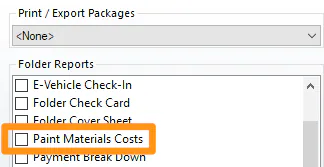
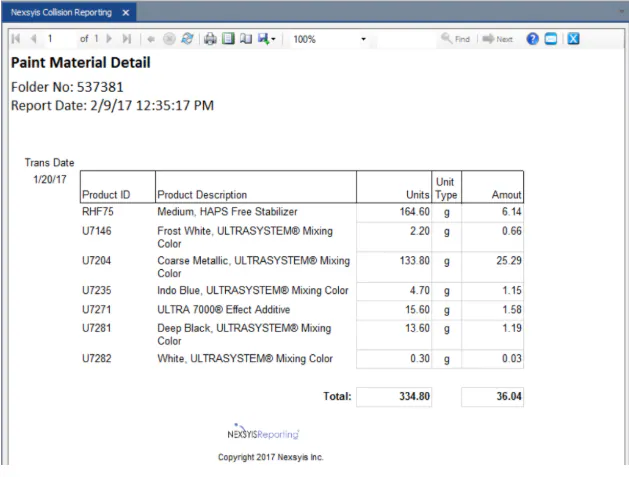
The report shows the paint materials used on that folder, with the product, units and amount for each.
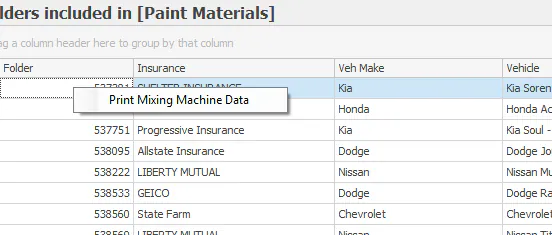
You can also open the report from the GP Analyzer: right-click a folder and select Print Mixing Machine Data.
If a folder has no mixing machine data, a message tells you so. You can spot these folders in the GP Analyzer because their GP % equals the expected GP % for paint materials.
