
Change a PO's quantity or vendor
Use the purchase order’s Corrections screen to change how many of a part you’re ordering, or to move parts to the right vendor.
Open the PO corrections screen
Section titled “Open the PO corrections screen”-
In the Purchase Assistant, select a line from the purchase order.
-
Select PO at the bottom of the screen.
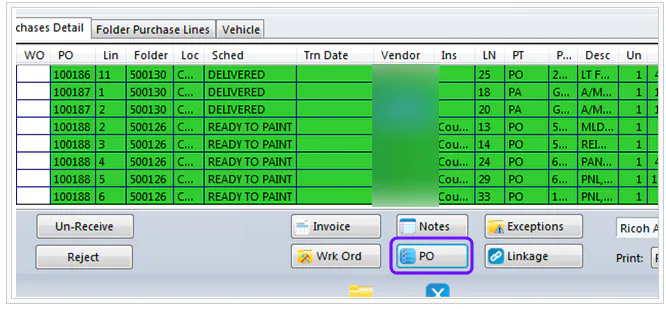
-
At the top of the purchase order screen, select Corrections.
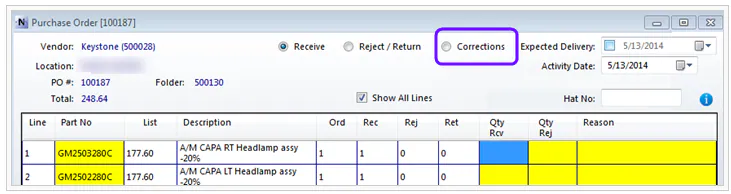
Change the quantity
Section titled “Change the quantity”You can change the quantity only before the part is received.
- On the Corrections screen, select the line.
- Select + or - to increase or decrease the quantity.
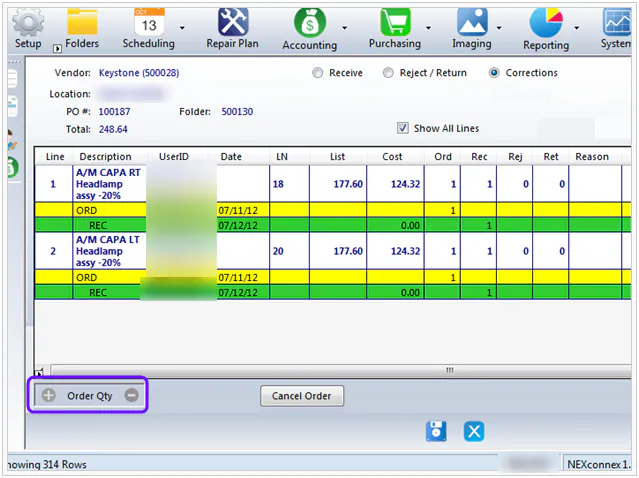
Change the vendor
Section titled “Change the vendor”Use this when parts were marked as ordered from the wrong vendor.
-
On the Corrections screen, select Change Vendor at the bottom of the screen.
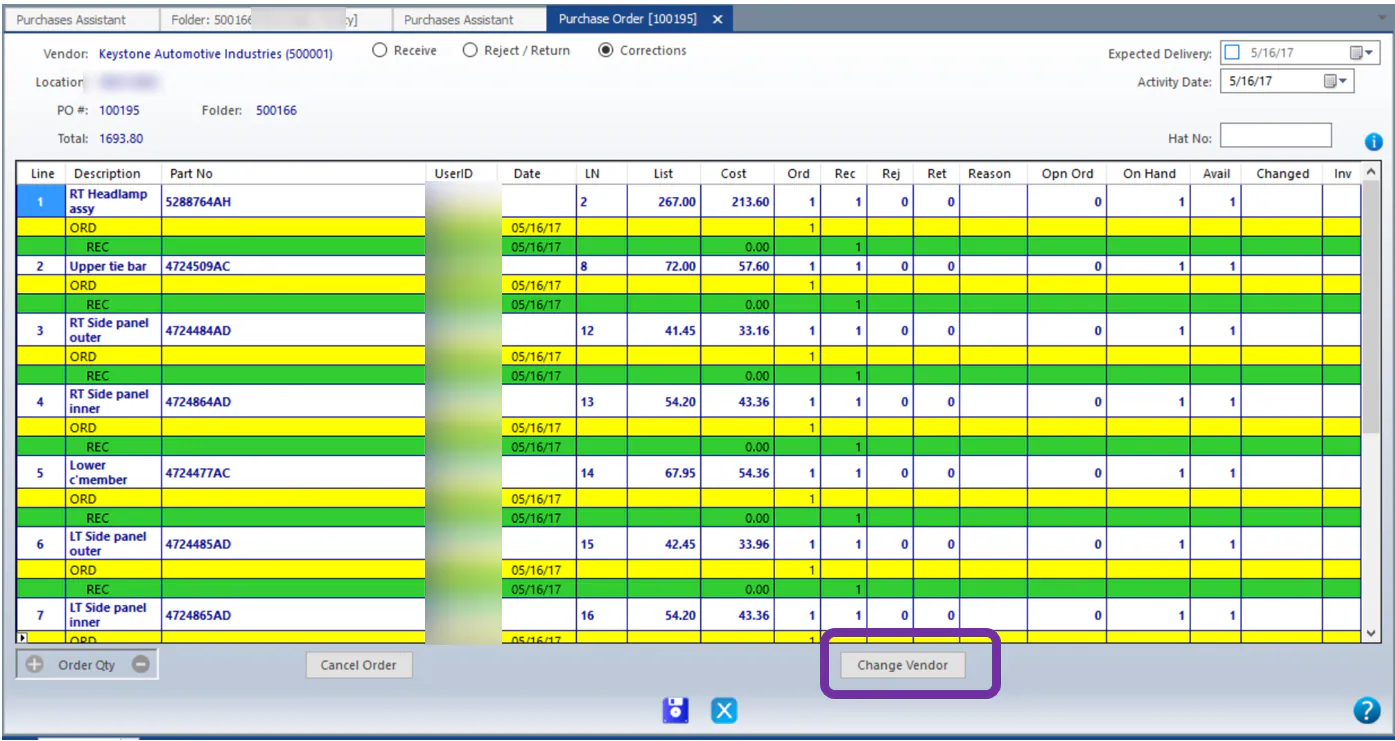
-
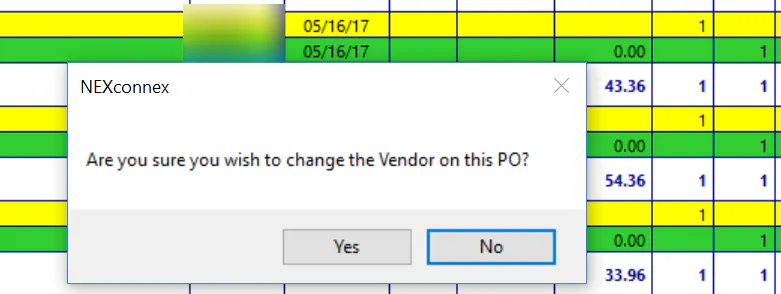
Select Yes.
-
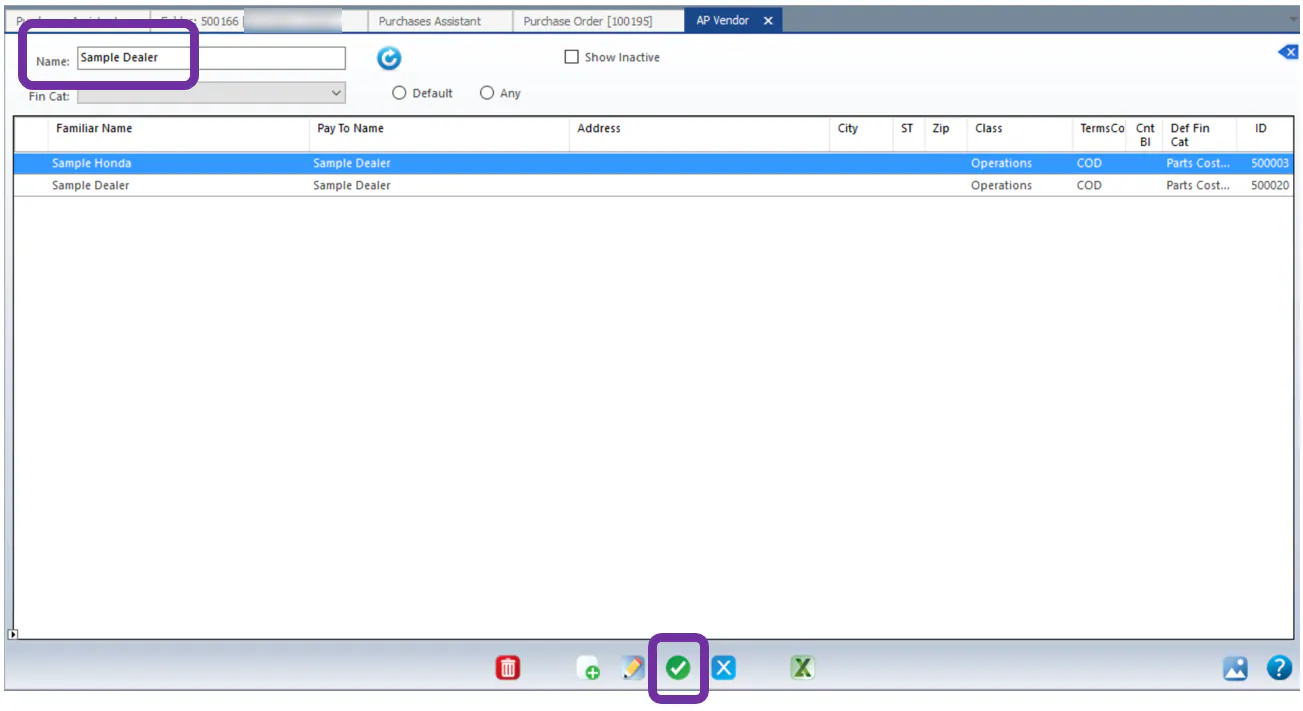
Search for the correct vendor and select it with the green check mark.
-
Select Save at the bottom of the purchase order screen.
-
Refresh the Purchase Assistant to see the change.