
Handle back-ordered parts
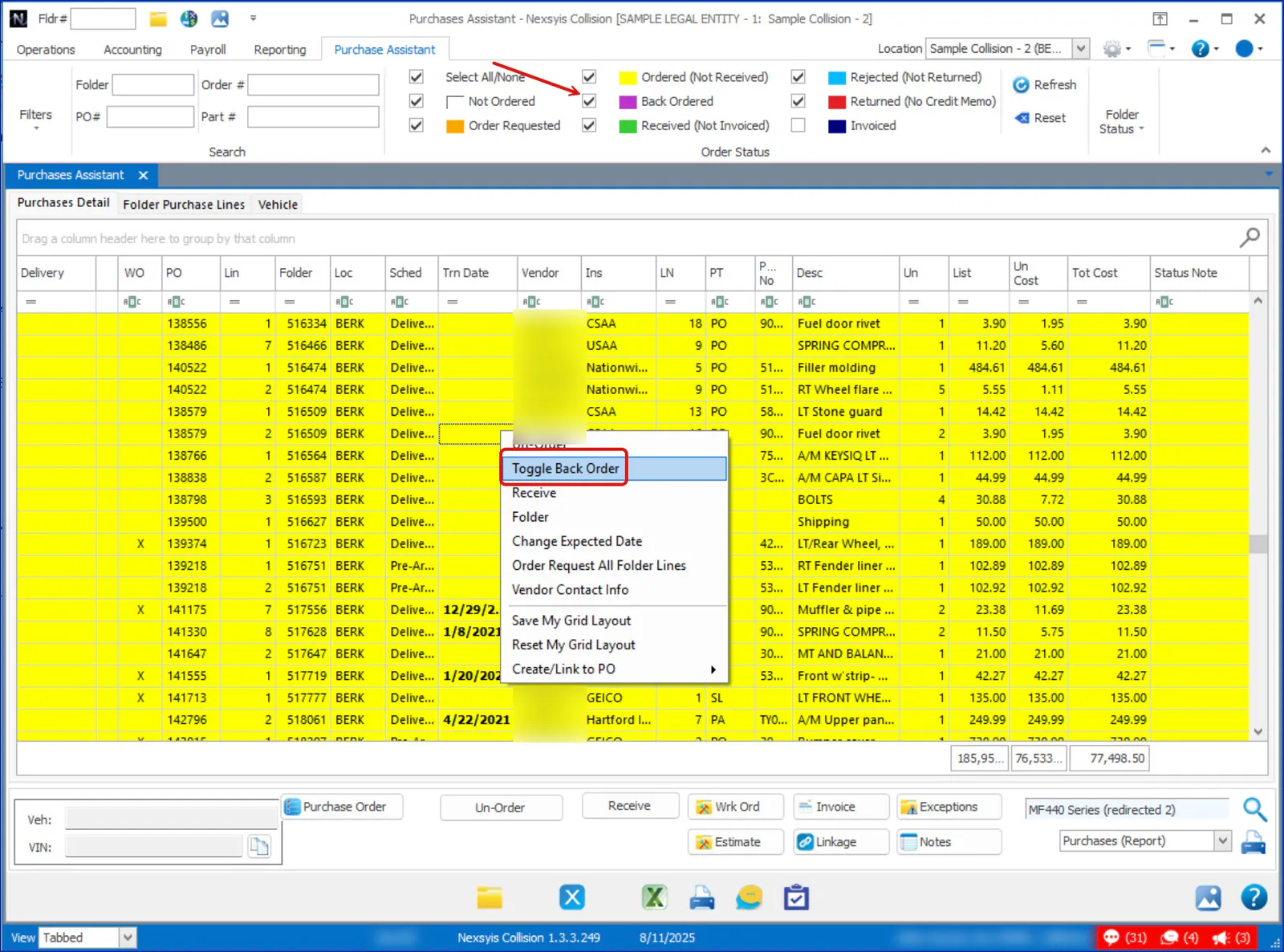
Mark an ordered part as back ordered so everyone can see it’s delayed. Back-ordered parts show in purple in the Purchase Assistant.
Mark a part as back ordered
Section titled “Mark a part as back ordered”In the Purchase Assistant, right-click the ordered line and select Toggle Back Order.
Find back-ordered parts
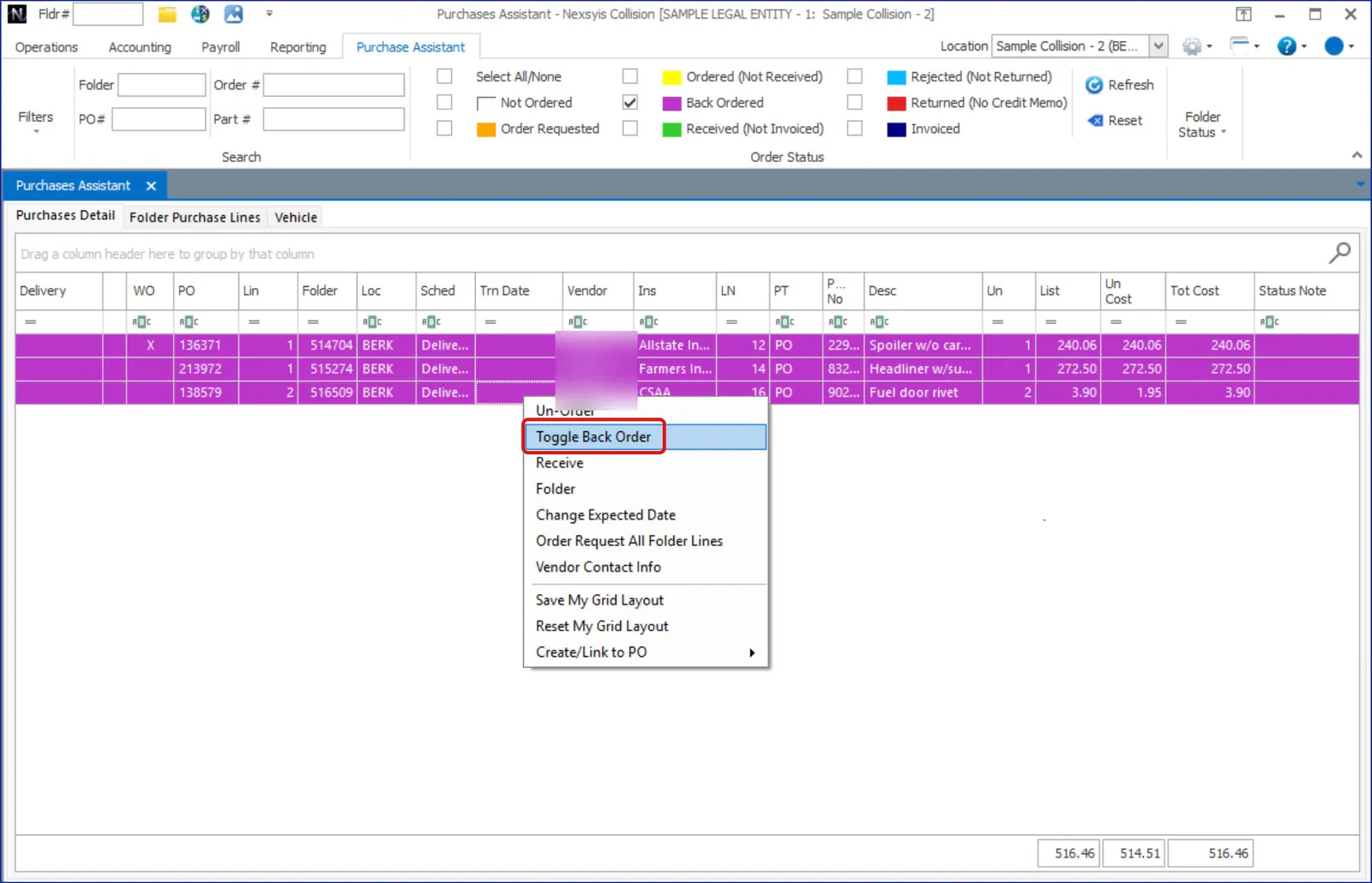
Section titled “Find back-ordered parts”Use the back-order filter in the Purchase Assistant.
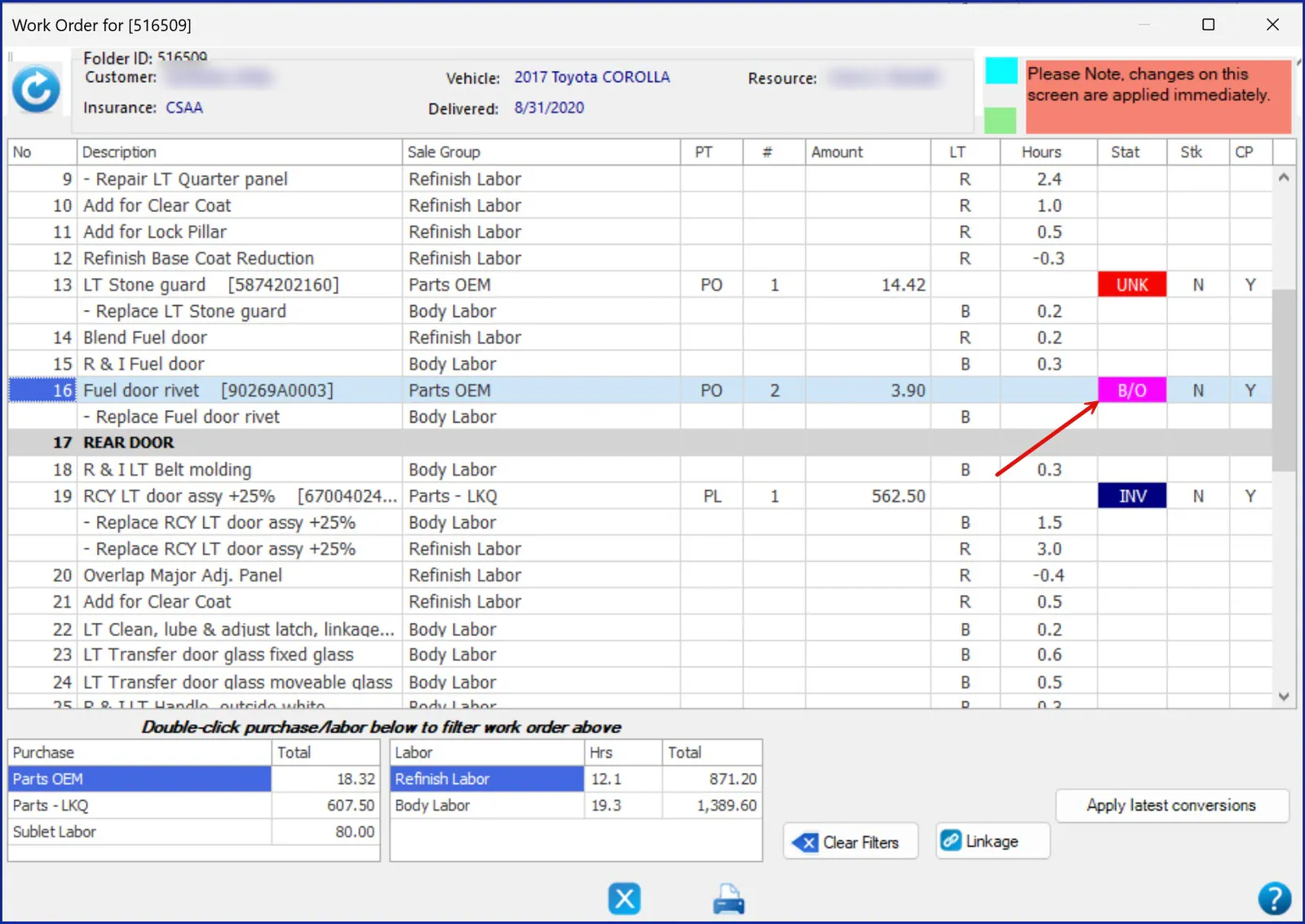
In a folder’s work order, back-ordered parts show B/O highlighted in pink in the Status column.
Remove the back order
Section titled “Remove the back order”To return a part to Ordered (Not Received), right-click the line and select Toggle Back Order again.