
Message your team
Use Team Messaging to send messages to coworkers. A message can stand on its own or be linked to a folder.
Send a team message
Section titled “Send a team message”-
Open the Message Center: select Message Center on the Operations tab, or the team messages indicator at the bottom right of Nexsyis.

-
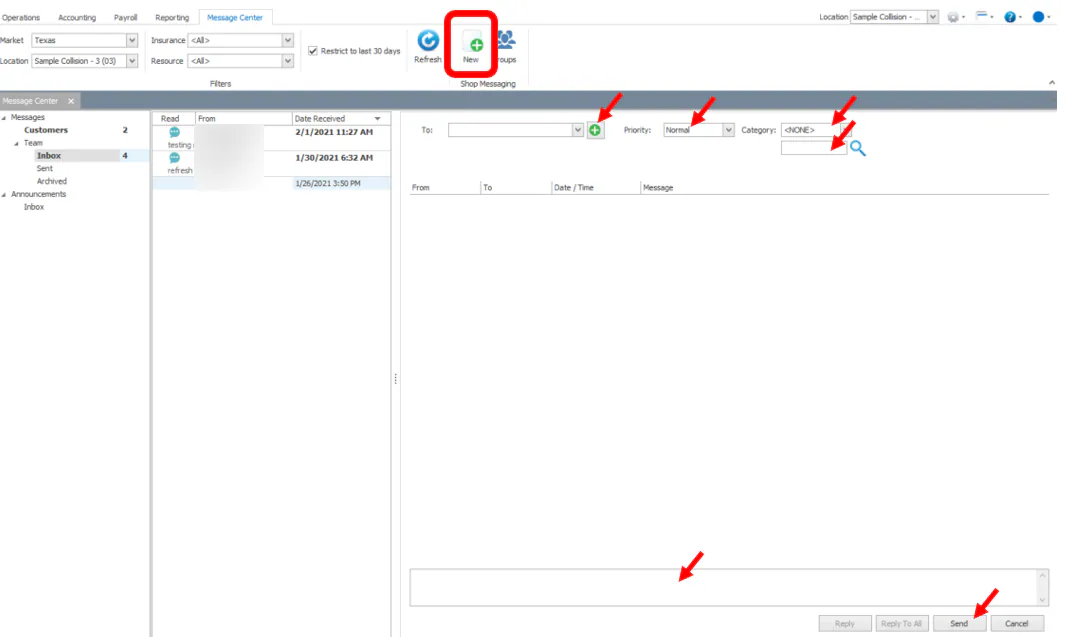
Select New at the top of the Message Center.
-
In the To: field, start typing a name. Press the down arrow to highlight the name, then press Enter twice to add it. Repeat for each recipient.
The list includes Nexsyis users and team messaging groups. When you choose a group, everyone in it gets the message.
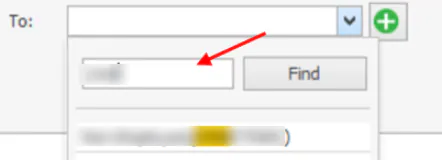
Recipients you add show in blue. To remove one, select its X.
-
If you need to, set a Priority and Category, and link the message to a folder.
-
Type your message, then select Send.

The message shows under Sent.
Read and answer team messages
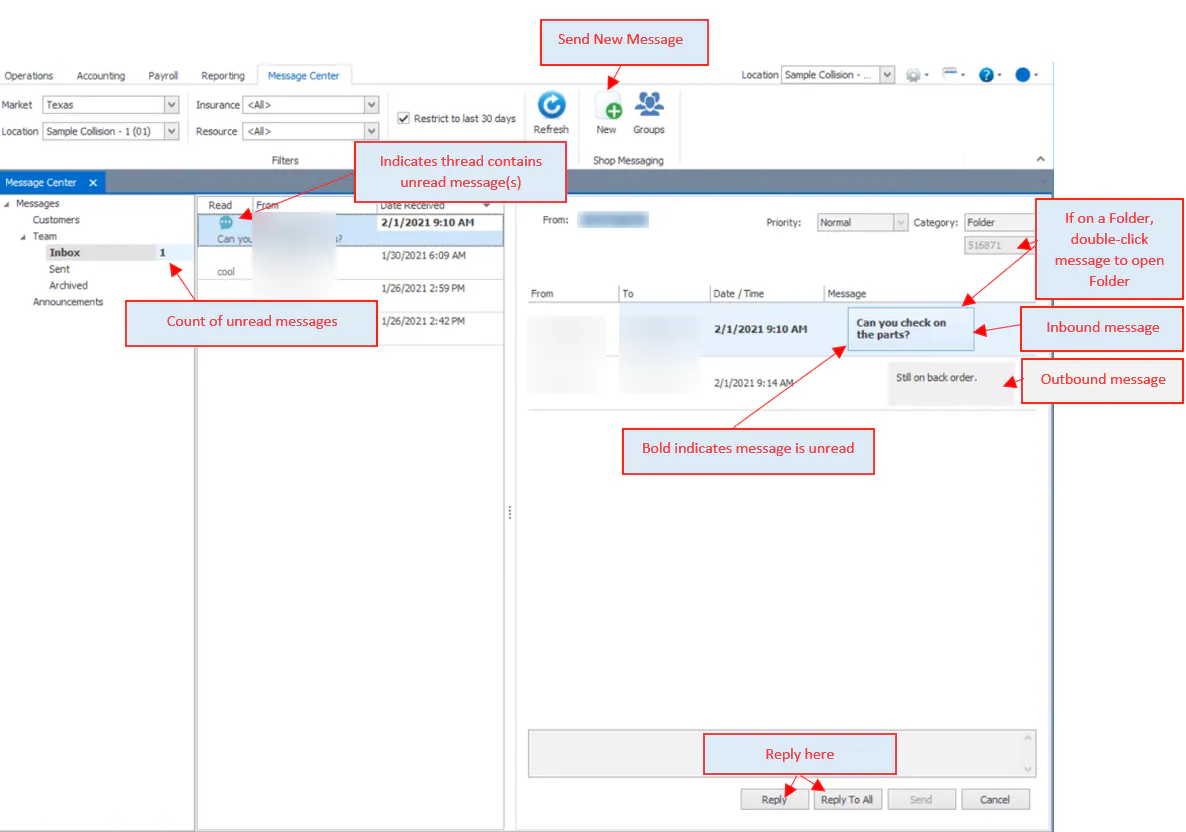
Section titled “Read and answer team messages”New team messages show under Team › Inbox, and the indicator at the bottom right shows how many you have.
-
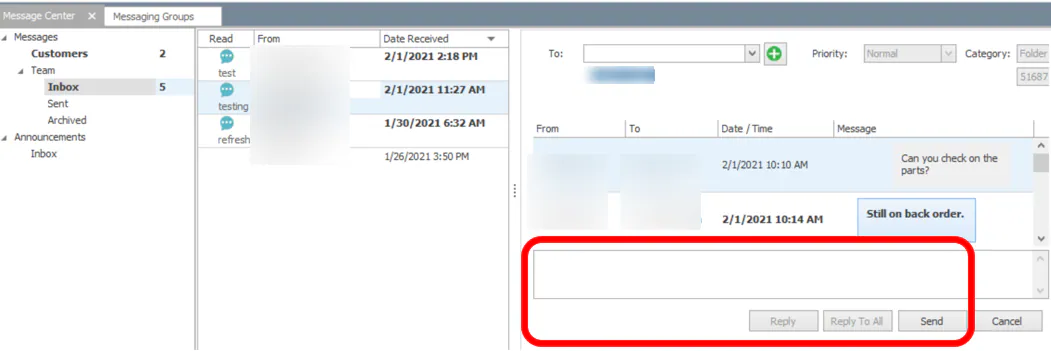
Reply: at the bottom of the thread, select Reply or Reply All, type your message and select Send. Your reply shows in gray.
-
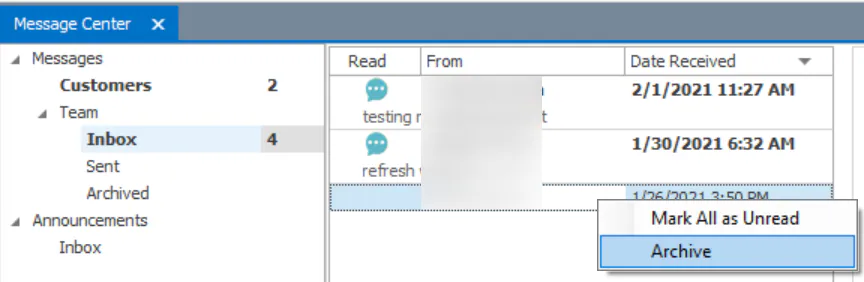
Read and unread: an unread thread shows a blue message icon and bold text. It stays unread until someone replies or right-clicks it and marks it as read.
-
Archive: right-click a thread and archive it. It moves from Inbox to Archived.
Send a message from another screen
Section titled “Send a message from another screen”Several Nexsyis screens have a message button on the bottom button bar. A message sent from one of these screens fills in the category and folder for you.

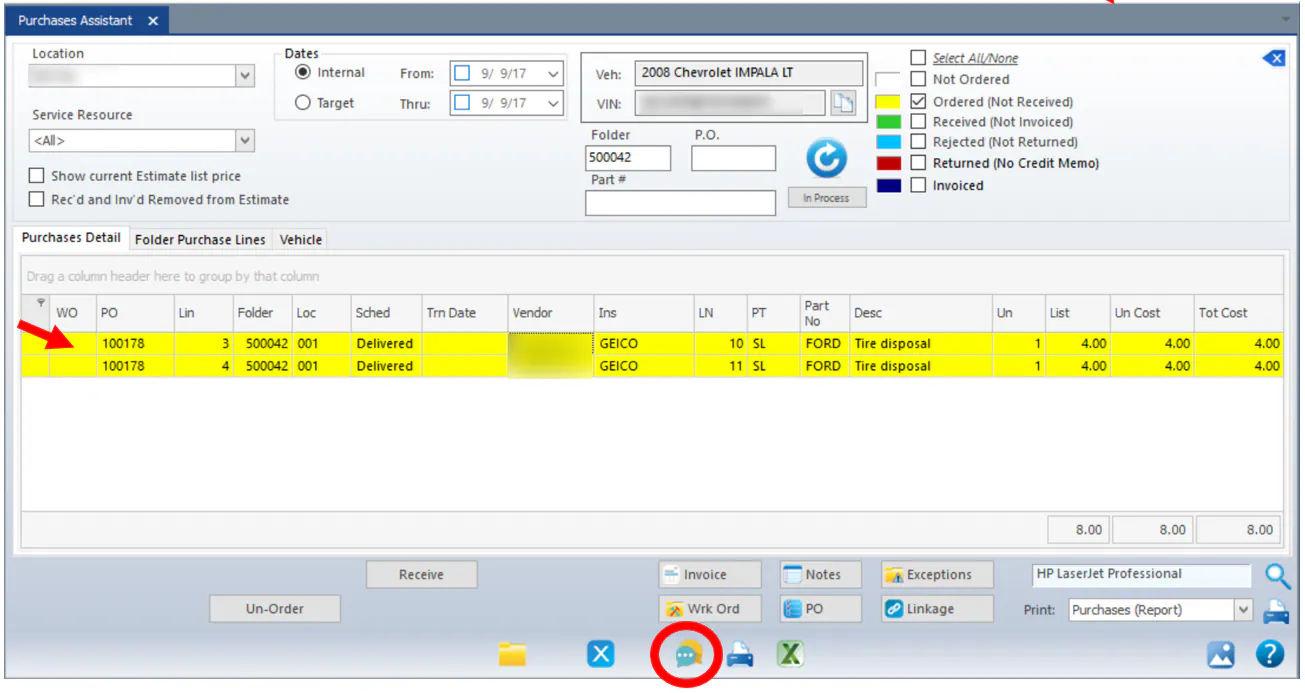
For example, from the Purchase Assistant:
-
Select a line, then select the message button.
-
A new message opens with the category Parts and the folder number filled in. Choose the recipients, type your message and send it.
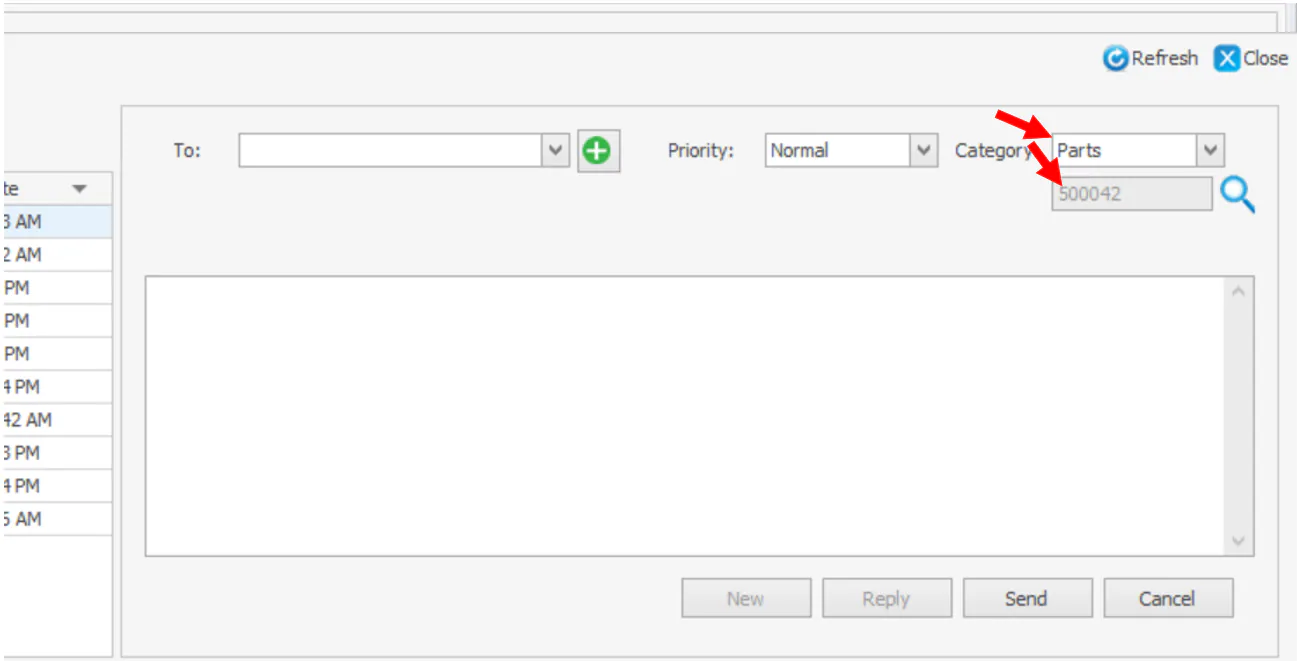
When the recipient double-clicks the message, the Purchase Assistant opens to that folder, and the message opens in its own window so they can reply.
The Team Messaging inbox
Section titled “The Team Messaging inbox”Select the chat bubble icon to open the Team Messaging inbox. The phone icon opens customer messages, and you can switch between the two at the top of the page.
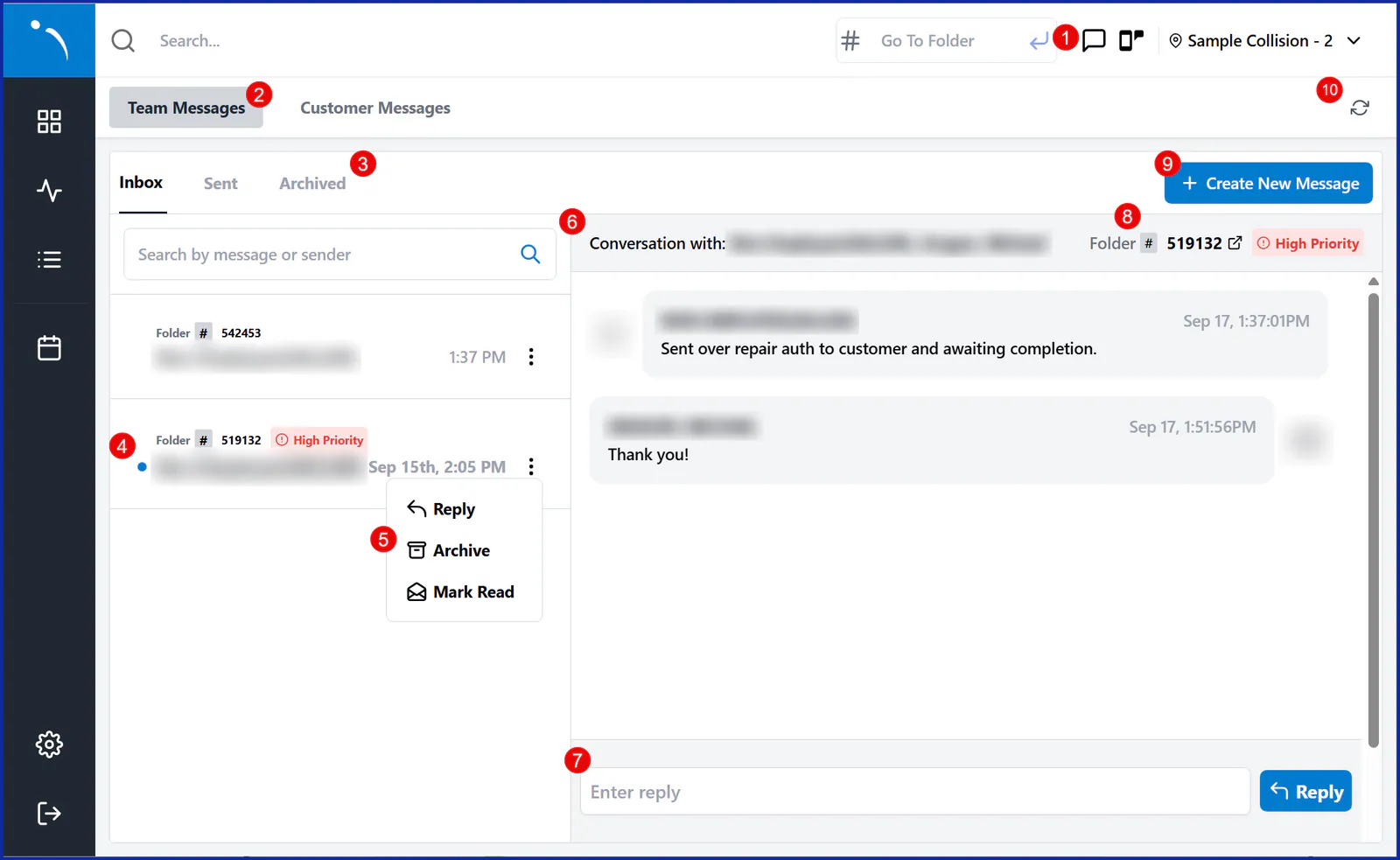
- Switch between Inbox, Sent and Archived.
- A blue dot means a message hasn’t been read.
- Select the three dots on a message to Reply, Archive the thread or mark it Read.
- The top of a thread shows its recipients, folder number and priority. Select the folder number to open the folder in a new tab.
- Reply at the bottom of the thread.
- Select the refresh icon to check for new messages.
Send a team message
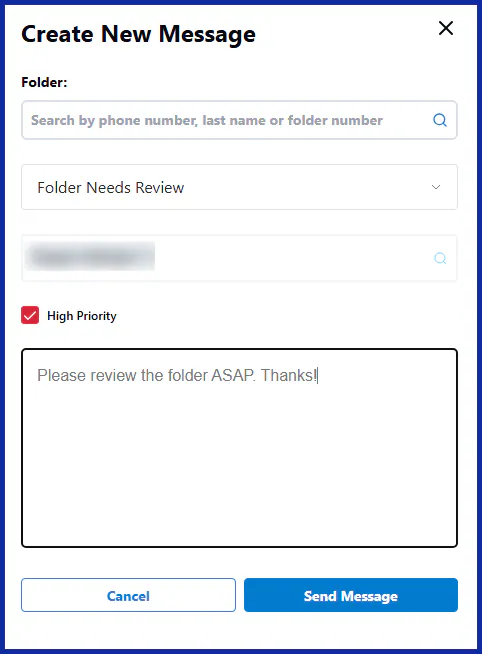
Section titled “Send a team message”- In the inbox, select Create New Message.
- To link the message to a folder, search by folder number, last name or phone number.
- Choose the message category.
- Choose the recipients.
- If the message is urgent, select High Priority.
- Type your message, then select Send Message.
Send a message from a folder
Section titled “Send a message from a folder”-
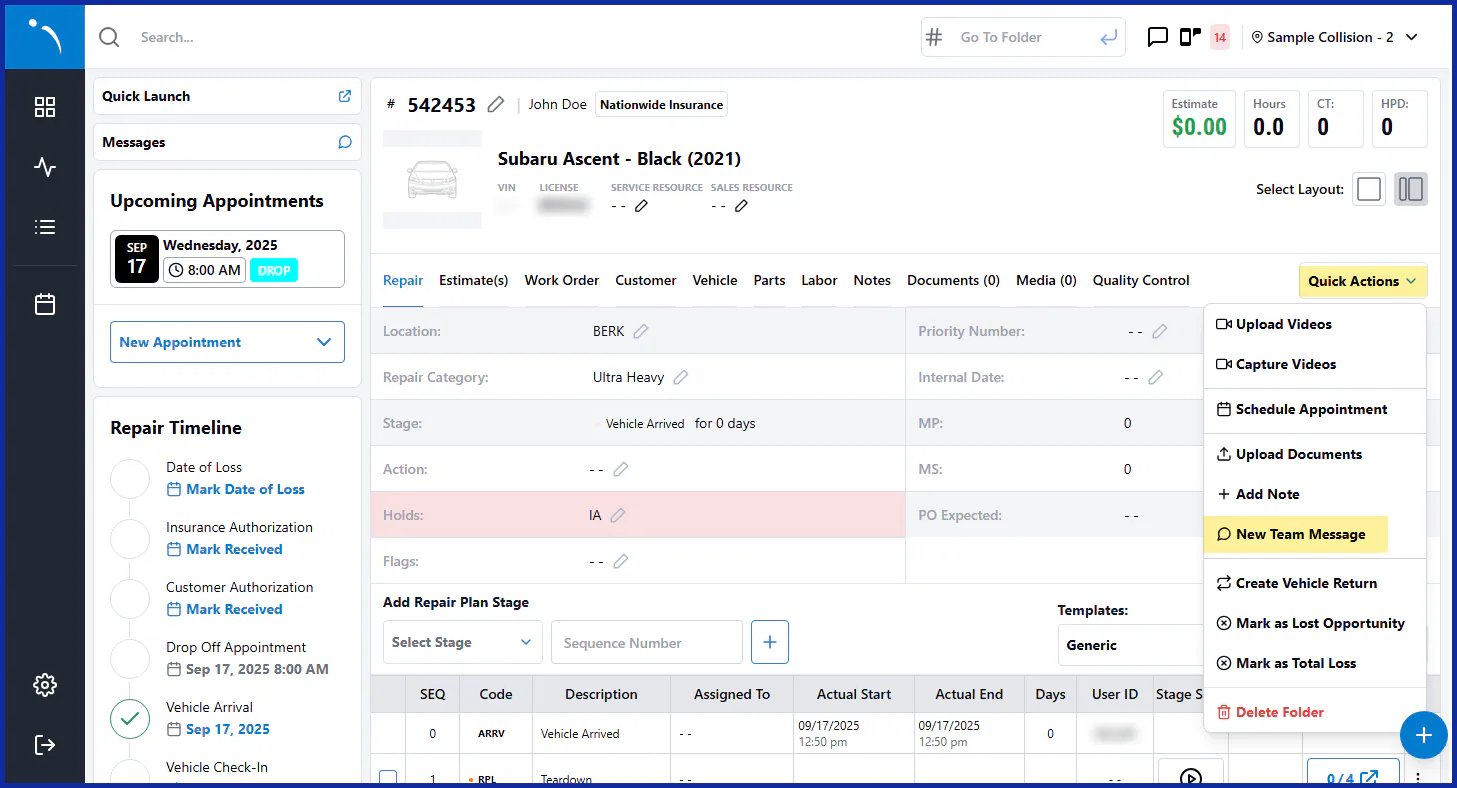
In the folder, select Quick Actions › New Team Message.
-
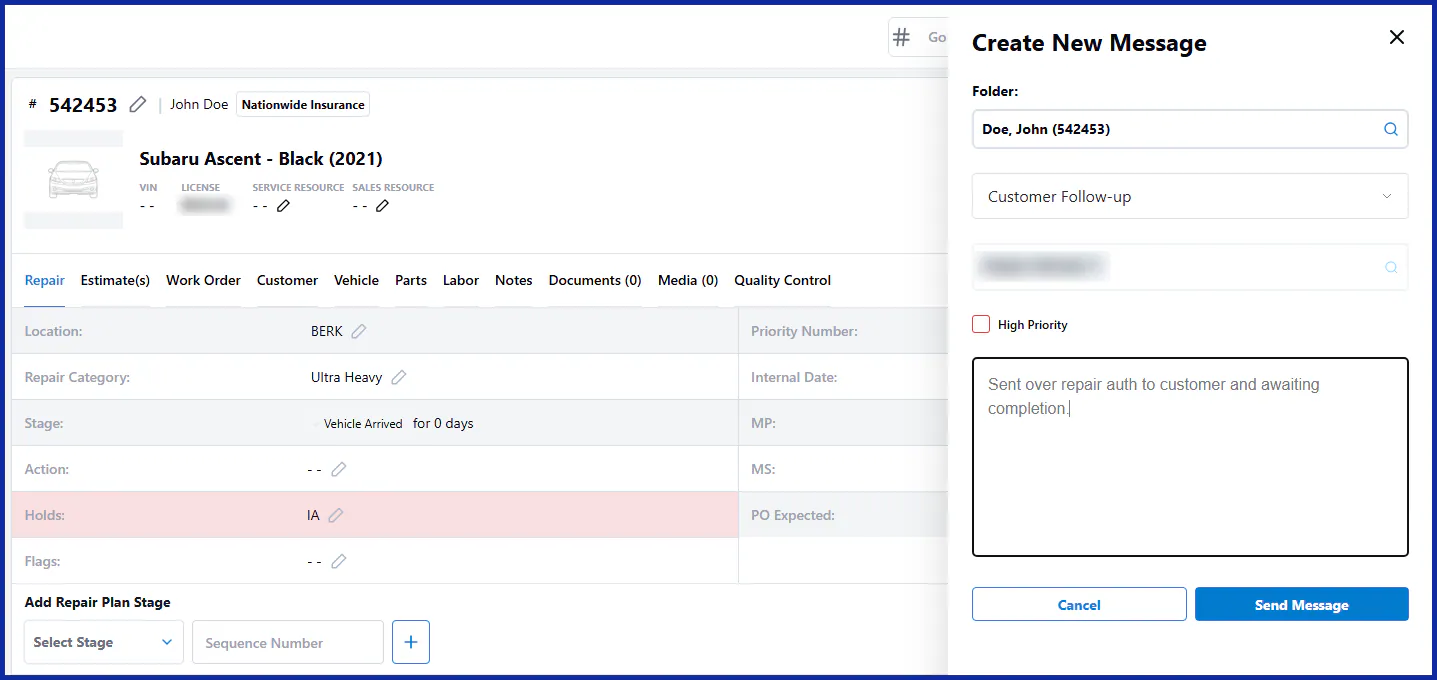
The folder is filled in. Choose the category, recipients and priority, type your message and send it.
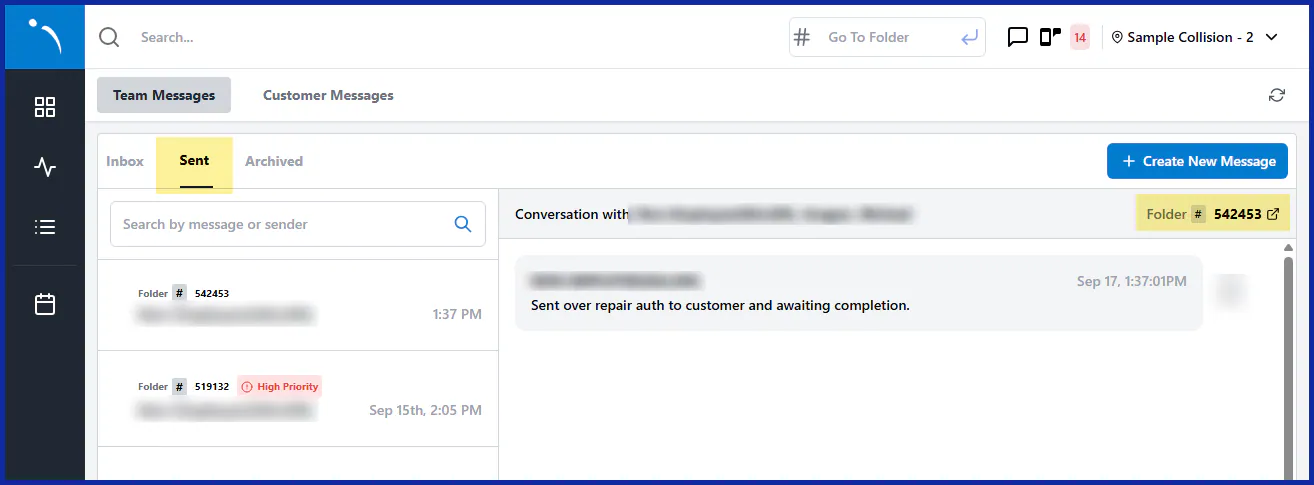
The message shows as a conversation under Sent, with a link to the folder.
In the Nexsyis mobile app
Section titled “In the Nexsyis mobile app”- Messages work like text threads. You can message one person or start a group thread.
- Messages are linked to the repair, and you can go straight to the folder from a message.
- Star the people you message most so they show as favorites.
- Switch locations to find people at your other locations.