
Move an AP invoice to its original financial period
An AP invoice posts to the general ledger on its GL date. If you enter an invoice dated in a period that’s already closed, its GL date moves to the first day of the earliest open period. You can move it back to the original period.
How it works
Section titled “How it works”Every AP invoice has two dates: the invoice date (when the transaction happened) and the GL Date (when it posts to the general ledger). Moving the GL date reverses the invoice out of the period it posted to and posts it again in the original period. See Financial dates explained.
Move the GL date
Section titled “Move the GL date”-
Open the AP invoice.
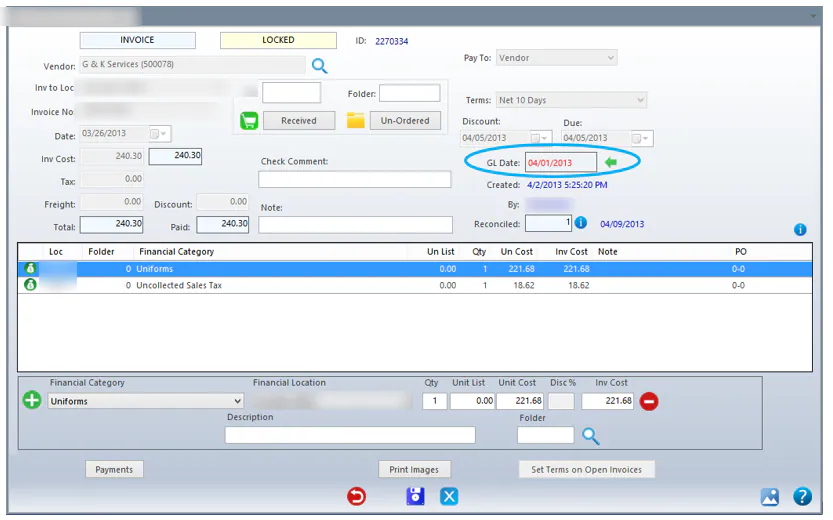
The GL Date shows in red when it’s in a different financial period from the invoice date.
-
Select the green arrow button next to GL Date.
-
You see the warning “This action will move the invoice back to the original financial period. If that period is closed, it will have the effect of changing history. Continue?” Select Yes.
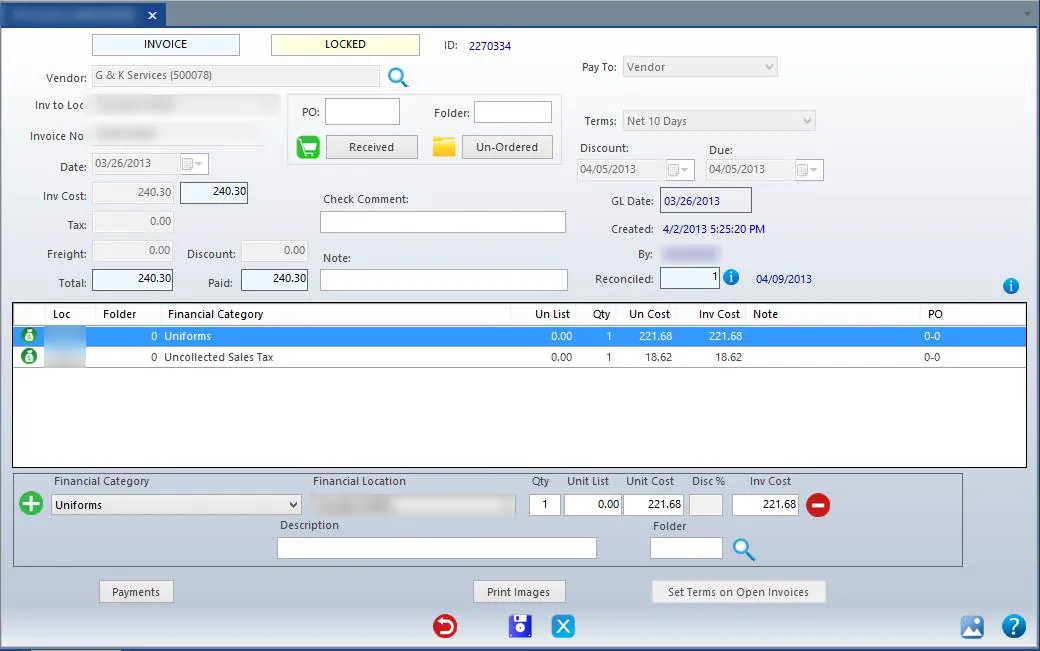
The GL Date changes to the invoice date, and the change is saved automatically.
-
Go back to the A/P Invoices search screen and select Show Reversed Items.
-
Select the reversed invoice, then select the edit button at the bottom of the screen.
-
Repeat steps 2 and 3 on the reversed invoice.