
Mark a folder as final reviewed
Marking a folder as reviewed is the last step of the repair process, and the closest thing to closing a repair order. Folders that need review are listed on the Final Review tab of the Vehicle Center.
Before you begin
Section titled “Before you begin”Work through Prepare a folder for delivery first. The vehicle must be delivered and the folder invoiced.
Mark a folder as reviewed
Section titled “Mark a folder as reviewed”You can mark a folder as reviewed from the folder or from the Vehicle Center.
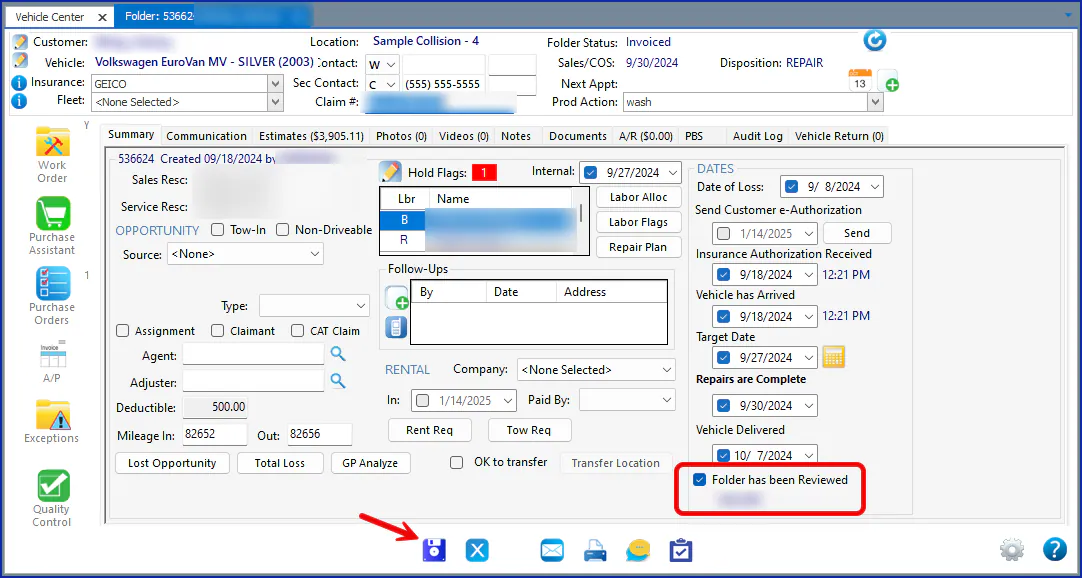
From the folder
Section titled “From the folder”- Open the folder’s Summary tab.
- Select Folder has been Reviewed.
- Select Save.
From the Vehicle Center
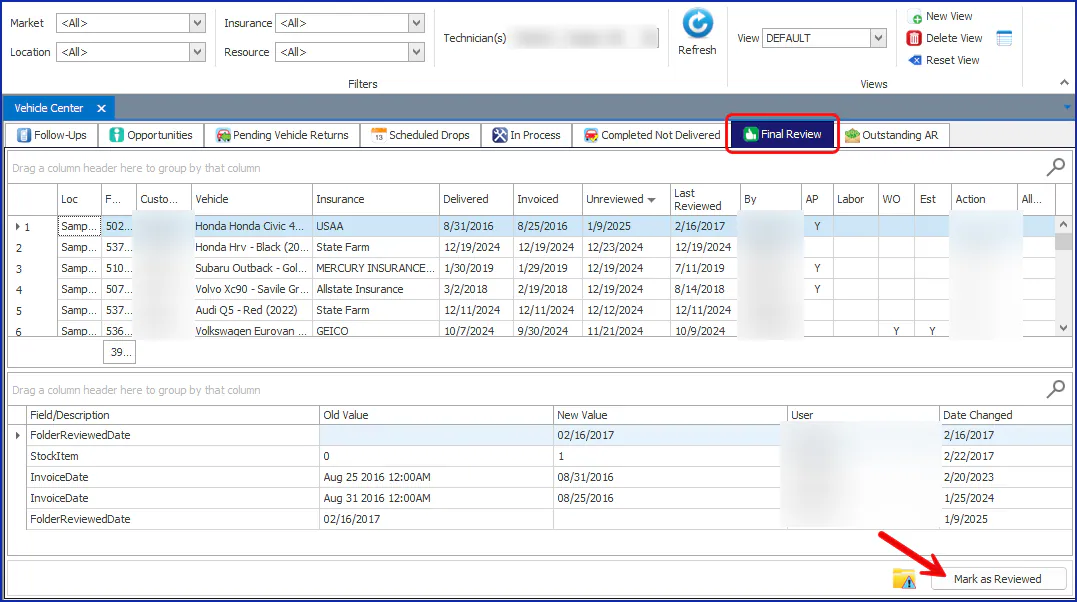
Section titled “From the Vehicle Center”- Open the Vehicle Center and select the Final Review tab.
- Select the folder’s row.
- Select Mark as Reviewed at the bottom right.
How the Final Review tab works
Section titled “How the Final Review tab works”The Final Review tab lists every folder that isn’t marked as reviewed. A folder moves onto the tab automatically once it’s delivered and invoiced.
Some changes made after a folder is reviewed clear its review date automatically: changes to the estimate, work order, AP invoices or labor allocation. The folder then shows on the Final Review tab again so you can review it again.
Final Review columns
Section titled “Final Review columns”These columns are specific to the Final Review tab:
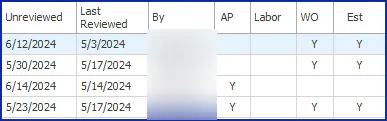
- Unreviewed: the date the folder’s review date was cleared by a change in Nexsyis.
- Last Reviewed: the date the folder was last marked as reviewed.
- By: the Nexsyis user who last marked the folder as reviewed.
- AP: Y means accounts payable changes affecting the folder’s cost were made since the last review.
- Labor: Y means labor allocation changed since the last review.
- WO: Y means the work order changed since the last review.
- Est: Y means an estimate or supplement changed since the last review.
Changes that send a folder back for review
Section titled “Changes that send a folder back for review”A Y in a column shows which kind of change sent the folder back.

AP changes
Section titled “AP changes”Only AP changes that affect the folder’s cost clear the review date:
- Adding a new invoice to the folder
- Changing an existing invoice to include the folder
- Changing the invoice amount
Labor allocation changes
Section titled “Labor allocation changes”- Adding a labor allocation resource
- Removing a labor allocation resource
- Adding a labor allocation resource with the O (override) type
Estimate changes
Section titled “Estimate changes”Any change to an estimate sends the folder back for review:
- Creating a manual estimate
- Marking an estimate inactive
- Importing an estimate into the folder again
- Importing a supplement
- Removing an estimate
Work order changes
Section titled “Work order changes”- Adding a manual line to the work order
- Converting the work order
- Changing an estimate in a way that also updates the work order
See why a folder needs review again
Section titled “See why a folder needs review again”On the Final Review tab, select a folder’s row. The bottom pane shows an audit trail of the changes that sent the folder back for review.
